This component displays several groups of items which are described in the following sections. The item names are displayed in upper-case letters in the UI element, but can also be used in lower-case in title formatting code, since field names in title formatting are case-insensitive.
The Location group contains information about the physical location of the track.
The Tag Fields group contains the user-modifiable metadata fields of the track.
The technical Fields groups contains technical information fields that are provided by the decoder.
The Replaygain group contains the Replaygain data of the track.
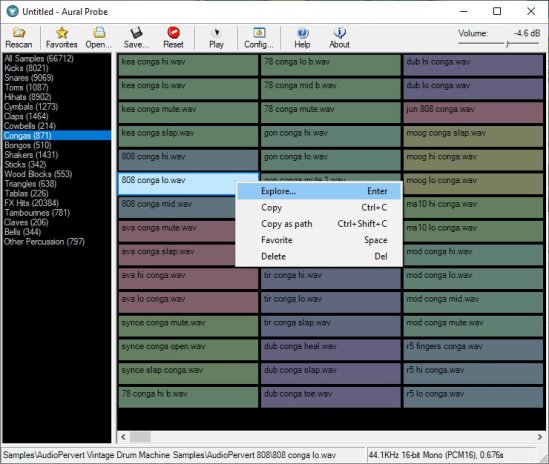
Aural Probe is a sample librarian tool for computer musicians / audio engineers. Automatically and non-destructively index your disorganised sample collection from a list of folders into categories (kick, snare, hihats etc.) based on folder/filename wildcard matches. Easily audition samples, load/save favourites, and drag-and-drop straight into your sequencer.
Features:
Categorize your huge sample collections (20GB+) without moving a single file
Create categories based on file/folder keyword matches (eg. Kick category = “bd”, “kick”, “bassdrum”) or regular expressions
Quickly audition through samples with arrow keys or mouse
Filter samples by file type (WAV, AIFF, FLAC, MP3, WMA, OGG)
Full drag-and-drop support (simply drag a sample from Aural Probe into your sequencer/sampler, just like Windows Explorer)
Mark favorites, filter by favorites, load/save favorite lists
Automatic rescan and categorization of samples on changed categories or sample folder layout
See details about highlighted sample in status bar
‘Always on top’ mode to make frequent dragging of samples into other windows easier
Right-click a sample for frequently used shortcuts (Explore, Copy, Copy Shortcut, Favorite, Delete)
100% read-only – does not move/modify your samples, just indexes them
Minimize to system tray
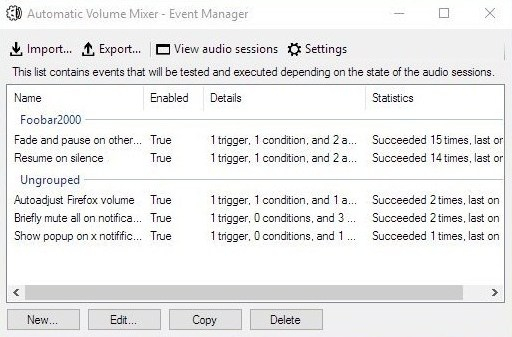
Automatic Volume Mixer is a tool that allows automatization of Windows Volume Mixer based on user rules. You can open the Volume Mixer by right-clicking on the speaker icon in the system tray and selecting Open Volume Mixer. This application is an automatic version of that applet.
Common usage examples:
Pausing your audio player (e.g. foobar2000) whenever any other application makes a noise, and resuming playback once the noise is gone. This enables you to keep your audio player running in the background at all times.
Briefly muting all applications while a notification is playing.
Forcing application’s volume to a set level.
Automatically lowering volume during night.
Launching processes / popups when some application makes noise.
Features:
Detect volume levels of applications and act on that information.
Fully configurable rules for detection, filtering, and executing actions.
Ability to automatically adjust audio levels of applications.
Triceratops is an analogue style polyphonic subtractive synthesizer plugin, for use with the LV2 plugin architecture, at this time there is no standalone version. An up to date version of the LV2 library is required along with a suitable host (e.g. Qtractor, Jalv, Ardour).
Title formatting in foobar2000 is a system that allows you to control how information about your music is displayed in the interface. It doesn’t modify the audio files themselves or change tags — it only affects how metadata and other information is shown in playlists, status bar, or window title.
Think of it like a template language: you define a pattern for text, and foobar2000 fills in the fields with actual track information. For example, you can make the playlist display tracks as:
Artist - Track Title (Album)
Why Title Formatting Exists
Music files contain metadata such as:
Artist
Album
Track title
Track number
Year
Duration
Different users want to display this information differently. Title formatting lets you:
Decide which information to display
Choose the order of information
Add separators, labels, or punctuation
Optionally display certain information only when it exists
For example, you might want to show the album only if it exists. Title formatting makes that possible.
Where To Use Title Formatting
You typically use title formatting in three main places:
Playlist columns — to customize how each column displays track info.
Status bar — to show the “Now Playing” track in a readable format.
Window title — to display the currently playing track in the foobar2000 window or taskbar.
Core Concepts You Need to Know
There are three core concepts that beginners must understand:
Plain Text: Text you type exactly as it should appear.
Fields: Metadata values from the audio files (e.g., %artist%, %title%).
Conditional Logic: Optional logic to handle missing fields or customize output dynamically.
Plain Text in Title Formatting
Any normal text you type is displayed exactly as written. This is useful for labels, punctuation, or separators:
Now Playing:
You can combine plain text with fields to make output more readable:
Now Playing: %artist% - %title%
This will display something like:
Now Playing: Radiohead - Paranoid Android
Fields (Metadata Tags)
Fields are placeholders that pull metadata from your music files. They are written inside percent signs:
%artist%
Some common fields include:
Field
Meaning
%artist%
Track artist
%album%
Album name
%title%
Track title
%tracknumber%
Track number
%date%
Year or release date
%length%
Track duration
Example combining fields:
%artist% - %title%
Output:
Radiohead - Paranoid Android
Combining Plain Text and Fields
You can mix plain text with fields to create more structured output. For example:
%artist% – %title% (%album%)
Output:
Radiohead – Paranoid Android (OK Computer)
Handling Missing Information
If a field does not exist in the file, foobar2000 simply displays nothing. For example, if %composer% is missing:
%composer%
The output will be blank. To prevent blank parentheses or awkward spacing, you can use conditional logic.
Using Conditional Logic with $if()
The $if() function allows you to display text only when a field has a value:
$if(condition,then,else)
Example:
%artist% - %title%$if(%album%, (%album%),)
This will display the album in parentheses only if %album% exists. Otherwise, it leaves that part empty.
Practical Examples
Playlist Column
%artist% - %title%
Status Bar
Now Playing: %artist% – %title%
Window Title
%artist% – %title% | foobar2000
Useful Built-In Fields
These fields are always available and do not require files to be tagged:
Field
Meaning
%filename%
File name
%path%
Full file path
%codec%
Audio codec
%bitrate%
Bitrate
%samplerate%
Sample rate
Things Beginners Can Ignore
Nested functions
Math expressions
String replacement logic
Legacy syntax
Advanced grouping
Starter Setup for New Users
For someone just installing foobar2000, start with these basic formats:
%artist% - %title%
Now Playing: %artist% – %title%$if(%album%, (%album%),)
%artist% – %title%
Final Notes
%field% is the most important concept
$if() handles missing or optional data elegantly
Some data and fields depend upon components being installed
foo_tfsandbox
A good place to start is by installing foo_tfsandbox, this component allows you to experiment with title formatting expressions and fields before you implement them.
Title Formatting Fields:
$info(referenced_offset) ~ shows time in format mm:ss:ff where ff are CD frames. For the first track it will show nothing instead of 00:00:00 hydrogenaud.io/index.php?topic=118733.msg979344
Title Formatting Examples: Name | Pattern | Alignment
Display Dynamic Range: Album DR: $if2(%album dynamic range%,–) | Track DR: $if2(%dynamic range%,–) Bits (bit depth) | $ifequal([%__bitspersample%],0,16,%__bitspersample%) | Left
This is Windows or Linux program, designed for playing music for AY-3-8912 sound chip (or its analogs are AY-3-8910 and YM2149F). Emulator emulates these sound chips and does not require real ones. Additionally emulator can play CD’s audio tracks and MIDI-files. Optional BASS by Ian Luck can be used for playing MP3 and MOD music.
Plays audio files from many systems including the ZX Spectrum, Acorn, Amstrad, Amiga, Atari, Commodore 64, GameBoy, MSX, Nes, PC, Phillips, SNES, Sam Coupe, Sega, TurboGrafX, etc.
Podcast Generator is an open source Content Management System written in PHP and specifically designed for podcast publishing. It provides the user with the tools to easily manage all of the aspects related to the publication of a podcast, from the upload of episodes to its submission to the iTunes store.
Features
Click & Go: 3-step installation wizard. No MySQL required. Works in any PHP web hosting.
Power and simplicity: Easy & intuitive web interface to publish audio and video podcasts.
Newbie-proof technology: Just upload your content, all the rest is “automagic”.
Customizable: Support for multiple themes and languages. Social Networks integration.
Apple friendly: Ready for iTunes Store and all iOS devices.








 The Audio File