Foobar2000 ~ ctrfoobar2000 script


Control Foobar2000 with python + Command line

usage: control.py [-h] [-p] [-t PLAY_TRACK] [-s] [-P] [-n] [-r] [-R]
[-V VOLUME] [-m] [-i] [-f [ADDFOLDER [ADDFOLDER ...]]]
[-fi [ADDFILES [ADDFILES ...]]]
[-F [ADDFOLDERPLAY [ADDFOLDERPLAY ...]]]
[-Fi [ADDFILESPLAY [ADDFILESPLAY ...]]] [-c]
[-d [DEL_TRACK [DEL_TRACK ...]]] [-l] [-b]
[-S TYPE_CONTROLLER] [-H HOST] [-O PORT] [-?] [-g]
[-x [CHANGE_CONFIG [CHANGE_CONFIG ...]]] [-T SECTION]
[-E OPTION OPTION] [-a DIR_ALIAS] [-v] [-L LEVEL_ALIAS]
[-z REPEAT] [--repeat-off] [--repeat-playlist]
[--repeat-track] [--repeat-random] [--shuffle-track]
[--shuffle-album] [--shuffle-folder] [--seek SEEK]
[--root ROOT]
optional arguments:
-h, --help show this help message and exit
-p, --play Play Playback
-t PLAY_TRACK, --play-track PLAY_TRACK
Play Playback Track No
-s, --stop Stop Playback
-P, --pause Pause Playback
-n, --next Next Play
-r, --previous Previous Play
-R, --random Play Random
-V VOLUME, --volume VOLUME
Set Volume, range is -100 <= value <= 0
-m, --mute Mute Volume
-i, --info Get info current Playing
-f [ADDFOLDER [ADDFOLDER ...]], --addfolder [ADDFOLDER [ADDFOLDER ...]]
Add Remote Folder Queue [HTTP]
-fi [ADDFILES [ADDFILES ...]], --addfiles [ADDFILES [ADDFILES ...]]
Add Remote Files Queue [HTTP]
-F [ADDFOLDERPLAY [ADDFOLDERPLAY ...]], --addfolderplay [ADDFOLDERPLAY [ADDFOLDERPLAY ...]]
Add Remote Folder Queue & Play it [HTTP]
-Fi [ADDFILESPLAY [ADDFILESPLAY ...]], --addfilesplay [ADDFILESPLAY [ADDFILESPLAY ...]]
Add Remote Folder Queue & Play it [HTTP]
-c, --clear-playlist Clear Current Playlist [HTTP]
-d [DEL_TRACK [DEL_TRACK ...]], --del-track [DEL_TRACK [DEL_TRACK ...]]
Delete Playlist [HTTP], example: foobar -d 1 2 3
-l, --list List Playlist
-b, --browser Browser Library
-S TYPE_CONTROLLER, --type-controller TYPE_CONTROLLER
Set Type Of Controller [com,http]
-H HOST, --host HOST Remote Host control Address [HTTP]
-O PORT, --port PORT Remote Port control Address [HTTP]
-?, --usage Print All Help
-g, --read-config Read config file
-x [CHANGE_CONFIG [CHANGE_CONFIG ...]], --change-config [CHANGE_CONFIG [CHANGE_CONFIG ...]]
Set Change config. format: section#option#value
-T SECTION, --section SECTION
Set Section Config
-E OPTION OPTION, --option OPTION OPTION
Set Option Config
-a DIR_ALIAS, --dir-alias DIR_ALIAS
Root of Directory Alias On Server
-v, --version -v = show version | -vv = verbosity process
-L LEVEL_ALIAS, --level-alias LEVEL_ALIAS
Level Root of Directory Alias On Server
-z REPEAT, --repeat REPEAT
Repeat 0 = Default (repeat off) | 1 = Repeat Playlist
| 2 = Repeat Track | 3 = Random Play | 4 = Shuffle
Track | 5 = Shuffle Album | 6 = Shuffle Folders
--repeat-off Repeat Off
--repeat-playlist Repeat Playlist
--repeat-track Repeat Track
--repeat-random Random Play
--shuffle-track Shuffle Track
--shuffle-album Shuffle Album
--shuffle-folder Shuffle by Folder
--seek SEEK Seek for a second
--root ROOT Root path / Directory Containt Music files, this is
for One Folder Files Selected

github.com/cumulus13/ctrfoobar2000

Foobar2000 ~ Autometa Playlists


Autometa is a minimalist, customizable JScript Panel script designed to quickly create autoplaylists based on the current track’s tags with a single click (similar to the quick search function).

github.com/Zhiro90/foobar2000-autometa

KeyKit ~ MIDI Scripting GUI


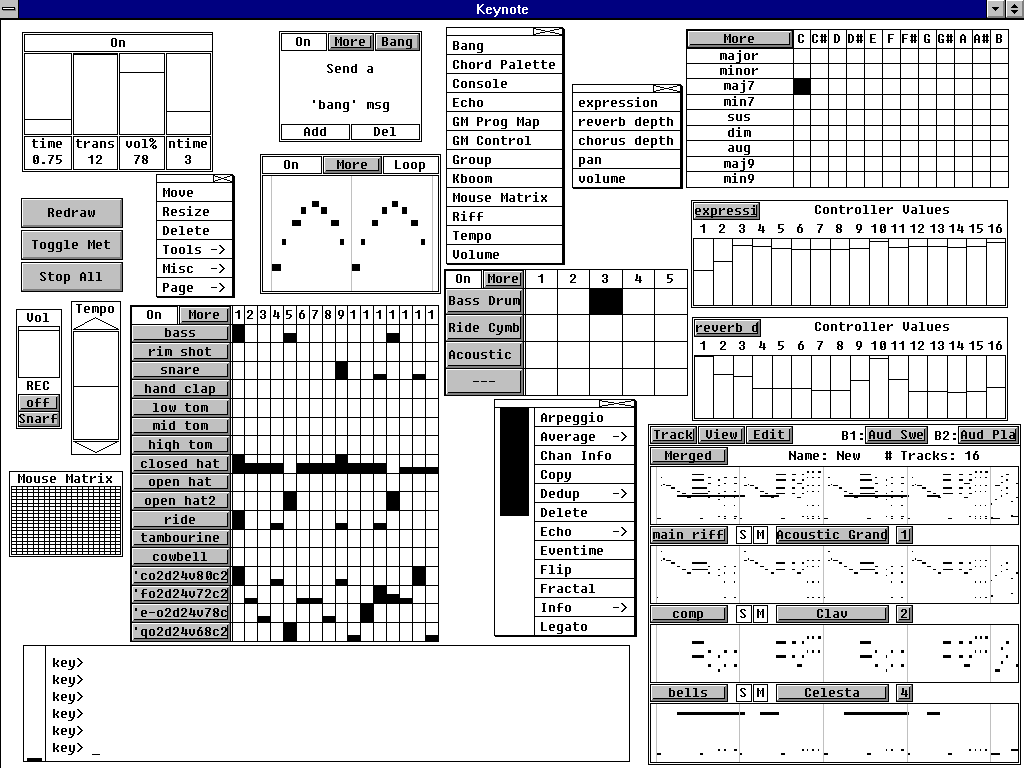
An algorithmic MIDI scripting language and GUI system. Musical Fun with Windows, Tasks, and Objects.

github.com/nosuchtim/keykit
github.com/nosuchtim/keykit/tree/master/dist
github.com/nosuchtim/keykitwasm
en.wikipedia.org/wiki/Keykit
sites.google.com/site/albertozin/Home/keykit

Install Procedure:

  • Navigate to the KeyKit GitHub repository (nosuchtim/keykit).
  • Open the /dist/ directory.
  • Download the appropriate archive for your system: Windows (key_nt.zip), Linux (key_linux_alsa.zip), or Raspberry Pi (key_raspbian.zip).
  • On Windows, right-click the downloaded .zip file, select “Extract All,” and extract it to a simple path such as C:\tools\keykit\.
  • On Windows, open the extracted folder and double-click key.exe to launch KeyKit and in the KeyKit console enter midiout("KeyKitPort").
  • On Linux, open a terminal, navigate to your download directory, run unzip key_linux_alsa.zip, then cd keykit, then run ./key from inside the keykit folder.
  • If Linux reports a permission error, run chmod +x key and then ./key.
  • Install a virtual MIDI driver on Windows (for example, loopMIDI).
  • Launch the MIDI driver and create a virtual port (for example, KeyKitPort).
  • Route the virtual MIDI port to a sound source such as a software synthesizer, DAW, or virtual MIDI instrument.
  • On Linux, verify MIDI devices by running aconnect -l.
  • Start a software synthesizer on Linux, for example fluidsynth -a alsa -m alsa_seq soundfont.sf2.
  • Run aconnect -l again to view available ports.
  • Connect KeyKit to the synthesizer using aconnect <keykit_port> <synth_port>.
  • In the KeyKit console, type 'c d e f g' and press Enter to test audio output.
  • Load a built-in sequencer by entering load "lib/seq.k" in the KeyKit console.
  • Optionally load a demo by entering load "lib/demo.k".
  • Ensure KeyKit is always launched from its root directory.
  • On Windows, if using a shortcut, set the “Start in” field to the KeyKit folder path.
  • On Linux, always run cd ~/keykit followed by ./key before launching.
  • If KeyKit cannot locate its libraries on Linux, set the environment variable with export KEYROOT=~/keykit.
  • Copy any additional .k scripts into the keykit/lib/ directory or your working directory.
  • Load additional scripts in KeyKit using load "myscript.k".
  • Create a startup script by making a file named startup.k.
  • Add commands such as load "lib/seq.k" and midiout("KeyKitPort") to startup.k.
  • Load the startup script in KeyKit using load "startup.k".
  • If KeyKit produces no sound, confirm MIDI devices exist and are properly connected.
  • If KeyKit fails to start, confirm you are running it from the correct directory and that permissions are set correctly on Linux.

itunesfm ~ iTunes & last.fm Integration


A small script to sync your play counts from last.fm back to iTunes. Supports both Windows and Mac OS X without any native dependencies. (Requires Music.app on OS X.)

Useful if you scrobble to last.fm from iTunes on multiple computers / devices and want to keep your local play counts consistent.

github.com/hansonw/itunesfm

foo_uie_webview ~ Foobar2000 Webapps


foo_uie_webview is a foobar2000 component that exposes the Microsoft WebView2 control as UI panel. The component started as foo_vis_text.

It takes an HTML file that receives playback notifications from foobar2000. The panel can react to those notifications and adjust its output using JavaScript code.

Features:

  • Supports the Default User Interface (DUI) and the Columns User Interface (CUI).
  • Supports dark mode.
  • Supports foobar2000 2.0 and later (32-bit and 64-bit version).

github.com/stuerp/foo_uie_webview
Topic: foo_uie_webview
Topic: Made with foo_uie_webview

Gallery

Python Script ~ White Noise Channel Tester


An application for testing the audio channels of home theater systems and calibrating the gain of each speaker.

github.com/goha500503/White-Noise-Channel-Tester-Calibration

Foobar2000 ~ EAC Log Viewer Script


SMP EAC Log Viewer for Foobar2000

The SMP EAC Log Viewer is a Spider Monkey Panel (SMP) script for Foobar2000 designed to display Exact Audio Copy (EAC) log files in a DUI panel. It preserves the alignment of log columns, color-codes the conclusion lines for quick success/error identification, and prepends a summary line so it scrolls with the rest of the log.

Features:

  • DUI panel
  • Monospace font: Preserves column alignment in all EAC logs.
  • Color-coded conclusions:
    • Green = successful rip
    • Red = errors found
  • Summary line: Displays overall pass/fail and scrolls with the log.
  • Automatic log detection: Checks multiple common naming conventions:
    • %album%.log
    • %artist% - %album%.log
    • EAC.log

Installation:

  1. Download the script
    Get the latest version of the SMP script from the GitHub repository:
    github.com/tom2tec/foobar2000_smp_eac_log_viewer/releases
  2. Copy the script
    Copy and paste the eac_log_viewer_panel.js script into your preferred scripts folder. Typical choices:
    • C:\Users\<YourName>\Documents\Foobar\scripts
    • Or any folder you already use for SMP scripts.
  3. Add a Spider Monkey Panel
    • Open Foobar2000 and switch to your DUI layout.
    • Right-click → Add New UI Element → Spider Monkey Panel
    • Open the Edit Panel Script… pane and paste the contents of eac_log_viewer_panel.js. or point to the script’s location in Panel Properties → Script File → File.
  4. Adjust panel settings
    • Set the font to match your DUI theme (monospace).
    • Resize the panel to comfortably display the full log width.

Usage:

  • The panel automatically updates when:
    • You play a new track.
    • You change focus in the playlist.
  • Scroll through the log using your mouse wheel.
  • The summary line shows the overall rip status and scrolls with the text.
  • Color-coded lines highlight conclusions: green for success, red for errors.

Notes:

  • The script is optimized for one log per album, but will attempt all three naming conventions for flexibility.
  • Unusually named logs may require manual renaming in order to conform or add an input condition to the script.
  • DUI theming preserves font and panel appearance but maintains column alignment.

License

This project is licensed under the MIT License. See the included LICENSE file or the GitHub repository for details.

Download and Support

caudec ~ Multiprocess Audio Converter


caudec is a command-line utility that transcodes (converts) audio files from one format (codec) to another, among other things.

It leverages multi-core CPUs and runs multiple processes concurrently (one per file and per codec, and more than one thread per codec when it supports it). The objective is to hog the CPU as much and as long as possible. One strategy is to sort input files by size, so that the largest files potentially get more threads towards the end of the job.

Features:

  • Supported input formats / codecs: WAV, AIFF, CAF, FLAC, WavPack, Monkey’s Audio, ALAC.
  • Supported output formats / codecs: all of the above, as well as LossyWAV / LossyFLAC, MP3, AAC (.m4a), Ogg Vorbis, Opus.
  • Supported platforms: macOS, Linux.
  • Transcoding to several different codecs at once is possible. In that case, decoding of input files is done only once.
  • Metadata is preserved (as much as possible) from one codec to another.
  • Artwork can be embedded into each file, and / or copied to the output directory. It can be done selectively (e.g. embed and / or copy one image for lossless files, and another image for lossy files).
  • Audio can be resampled (e.g. 48kHz to 44.1kHz) and downmixed (e.g. 6 channels to stereo). A profile can be provided to set a maximum value for the number of channels, bit depth and sampling rate. When a profile is provided, the source will only be altered after decoding and before encoding, if some metric of the source is above the given profile.
  • Multiprocess ReplayGain scanner for FLAC, WavPack, MP3, Ogg Vorbis, Opus.
  • Ability to hard link lossy files to a different directory when encoding to WavPack Hybrid. The point is to have two libraries that takes the storage of just one, with a lossy collection that has its own root directory and that’s easy to drag and drop to a device such as a smartphone or a Digital Audio Player (DAP).
  • Ability to touch files and album directories using metadata to reflect the music’s release date and duration (see example below).

github.com/gcocatre/caudec

foo_masstagger ~ Automate Foobar2000 Tag Editing


Automates various tag editing operations.

www.foobar2000.org/components/view/foo_masstag
wiki.hydrogenaudio.org/…/Masstagger_(foo_masstag)

Usage:

Adding MOOD tags:

  1. Select tracks
  2. Right-click → Tagging → Manage Scripts
  3. Create a script:
    • Add value
    • Field: MOOD
    • Value: Calm
  4. Save as preset (Mood: Calm)

Repeat once per mood.

After that:

  1. Select tracks
  2. Right Click > Tagging > Scripts
  3. Apply mood script preset

DawDreamer ~ Audio Processing Python Framework


DawDreamer is an audio-processing Python framework supporting core DAW features and beyond:

  • Composing graphs of multi-channel audio processors
  • Audio playback
  • VST instruments and effects (with UI editing and state loading/saving)
  • FAUST effects and polyphonic instruments
  • Time-stretching and looping, optionally according to Ableton Live warp markers
  • Pitch-warping
  • Parameter automation at audio-rate and at pulses-per-quarter-note
  • Parameter automation saving in absolute audio-rate time
  • MIDI playback in absolute time and PPQN time
  • MIDI file export in absolute time
  • Rendering and saving multiple processors simultaneously
  • Support for the Faust Box and Signal APIs
  • Transpiling Faust code to JAX/Flax and other target languages (C++, Rust, Wasm, etc.)
  • Machine learning experiments with QDax
  • Multiprocessing support
  • Full support on macOS, Windows, Linux, Google Colab, and Ubuntu Dockerfile

DawDreamer’s foundation is JUCE, with a user-friendly Python interface thanks to pybind11. DawDreamer evolved from an earlier VSTi audio “renderer”, RenderMan.

github.com/DBraun/DawDreamer

Fooyin ~ Linux Audio Player


Fooyin is a customisable music player for Linux. Fooyin features a layout editing mode in which the entire user interface can be customised, starting from a blank state or a default layout. FooScript takes this further by extending the customisation to individual widgets themselves.

Features:

  • Playback FLAC, MP3, MP4, Vorbis, Opus, WavPack, WAV, AIFF, Musepack, Monkey’s Audio
  •  Playback popular VGM and tracker module formats
  •  Gapless playback
  •  Add and play files from within compressed archives
  •  Audio output and device configuration
  •  CUE sheet support (including embedded)
  •  Fully customisable layout, starting from a blank window
  •  Customisable keyboard shortcuts
  •  Filter library on any field(s)
  •  Create and manage playlists
  •  Import/export playlists (M3U/M3U8)
  •  Extensible using a plugin system
  •  Tag editing
  •  Library tree, including directory structure view
  •  Directory browser
  •  Waveform seekbar
  •  MPRIS support
  •  ReplayGain support
  •  Scrobbling

www.fooyin.org
github.com/ludouzi/fooyin