foo_utag ~ Tag Streams With Metadata


utag Input is a foobar2000 input component that lets you add internet radio streams and other remote URLs to the Media Library by representing each stream with a small .utag JSON file. The .utag file stores the stream URL and metadata. foobar2000 can scan and tag the stub like a normal track, while audio is decoded from the original URL.

Features:

Optional favicon download during playback: downloads the favicon image stored in the .utag JSON, saved beside the .utag file and shown as artwork.

Library-friendly scanning: scanning a .utag file does not connect to the stream.

Editable metadata: tag changes are written back to the .utag JSON file.

Stream URL in Properties: the URL is exposed in the information section as @ and can be displayed with %__@%.

Create files from a playlist: use Tagging → Create utag files… in the playlist context menu to create one .utag file for each selected track. Each URL is looked up in Radio Browser first (optional, on by default), so the file gets the station’s details. The new file(s) are added to the “New utags” playlist, which becomes the active playlist.

Tag existing .utag files from Radio Browser: Tagging → Search Radio Browser and tag looks up the @ URL of the selected .utag items in Radio Browser and writes the station details into their tags.

Default folder: Tagging → Set default utag folder… saves an output folder, and Tagging → Create utag files in default folder creates the files there without asking.

Add a station by URL: File → Utag Input → Add internet radio url and create utag asks for a stream URL (and an optional name) and creates the .utag file in the default folder. If no name is entered, it is looked up from the stream. An optional checkbox searches Radio Browser for the URL and uses its station details. The new file is added to the “New utags” playlist, which becomes the active playlist.

Import from Radio Browser: File → Utag Input → Import stations from Radio Browser… downloads stations from the Radio Browser directory and creates one .utag file per station, in a new folder named after the search.

Browse Radio Browser: File → Utag Input → Browse Radio Browser… lists the top stations, or the stations for a tag, country, language or codec you pick, or a name search. Choose the stations you want and import them.

Import from Icecast: File → Utag Input → Import stations from Icecast… lets you filter the directory by station metadata and choose a maximum number of matching stations to import.

Browse Icecast Directory: File → Utag Input → Browse Icecast Directory… downloads the public Icecast Yellow Pages XML export (once per session; Refresh reloads it) and creates .utag files for the stations you select. A search box at the top of the window filters the list as you type (station name, genre, codec, description or current song). The downloaded directory is not saved by the component.

Import from TuneIn: File → Utag Input → Import stations from TuneIn… searches TuneIn by station name, artist or song and creates one .utag file per station found.

Browse TuneIn: File → Utag Input → Browse TuneIn… walks TuneIn’s categories, genres, locations and languages, your presets, searches and recommendations (for a list of artists, or for the playing station). Choose the stations you want and import them.

Playlists for the browse windows: the three browse windows (Radio Browser, TuneIn, Icecast) append the stations you import to one playlist per service, RadioBrowser, Tunein and Icecast by default (names are set in the preferences). The playlist is created when missing and becomes the active one, and the first appended item gets the focus. The Import stations from… commands instead create a new playlist named like the search folder (search term and date).

Country flag: whenever a .utag is created or tagged and it has a countrycode field (for example GR), a countryflag field with the matching flag emoji (for example 🇬🇷) is added. The flag is also refreshed whenever the tags are saved (for example after editing countrycode in Properties), so it always follows the code; an invalid or empty code leaves the flag as it is. When a file is created, an existing non-empty countryflag is kept. This applies to Radio Browser and Icecast imports, TuneIn imports, Add internet radio url and create utag, Create utag files and Search Radio Browser and tag.

Results window: every created or skipped entry lists the stream URL (@) and the output path; errors list the source URL and the reason. The window can be switched off in the preferences (errors are still shown).

Preferences page: Preferences → Tools → Utag Input has the stream handoff, favicon download, default folder, console message, results window, Radio Browser lookup, TuneIn details and browse-window playlist options.

Optional stream handoff: reuses the running decoder when the playing item is reopened after retagging, helping avoid a reconnect and audible pause.

Station logos: assign a logo by hand (Tagging → Set station logo…), by dropping an image file or image URL on the logo window, or with the optional favicon download. All of them are the same sidecar image beside the .utag file, shown as artwork. See Station logos.

github.com/smoralis/foo_utag
hydrogenaudio.org/index.php/topic,130078.0

foo_audiomd5 ~ Foobar2000 Does MD5 Checksums


Understanding MD5 Modes

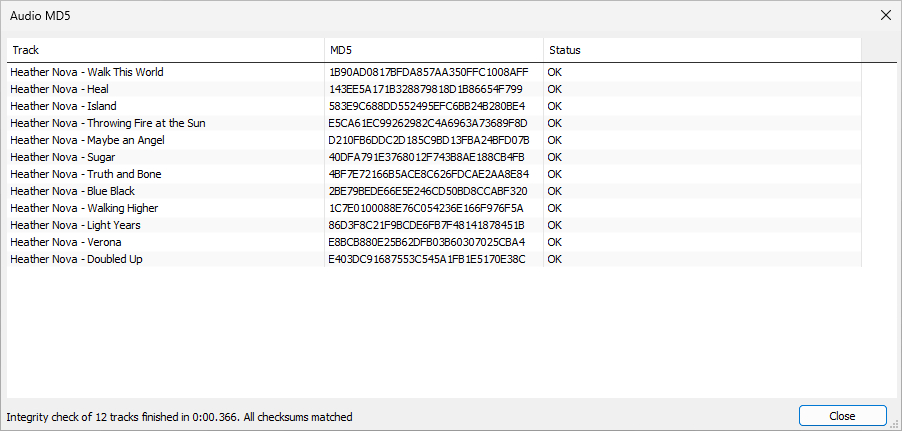
foo_audiomd5 is a foobar2000 component that calculates MD5 checksums of audio content using FFmpeg. It offers two modes:

  • Compressed-audio MD5 (default): Calculates a checksum from the compressed audio data, excluding metadata. Use this mode to identify matching encoded audio independently of tags and artwork.
  • PCM-based MD5: An advanced option that calculates checksums from decoded PCM samples for supported lossless formats. Use this mode to identify matching audio across different lossless encodings, such as FLAC and ALAC.

Unlike format-specific integrity checks, foo_audiomd5 provides a common checksum field for use across supported audio formats. This makes it useful for cross-format audio comparison, library-wide deduplication and verification through foobar2000 queries or external tools. For FLAC files, it complements rather than replaces the format’s built-in integrity checks.

Configuring the Plugin

Open Preferences > Advanced > Tools > Audio MD5.

  • FFmpeg bin path: Specify the location of ffmpeg.exe. Recent versions accept either the containing directory or the full executable path.
  • PCM checksum: Enable the advanced option to calculate checksums from decoded PCM data for supported lossless formats.
  • Quiet mode: Enable this to write tags without prompts during batch processing.
  • Checksum tag field: The destination field is configurable. Confirm its name before creating foobar2000 columns or queries.

Running a Scan

  1. Select the files you want to process in foobar2000.
  2. Confirm the FFmpeg path and select the appropriate checksum mode.
  3. Enable quiet mode if desired.
  4. Start the scan and review the results dialog.
  5. Check for errors and confirm that the checksum tags have been written.

The results dialog supports sorting and context-menu actions. Version 0.7 also added scan-duration estimates.

Existing checksums: By default, the component skips tracks that already contain the configured checksum tag. To recalculate them, use the separate, hidden-by-default forced-rescan context-menu command. This is important when changing checksum modes.

Best Practices:

  • Confirm the correct checksum mode before beginning a library-wide scan.
  • When changing modes, force a rescan of files with existing checksums.
  • Keep the checksum field consistent across your library and document the method used.
  • Use separate file-level checksums when you need to track changes to tags, artwork or other file contents.

Advanced Techniques

Recalculating an existing library: If your library already contains compressed-audio checksums and you want to adopt PCM-based checksums, configure PCM mode and use the forced-rescan command. Otherwise, existing values may be left unchanged because the default scan skips tagged files.

Verifying results across formats: Select equivalent lossless files in different formats, calculate their PCM checksums and compare the resulting tag values. Matching values provide a convenient way to identify identical decoded audio.

Using decoder integrity verification: Version 0.7 added support for decoder integrity verifiers when calculating PCM checksums. Where supported, this lets the component use the decoder’s integrity-verification facilities as part of the process.

Large-library processing: The component supports multithreaded scanning. For very large collections, process manageable batches and review the results before continuing. Multiple foobar2000 instances are not necessary for normal operation.

Component: www.foobar2000.org/components/view/foo_audiomd5
Reference: en.wikipedia.org/wiki/MD5

Luminous ~ A Home For Music You Own


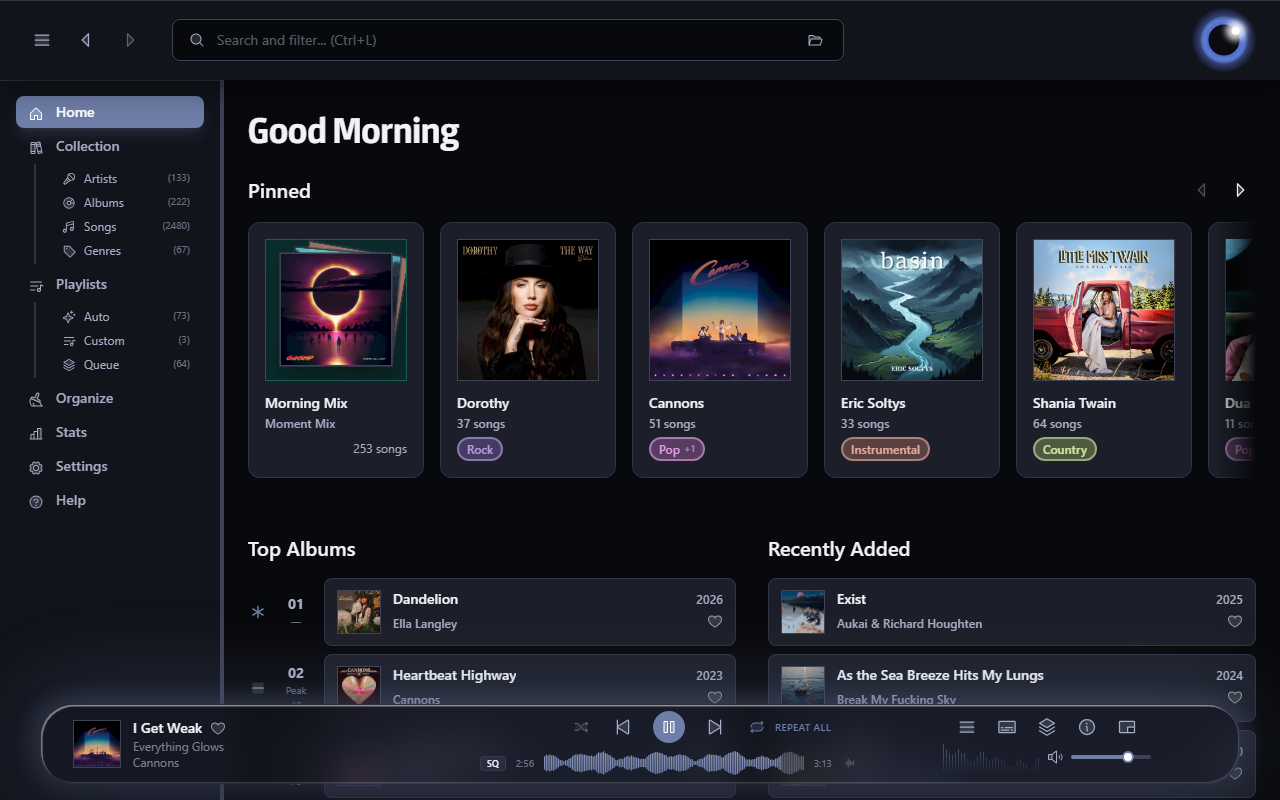
Luminous is a fast, local-first player for your own audio library. Built for anyone who wants the convenience of a modern streaming app without giving up ownership of their music. Turn a folder of files into a library you’ll enjoy browsing and listening to.

esoltys.dev/luminous
github.com/esoltys/luminous

tinytag ~ Python Tag Library


tinytag is a Python library for reading audio file metadata.

Features:

  • Read tags, images and properties of audio files
  • Supported formats:
    • ID3 v1, v1.1, v2.2, v2.3, v2.4
    • MP3 / MP2 / MP1
    • MP4 (MPEG-4 Audio / AAC / ALAC)
    • WAVE / WAV
    • OGG (FLAC / Opus / Speex / Vorbis)
    • FLAC
    • ASF (WMA)
    • AIFF / AIFF-C
  • Same API for all formats
  • Small, portable library
  • High code coverage
  • Pure Python, no dependencies
  • Supports Python 3.7 or higher

github.com/tinytag/tinytag

acidcat ~ Audio File Forensics


A pure-Python inspector, editor, and forensic tool for audio files and synth/DAW presets: read the metadata, decode the format structure byte by byte, flag anomalies, repair broken containers, and identify how a file was made.

Reads BPM, key, duration, tags, and format info from WAV, AIFF, MP3, FLAC, OGG, Opus, M4A, MIDI, and Serum presets. Also structurally decodes Bitwig (.bwpreset/.bwclip), Native Instruments (Massive/Absynth/Kontakt/NKS/KORE), Vital, NCW, SoundFont (SF2/SF3), tracker modules (MOD/XM/IT), MP4, VST FXP, ReCycle RX2, and RMID containers via inspect. Beyond reading: repair and validate fix and check container structure (stale sizes, offset tables, counts, pad bytes) without touching a byte of audio, and audit gives a forensic verdict (structure, integrity, hidden data, and the writing tool). One pure-Python dependency (mutagen); the native inspect walkers need nothing. Optional librosa analysis for BPM/key detection and ML feature extraction.

Also ships per-library SQLite indexes (acidcat index) tracked in a small global registry, plus an MCP server (acidcat-mcp) so an LLM can query your whole collection across libraries by bpm, key, tags, or full-text.

github.com/hed0rah/acidcat
github.com/hed0rah/acidcat-playground
www.databurn.org

Tonbandfetzen ~ Audio From Plain Text


Tonbandfetzen is a collection of command-line tools that allow you to compose music based on audio fragments generated from plain text input. It contains:

  • tz mel – generate sound fragments from plain text
  • tz guitar – read guitar tablature
  • tz stick – concatenate audio data
  • tz stack – superimpose audio data
  • tz stretch – rescale audio data
  • tz repeat – loop audio data
  • tz trim – strip leading and trailing silence
  • tz mono – unzip audio channels
  • tz harmonics – show spectra of wave samples
  • tz inspect – show information on audio file
  • tz riff2aiff – convert .wav(e) into .aif(f) files
  • tz aiff2riff – convert .aif(f) into .wav(e) files
  • tz tag – add ID3v2 metadata to .wav(e) files
  • tz play – generate and play sound fragments

github.com/janberges/Tonbandfetzen

foobar2000 ~ foo_filename_editor


Advanced file renamer component for foobar2000 media player. This plugin helps you rename your physical audio files on your hard drive based on their metadata tags, while ensuring a seamless, smart, and fully automated workflow.

Key Features:

  • Smart Track Number Padding: Automatically scans all selected tracks. If the album contains 100 or more tracks, it pads numbers to 3 digits (001, 002), otherwise it defaults to 2 digits (01, 02) dynamically.
  • Intelligent Compilation (Various Artists) Detection: Automatically checks %album artist% and %artist% tags. If it detects a compilation, it seamlessly applies your custom VA formatting template.
  • Advanced Case Conversion: Supports Title Case, Smart Title Case (keeps short words like a, an, the, and, with lowercase), Sentence case, ALL CAPS, and lowercase.
  • Roman Numerals Preservation: Intelligently detects standalone Roman numerals (e.g., Part iii) and forces them to uppercase (Part III) across all case conversion modes (except lowercase). Includes protection against false positives (words like MIX, DIV).
  • Extended Unicode & Ligature Support: Works perfectly with Windows native APIs, preserving and processing complex characters like æ, œ, ß, and language-specific diacritics.
  • Safe Formatting Menu: Quick insertion menu for popular tags and safely escaped syntax characters like '(', ')', '[', ']', and single/double quotes (', '').
  • Seamless Playlist Synchronization & Reload: Automatically replaces dead file links in all open playlists with the newly renamed paths. Instantly reloads file tags and durations in the background—no broken links, no manual reloading required!
  • Robust Error Handling: If a file cannot be renamed (e.g., if it is locked or currently playing), the plugin bypasses it without crashing and provides a detailed summary report of successful and failed files.
  • Persistent Settings: Remembers your custom single/VA templates, history list, checkboxes status, and even your preferred window column widths between sessions.

🎵 M3U/M3U8 Playlist Generation (v1.1)

The plugin now includes built-in support for generating playlist files automatically during the renaming process:

  • Save M3U Checkbox: Automatically creates a playlist file in the top-level directory of your processed files.
  • Custom Naming Templates: Use standard foobar2000 title formatting syntax (like %album% or %artist% - %album%) to dynamically name your playlist file.
  • EXTINF Metadata: Optional toggle to write standard #EXTM3U and #EXTINF headers containing track durations and formatted titles (%artist% - %title%).
  • Smart Conflict Resolution & Overwrite Toggle: Prevents accidental loss of data. If overwrite is disabled, the plugin safely creates incremented filenames like Playlist (1).m3u.
  • UTF-8 Compatibility: Playlists are written with a proper UTF-8 BOM, ensuring seamless support for non-ASCII characters, symbols, and ligatures.

github.com/VadimLevo/foo_filename_editor

foobar2000 ~ foo_musical_key


foo_musical_key is a foobar2000 component that detects the musical key of selected tracks with libkeyfinder or by ear via a MIDI piano keyboard interface, writes the result to foobar2000’s metadata database, and can write the key tag back into the source audio file.

The component adds a Musical Key Analyser context-menu group and ships as a standard .fb2k-component package for foobar2000 users.

Features:

  • Detect musical keys automatically for one or many selected tracks (libkeyfinder).
  • Detect the key of a single track manually by playing notes on your keyboard (MIDI out, Windows default GS synth).
  • Run automatic analysis in a background worker with foobar2000 progress UI.
  • Write detected keys to foobar2000’s metadata DB without touching the file.
  • Write the key tag from the DB into the audio file on disk (separate action).
  • Choose one of three output notations:
    • Standard (C, Am, Dbm)
    • Camelot (8B, 8A)
    • Open Key (1d, 1m)
  • Configurable tag name (default: Initial Key).
  • Build x86 and x64 binaries and package them into one .fb2k-component.

github.com/PEERSOFTdev/foo_musical_key
hydrogenaudio.org/index.php/topic,129518.0.

JuK ~ Audio Jukebox Application


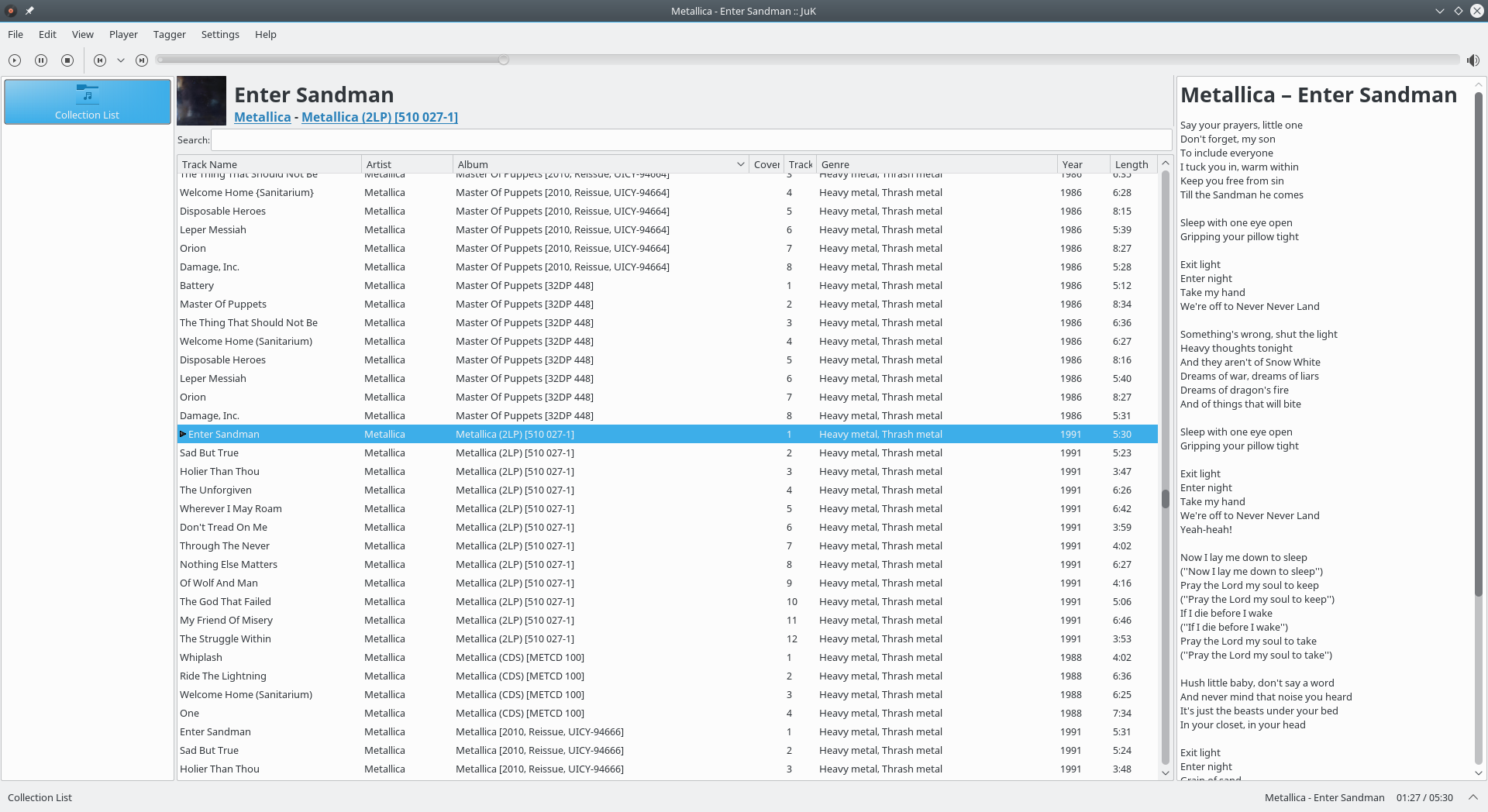
JuK is an audio jukebox application, supporting collections of MP3, Ogg Vorbis, and FLAC audio files. It allows you to edit the “tags” of your audio files, and manage your collection and playlists. Its main focus, in fact, is on music management.

Features:

  • Collection list and multiple user defined playlists
  • Ability to scan directories to automatically import playlists and music files on start up
  • Dynamic Search Playlists that are automatically updated as fields in the collection change
  • A Tree View mode where playlists are automatically generated for sets of albums, artists and genres
  • Playlist history to indicate which files have been played and when
  • Inline search for filtering the list of visible items
  • The ability to guess tag information based on the track’s file name
  • File renamer that can rename files based on the tag content
  • Tag reading and editing support for many formats including ID3v1, ID3v2 and Ogg Vorbis

apps.kde.org/juk
github.com/KDE/juk
invent.kde.org/multimedia/juk
en.wikipedia.org/wiki/JuK

Bitfake2 ~ Audio Tool Handler & Manipulator


Bitfake was originally created to detect fake .FLAC files through spectral analysis. It has since grown into a multipurpose CLI tool for handling music more easily and efficiently.

One common problem was that getting a track’s metadata required long ffprobe commands with messy output. Converting music with ffmpeg was also repetitive. The command itself is easy to remember, but writing scripts to convert entire directories felt inefficient and slow. This project now performs metadata and conversion tasks directly through linked libraries (TagLib/libsndfile/libav*).

Features:

  • Get metadata
  • Get ReplayGain info (useful for music players)
  • Spectral analysis on 44.1 kHz .FLAC files (higher sample rates may be misrepresented, so be careful)
  • Lossy diagnosis (banding score)
  • File Conversion + VBR Support (Works for outputs like .wav, .flac, .ogg, .mp3, .aac, .opus)
  • Tagging metadata (Works for single files, but not directories yet)
  • Calculating ReplayGain and applying it to files (Works for track replay gain iterating through directories, album replay gain is a bit funky?)
  • Directory Conversion (works for all previously mentioned formats!)
  • CoverArt+ (Brings along cover art among all conversions!)
  • Organizing Files by album! (Give a dir of random music, and bitfake will organize it – ty to uncognic)
  • Directory Tagging (YAY!)
  • Album folder renaming from tags (Artist – Album (Year))
  • Spectrogram generation (in .png)
  • Version info (WOW! BEST YET!)
  • MusicBrainz Syncing data.

github.com/Ray17x/bitfake2
gpo.zugaina.org/app-misc/bitfake2
repology.org/maintainer/ray%40atl.tools/feed-for-repo/gentoo_ovl_guru