foo_input_sacd ~ Foobar2000 Super Audio CD Decoder


The Super Audio CD Decoder adds SACD ISO, DSF, DSDIFF/DFF and DSD WavPack support to foobar2000. It can play DSD as PCM or send DSD to compatible output hardware. Related components provide DSD processing and conversion.

Current project: Super Audio CD Decoder on SourceForge

Version checked: foo_input_sacd 2.0.25, released June 22, 2026, with a separate package for foobar2000 1.6.x dated June 24, 2026. SourceForge labels the project Inactive, although its archive lists these June 2026 packages. Its prominent “Download Latest Version” button currently points to 2.0.24, so use the versioned 2.0.25 download links below or inspect the complete file archive. Recent files do not guarantee ongoing maintenance or support.

Installation

  1. Download the package matching your foobar2000 version: foo_input_sacd 2.0.25 for current foobar2000 versions, or the separate package for foobar2000 1.6.x.
  2. In foobar2000, open File → Preferences → Components, install the downloaded component package, and restart foobar2000 if prompted.
  3. Open a supported DSF, DFF/DSDIFF or SACD ISO file to confirm that it is recognized.

Keep a copy of your existing foobar2000 configuration before changing components or output settings. Component packages and compatibility can differ between foobar2000 versions.

Choose an output method

The right configuration depends on whether you want conventional PCM playback or DSD output to a compatible DAC. Start with PCM if your immediate goal is simply to play your files.

Option 1: PCM playback

PCM conversion is the straightforward choice when you want broad output compatibility or need foobar2000 DSPs, meters and visualizations to operate on the decoded audio.

  1. Open File → Preferences → Tools → SACD.
  2. Under Output (per device), select the PCM output mode.
  3. Choose a PCM sample rate supported by your output device. Do not assume 384 kHz is necessary or supported.
  4. If the decoder offers DSD-to-PCM converter settings, begin with the default settings. Change the conversion mode or filter only when you have a reason to do so.
  5. Apply the settings and play a track.

The original article used DSD+PCM, 384000 Hz and Direct (64fp, 30kHz lowpass). Those are settings from one particular setup, not universal requirements. The appropriate mode and sample rate depend on the decoder version, output device and desired processing.

Option 2: DSD output

Direct DSD playback requires a compatible output path and DAC. Support for DSD files by the decoder does not, by itself, guarantee native DSD output to your hardware.

  1. Confirm that your DAC supports the DSD rates and output method you intend to use.
  2. In the SACD decoder’s Output (per device) settings, select DSD where appropriate.
  3. Select an output device and driver that support the intended DSD path.
  4. Play a known DSD track and verify the format reported by the DAC or its control software.

The standard foobar2000 ASIO Output component is not universally required for SACD playback. foobar2000’s own documentation recommends its default output modes unless ASIO is needed for a particular device or driver.

For a compatible DAC requiring an alternative native-DSD path, see foo_out_asio+dsd. Its project documentation describes it as a substitute for the standard ASIO Output component and identifies native DSD playback as its purpose. Do not install multiple output components merely because they are available; choose the path appropriate to your hardware.

DSD, DoP and PCM are different output paths. DoP transports DSD data within a PCM-framed stream; it is not the same as converting the audio to PCM. Actual support depends on the component, driver and DAC. If you need native DSD, verify what your DAC reports rather than relying on a foobar2000 setting alone.

Stereo, multichannel and SACD tags

SACD ISO images may contain stereo and multichannel areas. In the decoder’s SACD input settings:

  • Choose the preferred area according to what you want to play. Selecting Stereo limits playback to the stereo area where available.
  • Enable editable tags if you intend to edit metadata.
  • If using the decoder’s ISO-associated tag storage, understand where those tags are stored and back them up.
  • Linked stereo/multichannel tags can help share metadata between the two versions of an album, but choose this according to your tagging workflow.

Do not assume that every SACD contains both stereo and multichannel material, or that all tag options behave identically across versions. Check the available areas and test tag changes on a copy or a non-critical file first.

Extracting tracks to DSF or other DSD formats

For conversion or extraction, use the separate foo_dsd_converter component. Version 1.0.1 was released June 23, 2026. The project’s readme states that this converter is for non-commercial use only; review the current terms before using it in a commercial context.

  1. Download and install the converter component using foobar2000’s Components preferences.
  2. If needed for the source type or sample rate, install and configure foo_dsd_processor. Consult the converter’s current readme for its requirements.
  3. Select the tracks you want to convert.
  4. Open the Convert context-menu options and choose the DSD conversion function.
  5. Select DSF or another offered output format, set the destination and naming pattern, and run the conversion.
  6. Check the resulting files for correct track boundaries, channel count, tags and playback.

Conversion options can vary with the installed component versions and source material. Keep the original ISO or DSD files until the extracted files have been checked.

About DSD

DSD stands for Direct Stream Digital. Unlike conventional PCM, which represents audio as multibit samples, DSD uses a one-bit stream at a much higher sampling rate. The commonly encountered DSD64 rate is 2.8224 MHz; higher DSD rates also exist. DSD files are not automatically better-sounding than PCM files: mastering, source quality, conversion and playback equipment all matter.

Further reading and downloads

Personal note: I originally followed an earlier version of this procedure to play DSF files and SACD ISO images on an S.M.S.L M500 DAC. That successful setup is useful historical context, but the instructions above distinguish the available output paths rather than assume that one device’s settings will work for everyone.

Last reviewed: October 23, 2026. Component versions and supported output configurations can change; consult the linked project readmes before installing or changing a working system.

Red Dot Forever ~ Simple MIDI Recorder


Red Dot Forever is an extremely simple program to record MIDI files. It has no advanced editing features — but if you just want to RECORD, listen back to what you PLAYed, and finally SAVE your recording to disk, then Red Dot Forever is all you need.

red dot

sourceforge.net/projects/reddot

Swami ~ MIDI Music Composition


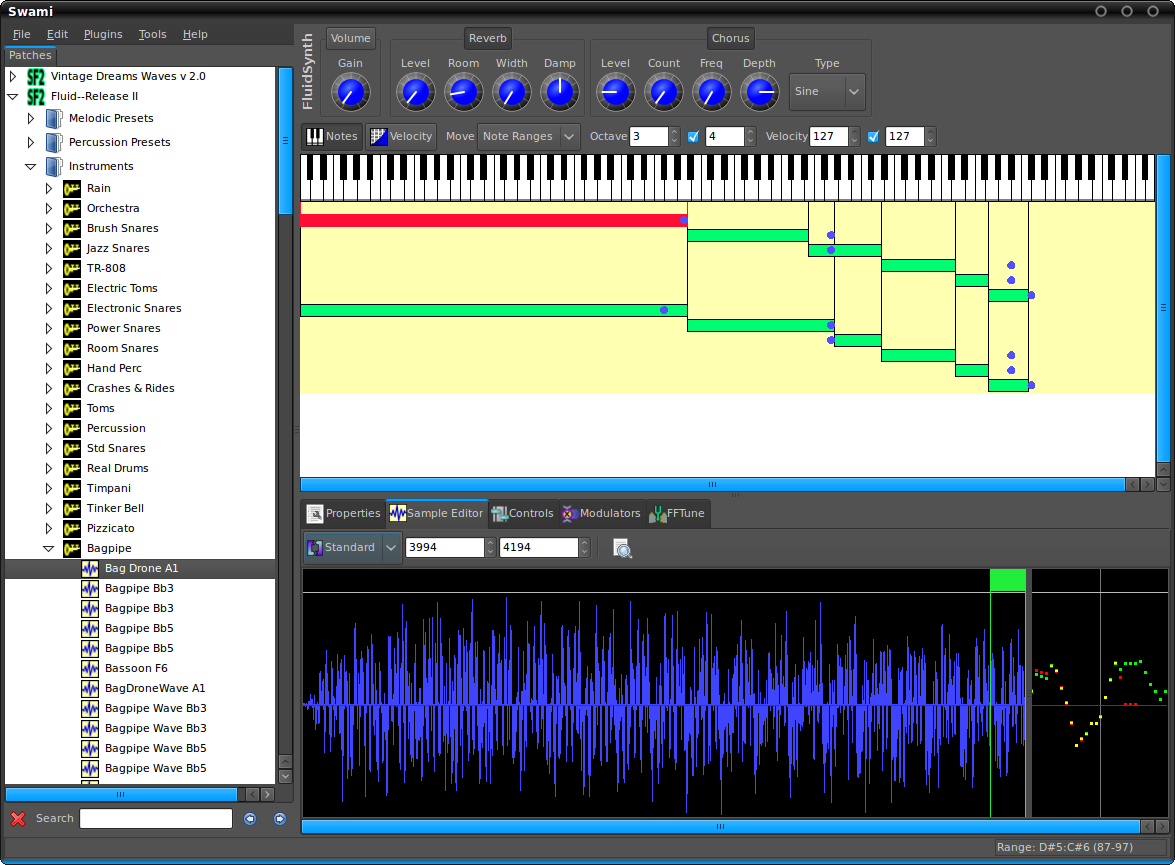
Project SWAMI, Sampled Waveforms And Musical Instruments, is a collection of free software for editing, managing and playing musical instruments for MIDI music composition. Current focus is primarily the SoundFont format, which is an open file format for digital audio “sample” based instruments.

Swami-2_0

www.swamiproject.org
sourceforge.net/projects/swami

foo_tfsandbox ~ Foobar2000 Title Formatting


This component provides an editor for title formatting code [mainly targeted at title formatting beginners]. The editor includes syntax highlighting, a preview of the selected fragment of the code and a view of the code structure. The idea behind the component is to allow users to explore title formatting scripts by exposing aspects which are normally hidden on the user interface of foobar2000 and its components.

www.foobar2000.org/components/view/foo_tfsandbox
github.com/stengerh/foo_tfsandbox
Hydrogenaudio Topic

Lossless Audio Checker ~ Truly Lossless Or Not


Internet music dealers currently sell “CD-Quality” tracks, or even better (“Studio-Master”), thanks to lossless audio coding formats (FLAC, ALAC). However, a lossless format does not guarantee that the audio content is what it seems to be. The audio signal may have been upscaled (increasing the resolution), upsampled (increasing the sampling rate) or even transcoded from a lossy to a lossless format. Lossless Audio Checker analyzes lossless audio tracks and detects upscaling, upsampling and transcoding.

losslessaudiochecker.com

foo_youtube ~ Foobar2000 & Youtube


Watch music videos and video playlists using Foobar2000

  • This component adds the possibility of playing Youtube, Vimeo and Dailymotion clips directly via their URL.
  • In addition to single clip URLs it supports clip feeds (i.e. playlists, channels etc.) from Youtube and Dailymotion.
  • Single clips and feeds can be added using File menu commands Add location and Add multiple URL(s).
  • Component has several UI elements, both DUI and CUI are supported. There are element for searching on Youtube within the program, for video playback and elements for various technical info about clips and component workflow. All elements are listed under Youtube Source group in UI configuration windows.
  • In addition to UI elements it has several popup windows with similar functionality.
  • For Lyric Show Panel 3 it provides an additional lyric source.
  • Clip thumbnails are exposed as album art to the program.
  • Single clip can be turned into album with multiple tracks.

fy.3dyd.com
www.foobar2000.org/components/view/foo_youtube

Install component then install these dependencies:

Installing madVR:

  1. Download madVR zip archive
  2. Extract contents to a new folder
  3. Move folder to “C:\Program Files” (you need to be an admin)
  4. Right click install.bat and select “Run as administrator”

If it works it will say “Install Successful”

Additional Resources:
wiki.mikejung.biz/MadVR#LAV_Filters

Bluemindo ~ Simple GPL Audio Player


Bluemindo is a really simple yet powerful audio player in Python/PyGTK, using Gstreamer. It’s a free (as in freedom) software, released under GPLv3, only.

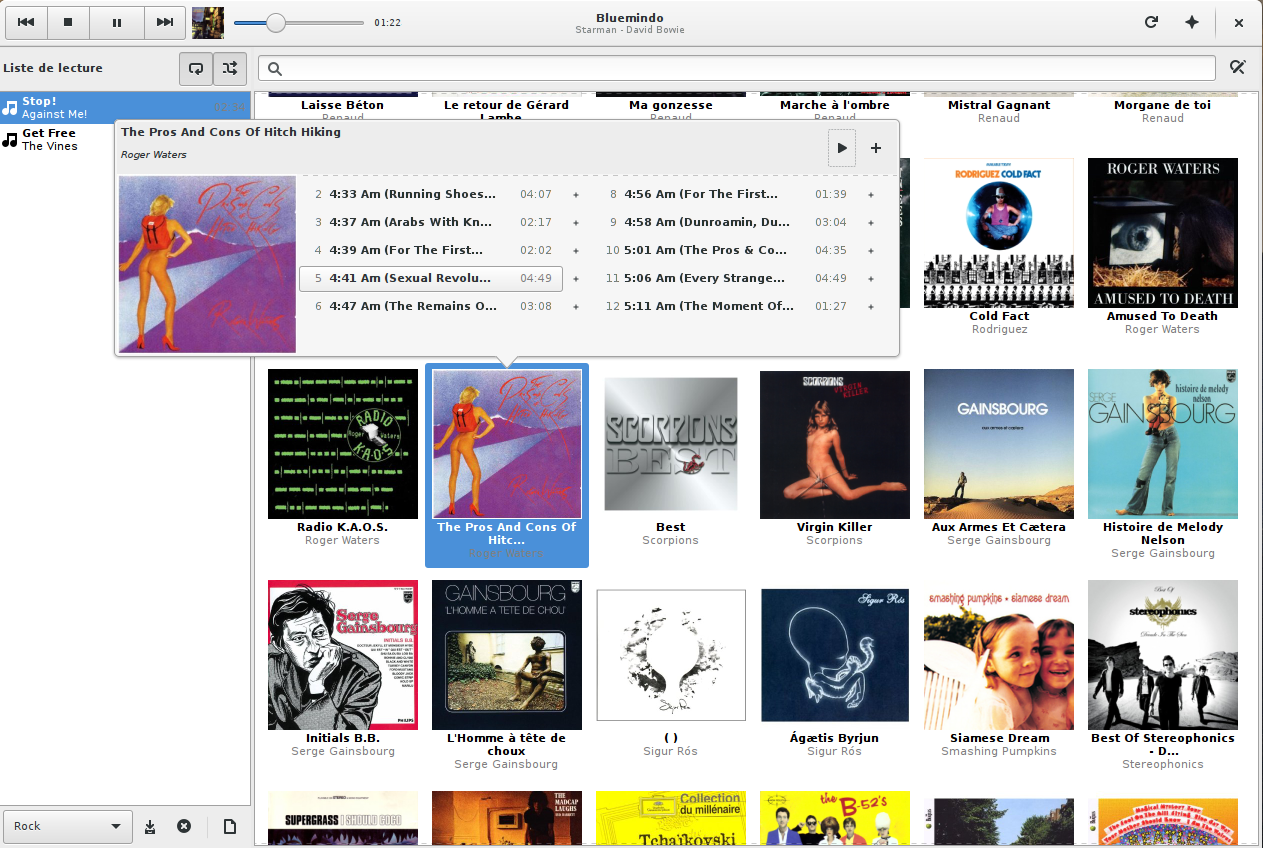
Bluemindo’s user interface consists of a main view of all your digitized album discs, which is searchable and filterable. The playback mode is gapless and support ReplayGain (it can also automatically choose to switch between Album and Track modes, depending on the kind of music that’s being played). Last but not least, it brings playlist (automatic and user-made), MPRIS/MediaPlayer2 support and lyrics/artwork downloading.

bluemindo-ui

bluemindo.codingteam.net
http://codingteam.net/project/bluemindo

foo_random_pools ~ Random Autoplaylists


Another type of Foobar2000’s playlists are randomly generated autoplaylists where songs, or groups of songs, are selected randomly from a pool of the same. By predefining a subset of a media library, “pools” of refined selections can be created and then drawn from.

foo_random_pools is a foobar2000 component for creating random playlist entries selected and grouped by various pool definitions.

www.foobar2000.org/components/view/foo_random_pools

Let’s say you want a playlist of random blues albums from your library.

  • First you’ll need to install the foo_random_pools component.
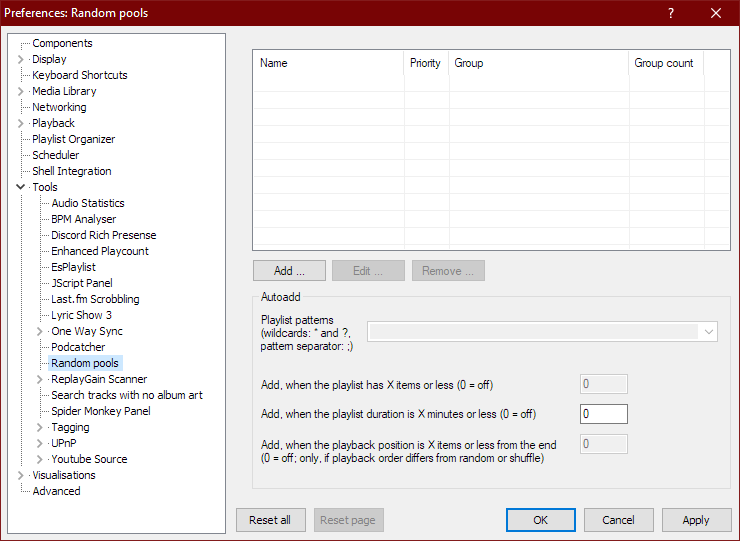
  • After you’ve installed foo_random_pools, you’ll need to set up a pool in the File > Preferences > Tools > Random pools sub-menu.File - Preferences - Tools - Random pools
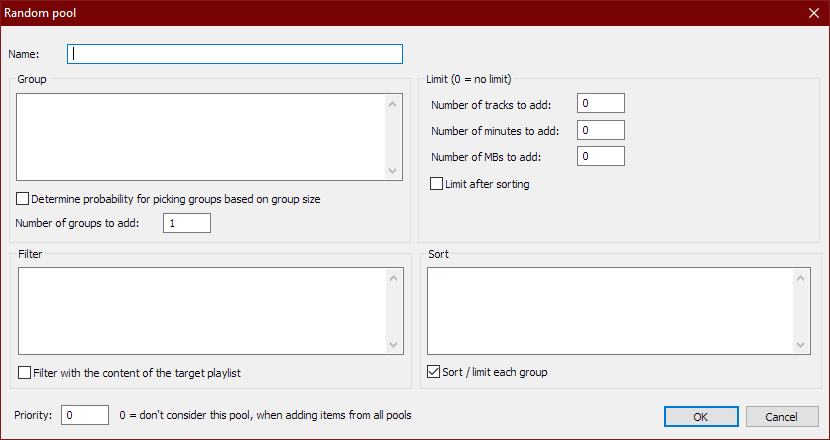
  • You’ll need to select the “Add …” button which brings up the Random pool criteria form.Preferences - Random Pools - Random Pool - blankFor example to make a pool of blues albums use the following criteria:
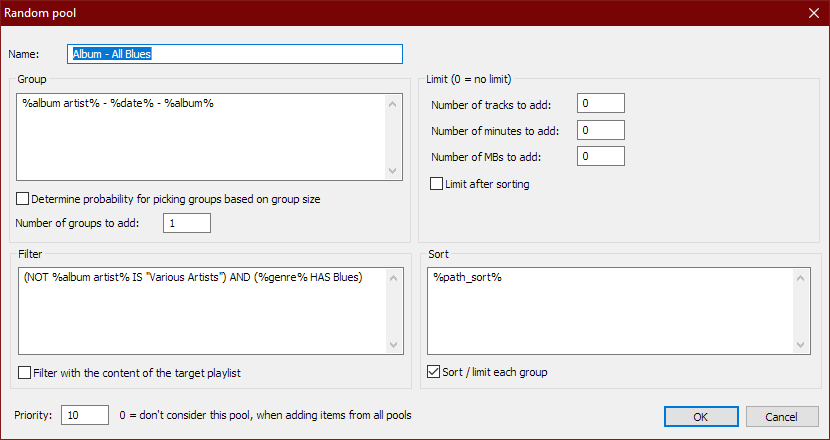
    Name: Album – All Blues
    Group: %album artist% – %date% – %album%
    Determine probability for picking groups …: Unchecked
    Number of groups to add: 1
    Filter: (NOT %album artist% IS “Various Artists”) AND (%genre% HAS Blues)
    Filter with the content of the target playlist: Unchecked
    Number of tracks to add: 0
    Number of minutes to add: 0
    Number of MBs to add: 0
    Limit after sorting: Unchecked
    Sort: %path%
    Sort / limit each group: Checked
    Priority: 10Preferences - Random Pools - Edit
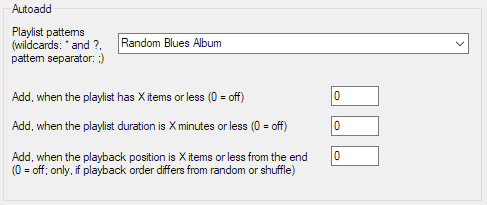
  • Now you have to link pools to a playlist by specifying a name in the Autoadd section’s Playlist patterns field of the Random pools preferences menu.File - Preferences - Tools - Random pools - Autoadd - Random Blues Album
  • Create a new playlist, File>New Playlist Ctrl+N, and name it “Random Blues Album” and then select and display it.
  • To add a random blues album to the playlist, select File > Random pools > Album – All Blues. Each time it’s selected, another random blues album will be added to the playlist.

ScorchCrafter ~ Guitar FX DAW Plugins


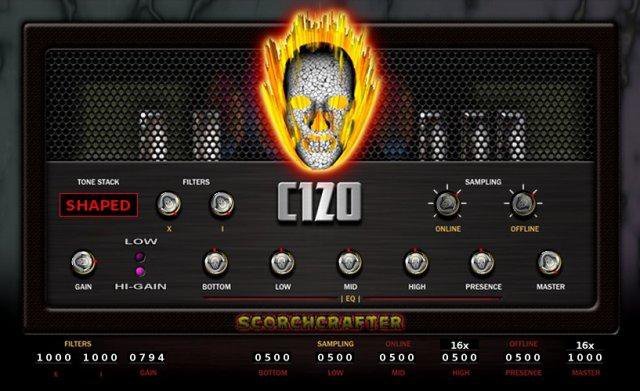
A group of audio DAW plug-ins targeting Windows (VST), Mac (VST/AU), and Linux, mostly for guitar amplifier simulation, with the C-120 being the flagship product (which started off long ago as a closed-source VST). Open source, mostly under GPL.

Features:

  • Up to 128-bit (internal) Multi-Stage Guitar Amplifier Layered Distortion, also runs in 64 and 32 bit modes
  • Native Mac and Linux ports coming soon
  • Advanced maths for tube-like guitar amplifier distortion, doesn’t use cheap waveshaping
  • Designed with dynamic response that changes according to the input level – Much more than just a basic “sample in, sample out”
  • Up to 12x Internal Oversampling, separate controls for live/online and off-line render
  • Multi-Band EQ – low, mid, high, contour, presence
  • Built-in custom convolution-based cab-mic effect, works with almost any sample rate and/or audio buffer size
  • New version of C120 has less clutter in GUI, separate page for advanced features
  • No commercial bloat!
  • GPL license, but just for the plug-in itself
  • Any rendered/processed audio is YOURS (any license you want)!
  • Hand-Coded in C++, pre-fab code or “wizards” were NOT used to build this!
  • Primarily built with MinGW-w64 and Code::Blocks IDE
  • NEW Jykwrakker plugin also features custom stereo reverb FX you won’t find elsewhere.
  • NEW Source code available under zlib license (long overdue)
scorchcrafter

sourceforge.net/projects/scorchcrafter

SimpleTAG ~ Massive Audio File Tagger


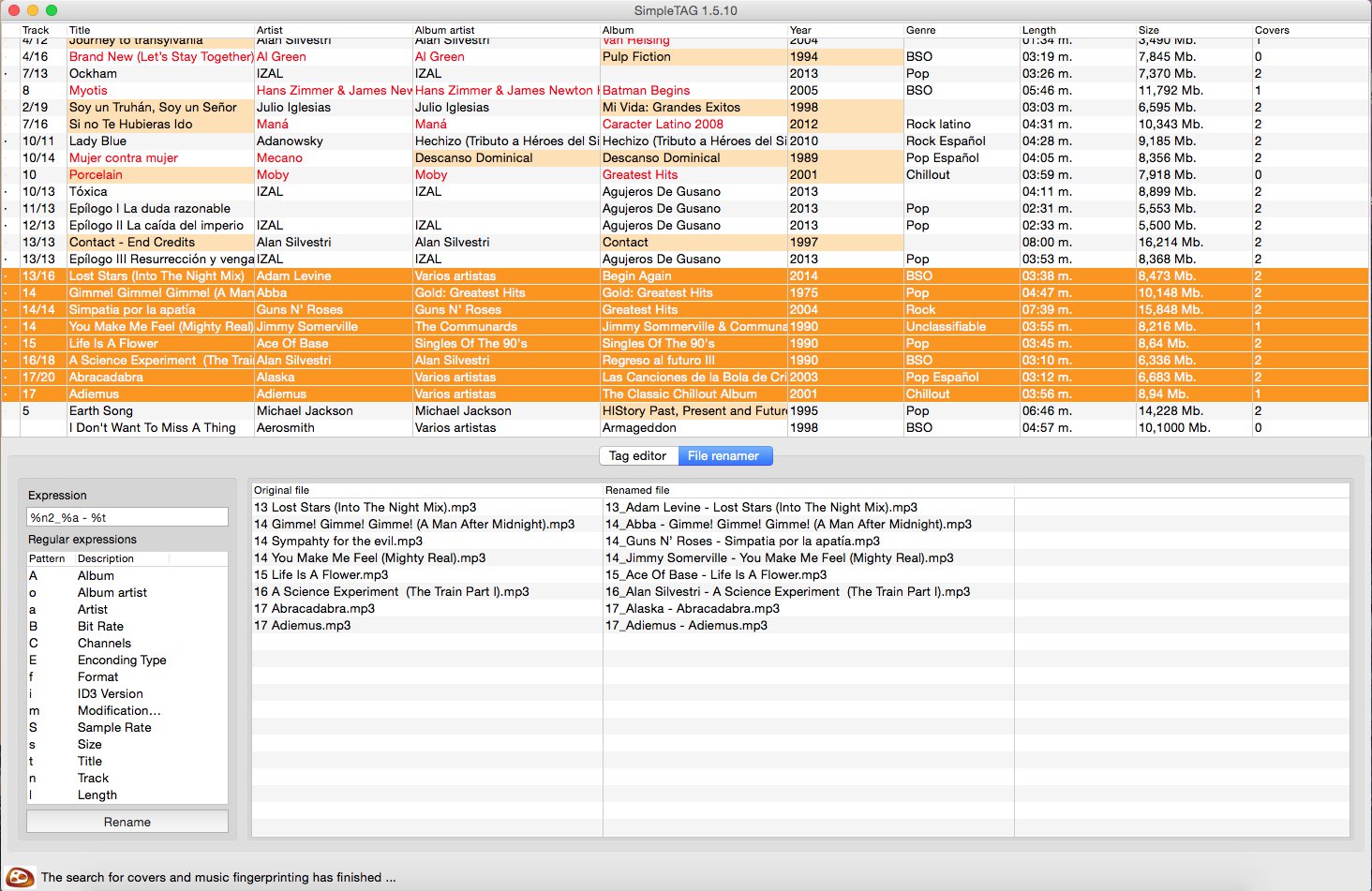
SimpleTag is a cross-platform desktop tool, which allows to update the labels of all your music before incorporating it into a musical library or cloud service.

Nowadays, the amount of music we have in our equipment is large, it is no longer possible to manage with the traditional system of filenames and directories. The most convenient way is to use the concept of libraries that handle the big market music players: iTunes, Amarok, Windows Media Player, Google Music, … etc.

The labels of music files contains all the information on artist, album, genre, title, lyrics … etc, associated with a song. This information is used by music players to manage their libraries. A good labeling enhances the user experience.

Do you want your music in the cloud? Then before, you have to check the tag information is correct before incorporating. If you do not, you will be unable to locate many of your songs.

Features:

  • Complete file information from audio fingerprint (AcoustID database). This uses the service provided by AcoustId (http://acoustid.org). One colors simple system gives you information about your search results
  • Locate the covers of your songs by the artist/album the song. The location of the cover image, uses Google image services. It also incorporates images that are in the directory you’re processing, treating them as potential cover images.
  • Allows mass renaming music files on disk, based on the tag information. If in addition to either your tagged songs, you want the file names follow a pattern that identifies them, you can use this feature.
  • Supports MP3, Ogg/Vorbis formats
  • Mass-tagging of multiple files
  • Auto enumerate the selected songs. In many cases, the songs do not have track numbers. With this feature, you can set the sequence numbers for all the songs on an album.

simpletag

sourceforge.net/projects/simpletag

Protoplug ~ Scriptable Audio Plugins


Create audio plugins on-the-fly with LuaJIT.

Protoplug is a VST/AU plugin that lets you load and edit Lua scripts as audio effects and instruments. The scripts can process audio and MIDI, display their own interface, and use external libraries. Transform any music software into a live coding environment!

Cross-platform: builds for Windows, Mac OS X and Linux. This means that all protoplug scripts are compatible with these platforms and can be loaded into a huge amount of audio software (glory to JUCE).

Fast: Use the speed of LuaJIT, and perform DSP tasks as efficiently as old school C implementations.

Free and open source: Want a new feature? Add it yourself. The source is MIT-licensed and available on Github.

protoplug_example_5-6

www.osar.fr/protoplug
github.com/pac-dev/protoplug

ISSE ~ Interactive Source Separation Editor


In applications such as audio denoising, music transcription, music remixing, and audio-based forensics, it is desirable to decompose a single-channel recording into its respective sources. To perform such tasks, we present a new software tool to perform source separation by painting on time-frequency visualizations of sound. Initial results shows the software can achieve state-of-the-art separation results compared to prior work.

Features:

  • Source separation
  • Denoising
  • Painting
  • Interaction

http://sourceforge.net/projects/isse