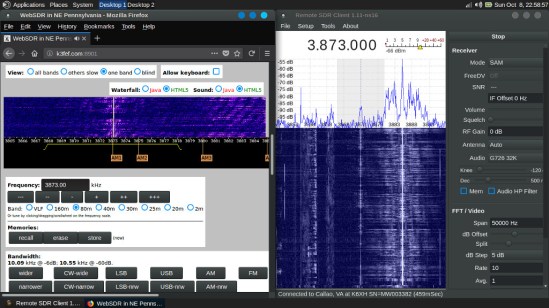
Skywave Linux is a 64 bit live system providing installed and configured software for accessing software defined radio servers locally and on the internet. With this operating system, a person may tune shortwave broadcasts, amateur radio, aeronautical, maritime, or other signals received at remote servers around the world.
SDR software is configured for popular devices, such as the RTL-SDR dongles, Softrocks, Hermes, and other radios.
Skywave Linux is a 64 bit system built over Ubuntu Linux, and may be installed on a bootable USB stick, SD card, DVD, or hard drive.
Features:
WebSDR, OpenWebRX radio servers accessible via internet browser.
HPSDR servers accessible via QtRadio
HPSDR hardware also via cudaSDR
RTL-SDR plug-and-play functionality via CubicSDR, Gqrx, and QtRadio
RTL-SDR ADS-B tracking and mapping via Dump1090
RTL-SDR RDS decoding via Gqrx and Redsea
SDRPlay, Airspy radio hardware is supported.
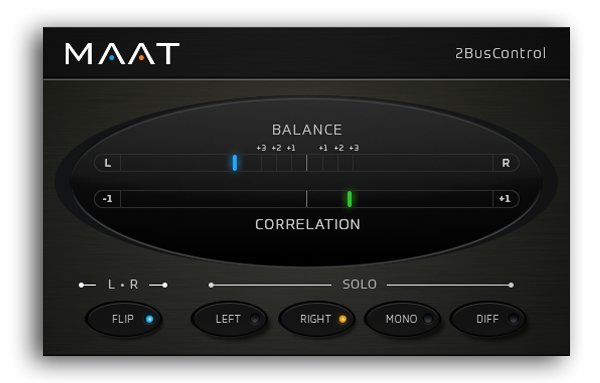
LADSPA audio plugins for EQ/Compression/Limiting
WSJT -X / WSPR-X weak signal digimode software
Weather Satellite Decoding via WXtoImg
Satellite tracking with Gpredict
Trunked Radio System Reception with SDRTrunk
Radio firmware & data management with CHIRP
Kodi Media Center for conventional internet streaming
RYM is a community-built music and film database where you can rate, review, catalog and discover new music and films as well as participate in contributing to the database itself.
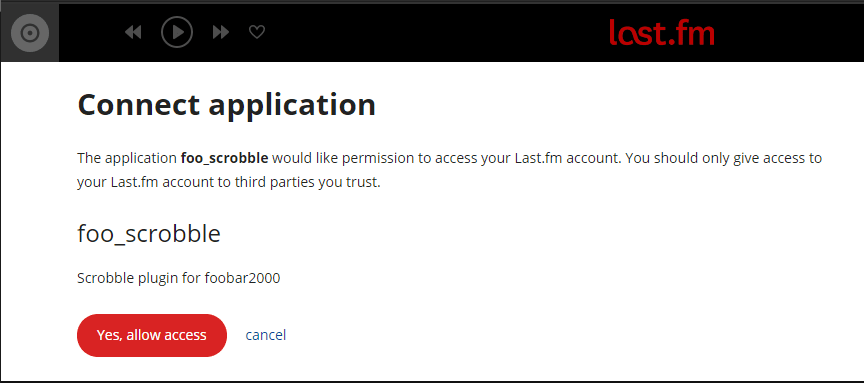
Download and install the latest release of foo_scrobble.fb2k-component
Navigate to File>Preferences>Tools>Last.fm Scrobbling
Click the Request Authorization button.
A Last.FM pre-authorization page will pop up.
Click Yes, allow access to complete the authorization at Last.FM
The Preferences: Last.fm Scrobbling page button should now display Complete Authorization. You must click the button one last time. It will then display Clear Authorization.
Foo Scrobbler is a newer, separate component for foobar2000 v2.0 and newer. Version 2.0.1 (October 2026) adds stricter playback qualification, local offline queuing, automatic retries, radio-stream metadata handling, and filters using Title Formatting and regular expressions. It supports Windows 10 (x86/x64) and Windows 11 (x64/ARM64EC).
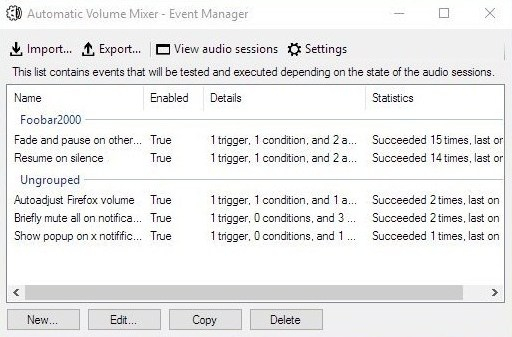
Automatic Volume Mixer is a tool that allows automatization of Windows Volume Mixer based on user rules. You can open the Volume Mixer by right-clicking on the speaker icon in the system tray and selecting Open Volume Mixer. This application is an automatic version of that applet.
Common usage examples:
Pausing your audio player (e.g. foobar2000) whenever any other application makes a noise, and resuming playback once the noise is gone. This enables you to keep your audio player running in the background at all times.
Briefly muting all applications while a notification is playing.
Forcing application’s volume to a set level.
Automatically lowering volume during night.
Launching processes / popups when some application makes noise.
Features:
Detect volume levels of applications and act on that information.
Fully configurable rules for detection, filtering, and executing actions.
Ability to automatically adjust audio levels of applications.
Jalv is a simple but fully featured LV2 host for Jack. It runs LV2 plugins and exposes their ports as Jack ports, essentially making any LV2 plugin function as a Jack application.
Triceratops is an analogue style polyphonic subtractive synthesizer plugin, for use with the LV2 plugin architecture, at this time there is no standalone version. An up to date version of the LV2 library is required along with a suitable host (e.g. Qtractor, Jalv, Ardour).
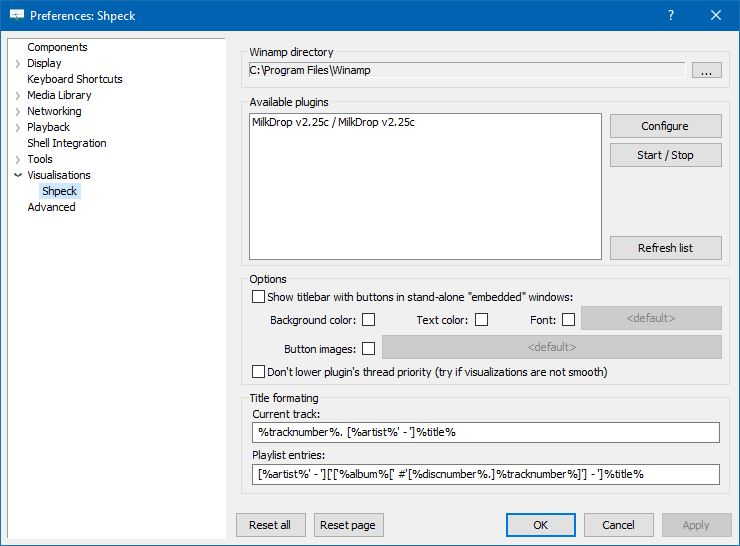
Title formatting in foobar2000 is a system that allows you to control how information about your music is displayed in the interface. It doesn’t modify the audio files themselves or change tags — it only affects how metadata and other information is shown in playlists, status bar, or window title.
Think of it like a template language: you define a pattern for text, and foobar2000 fills in the fields with actual track information. For example, you can make the playlist display tracks as:
Artist - Track Title (Album)
Why Title Formatting Exists
Music files contain metadata such as:
Artist
Album
Track title
Track number
Year
Duration
Different users want to display this information differently. Title formatting lets you:
Decide which information to display
Choose the order of information
Add separators, labels, or punctuation
Optionally display certain information only when it exists
For example, you might want to show the album only if it exists. Title formatting makes that possible.
Where To Use Title Formatting
You typically use title formatting in three main places:
Playlist columns — to customize how each column displays track info.
Status bar — to show the “Now Playing” track in a readable format.
Window title — to display the currently playing track in the foobar2000 window or taskbar.
Core Concepts You Need to Know
There are three core concepts that beginners must understand:
Plain Text: Text you type exactly as it should appear.
Fields: Metadata values from the audio files (e.g., %artist%, %title%).
Conditional Logic: Optional logic to handle missing fields or customize output dynamically.
Plain Text in Title Formatting
Any normal text you type is displayed exactly as written. This is useful for labels, punctuation, or separators:
Now Playing:
You can combine plain text with fields to make output more readable:
Now Playing: %artist% - %title%
This will display something like:
Now Playing: Radiohead - Paranoid Android
Fields (Metadata Tags)
Fields are placeholders that pull metadata from your music files. They are written inside percent signs:
%artist%
Some common fields include:
Field
Meaning
%artist%
Track artist
%album%
Album name
%title%
Track title
%tracknumber%
Track number
%date%
Year or release date
%length%
Track duration
Example combining fields:
%artist% - %title%
Output:
Radiohead - Paranoid Android
Combining Plain Text and Fields
You can mix plain text with fields to create more structured output. For example:
%artist% – %title% (%album%)
Output:
Radiohead – Paranoid Android (OK Computer)
Handling Missing Information
If a field does not exist in the file, foobar2000 simply displays nothing. For example, if %composer% is missing:
%composer%
The output will be blank. To prevent blank parentheses or awkward spacing, you can use conditional logic.
Using Conditional Logic with $if()
The $if() function allows you to display text only when a field has a value:
$if(condition,then,else)
Example:
%artist% - %title%$if(%album%, (%album%),)
This will display the album in parentheses only if %album% exists. Otherwise, it leaves that part empty.
Practical Examples
Playlist Column
%artist% - %title%
Status Bar
Now Playing: %artist% – %title%
Window Title
%artist% – %title% | foobar2000
Useful Built-In Fields
These fields are always available and do not require files to be tagged:
Field
Meaning
%filename%
File name
%path%
Full file path
%codec%
Audio codec
%bitrate%
Bitrate
%samplerate%
Sample rate
Things Beginners Can Ignore
Nested functions
Math expressions
String replacement logic
Legacy syntax
Advanced grouping
Starter Setup for New Users
For someone just installing foobar2000, start with these basic formats:
%artist% - %title%
Now Playing: %artist% – %title%$if(%album%, (%album%),)
%artist% – %title%
Final Notes
%field% is the most important concept
$if() handles missing or optional data elegantly
Some data and fields depend upon components being installed
foo_tfsandbox
A good place to start is by installing foo_tfsandbox, this component allows you to experiment with title formatting expressions and fields before you implement them.
Title Formatting Fields:
$info(referenced_offset) ~ shows time in format mm:ss:ff where ff are CD frames. For the first track it will show nothing instead of 00:00:00 hydrogenaud.io/index.php?topic=118733.msg979344
Title Formatting Examples: Name | Pattern | Alignment
Display Dynamic Range: Album DR: $if2(%album dynamic range%,–) | Track DR: $if2(%dynamic range%,–) Bits (bit depth) | $ifequal([%__bitspersample%],0,16,%__bitspersample%) | Left
Test your audio equipment, online. AudioCheck gives you access to an extensive collection of sound tests, playable online and downloadable in high-quality for patrons. The audio material provided here will help you assess the audio equipment connected to your computer. Using this website, you will be able to:
Test your hearing, speakers, headphones, digital-to-analog converters… and more!
Design your own sound tests using our high quality waveform generators.
Download our sound files to your favorite audio player, and use your player as a portable audio test device.