OpenMPT ~ Discover The Music Inside…


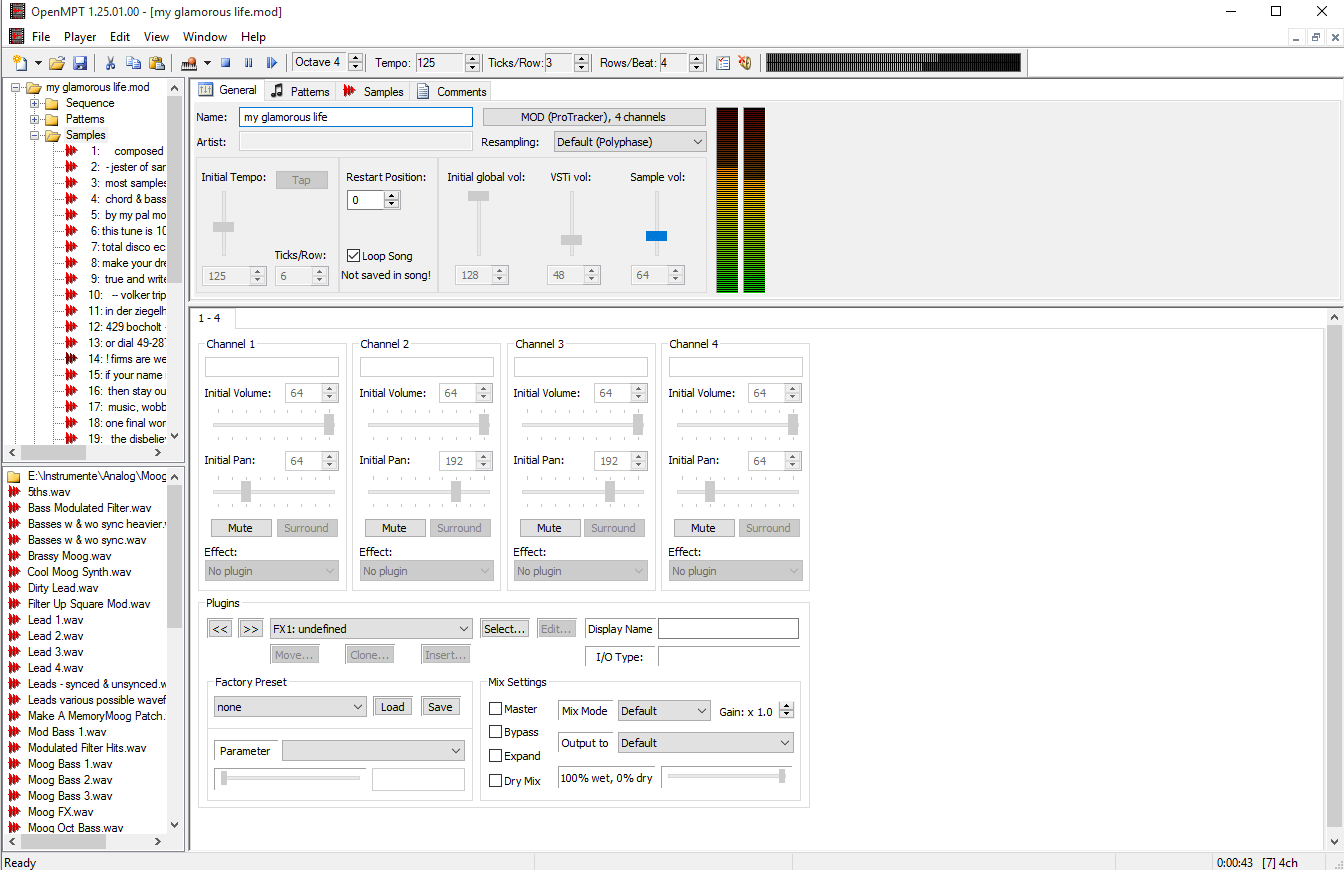
OpenMPT is well known tracker software for Windows.

OpenMPT (shorthand for Open ModPlug Tracker) is completely free and allows you to create and play back some great music on your computer. Based on the original ModPlug Tracker written by Olivier Lapicque, OpenMPT is free software, can import a wide variety of module formats and offers an intuitive, native GUI as well as advanced features such as VST plugins and ASIO output.

In addition to its own song format, OpenMPT can natively edit Impulse Tracker, FastTracker, Scream Tracker and ProTracker module files.

openmpt

openmpt.org
source.openmpt.org
github.com/OpenMPT/openmpt
en.wikipedia.org/wiki/OpenMPT

OpenMPT based module player library and libopenmpt based command-line player:

  • libopenmpt is a cross-platform C++ and C library to decode tracked music files (modules) [wikipedia] into a raw PCM audio stream.
  • openmpt123 is a cross-platform command-line or terminal based module file player.

libopenmpt is based on the player code of the OpenMPT project (Open ModPlug Tracker). In order to avoid code base fragmentation, libopenmpt is developed in the same source code repository as OpenMPT.

libopenmpt ships with plugins for 3 popular Windows audio players already included:

  • xmp-openmpt is a plugin based on libopenmpt for XMPlay.
  • in_openmpt is an input plugin based on libopenmpt for WinAMP 2.x or later compatible players.
  • foo_openmpt is a component based on libopenmpt for foobar2000.

lib.openmpt.org/libopenmpt

Soft Playlists ~ Foobar & Last.fm


Can create different Last.fm related playlists:

  • loved tracks of a single user, multiple users, friends or neighbours.
  • recent tracks of a single user, multiple users, friends or neighbours.
  • top tracks of a single user, multiple users, friends or neighbours over different periods.
  • top tracks of an artist.
  • top tracks of artists similar to an artist.
  • top tracks with certain tag.
  • tracks similar to a track.

Can also…

  • love, unlove, ban and unban a track on your Last.fm account.
  • add a track to a custom playlist on your Last.fm account.
  • save and load XSPF playlists (make playlists without hard paths). This makes it possible to easily share playlists with other people. Also when you restructure your library (change location of your music files), these playlists will continue to work.

www.foobar2000.org/components/view/foo_softplaylists
hydrogenaud.io/index.php?topic=76133.0

Integrating Last.fm with Foobar2000 Using Soft Playlists

Step 1: Install Soft Playlists
Begin by downloading the foo_softplaylists component from the foobar2000 website. Once downloaded, open foobar2000 and navigate to File → Preferences → Components → Install…, then select the downloaded .fb2k-component file. Restart foobar2000 to activate the plugin. This component enables you to generate dynamic playlists directly from your Last.fm data.

Step 2: Connect Your Last.fm Account
After installation, go to Preferences → Tools → Soft Playlists → Last.fm. Enter your Last.fm username and password to authorize the connection. Once you are logged in, the plugin can fetch your loved tracks, recent plays, top tracks, and tag-based data.

Step 3: Creating Loved Tracks Playlists
Soft Playlists can generate playlists of tracks in your library that are marked as loved on Last.fm. Simply create a new playlist, Open the Library Menu and choose the “Loved Tracks” option, and the plugin will match these tracks with your local files and create a new playlist. You can now play or sort these loved tracks directly from foobar2000.

Step 4: Generating Top Tracks Playlists
You can also create playlists based on top tracks from your Last.fm account, your friends, or neighbors. Select the “Top Tracks” option and filter by user, artist, or tag. This allows you to automatically build playlists of your most-played tracks, popular tracks by similar artists, or tracks labeled with specific moods or genres.

Step 5: Recent Tracks Playlists
Soft Playlists supports recent tracks queries from Last.fm. You can generate playlists of your most recently played tracks or recent tracks from other users. This is ideal for keeping up to date with current listening trends.

Additional Features:
Soft Playlists allows you to save sharable playlists in XSPF format, which keeps them portable and resilient to file location changes. The plugin also lets you love or unlove tracks directly from foobar2000, updating your Last.fm account automatically. This integration creates a seamless workflow between your local library and Last.fm.

Adding a toolbar button to love a track:

  1. Right click the Foobar2000 toolbar and select “Customize Buttons...
  2. In the Available Commands Panel, open “Context Menu” and then “Last.fm”
  3. Select "Last.fm Love Track” and click the “Add” button then click “Ok”
  4. Change the button icon to a Last.fm icon (.ico file)

Tips and Considerations
Soft Playlists is an older 32bit component. The plugin works best if most of your Last.fm scrobbled tracks are present in your local library. For more advanced integration, consider combining Soft Playlists with Spider Monkey Panel scripts to pull additional data, such as playcounts, tags, or charts.

Aural Probe ~ Sample Library Tool


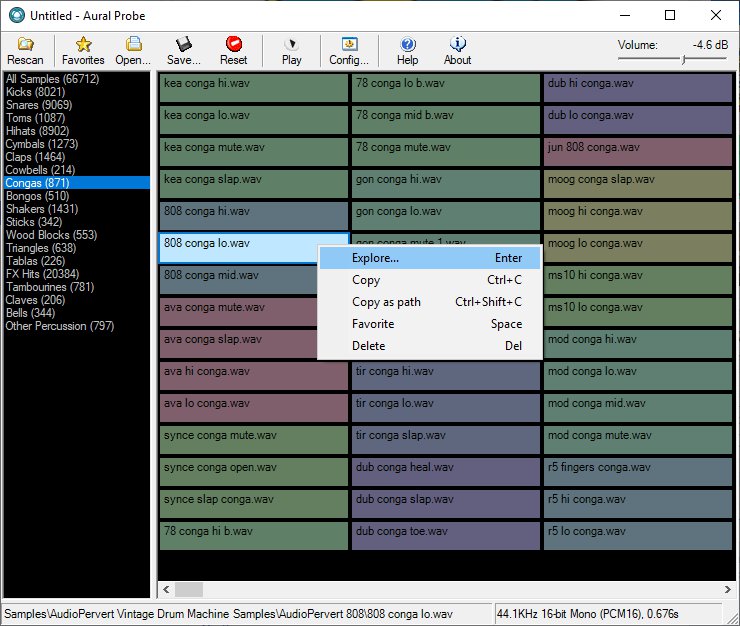
Aural Probe is a sample librarian tool for computer musicians / audio engineers. Automatically and non-destructively index your disorganised sample collection from a list of folders into categories (kick, snare, hihats etc.) based on folder/filename wildcard matches. Easily audition samples, load/save favourites, and drag-and-drop straight into your sequencer.

Features:

  • Categorize your huge sample collections (20GB+) without moving a single file
    Create categories based on file/folder keyword matches (eg. Kick category = “bd”, “kick”, “bassdrum”) or regular expressions
  • Quickly audition through samples with arrow keys or mouse
  • Filter samples by file type (WAV, AIFF, FLAC, MP3, WMA, OGG)
  • Full drag-and-drop support (simply drag a sample from Aural Probe into your sequencer/sampler, just like Windows Explorer)
  • Mark favorites, filter by favorites, load/save favorite lists
  • Automatic rescan and categorization of samples on changed categories or sample folder layout
  • See details about highlighted sample in status bar
  • ‘Always on top’ mode to make frequent dragging of samples into other windows easier
  • Right-click a sample for frequently used shortcuts (Explore, Copy, Copy Shortcut, Favorite, Delete)
  • 100% read-only – does not move/modify your samples, just indexes them
    Minimize to system tray

Aural Probe

sourceforge.net/projects/auralprobe

Window Media Player ~ ASIO Plugin


ASIOWmpPlg is a Windows Media Player plugin that plays incoming audio through a user-selectable ASIO device. The Windows Media Center application is also supported.

sourceforge.net/projects/asiowmpplg

foo_AdvancedControls ~ Foobar2000 Advanced Controls


Control all the playback functions of Foobar2000 from icons on the Taskbar Notification Area. Using an area only two tray icons wide, you have the playback functions, and the volume or the seek bar, as well as a context menu.

A popup balloon (which can be disabled) appears each time a new song begins, to provide fully customizable information about the song that is playing.

The Delete Current File function deletes the file that is currently playing. It always asks for confirmation and puts the file into the recycle bin if possible, so you won’t delete files without intending to.

The extra functions introduced by this component can also be mapped to a shortcut key.

www.niversoft.com/products/fac
www.foobar2000.org/components/view/foo_advancedcontrols
Wiki

2BusControl ~ Crossplatform Balance Plugin


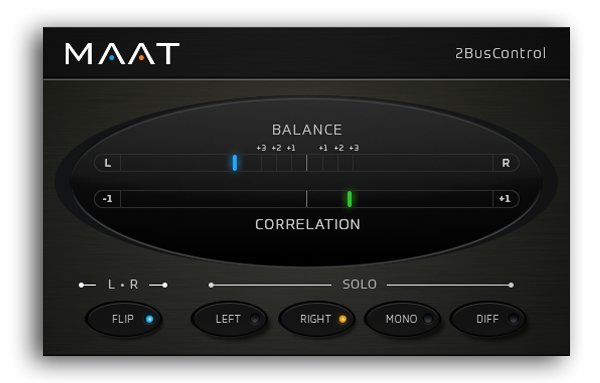
A universal L/R plus MONO/DIFF monitor control and Balance / Correlation metering plug-in for stereo bus masters.

2BusControl

www.maat.digital/2buscontrol

foo_logitech_lcd ~ Foobar2000 & Logitech LCDs


A component to display visualisations and track information on a variety of Logitech LCD screens.

Features:

  • Support for monochrome LCDs (G13, G15, G510 & Z-10)
  • Support for colour LCDs (G19)
  • 11 different visualisations (4 spectrum analysers, 4 oscilloscopes, 3 VU meters)
  • Track info display
  • Massively customisable

www.foobar2000.org/components/view/foo_logitech_lcd

foo_vis_shpeck ~ Foobar MilkDrop Visualizations


The foo_vis_shpeck component runs Winamp visualization plugins in a stand-alone window, a Columns UI panel or Default UI element.

Documentation
Download
Hydrogen Audio Topic
Download Winamp

Shpeck enables Foobar2000 to display dynamic graphics that react to the beat. It’s possible to toggle between fullscreen and windowed modes.

Install the foo_vis_shpeck plugin, combined with Winamp’s MilkDrop visualizations.

  1. Download and install Winamp (or at least the folder structure for the plugins)
  2. Download and install foo_vis_shpeck
  3. Download some visualizations
  4. Uncompress visualizations and copy to System > Program Files > Winamp > Plugins
  5. Create a new foobar DUI panel or tab and add the new UI element Playback Visualisation > Shpeck
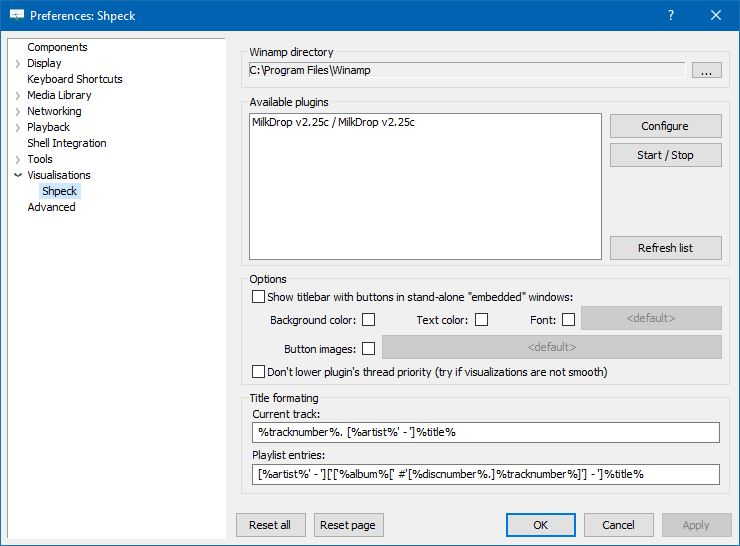
  6. Configure the plugin at Preferences > Visualisations > Shpeck
  7. Configure visualizations
Preferences: Shpeck

Resources:
www.foobar2000.org/components/view/foo_vis_shpeck
www.winamparchive.org
archive.org/details/tucows_193563_Winamp
www.mediafire.com/download/8hxarja92q9q99c/foobar2000-milkdrop-2.25c.7z
forums.winamp.com/forum/winamp/winamp-discussion/4615655-winamp-5-9-2-released

Guides:
Milkdrop in Foobar on Windows 8 ~ vault-tec.info/post/51743506694/milkdrop-in-foobar2000-on-windows-8

Additional Presets:
sourceforge.net/projects/mdpresetpack/
www.thefreewindows.com/21777/download-free-milkdrop2-50000-presets-megapack/
archive.org/details/Milkdrop252kPresetCollection.7z

… some archives from this milkdrop contest thread on Winamp forum and put everything into a single archive. Some of the presets are nice and quite original, but most of them are variations. The ones that seemed nice to me I copied and added exclamation mark to their names. ~ hydrogenaud.io/index.php/topic,59388.msg914054.html#msg914054

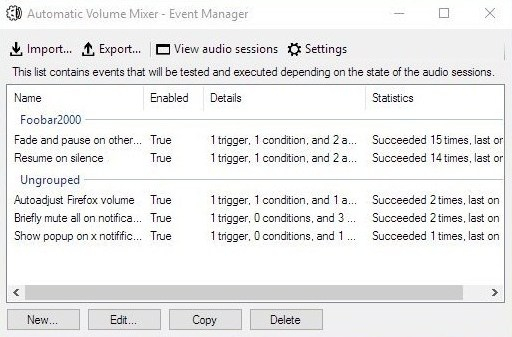
Automatic Volume Mixer ~ Windows Utility


Automatic Volume Mixer is a tool that allows automatization of Windows Volume Mixer based on user rules. You can open the Volume Mixer by right-clicking on the speaker icon in the system tray and selecting Open Volume Mixer. This application is an automatic version of that applet.

Common usage examples:

  • Pausing your audio player (e.g. foobar2000) whenever any other application makes a noise, and resuming playback once the noise is gone. This enables you to keep your audio player running in the background at all times.
  • Briefly muting all applications while a notification is playing.
  • Forcing application’s volume to a set level.
  • Automatically lowering volume during night.
  • Launching processes / popups when some application makes noise.

Features:

  • Detect volume levels of applications and act on that information.
  • Fully configurable rules for detection, filtering, and executing actions.
  • Ability to automatically adjust audio levels of applications.


Automatic Volume Mixer

github.com/Klocman/Automatic-Volume-Mixer
sourceforge.net/projects/automatic-volume-mixer

XMPlay ~ Extensible Windows Player


XMPlay is an audio player, supporting the OGG / MP3 / MP2 / MP1 / WMA / AAC / MP4 / WAV / AIFF / CDA / MO3 / IT / XM / S3M / MTM / MOD / UMX audio formats, PLS / M3U / ASX / WAX / CUE playlists, and ZIP archives. A load more audio and archive file formats are also supported via plugins.

When XMPlay was first released in 1998, only the XM file format was supported, hence the name “XMPlay”.

www.xmplay.com
support.xmplay.com
ssz.bitbucket.io (Input & Archive plugins)

Foobar2000 ~ Title Formatting Guide


Table of Contents

  • Introduction: What Title Formatting Is
  • Why Title Formatting Exists
  • Where You Use Title Formatting
  • Core Concepts You Need to Know
  • Plain Text in Title Formatting
  • Fields (Metadata Tags)
  • Combining Plain Text and Fields
  • Handling Missing Information
  • Using Conditional Logic with $if()
  • Practical Examples
  • Useful Built-In Fields
  • Things Beginners Can Ignore
  • Starter Setup for New Users
  • Final Notes

Introduction: What Title Formatting Is

Title formatting in foobar2000 is a system that allows you to control how information about your music is displayed in the interface. It doesn’t modify the audio files themselves or change tags — it only affects how metadata and other information is shown in playlists, status bar, or window title.

Think of it like a template language: you define a pattern for text, and foobar2000 fills in the fields with actual track information. For example, you can make the playlist display tracks as:

Artist - Track Title (Album)


Why Title Formatting Exists

Music files contain metadata such as:

  • Artist
  • Album
  • Track title
  • Track number
  • Year
  • Duration

Different users want to display this information differently. Title formatting lets you:

  • Decide which information to display
  • Choose the order of information
  • Add separators, labels, or punctuation
  • Optionally display certain information only when it exists

For example, you might want to show the album only if it exists. Title formatting makes that possible.


Where To Use Title Formatting

You typically use title formatting in three main places:

  1. Playlist columns — to customize how each column displays track info.
  2. Status bar — to show the “Now Playing” track in a readable format.
  3. Window title — to display the currently playing track in the foobar2000 window or taskbar.

Core Concepts You Need to Know

There are three core concepts that beginners must understand:

  1. Plain Text: Text you type exactly as it should appear.
  2. Fields: Metadata values from the audio files (e.g., %artist%, %title%).
  3. Conditional Logic: Optional logic to handle missing fields or customize output dynamically.

Plain Text in Title Formatting

Any normal text you type is displayed exactly as written. This is useful for labels, punctuation, or separators:

Now Playing:

You can combine plain text with fields to make output more readable:

Now Playing: %artist% - %title%

This will display something like:

Now Playing: Radiohead - Paranoid Android


Fields (Metadata Tags)

Fields are placeholders that pull metadata from your music files. They are written inside percent signs:

%artist%

Some common fields include:

FieldMeaning
%artist%Track artist
%album%Album name
%title%Track title
%tracknumber%Track number
%date%Year or release date
%length%Track duration

Example combining fields:

%artist% - %title%

Output:

Radiohead - Paranoid Android


Combining Plain Text and Fields

You can mix plain text with fields to create more structured output. For example:

%artist% – %title% (%album%)

Output:

Radiohead – Paranoid Android (OK Computer)


Handling Missing Information

If a field does not exist in the file, foobar2000 simply displays nothing. For example, if %composer% is missing:

%composer%

The output will be blank. To prevent blank parentheses or awkward spacing, you can use conditional logic.


Using Conditional Logic with $if()

The $if() function allows you to display text only when a field has a value:

$if(condition,then,else)

Example:

%artist% - %title%$if(%album%, (%album%),)

This will display the album in parentheses only if %album% exists. Otherwise, it leaves that part empty.


Practical Examples

Playlist Column

%artist% - %title%

Status Bar

Now Playing: %artist% – %title%

Window Title

%artist% – %title% | foobar2000


Useful Built-In Fields

These fields are always available and do not require files to be tagged:

FieldMeaning
%filename%File name
%path%Full file path
%codec%Audio codec
%bitrate%Bitrate
%samplerate%Sample rate

Things Beginners Can Ignore

  • Nested functions
  • Math expressions
  • String replacement logic
  • Legacy syntax
  • Advanced grouping

Starter Setup for New Users

For someone just installing foobar2000, start with these basic formats:

%artist% - %title%

Now Playing: %artist% – %title%$if(%album%, (%album%),)

%artist% – %title%


Final Notes

  • %field% is the most important concept
  • $if() handles missing or optional data elegantly
  • Some data and fields depend upon components being installed

foo_tfsandbox

A good place to start is by installing foo_tfsandbox, this component allows you to experiment with title formatting expressions and fields before you implement them.

Title Formatting Fields:

$info(referenced_offset) ~ shows time in format mm:ss:ff where ff are CD frames. For the first track it will show nothing instead of 00:00:00
hydrogenaud.io/index.php?topic=118733.msg979344

Title Formatting Examples:
Name | Pattern | Alignment

Display Dynamic Range:
Album DR: $if2(%album dynamic range%,–) | Track DR: $if2(%dynamic range%,–)
Bits (bit depth) | $ifequal([%__bitspersample%],0,16,%__bitspersample%) | Left
$if($or($stricmp(%codec%,DTS),$stricmp($cut(%codec%,3),DCA)),$if($info(bitspersample),$ifequal(%samplerate%,96000,$ifgreater(%bitrate%,1537,DTS-HD,DTS 96/$info(bitspersample)),DTS-HD),DTS),%codec% [%codec_profile%])
Release Date (earliest):
$max(%DATE%,$min($year(%DATE%),$year(%DISCOGS_RELEASED%),$year(%DISCOG_MASTER_RELEASE_DATE%)))
hydrogenaud.io/index.php/topic,125532.0

References:

Title_Formatting_Introduction
Title Formatting Reference
Titleformat Examples
Titleformat_Album_List