foo_dsp_xgeq ~ Advanced Foobar2000 Equalization


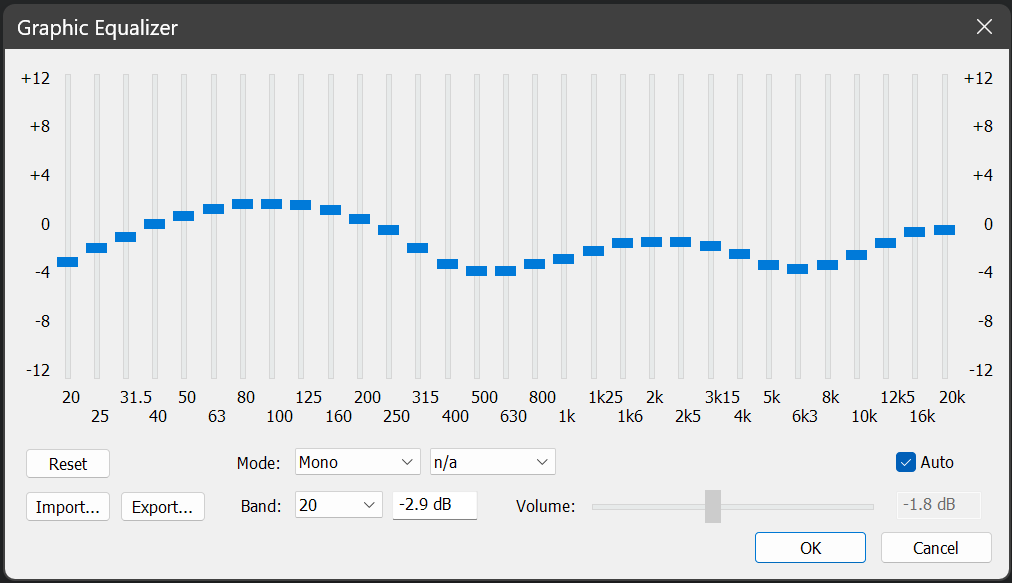
Foobar DSP based graphic equalizer.

Features:

  • 31 bands (1/3rd octave width)
  • boost / cut range of +-12 dB in 0.1 dB steps
  • master gain (can be set manually or automatically => prevents clipping for the most part)
  • minimum phase (=> no pre-echo)
  • approximates a smooth frequency response (=> no ‘steps’ between the bands)
  • import / export presets
  • mono and stereo mode

www.foobar2000.org/components/view/foo_dsp_xgeq

EQ preset generation ~ github.com/jaakkopasanen/AutoEq

foo_dsp_vstwrap ~ Foobar2000 VST Wrapper


This is a Foobar2000 player wrapper plugin, which allows using VST plugins within the player. This component is depreciated and was developed for 0.9x versions of Foobar2000

www.yohng.com/software/foobarvst

foo_sid ~ Foobar2000 Plays Commodore 64 Audio


Adds decoding support for Commodore 64 SID sound files (.SID, .MUS). Based on resid-fp.

www.foobar2000.org/components/view/foo_sid

The High Voltage SID Collection (HVSC) is a freeware hobby project which organises Commodore 64 music (also known as SID music) into an archive for both musicians and fans alike. The work on the collection is done completely in the Team and contributors’ spare time and is proudly one of the largest and most accurate computer music collections known.

~ hvsc.c64.org

en.wikipedia.org/wiki/Commodore_64

OpenMPT ~ Discover The Music Inside…


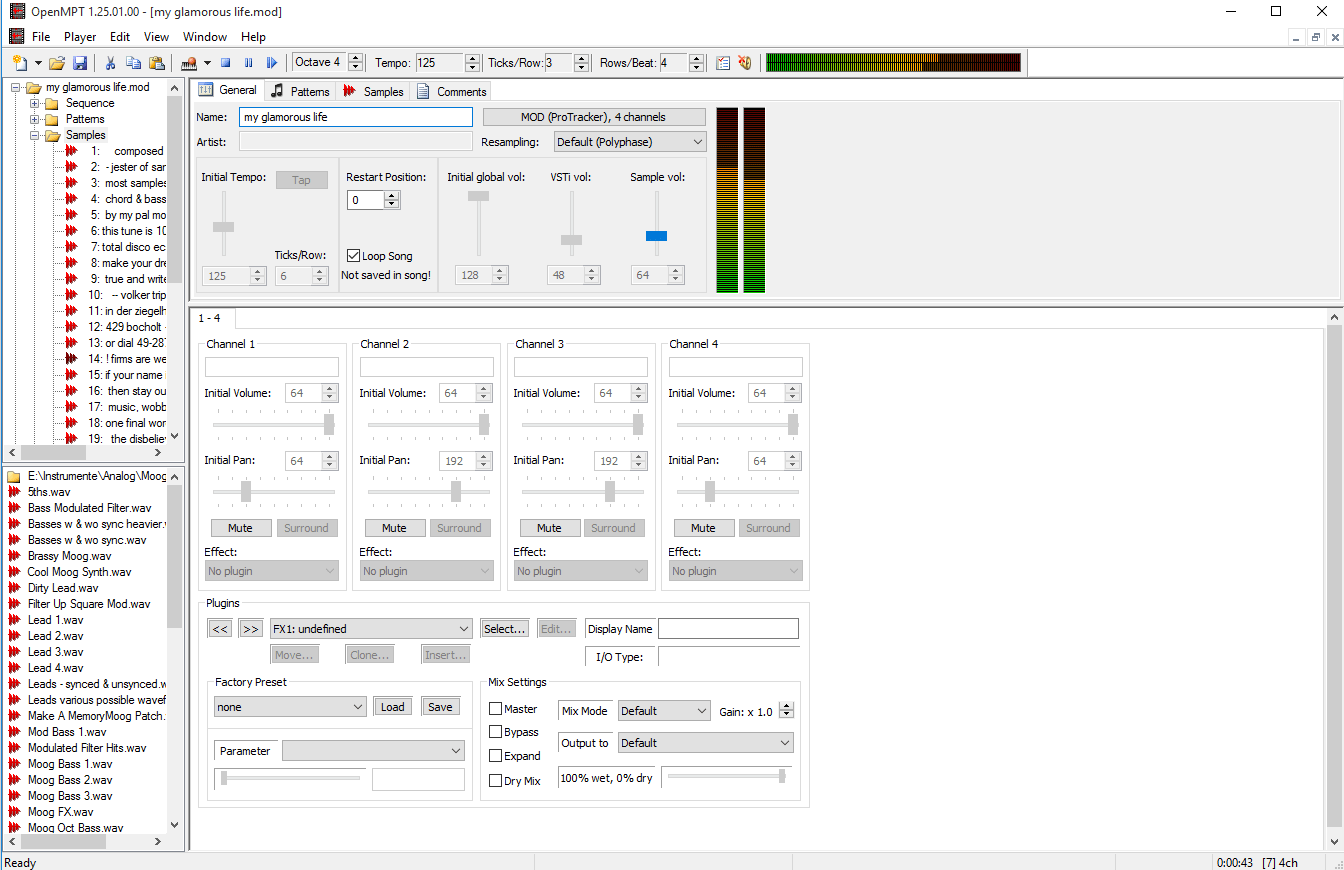
OpenMPT is well known tracker software for Windows.

OpenMPT (shorthand for Open ModPlug Tracker) is completely free and allows you to create and play back some great music on your computer. Based on the original ModPlug Tracker written by Olivier Lapicque, OpenMPT is free software, can import a wide variety of module formats and offers an intuitive, native GUI as well as advanced features such as VST plugins and ASIO output.

In addition to its own song format, OpenMPT can natively edit Impulse Tracker, FastTracker, Scream Tracker and ProTracker module files.

openmpt

openmpt.org
source.openmpt.org
github.com/OpenMPT/openmpt
en.wikipedia.org/wiki/OpenMPT

OpenMPT based module player library and libopenmpt based command-line player:

  • libopenmpt is a cross-platform C++ and C library to decode tracked music files (modules) [wikipedia] into a raw PCM audio stream.
  • openmpt123 is a cross-platform command-line or terminal based module file player.

libopenmpt is based on the player code of the OpenMPT project (Open ModPlug Tracker). In order to avoid code base fragmentation, libopenmpt is developed in the same source code repository as OpenMPT.

libopenmpt ships with plugins for 3 popular Windows audio players already included:

  • xmp-openmpt is a plugin based on libopenmpt for XMPlay.
  • in_openmpt is an input plugin based on libopenmpt for WinAMP 2.x or later compatible players.
  • foo_openmpt is a component based on libopenmpt for foobar2000.

lib.openmpt.org/libopenmpt

Soft Playlists ~ Foobar & Last.fm


Can create different Last.fm related playlists:

  • loved tracks of a single user, multiple users, friends or neighbours.
  • recent tracks of a single user, multiple users, friends or neighbours.
  • top tracks of a single user, multiple users, friends or neighbours over different periods.
  • top tracks of an artist.
  • top tracks of artists similar to an artist.
  • top tracks with certain tag.
  • tracks similar to a track.

Can also…

  • love, unlove, ban and unban a track on your Last.fm account.
  • add a track to a custom playlist on your Last.fm account.
  • save and load XSPF playlists (make playlists without hard paths). This makes it possible to easily share playlists with other people. Also when you restructure your library (change location of your music files), these playlists will continue to work.

www.foobar2000.org/components/view/foo_softplaylists
hydrogenaud.io/index.php?topic=76133.0

Integrating Last.fm with Foobar2000 Using Soft Playlists

Step 1: Install Soft Playlists
Begin by downloading the foo_softplaylists component from the foobar2000 website. Once downloaded, open foobar2000 and navigate to File → Preferences → Components → Install…, then select the downloaded .fb2k-component file. Restart foobar2000 to activate the plugin. This component enables you to generate dynamic playlists directly from your Last.fm data.

Step 2: Connect Your Last.fm Account
After installation, go to Preferences → Tools → Soft Playlists → Last.fm. Enter your Last.fm username and password to authorize the connection. Once you are logged in, the plugin can fetch your loved tracks, recent plays, top tracks, and tag-based data.

Step 3: Creating Loved Tracks Playlists
Soft Playlists can generate playlists of tracks in your library that are marked as loved on Last.fm. Simply create a new playlist, Open the Library Menu and choose the “Loved Tracks” option, and the plugin will match these tracks with your local files and create a new playlist. You can now play or sort these loved tracks directly from foobar2000.

Step 4: Generating Top Tracks Playlists
You can also create playlists based on top tracks from your Last.fm account, your friends, or neighbors. Select the “Top Tracks” option and filter by user, artist, or tag. This allows you to automatically build playlists of your most-played tracks, popular tracks by similar artists, or tracks labeled with specific moods or genres.

Step 5: Recent Tracks Playlists
Soft Playlists supports recent tracks queries from Last.fm. You can generate playlists of your most recently played tracks or recent tracks from other users. This is ideal for keeping up to date with current listening trends.

Additional Features:
Soft Playlists allows you to save sharable playlists in XSPF format, which keeps them portable and resilient to file location changes. The plugin also lets you love or unlove tracks directly from foobar2000, updating your Last.fm account automatically. This integration creates a seamless workflow between your local library and Last.fm.

Adding a toolbar button to love a track:

  1. Right click the Foobar2000 toolbar and select “Customize Buttons...“
  2. In the Available Commands Panel, open “Context Menu” and then “Last.fm”
  3. Select "Last.fm Love Track” and click the “Add” button then click “Ok”
  4. Change the button icon to a Last.fm icon (.ico file)

Tips and Considerations
Soft Playlists is an older 32bit component. The plugin works best if most of your Last.fm scrobbled tracks are present in your local library. For more advanced integration, consider combining Soft Playlists with Spider Monkey Panel scripts to pull additional data, such as playcounts, tags, or charts.

foo_AdvancedControls ~ Foobar2000 Advanced Controls


Control all the playback functions of Foobar2000 from icons on the Taskbar Notification Area. Using an area only two tray icons wide, you have the playback functions, and the volume or the seek bar, as well as a context menu.

A popup balloon (which can be disabled) appears each time a new song begins, to provide fully customizable information about the song that is playing.

The Delete Current File function deletes the file that is currently playing. It always asks for confirmation and puts the file into the recycle bin if possible, so you won’t delete files without intending to.

The extra functions introduced by this component can also be mapped to a shortcut key.

www.niversoft.com/products/fac
www.foobar2000.org/components/view/foo_advancedcontrols
Wiki

foo_logitech_lcd ~ Foobar2000 & Logitech LCDs


A component to display visualisations and track information on a variety of Logitech LCD screens.

Features:

  • Support for monochrome LCDs (G13, G15, G510 & Z-10)
  • Support for colour LCDs (G19)
  • 11 different visualisations (4 spectrum analysers, 4 oscilloscopes, 3 VU meters)
  • Track info display
  • Massively customisable

www.foobar2000.org/components/view/foo_logitech_lcd

foo_vis_shpeck ~ Foobar MilkDrop Visualizations


The foo_vis_shpeck component runs Winamp visualization plugins in a stand-alone window, a Columns UI panel or Default UI element.

Documentation
Download
Hydrogen Audio Topic
Download Winamp

Shpeck enables Foobar2000 to display dynamic graphics that react to the beat. It’s possible to toggle between fullscreen and windowed modes.

Install the foo_vis_shpeck plugin, combined with Winamp’s MilkDrop visualizations.

  1. Download and install Winamp (or at least the folder structure for the plugins)
  2. Download and install foo_vis_shpeck
  3. Download some visualizations
  4. Uncompress visualizations and copy to System > Program Files > Winamp > Plugins
  5. Create a new foobar DUI panel or tab and add the new UI element Playback Visualisation > Shpeck
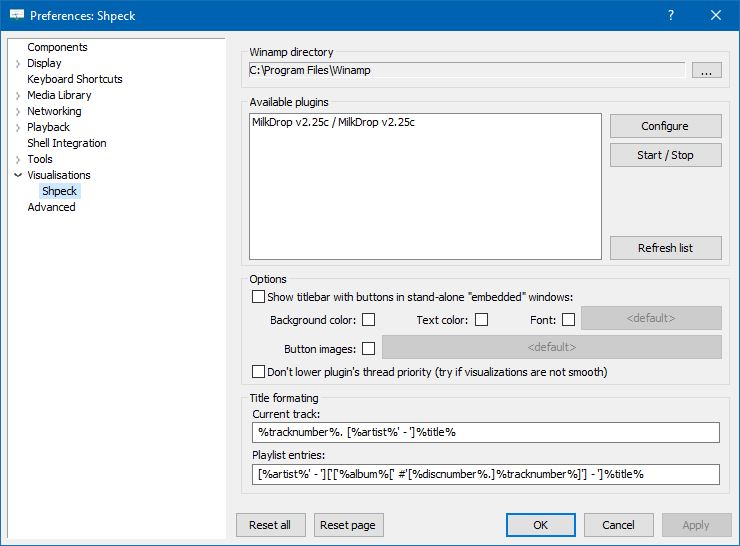
  6. Configure the plugin at Preferences > Visualisations > Shpeck
  7. Configure visualizations
Preferences: Shpeck

Resources:
www.foobar2000.org/components/view/foo_vis_shpeck
www.winamparchive.org
archive.org/details/tucows_193563_Winamp
www.mediafire.com/download/8hxarja92q9q99c/foobar2000-milkdrop-2.25c.7z
forums.winamp.com/forum/winamp/winamp-discussion/4615655-winamp-5-9-2-released

Guides:
Milkdrop in Foobar on Windows 8 ~ vault-tec.info/post/51743506694/milkdrop-in-foobar2000-on-windows-8

Additional Presets:
sourceforge.net/projects/mdpresetpack/
www.thefreewindows.com/21777/download-free-milkdrop2-50000-presets-megapack/
archive.org/details/Milkdrop252kPresetCollection.7z

… some archives from this milkdrop contest thread on Winamp forum and put everything into a single archive. Some of the presets are nice and quite original, but most of them are variations. The ones that seemed nice to me I copied and added exclamation mark to their names. ~ hydrogenaud.io/index.php/topic,59388.msg914054.html#msg914054

foo_deskband_control ~ Foobar2000 On The Taskbar


Customizable windows – taskbar deskband control

www.foobar2000.org/components/view/foo_deskband_controls
hydrogenaud.io/index.php?topic=78234.0

foo_input_vgmstream ~ Foobar2000 Plays Game Audio


This Foobar2000 component decodes dozens of streamed ADPCM or other compressed format files extracted from various console and PC games.

www.foobar2000.org/components/view/foo_input_vgmstream

Supported codec types:

Quick list of codecs vgmstream supports, including many obscure ones that are used in few games.

PCM 16-bit
PCM 8-bit (signed/unsigned)
PCM 4-bit (signed/unsigned)
PCM 32-bit float
u-Law/a-LAW
CRI ADX (standard, fixed, exponential, encrypted)
Nintendo DSP ADPCM a.k.a GC ADPCM
Nintendo DTK ADPCM
Nintendo AFC ADPCM
ITU-T G.721
CD-ROM XA ADPCM
Sony PSX ADPCM a.k.a VAG (standard, badflags, configurable, Pivotal)
Sony HEVAG
Electronic Arts EA-XA (stereo, mono, Maxis)
Electronic Arts EA-XAS (v0, v1)
DVI/IMA ADPCM (stereo/mono + high/low nibble, 3DS, Omikron, SNDS, etc)
Microsoft MS IMA ADPCM (standard, Xbox, NDS, Radical, Wwise, FSB, WV6, etc)
Microsoft MS ADPCM (standard, Cricket Audio)
Westwood VBR ADPCM
Yamaha ADPCM (AICA, Aska)
Procyon Studio ADPCM
Level-5 0x555 ADPCM
lsf ADPCM
Konami MTAF ADPCM
Konami MTA2 ADPCM
Paradigm MC3 ADPCM
FMOD FADPCM 4-bit ADPCM
Konami XMD 4-bit ADPCM
Platinum 4-bit ADPCM
Argonaut ASF 4-bit ADPCM
Ocean DSA 4-bit ADPCM
Circus XPCM ADPCM
OKI 4-bit ADPCM (16-bit output, 4-shift, PC-FX)
Ubisoft 4/6-bit ADPCM
SDX2 2:1 Squareroot-Delta-Exact compression DPCM
CBD2 2:1 Cuberoot-Delta-Exact compression DPCM
Activision EXAKT SASSC DPCM
Xilam DERF DPCM
InterPlay ACM
VisualArt’s NWA
Electronic Arts MicroTalk a.k.a. UTK or UMT
CRI HCA
Xiph Vorbis (Ogg, FSB5, Wwise, OGL, Silicon Knights)
MPEG MP1/2/3 (standard, AHX, XVAG, FSB, AWC, P3D, etc)
ITU-T G.722.1 annex C (Polycom Siren 14)
ITU G.719 annex B (Polycom Siren 22)
Electronic Arts EALayer3
Electronic Arts EA-XMA
Sony ATRAC3, ATRAC3plus
Sony ATRAC9
Microsoft XMA1/2
Microsoft WMA v1, WMA v2, WMAPro
AAC
Bink
AC3/SPDIF
Xiph Opus (Ogg, Switch, EA, UE4, Exient)
Xiph CELT (FSB)
Musepack
FLAC
Others

github.com/losnoco/vgmstream

foo_input_sacd ~ Foobar2000 Super Audio CD Decoder


The Super Audio CD Decoder adds SACD ISO, DSF, DSDIFF/DFF and DSD WavPack support to foobar2000. It can play DSD as PCM or send DSD to compatible output hardware. Related components provide DSD processing and conversion.

Current project: Super Audio CD Decoder on SourceForge

Version checked: foo_input_sacd 2.0.25, released June 22, 2026, with a separate package for foobar2000 1.6.x dated June 24, 2026. SourceForge labels the project Inactive, although its archive lists these June 2026 packages. Its prominent “Download Latest Version” button currently points to 2.0.24, so use the versioned 2.0.25 download links below or inspect the complete file archive. Recent files do not guarantee ongoing maintenance or support.

Installation

  1. Download the package matching your foobar2000 version: foo_input_sacd 2.0.25 for current foobar2000 versions, or the separate package for foobar2000 1.6.x.
  2. In foobar2000, open File → Preferences → Components, install the downloaded component package, and restart foobar2000 if prompted.
  3. Open a supported DSF, DFF/DSDIFF or SACD ISO file to confirm that it is recognized.

Keep a copy of your existing foobar2000 configuration before changing components or output settings. Component packages and compatibility can differ between foobar2000 versions.

Choose an output method

The right configuration depends on whether you want conventional PCM playback or DSD output to a compatible DAC. Start with PCM if your immediate goal is simply to play your files.

Option 1: PCM playback

PCM conversion is the straightforward choice when you want broad output compatibility or need foobar2000 DSPs, meters and visualizations to operate on the decoded audio.

  1. Open File → Preferences → Tools → SACD.
  2. Under Output (per device), select the PCM output mode.
  3. Choose a PCM sample rate supported by your output device. Do not assume 384 kHz is necessary or supported.
  4. If the decoder offers DSD-to-PCM converter settings, begin with the default settings. Change the conversion mode or filter only when you have a reason to do so.
  5. Apply the settings and play a track.

The original article used DSD+PCM, 384000 Hz and Direct (64fp, 30kHz lowpass). Those are settings from one particular setup, not universal requirements. The appropriate mode and sample rate depend on the decoder version, output device and desired processing.

Option 2: DSD output

Direct DSD playback requires a compatible output path and DAC. Support for DSD files by the decoder does not, by itself, guarantee native DSD output to your hardware.

  1. Confirm that your DAC supports the DSD rates and output method you intend to use.
  2. In the SACD decoder’s Output (per device) settings, select DSD where appropriate.
  3. Select an output device and driver that support the intended DSD path.
  4. Play a known DSD track and verify the format reported by the DAC or its control software.

The standard foobar2000 ASIO Output component is not universally required for SACD playback. foobar2000’s own documentation recommends its default output modes unless ASIO is needed for a particular device or driver.

For a compatible DAC requiring an alternative native-DSD path, see foo_out_asio+dsd. Its project documentation describes it as a substitute for the standard ASIO Output component and identifies native DSD playback as its purpose. Do not install multiple output components merely because they are available; choose the path appropriate to your hardware.

DSD, DoP and PCM are different output paths. DoP transports DSD data within a PCM-framed stream; it is not the same as converting the audio to PCM. Actual support depends on the component, driver and DAC. If you need native DSD, verify what your DAC reports rather than relying on a foobar2000 setting alone.

Stereo, multichannel and SACD tags

SACD ISO images may contain stereo and multichannel areas. In the decoder’s SACD input settings:

  • Choose the preferred area according to what you want to play. Selecting Stereo limits playback to the stereo area where available.
  • Enable editable tags if you intend to edit metadata.
  • If using the decoder’s ISO-associated tag storage, understand where those tags are stored and back them up.
  • Linked stereo/multichannel tags can help share metadata between the two versions of an album, but choose this according to your tagging workflow.

Do not assume that every SACD contains both stereo and multichannel material, or that all tag options behave identically across versions. Check the available areas and test tag changes on a copy or a non-critical file first.

Extracting tracks to DSF or other DSD formats

For conversion or extraction, use the separate foo_dsd_converter component. Version 1.0.1 was released June 23, 2026. The project’s readme states that this converter is for non-commercial use only; review the current terms before using it in a commercial context.

  1. Download and install the converter component using foobar2000’s Components preferences.
  2. If needed for the source type or sample rate, install and configure foo_dsd_processor. Consult the converter’s current readme for its requirements.
  3. Select the tracks you want to convert.
  4. Open the Convert context-menu options and choose the DSD conversion function.
  5. Select DSF or another offered output format, set the destination and naming pattern, and run the conversion.
  6. Check the resulting files for correct track boundaries, channel count, tags and playback.

Conversion options can vary with the installed component versions and source material. Keep the original ISO or DSD files until the extracted files have been checked.

About DSD

DSD stands for Direct Stream Digital. Unlike conventional PCM, which represents audio as multibit samples, DSD uses a one-bit stream at a much higher sampling rate. The commonly encountered DSD64 rate is 2.8224 MHz; higher DSD rates also exist. DSD files are not automatically better-sounding than PCM files: mastering, source quality, conversion and playback equipment all matter.

Further reading and downloads

Personal note: I originally followed an earlier version of this procedure to play DSF files and SACD ISO images on an S.M.S.L M500 DAC. That successful setup is useful historical context, but the instructions above distinguish the available output paths rather than assume that one device’s settings will work for everyone.

Last reviewed: October 23, 2026. Component versions and supported output configurations can change; consult the linked project readmes before installing or changing a working system.