FiiO Music App is designed to maximize the experience of music lovers. Download the FiiO Music app today to start your journey to rediscover your music!


FiiO Music App is designed to maximize the experience of music lovers. Download the FiiO Music app today to start your journey to rediscover your music!

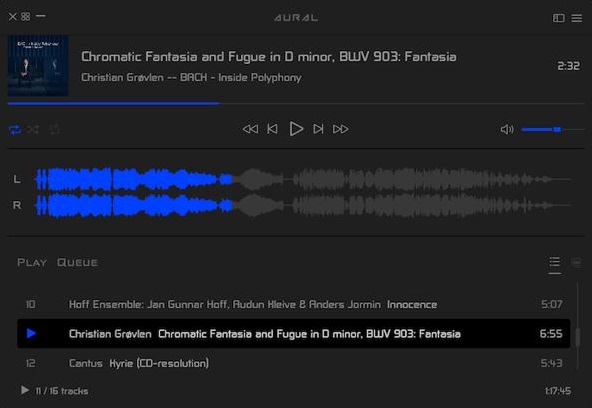
Aural Player is an audio player for macOS. Inspired by the classic Winamp player for Windows, it is designed to be to-the-point, easy to use, and customizable, with support for a wide variety of popular audio formats and some sound tuning capabilities for audio enthusiasts.
github.com/maculateConception/aural-player

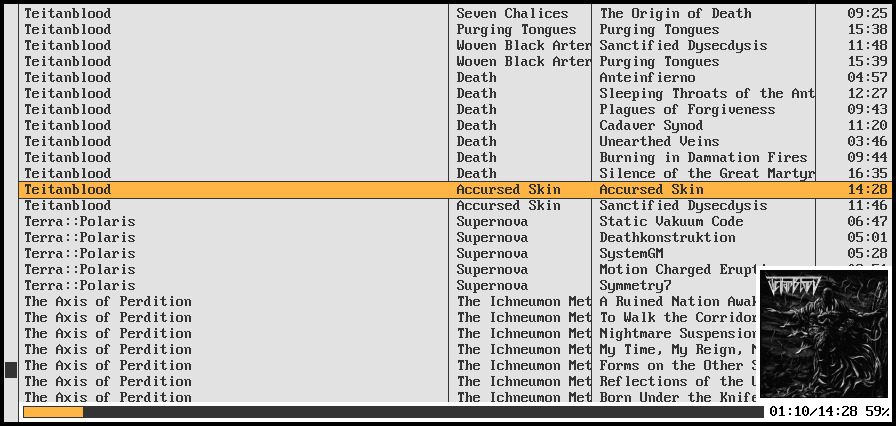
Plan 9 Music Player
With some stuff one expects from a music player:

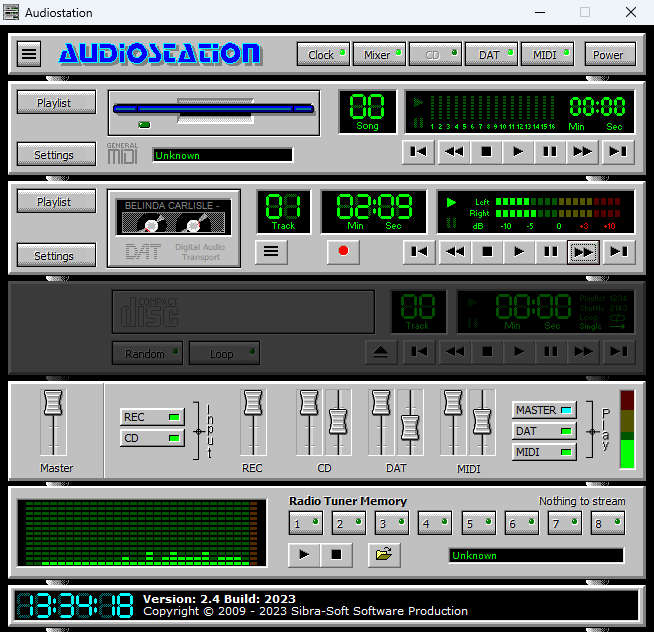
With AudioStation you can easily listen to the most common music files like mp3 and wav etc. Just click on the music file and AudioStation will automatically start playing your favorite music.
www.audiostation.org
github.com/Sibra-Soft/audiostation
sourceforge.net/projects/audio-rack-media-player

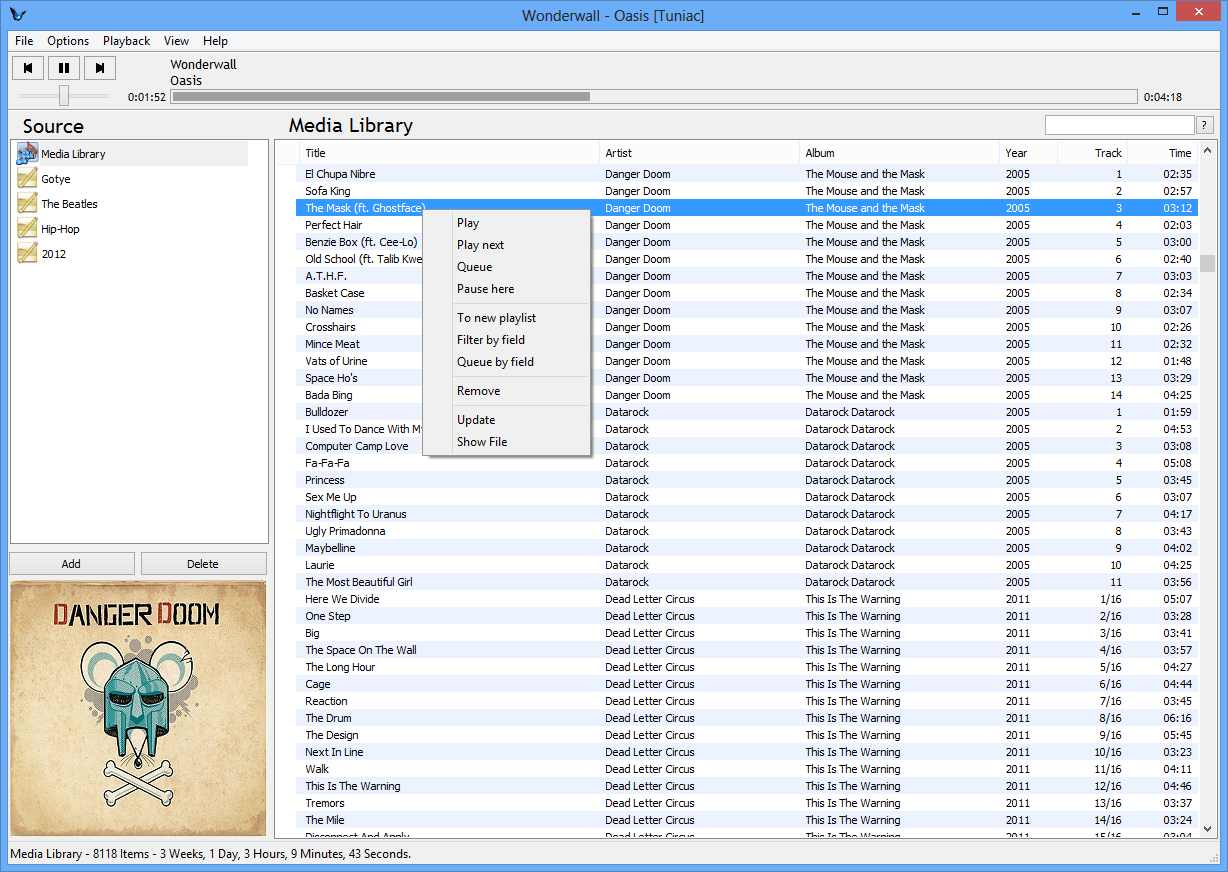
Tuniac is an iTunes style media player / manager for Windows, with an advanced playlist editor, search as you type and queue support.

This Java Modplayer plays *.mod, *.xm, *.s3m, *.stm, *.wow, *.it (all with interpolation), MP3s, *.sid, *.ogg, *.flac, *.ape, WAV, MIDI, RMI, AU, AIFF. It also supports playlists like PLS, M3U and cue-sheets.
To start the player you may just double click the jar or use:
java -jar ./javamod.jaror (for just commandline)java -cp ./javamod.jar de.quippy.javamod.main.CommandLine.This player can be run as a console application, with its swing GUI.
www.javamod.de
sourceforge.net/projects/javamod

Sayonara is a small, clear and fast audio player for Linux written in C++, supported by the Qt framework. It uses GStreamer as audio backend. Sayonara is open source and uses the GPLv3 license. One of Sayonara’s goals is intuitive and easy usability. Currently, it is only available for Linux and BSD. Although Sayonara can be considered as a lightweight player, it has a lot of features in order to organize even big music collections. In contrast to the heavyweight players, the main focus of Sayonara is performance, low CPU usage and low memory consumption. Sayonara is a great alternative to players like Rhythmbox, Clementine or Amarok. Those who miss Winamp for Linux should give Sayonara a try.
Managing your library: You can manage your library by artists, albums, genres or file paths. Sayonara contains a sophisticated tag editor helping you to keep your collection clean. You can hold multiple playlists simultaneously, save/rename/delete or export them to common playlist file formats. With the multi library feature you can manage multiple directories as stand-alone libraries and copy and move tracks from one to another. There are even more complex library plugins like Soundcloud or SomaFM support.
Directory view: Some people don’t have a perfect tagged library and are more interested in the directory structure of their libraries. Sayonara provides various features to access and edit your music in the directory view.
Plugins: In addition, there are some useful plugins helping to enhance your comfort while listening. Some interesting plugins are the equalizer, a speed/pitch control, a crossfader, bookmarks for tracks and a broadcasting function.
Webstreams and Podcasts: You can record all tracks streamed from the internet. Your saved tracks automatically tagged, of course. When listening to ordinary webstreams, a history of all played tracks can be displayed. If webstreams or podcasts contain some chapter information, Sayonara also uses this information in order to provide fast jumping within these tracks.

sayonara-player.com
en.wikipedia.org/wiki/Sayonara_Player

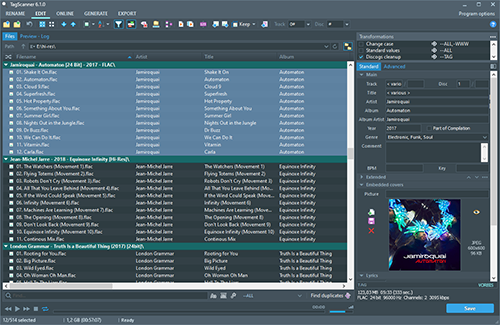
TagScanner is a powerful tool for organizing and managing your music collection. It can edit tags of most modern audio formats, supports ID3v1/v2, Vorbis comments, APEv2, WMA and MP4(iTunes) tags. You can rename files according to information from the tags, import tag information from filenames or other sources, perform any text replacement and transformations in tags and filenames. Also you may get album info and download covers via online databases like freedb, Discogs or MusicBrainz. You can create playlists in one click and export your collection to HTML, Excel or any user-defined format. Program has easy-to-use multilingual interface and built-in audio player.
Features:
- Rename files based on the tag and file information
- Powerful multiple files tag editor
- Import album information and covers from online databases like Discogs or MusicBrainz
- Generate tag information from file/foldernames
- Tag fields formatting and rearrangement
- Words replacement and case conversion from tags and filenames
- Supports MP3, OGG, FLAC, WMA, MPEG-4, Opus, Musepack, Monkey’s Audio, AAC, OptimFROG, SPEEX, WavPack, TrueAudio, WAV, AIFF, Direct Stream Digital files
- Supports ID3 1.0/1.1/2.2/2.3/2.4 tags, APE v1 and v2 tags, Vorbis Comments, WMA tags and MP4(iTunes) metadata
- Supports for embedded lyrics and cover art
- Resize cover art for portable devices on the fly
- TAGs versions conversions
- Quick playlists creation
- Export information to HTML, XML CSV or any user-defined format
- Full support for Unicode
- Multi-language interface
- Built-in audio player

Simple component for foobar2000 to fix CUE/FLAC problems
.cue file that links to timestamps in a base .flac/.wav/.ape file..cue files that point to missing files (.flac/.wav/.ape etc).* Remove “*.CUE” from preferences>shell integration>exclude file types
github.com/RevenantX/foo_cuefixer
hydrogenaud.io/index.php/topic,117167.0
hydrogenaud.io/index.php?topic=118978.msg981682#msg981682

Can create different Last.fm related playlists:
- loved tracks of a single user, multiple users, friends or neighbours.
- recent tracks of a single user, multiple users, friends or neighbours.
- top tracks of a single user, multiple users, friends or neighbours over different periods.
- top tracks of an artist.
- top tracks of artists similar to an artist.
- top tracks with certain tag.
- tracks similar to a track.
Can also…
- love, unlove, ban and unban a track on your Last.fm account.
- add a track to a custom playlist on your Last.fm account.
- save and load XSPF playlists (make playlists without hard paths). This makes it possible to easily share playlists with other people. Also when you restructure your library (change location of your music files), these playlists will continue to work.
www.foobar2000.org/components/view/foo_softplaylists
hydrogenaud.io/index.php?topic=76133.0
Integrating Last.fm with Foobar2000 Using Soft Playlists
Step 1: Install Soft Playlists
Begin by downloading the foo_softplaylists component from the foobar2000 website. Once downloaded, open foobar2000 and navigate to File → Preferences → Components → Install…, then select the downloaded .fb2k-component file. Restart foobar2000 to activate the plugin. This component enables you to generate dynamic playlists directly from your Last.fm data.
Step 2: Connect Your Last.fm Account
After installation, go to Preferences → Tools → Soft Playlists → Last.fm. Enter your Last.fm username and password to authorize the connection. Once you are logged in, the plugin can fetch your loved tracks, recent plays, top tracks, and tag-based data.
Step 3: Creating Loved Tracks Playlists
Soft Playlists can generate playlists of tracks in your library that are marked as loved on Last.fm. Simply create a new playlist, Open the Library Menu and choose the “Loved Tracks” option, and the plugin will match these tracks with your local files and create a new playlist. You can now play or sort these loved tracks directly from foobar2000.
Step 4: Generating Top Tracks Playlists
You can also create playlists based on top tracks from your Last.fm account, your friends, or neighbors. Select the “Top Tracks” option and filter by user, artist, or tag. This allows you to automatically build playlists of your most-played tracks, popular tracks by similar artists, or tracks labeled with specific moods or genres.
Step 5: Recent Tracks Playlists
Soft Playlists supports recent tracks queries from Last.fm. You can generate playlists of your most recently played tracks or recent tracks from other users. This is ideal for keeping up to date with current listening trends.
Additional Features:
Soft Playlists allows you to save sharable playlists in XSPF format, which keeps them portable and resilient to file location changes. The plugin also lets you love or unlove tracks directly from foobar2000, updating your Last.fm account automatically. This integration creates a seamless workflow between your local library and Last.fm.
Adding a toolbar button to love a track:
Customize Buttons...“Available Commands Panel, open “Context Menu” and then “Last.fm”"Last.fm Love Track” and click the “Add” button then click “Ok”Tips and Considerations
Soft Playlists is an older 32bit component. The plugin works best if most of your Last.fm scrobbled tracks are present in your local library. For more advanced integration, consider combining Soft Playlists with Spider Monkey Panel scripts to pull additional data, such as playcounts, tags, or charts.

Another type of Foobar2000’s playlists are randomly generated autoplaylists where songs, or groups of songs, are selected randomly from a pool of the same. By predefining a subset of a media library, “pools” of refined selections can be created and then drawn from.
foo_random_pools is a foobar2000 component for creating random playlist entries selected and grouped by various pool definitions.
www.foobar2000.org/components/view/foo_random_pools
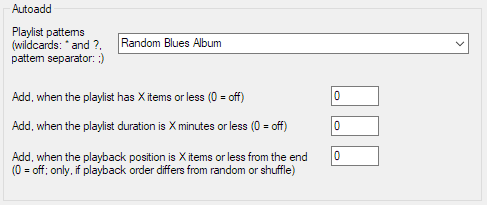
Let’s say you want a playlist of random blues albums from your library.
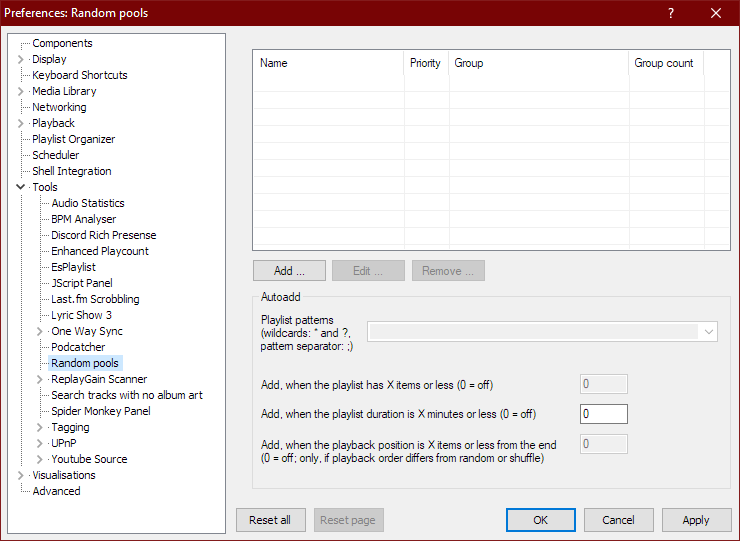
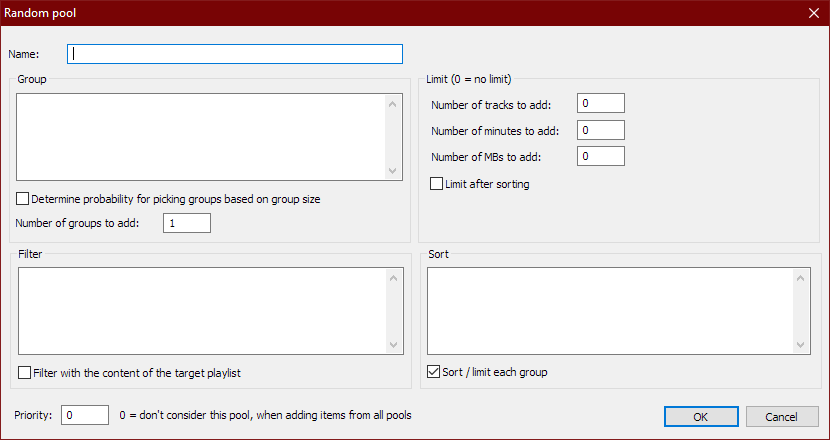 For example to make a pool of blues albums use the following criteria: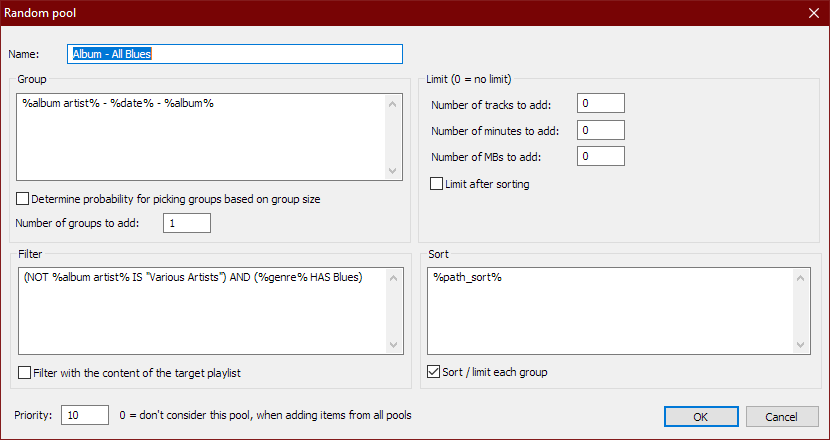

PyKaraoke is a free karaoke player for Linux, FreeBSD, NetBSD, Windows, OSX and GP2X.
You can use this program to play your collection of CDG, MIDI and MPEG karaoke songs. No songs are provided, you must obtain these from elsewhere.
Visit here to find out more about what a CDG or MP3+G file is. In short, CDG is the format of professional karaoke CDs. These CDs can be ripped to your hard disk, and turned into a .mp3 file together with a .cdg file. This player gives you the ability to play those mp3+cdg files.
PyKaraoke Features:
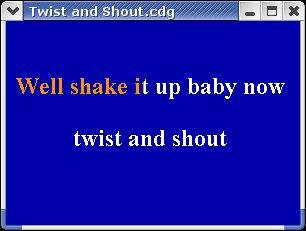
- CDG (MP3+G, OGG+G, WAV+G) playback – Play standard CDG karaoke files
- MIDI (.MID/.KAR) playback – Play MIDI format karaoke files
- MPEG playback – Play karaoke songs and movies in MPEG format
- Other formats – Play any other video formats by launching an external media player
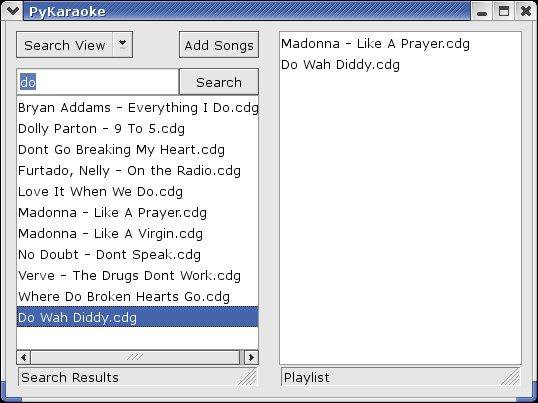
- Playlist – Queue up songs, sit back and enjoy
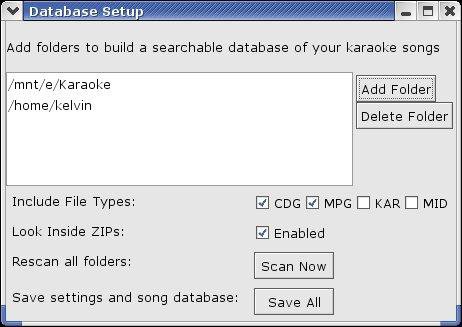
- Searchable song database – Easily find your songs from the main screen
- Search inside ZIP files – Play MP3+G/MIDI files wrapped in ZIP files
- Cross-platform – Runs on Windows, Linux, BSD, OSX and GP2X
- Mini Frontend – Additional mini-frontend for low res displays and handhelds
- Export to MPEG – Convert CDG and KAR files to MPG files (command line only)
www.kibosh.org/pykaraoke
sourceforge.net/projects/pykaraoke


