The aim of Sonic Visualiser is to be the first program you reach for when want to study a musical recording rather than simply listen to it.
We hope Sonic Visualiser will be of particular interest to musicologists, archivists, signal-processing researchers and anyone else looking for a friendly way to take a look at what lies inside the audio file.
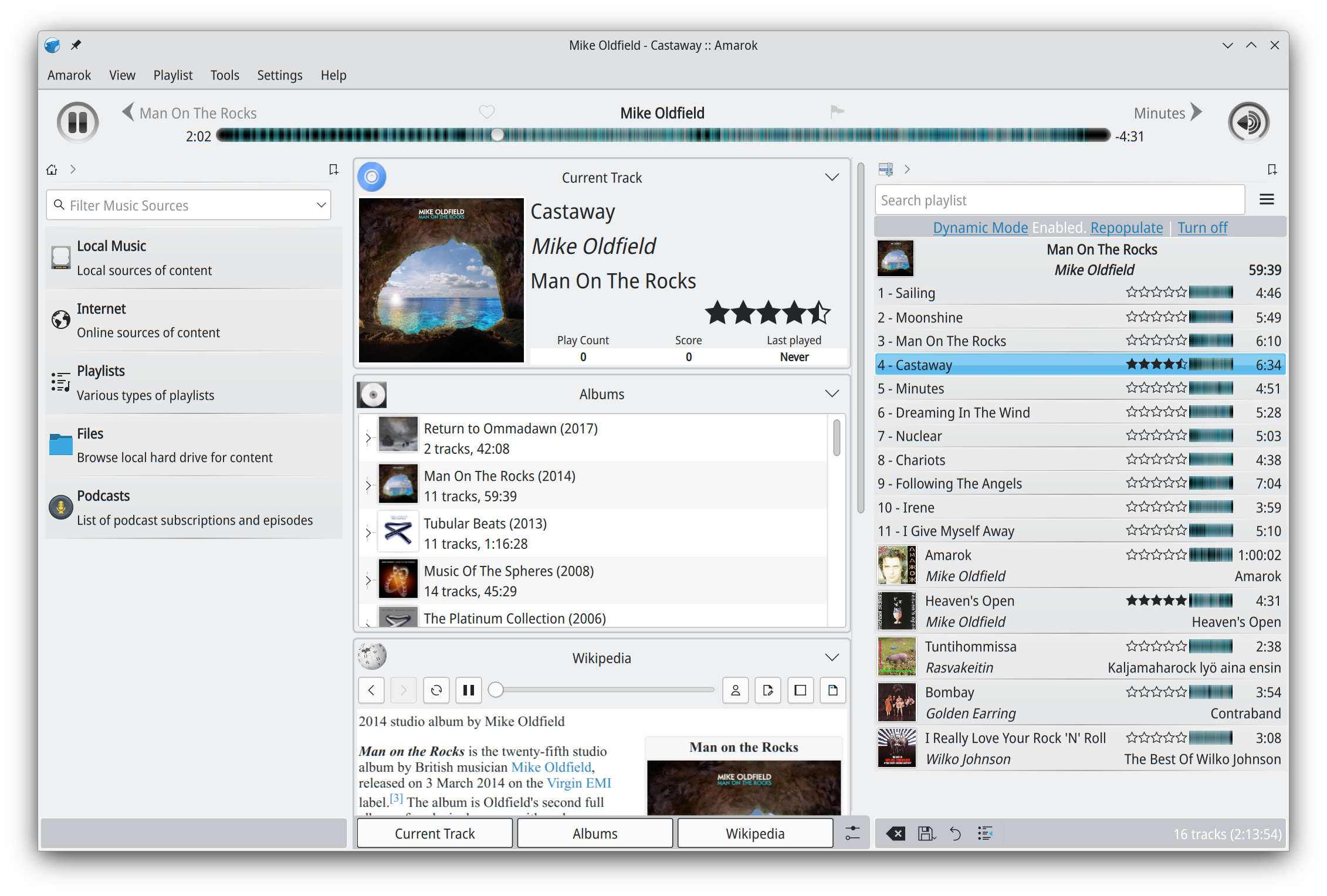
Amarok is a powerful music player, with multi-language support, for Macs, Unix/Linux and Windows. It has an intuitive interface and makes playing the music you love, and discovering new music, easier than ever before – and it looks good doing it!
Features:
Dynamic playlists matching different criteria
Collection managing with rating support
Support for basic iPod, MTP and UMS music player devices
Playlists, or named lists of songs, are an essential aspect of Foobar2000. Whenever you add a song to Foobar, you are adding it to one of Foobar’s playlists. Foobar allows you to create and maintain different playlists, which are just entitled lists of your audio tracks (files). The playlists link to audio files in a ‘many to one’ relationship; that is, there can be many tracks on different playlists that reference the same audio track. Foobar can import and exports playlists in a variety of formats; and stores its own playlists as .fpl files. (This is different from adding a song to your Foobar2000 Library).
Playlists can be created manually by adding individual songs, or automatically by specifying a set of conditions in a query with the result displayed as an “Autoplaylist”. Manually created playlists are static, they don’t change unless you change them; Autoplaylists are dynamic, that is the results may change whenever the Autoplaylist is queried.
Playlists created manually can be edited directly, while Autoplaylists are edited by modifying the query. However, you can save the results of an Autoplaylist as a new static, and therefore editable, playlist.
Creating an Autoplaylist of an Albumlist item like genre:
Select by genre from the Albumlist view selector
Select a genre from the list of genres
Right click that selected genre and select Create Autoplaylist
You will now have a new Autoplaylist listed on the playlist manager tab with the name of the genre you selected. Playlists created this way are called an Album List branch.
Creating an Autoplaylist of a folder’s contents:
Select the Search tab
enter %path% HASreplace this with the actual path in the search field
No Dynamic Range info ~ %dynamic_range_album% MISSING
No ReplayGain info ~ %replaygain_track_gain% MISSING
No Artist info ~ %path% HAS album AND album artist MISSING
Played often ~ %play_count% GREATER 9
Randomly sorted ~ ALL SORT BY “$rand()”
Recently added ~ %added% DURING LAST 1 WEEKS
Recently played ~ %last_played% DURING LAST 1 WEEK
Recently modified ~ %last_modified% DURING LAST 2 WEEKS
Foobar Playlist Management Components:
foo_new_playlist replicates the regular “New playlist” command with a customizable pattern in advanced configuration using %always_counter% and %maybe_counter% to enumerate possible names.
Last.fm is a web service that maintains a history of what you’ve listened to. You’ll need a Last.fm account and a player that can scrobble. Scrobbling is uploading the artist’s name and song title of your currently playing track to Last.fm’s server. foo_audioscobbler allows Foobar to keep your Last.fm profile current.
It replaces the Last.fm client application.
It supports the current submission protocol.
It sends “now playing” notifications to your Last.fm profile.
Optionally, it can import played tracks from your iPod via the foo_dop component.
After you install foo_audioscrobbler, you’ll need to log into your Last.fm account in Foobar’s Preferences menu.
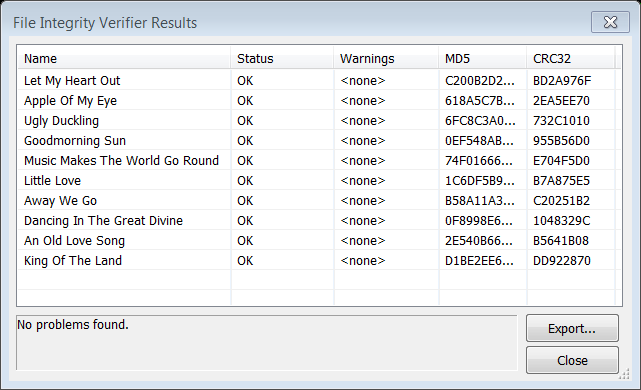
Checks specified media files for decoding errors. Note that with most formats, its accuracy is limited to detecting errors that abort the decoding process.
After installing this Foobar plugin, you’ll have two new menu choices under the right mouse click context menu: Utilities > Verify integrity and Utilities > Verify album with Accuraterip
It’s also possible to see more information if you go to File > Preferences > Advanced > Tools > File Integrity Verifier and enable Verbose AccurateRip Output
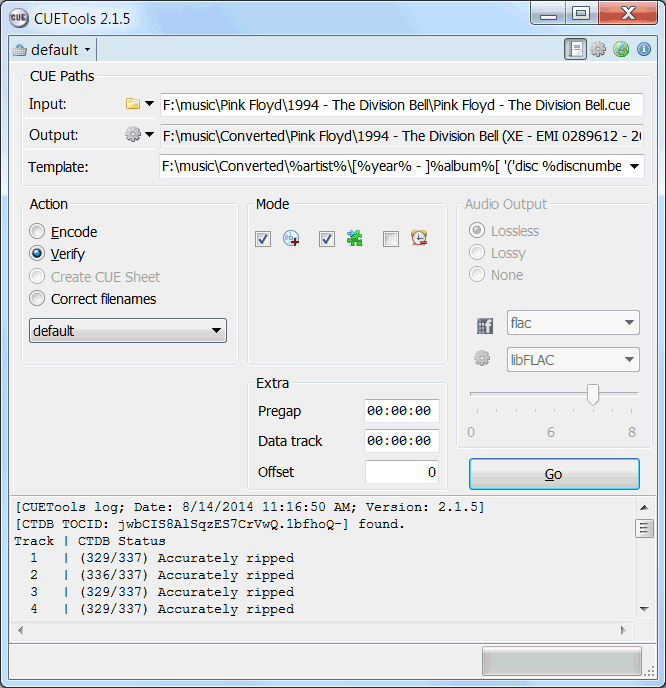
CUETools is a tool for lossless audio/CUE sheet format conversion. The goal is to make sure the entire album image is preserved accurately. A lossless disc image must be lossless not only in preserving contents of the audio tracks, but also in preserving gaps and CUE sheet contents. Many applications lose vital information upon conversion, and don’t support all possible CUE sheet styles. For example, foobar2000 loses disc pre-gap information when converting an album image, and doesn’t support gaps appended (noncompliant) CUE sheets.
Frome the same developer who brought you Foobar2000 comes Boom.
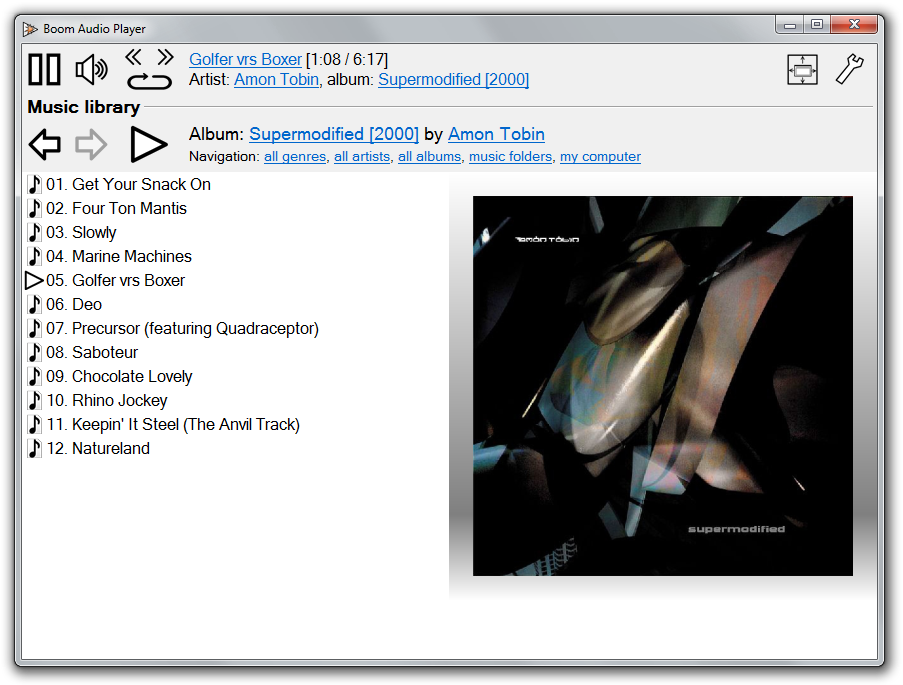
Boom is an easy to use audio player intended for casual computer users who do not wish to spend their time on figuring more sophisticated software out. All of its most important features are easily accessible out-of-the-box.
Features:
No installation or administrator rights required! Just download and run.
Gapless playback of properly encoded files. Enjoy smooth transitions between tracks.
ReplayGain support. External software is currently required to write ReplayGain information to file tags to utilize this functionality.
Contents of your music folders are shown, in a convenient structured genre/artist/album/song view.
By default, contents of “my music” folder or Windows Music library folders are shown. You can configure Boom to index music from any other folders though.
You can install Boom to removable media and have it index contents of the folder it is installed in.
Are your files badly tagged or missing tags all together? No problem, Boom can browse your music library by its folder structure.
Supports variety of popular audio formats, including: MP3, Ogg Vorbis, FLAC, Musepack (MPC), WavPack, WAV, AIFF, MP4/M4A, WMA.
For emergency tagging needs, Boom includes a simplified version of the foobar2000 Properties dialog.
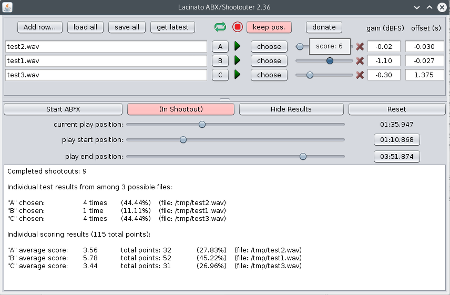
Lacinato ABX is the only cross-platform ABX and shootout blind testing software for audio. It allows double-blind ABX testing of audio files (seeing if you can tell which file is being played), as well as “shootouts” (picking your favorite from a shuffled, anonymized list). Or you can just use it as a convenient way to switch between files (maintaining the current play position, if you like.
SoX is a cross-platform command line utility that can convert various formats of computer audio files into other formats. It can also apply various effects to these sound files, and, as an added bonus, SoX can play and record audio files on most platforms.
NirCmd is a small command-line utility that allows you to do some useful tasks without displaying a user interface. By running NirCmd with simple command-line options, or via a shortcut, you can decrease or increase the system volume, mute or unmute the system volume, speak the text currently in the clipboard or text file, change the default sound device, display a list of sound devices, change the volume of an app, change the display settings, turn off the monitor, open the door of a CD-ROM drive and more…