Foobar2000 ~ The First Steps


For most users the latest version of Foobar2000 32-bit is adequate. Users with very large music libraries may need to install the 64-bit version. The latest Foobar2000 installers are available on the official downloads page: www.foobar2000.org/download

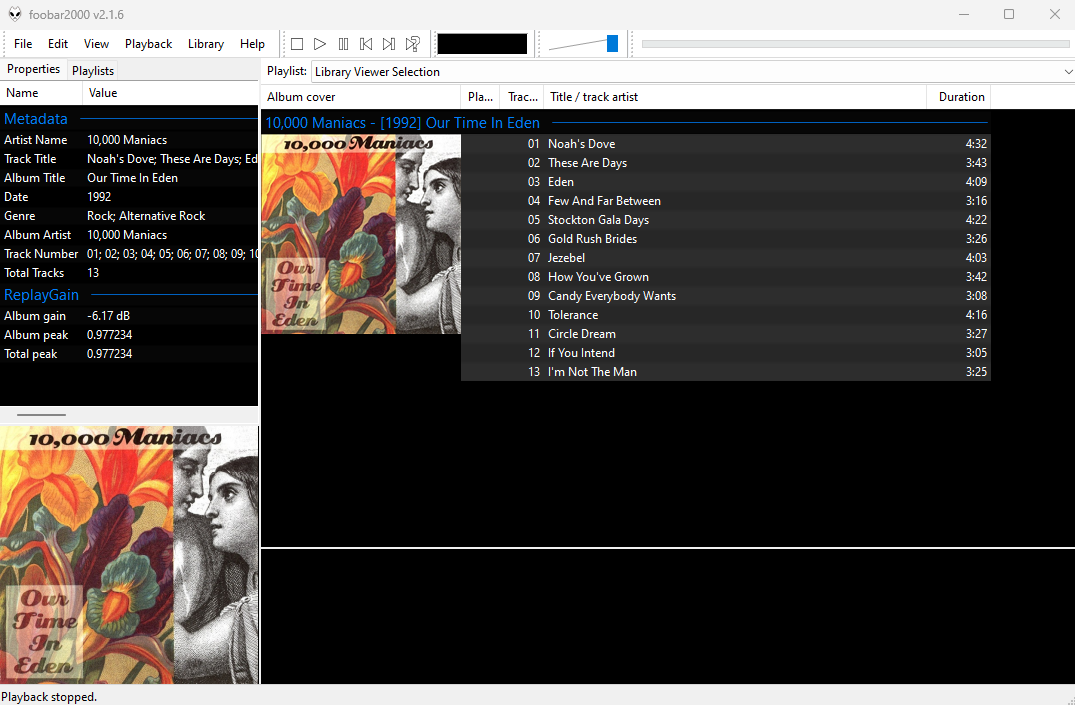
After downloading, installing Foobar2000 and starting Foobar2000, you will see the main Default User Interface, commonly referred to as the DUI.

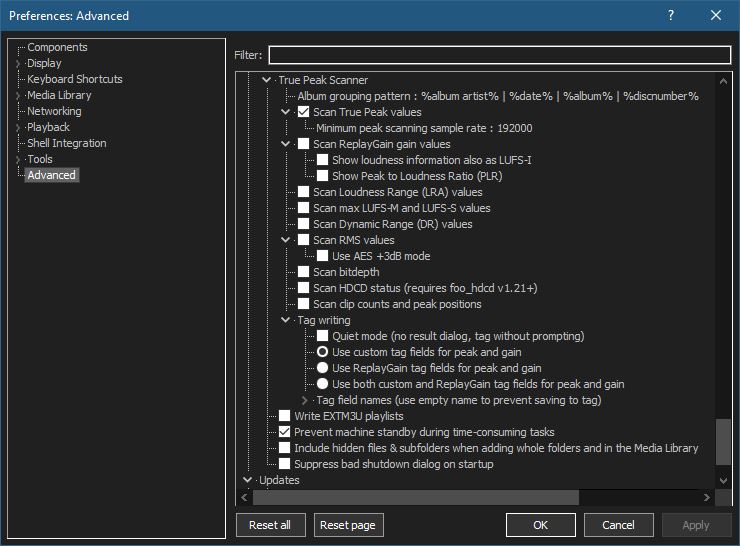
The first step is to populate Foobar2000’s Media Library.

Select Preferences > Media Library > Add...

and navigate to your Music folder. Once Foobar2000 has scanned all the subfolders and files, it will continue to monitor for any additions, deletions or revisions

The next step is to set the ReplayGain values. See ReplayGain ~ Advanced Volume Normalization

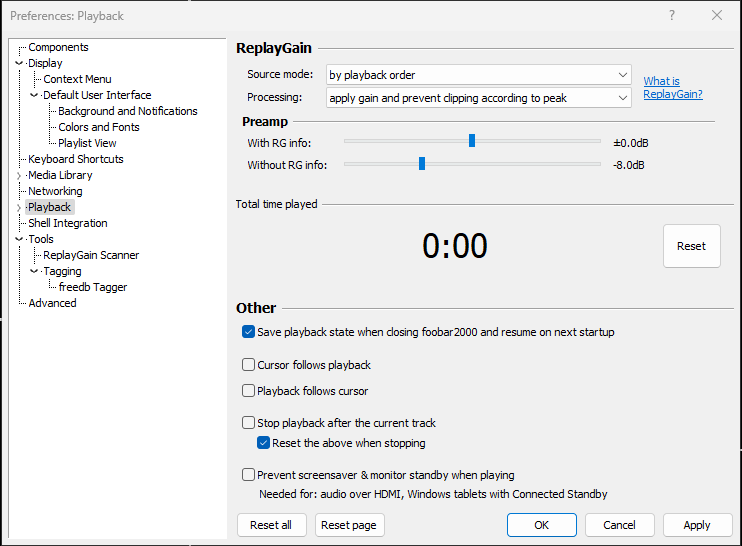
Select the Playback submenu:

  1. Change Source mode to ‘by payback order
  2. Change Processing to ‘apply gain and prevent clipping according to peak
  3. Adjust the ‘Without RG info‘ slider to -8.0 dB

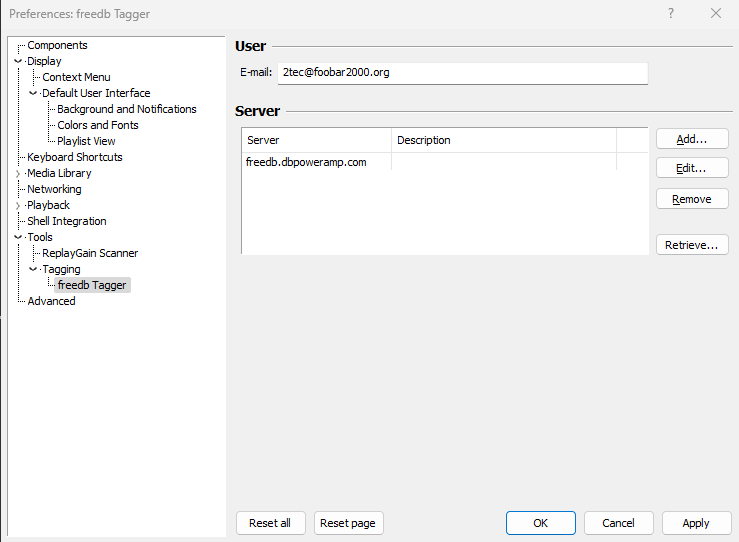
The last initial step is to set your own individual freedb address.

At this point you should see your music and it should play without issue.

This covers the very basics. The next steps will be to add additional components, more configuration and how to use Foobar2000 to accomplish day to day tasks.

References:

Zoog ~ Zero Opus Output Gain


Zoog is a Rust library that consists of functionality that can be used to determine the loudness of an Ogg Opus file and also to rewrite that file with new internal gain information as well as loudness-related comment tags. It also has functionality for purely manipulating comment tags of both Ogg Opus and Ogg Vorbis files.

Zoog currently contains two tools, opusgain and zoogcommentopusgain can be used to:

  • set the output gain value located in the Opus binary header inside Opus files so that the file plays at the loudness of the original encoded audio, or of that consistent with the ReplayGain or EBU R 128 standards.
  • write the Opus comment tags used by some music players to decide what volume to play an Opus-encoded audio file at.

It is intended to solve the “Opus plays too quietly” problem.

github.com/FrancisRussell/Zoog
hydrogenaud.io/index.php/topic,120387.0

Burrrn ~ Burn Audio CDs The Easy Way!


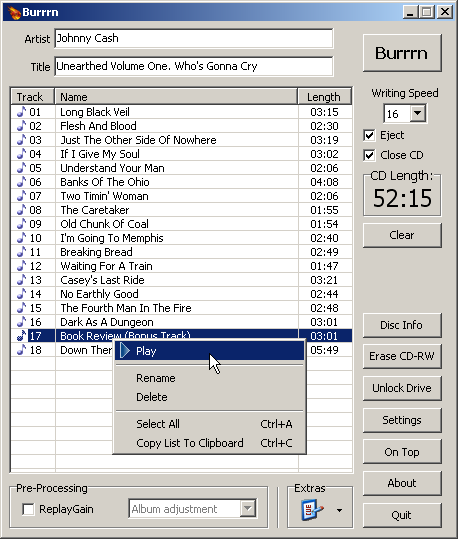
Burrrn is a little tool for creating audio CDs with CD-Text from various audio files. Supported formats are: wav, mp3, mpc, ogg, aac, mp4, ape, flac, ofr, wv, tta, m3u, pls and fpl playlists and cue sheets. You can also burn EAC’s noncompliant image + cue sheets! Burrrn can read all types of tags from all these formats (including ape tags in mp3). Burrrn uses cdrdao.exe for burning.

www.burrrn.net

Fooyin ~ Linux Audio Player


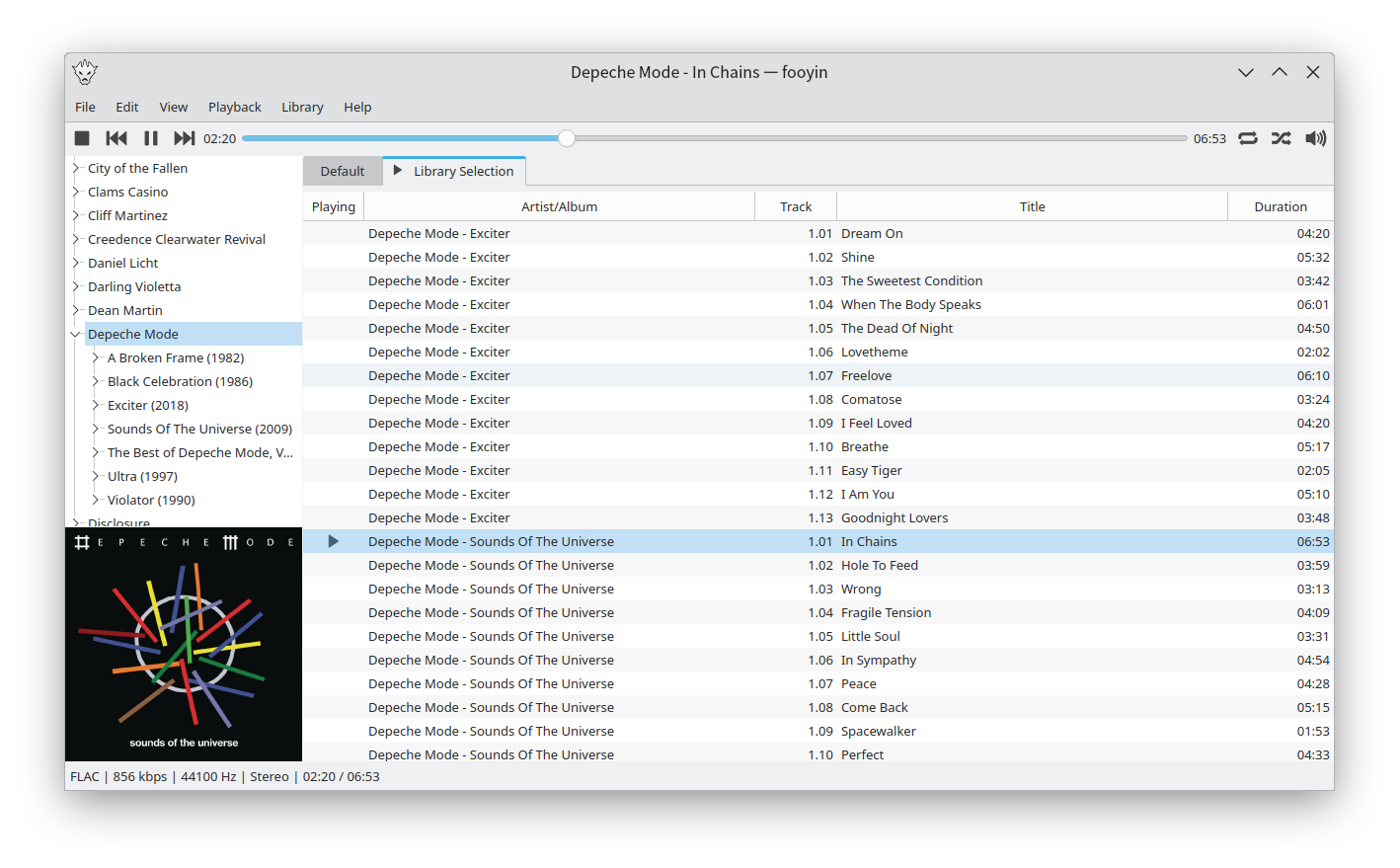
Fooyin is a customisable music player for Linux. Fooyin features a layout editing mode in which the entire user interface can be customised, starting from a blank state or a default layout. FooScript takes this further by extending the customisation to individual widgets themselves.

Features:

  • Playback FLAC, MP3, MP4, Vorbis, Opus, WavPack, WAV, AIFF, Musepack, Monkey’s Audio
  •  Playback popular VGM and tracker module formats
  •  Gapless playback
  •  Add and play files from within compressed archives
  •  Audio output and device configuration
  •  CUE sheet support (including embedded)
  •  Fully customisable layout, starting from a blank window
  •  Customisable keyboard shortcuts
  •  Filter library on any field(s)
  •  Create and manage playlists
  •  Import/export playlists (M3U/M3U8)
  •  Extensible using a plugin system
  •  Tag editing
  •  Library tree, including directory structure view
  •  Directory browser
  •  Waveform seekbar
  •  MPRIS support
  •  ReplayGain support
  •  Scrobbling

www.fooyin.org
github.com/ludouzi/fooyin

Muine ~ Gnome Music Player


Muine is an innovative music player, featuring a simple, intuitive interface. It is designed to allow users to easily construct a playlist from albums and/or single songs. Its goal is to be simply a music player, not to become a robust music management application. This doesn’t mean Muine has no features! Some feature highlights:

  • Ogg/Vorbis, FLAC, AAC and MP3 music playback support
  • Automatic album cover fetching via MusicBrainz and Amazon
  • Support for embedded album images in ID3v2 tags
  • ReplayGain support
  • Support for multiple artist and performer tags per song
  • Plugin support
  • Translations into many languages

Muine is targeted at the GNOME desktop and uses GTK+ for the interface. Most of the code is written in C#, with some additions/bindings/glue in plain C. Muine was originally written by Jorn Baayen, but now maintained mostly by others.

github.com/mickeyr/Muine
gitlab.gnome.org/Archive/muine
en.wikipedia.org/wiki/Muine
manpages.org/muine

wavegain ~ Replaygain For Wave Files


WaveGain is an application of the ReplayGain algorithms to standard PCM wave files. Calculated gain adjustments are applied directly to the audio data, instead of just writing metadata as traditionally done for other formats like MP3, FLAC and Ogg Vorbis. The replaygain values can also be added as metadata in a custom RIFF chunk named ‘gain’. This could theoretically allow WAV files to have same lossless functionality as other formats where audio data is not altered. But since no current players are aware of this “standard”, the metadata is used only by WaveGain for the “–undo-gain” feature, which is lossy.

github.com/MestreLion/wavegain

FiiO Music App ~ Hi Rez Audio For Android & iPhones


FiiO Music App is designed to maximize the experience of music lovers. Download the FiiO Music app today to start your journey to rediscover your music!

www.fiio.com/app

Aural Player ~ Winamp For Macs


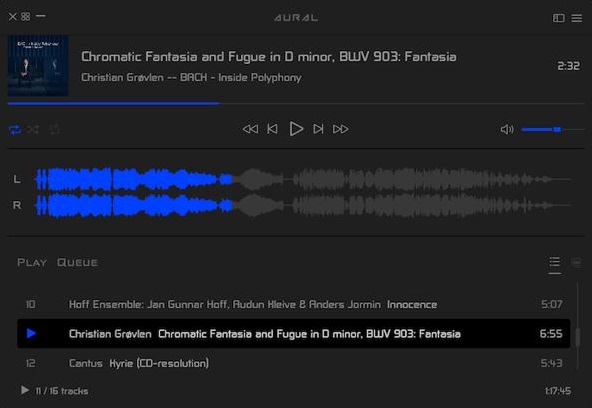
Aural Player is an audio player for macOS. Inspired by the classic Winamp player for Windows, it is designed to be to-the-point, easy to use, and customizable, with support for a wide variety of popular audio formats and some sound tuning capabilities for audio enthusiasts.

github.com/maculateConception/aural-player

FFmpeg ~ Open Source Audio Video Toolset


A complete, cross-platform solution to record, convert and stream audio and video. FFmpeg is the leading multimedia framework, able to decode, encode, transcode, mux, demux, stream, filter and play pretty much anything that humans and machines have created. It supports the most obscure ancient formats up to the cutting edge. No matter if they were designed by some standards committee, the community or a corporation. It is also highly portable: FFmpeg compiles, runs, and passes our testing infrastructure FATE across Linux, Mac OS X, Microsoft Windows, the BSDs, Solaris, etc. under a wide variety of build environments, machine architectures, and configurations.

ffmpeg.org

Frontends:

Resources:

split2flac ~ POSIX FLAC Splitter


split2flac splits one big APE/FLAC/TTA/WV/WAV audio image (or a collection of such files, recursively) with CUE sheet into FLAC/M4A/MP3/OGG_VORBIS/OPUS/WAV tracks with tagging, renaming, charset conversion of cue sheet, album cover images. It also uses configuration file, so no need to pass a lot of arguments every time, only an input file. Should work in any POSIX-compliant shell.

https://github.com/ftrvxmtrx/split2flac

Rhythmbox ~ Gnome Audio Player


Rhythmbox is a music playing application for GNOME.

rhythmbox

wiki.gnome.org/Apps/Rhythmbox
en.wikipedia.org/wiki/Rhythmbox