Title formatting in foobar2000 is a system that allows you to control how information about your music is displayed in the interface. It doesn’t modify the audio files themselves or change tags — it only affects how metadata and other information is shown in playlists, status bar, or window title.
Think of it like a template language: you define a pattern for text, and foobar2000 fills in the fields with actual track information. For example, you can make the playlist display tracks as:
Artist - Track Title (Album)
Why Title Formatting Exists
Music files contain metadata such as:
Artist
Album
Track title
Track number
Year
Duration
Different users want to display this information differently. Title formatting lets you:
Decide which information to display
Choose the order of information
Add separators, labels, or punctuation
Optionally display certain information only when it exists
For example, you might want to show the album only if it exists. Title formatting makes that possible.
Where To Use Title Formatting
You typically use title formatting in three main places:
Playlist columns — to customize how each column displays track info.
Status bar — to show the “Now Playing” track in a readable format.
Window title — to display the currently playing track in the foobar2000 window or taskbar.
Core Concepts You Need to Know
There are three core concepts that beginners must understand:
Plain Text: Text you type exactly as it should appear.
Fields: Metadata values from the audio files (e.g., %artist%, %title%).
Conditional Logic: Optional logic to handle missing fields or customize output dynamically.
Plain Text in Title Formatting
Any normal text you type is displayed exactly as written. This is useful for labels, punctuation, or separators:
Now Playing:
You can combine plain text with fields to make output more readable:
Now Playing: %artist% - %title%
This will display something like:
Now Playing: Radiohead - Paranoid Android
Fields (Metadata Tags)
Fields are placeholders that pull metadata from your music files. They are written inside percent signs:
%artist%
Some common fields include:
Field
Meaning
%artist%
Track artist
%album%
Album name
%title%
Track title
%tracknumber%
Track number
%date%
Year or release date
%length%
Track duration
Example combining fields:
%artist% - %title%
Output:
Radiohead - Paranoid Android
Combining Plain Text and Fields
You can mix plain text with fields to create more structured output. For example:
%artist% – %title% (%album%)
Output:
Radiohead – Paranoid Android (OK Computer)
Handling Missing Information
If a field does not exist in the file, foobar2000 simply displays nothing. For example, if %composer% is missing:
%composer%
The output will be blank. To prevent blank parentheses or awkward spacing, you can use conditional logic.
Using Conditional Logic with $if()
The $if() function allows you to display text only when a field has a value:
$if(condition,then,else)
Example:
%artist% - %title%$if(%album%, (%album%),)
This will display the album in parentheses only if %album% exists. Otherwise, it leaves that part empty.
Practical Examples
Playlist Column
%artist% - %title%
Status Bar
Now Playing: %artist% – %title%
Window Title
%artist% – %title% | foobar2000
Useful Built-In Fields
These fields are always available and do not require files to be tagged:
Field
Meaning
%filename%
File name
%path%
Full file path
%codec%
Audio codec
%bitrate%
Bitrate
%samplerate%
Sample rate
Things Beginners Can Ignore
Nested functions
Math expressions
String replacement logic
Legacy syntax
Advanced grouping
Starter Setup for New Users
For someone just installing foobar2000, start with these basic formats:
%artist% - %title%
Now Playing: %artist% – %title%$if(%album%, (%album%),)
%artist% – %title%
Final Notes
%field% is the most important concept
$if() handles missing or optional data elegantly
Some data and fields depend upon components being installed
foo_tfsandbox
A good place to start is by installing foo_tfsandbox, this component allows you to experiment with title formatting expressions and fields before you implement them.
Title Formatting Fields:
$info(referenced_offset) ~ shows time in format mm:ss:ff where ff are CD frames. For the first track it will show nothing instead of 00:00:00 hydrogenaud.io/index.php?topic=118733.msg979344
Title Formatting Examples: Name | Pattern | Alignment
Display Dynamic Range: Album DR: $if2(%album dynamic range%,–) | Track DR: $if2(%dynamic range%,–) Bits (bit depth) | $ifequal([%__bitspersample%],0,16,%__bitspersample%) | Left
Super Audio CD Decoder input plugin for foobar2000. Decoder is capable of playing back Super Audio CD ISO images, DSDIFF, DSF and DSD WavPack files. Direct DSD playback for compatible devices.
Separate DSD Processor/DSD Converter plugins for track extraction into DSD/DST encoded files.
I’ve successfully followed these steps to get DSD (.dsf filetype) and SACD (.iso filetype) playing at high bit rate using foobar2000 on my S.M.S.L M500 DAC.
This has been adapted from “SECTION II” of this page, thanks to “sirblew” for the tip!
Introduction
DSD stands for Direct Stream Digital and it is a high-definition lossless audio format with a twist. PCM signal solutions (like FLAC, TTA or APE) measure a set of bits multiple times per second to capture the audio data, hence the 16/24-bit parameter. On the other hand, DSD uses only one bit but samples it 2.8 million times a second to capture the audio signal.
Device: “ASIO : USB DAC ASIO” (or name of your device)
Optionally, disable all other devices:
File > Preferences > Playback > Output > Devices
(uncheck all but “ASIO : USB DAC ASIO”, for example)
SACD (ISO) Playback
Download and extract foo_input_sacd – Super Audio CD Decoder. This decoder is capable of playing back Super Audio CD ISO images, DSDIFF, DSF and DSD WavPack files.
Install DSD SACD component:
File > Preferences > Components
Click Install.
Select only “foo_input_sacd.fb2k-component”.
Click OK, then OK again to restart Foobar2000.
Set plugin for “PCM” as output mode:
File > Preferences >Tools > SACD
Output (per device)
Type: “DSD+PCM” (was PCM). Note: DSD+PCM will send a converted to PCM stream to Foobar so graphic add-ons like VU-meters, spectrographs and so on will work as they do when playing regular PCM files.
Samplerate: 384000 (was 44100)
Converter
DSD2PCM Mode: “Direct (64fp, 30kHz lowpass)” (was “Multistage (32fp)”). 30KHz low pass filtered means all DSD noise above that frequency is removed and does not reach the amp.
Input
Preferable Area: “Stereo” (was “None”). Only stereo tracks are displayed.
Editable Tags (was unchecked).
Store Tags With ISO (was unchecked). Stores tag info in the plugin folder.
Linked 2CH/MCH Tags (was unchecked). Tags added to a SACD ISO will be shared between stereo and multichannel tracks.
Click OK
DSF Extraction (optional)
This can be useful if you open an ISO file and want to extract the contained files to DSF.
This component provides an editor for title formatting code [mainly targeted at title formatting beginners]. The editor includes syntax highlighting, a preview of the selected fragment of the code and a view of the code structure. The idea behind the component is to allow users to explore title formatting scripts by exposing aspects which are normally hidden on the user interface of foobar2000 and its components.
Additional encoding/decoding and input components expand the range of audio file formats that can be played by Foobar2000. Not all of these components are official or officially recommended. Listed alphabetically by component name.
foo_ac3~ Decodes ATSC A-52 bitstream files (.AC3). Also includes a packet decoder for Matroska files containing AC3 streams.
foo_asap ~ Decodes Atari 8-bit chiptunes in the following formats: SAP, CMC, CM3, CMR, CMS, DMC, DLT, MPT, MPD, RMT, TMC, TM8, TM2, FC. Also plays files in all foobar2000-supported formats from ATR disk images.
foo_gep ~ Decodes several game console music formats: AY, GBS, GYM, HES, KSS, NSF, SAP, SGC, SPC, and VGM.
foo_input_adplug ~ Decodes all Adlib FM chip formats supported by the AdPlug library.
foo_input_dsdiff ~ Adds decoding support for DSDIFF files (.DFF).
foo_input_dts ~ Decodes DTS Coherent Acoustics files (.DTS) and DTS WAV files (.DTSWAV). Also includes a packet decoder for Matroska files containing DTS streams, and a decode post-processor which supports decoding DTS streams from 44100Hz or 48KHz 16-bit lossless PCM streams.
foo_input_dvda ~ Decoder is capable of playing back DVD-Audio discs, ISO images, AOB, MLP and Dolby TrueHD files in full resolution. Dedicated plugin for DTS-HD playback.
foo_input_qsf ~ Decodes Capcom QSound Sound Format files (.QSF/.MINIQSF).
foo_input_shorten ~ Adds support for decoding Shorten files and tagging them through external APEv2 tags.
foo_input_sacd ~ Decoder is capable of playing Super Audio CD ISO images, DSDIFF, DSF and DSD WavPack files. Direct DSD playback for compatible devices.
foo_input_spotify ~ Spotify support for foobar2000. Requires a Spotify premium account.
foo_input_syntrax ~ Supports playback of the Syntrax or Jaytrax module format. (.JXS)
foo_input_tak ~ Alternative TAK decoder component. Bundles TAK 2.3.1 beta 1 decoder library.
foo_input_vgmstream ~ Decodes dozens of streamed ADPCM or other compressed format files extracted from various console and PC games.
foo_input_vio2sf ~ Decodes Nintendo DS Sound Format files (.2SF/.MINI2SF).
foo_input_zxtune ~ Decodes ZX Spectrum, Amiga, PC, Atari, Acorn chip / digital / fm tunes.
foo_luner2 ~ Decodes Lunar: Eternal Blue disc for Sega CD.
foo_midi ~ Decodes General MIDI files (.MID, .KAR) and RIFF MIDI files (.RMI) as well as several proprietary MIDI formats (.MIDS, .MDS, .HMI, .HMP, .MUS, .XMI, .LDS).
foo_openmpt54 ~ This component aims to replace the DUMB module decoder, or foo_dumb, as it is much faster, and also in some ways more accurate than DUMB. It also supports more features internally, such as MO3 decoding, and unpacking xpk, ppm, and mmcmp formats. It also supports .MPTM/.MPTMZ, .MO3, .UMX, .MOD/.MDZ/.MDR/.M15, .S3M/.S3Z, .XM/.XMZ, .IT/.ITZ, .STM, .PT36, .NST, .M15, .STK, .ST26, .ICE, .WOW, .ULT, .669, .MTM, .MED, .FAR, .MDL, .AMS, .DSM, .AMF, .OKT, .DMF, .PTM, .PSM, .MT2, .DBM, .DIGI, .IMF (Imago Orpheus), .J2B, .PLM, .SFX, .SFX2, .MMS, .STP, .C67, .GDM, and .DTM.
foo_pd_aac ~ This component replaces the stock input component’s AAC decoder with the one from FDK-AAC v2.0.1, to support AAC formats not supported by FFmpeg, such as xHE-AAC / USAC.
foo_psf ~ Decodes Sony Playstation Sound Format files (.PSF/.MINIPSF) as well as Playstation 2 Sound Format files (.PSF2/.MINIPSF2).
foo_sid ~ Decodes Commodore 64 SID sound files (.SID, .MUS). Based on resid-fp.
foo_snesapu ~ An alternative decoder for Super Nintendo SPC Sound Format files (.SPC).
foo_youtube ~ Play Youtube videos and playlists directly from their URLs.
Additional Input Resources:
foo_hdcd ~ This post processing service component will decode HDCD data in any 16-bit PCM stream passed through it by supporting inputs, such as CDDA, WAV, FLAC, and WavPack.
Command-Line Decoder Wrapper ~ This component allows foobar2000 to play or convert any audio format with a standalone command-line decoder available, including various exotic formats that do not have native foobar2000 decoder components. (foo_input_exe)
FFmpeg Decoder Wrapper ~ This component allows foobar2000 to read arbitrary file formats via user-supplied ffmpeg.exe and ffprobe.exe. (foo_input_ffmpeg)
foo_dyndec ~ Exposes the decoded sample rate, number of channels and bit depth to components that can only use static information natively.
Watch music videos and video playlists using Foobar2000
This component adds the possibility of playing Youtube, Vimeo and Dailymotion clips directly via their URL.
In addition to single clip URLs it supports clip feeds (i.e. playlists, channels etc.) from Youtube and Dailymotion.
Single clips and feeds can be added using File menu commands Add location and Add multiple URL(s).
Component has several UI elements, both DUI and CUI are supported. There are element for searching on Youtube within the program, for video playback and elements for various technical info about clips and component workflow. All elements are listed under Youtube Source group in UI configuration windows.
In addition to UI elements it has several popup windows with similar functionality.
Another type of Foobar2000’s playlists are randomly generated autoplaylists where songs, or groups of songs, are selected randomly from a pool of the same. By predefining a subset of a media library, “pools” of refined selections can be created and then drawn from.
foo_random_pools is a foobar2000 component for creating random playlist entries selected and grouped by various pool definitions.
Let’s say you want a playlist of random blues albums from your library.
First you’ll need to install the foo_random_pools component.
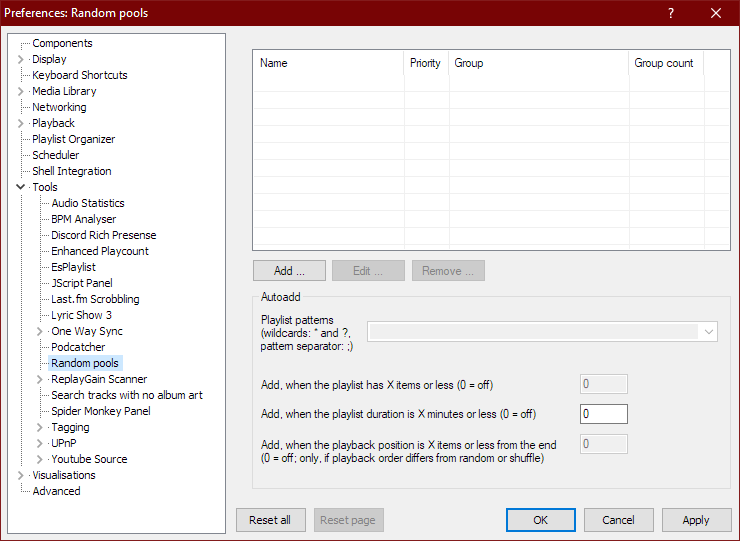
After you’ve installed foo_random_pools, you’ll need to set up a pool in the File > Preferences > Tools > Random pools sub-menu.
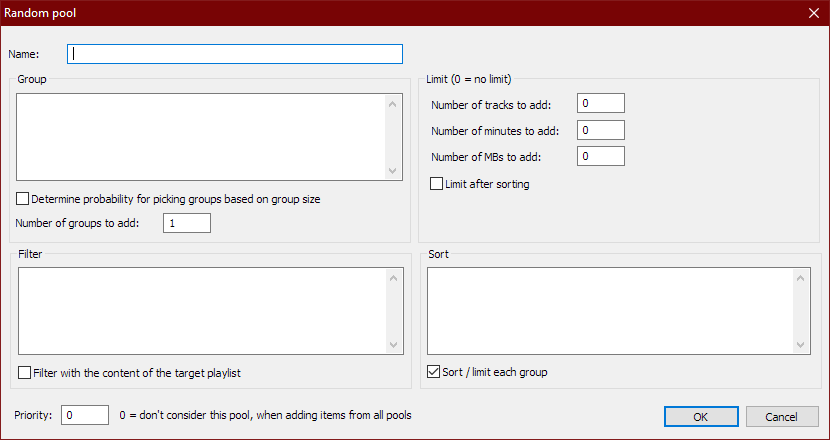
You’ll need to select the “Add …” button which brings up the Random pool criteria form.For example to make a pool of blues albums use the following criteria:
Name: Album – All Blues
Group: %album artist% – %date% – %album%
Determine probability for picking groups …: Unchecked
Number of groups to add: 1
Filter: (NOT %album artist% IS “Various Artists”) AND (%genre% HAS Blues)
Filter with the content of the target playlist: Unchecked
Number of tracks to add: 0
Number of minutes to add: 0
Number of MBs to add: 0
Limit after sorting: Unchecked
Sort: %path%
Sort / limit each group: Checked
Priority: 10
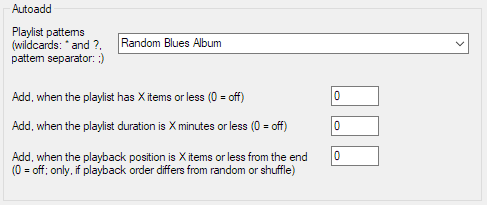
Now you have to link pools to a playlist by specifying a name in the Autoadd section’s Playlist patterns field of the Random pools preferences menu.
Create a new playlist, File>New Playlist Ctrl+N, and name it “Random Blues Album” and then select and display it.
To add a random blues album to the playlist, select File > Random pools > Album – All Blues. Each time it’s selected, another random blues album will be added to the playlist.
A digital signal processor that makes dull songs sound sharper, as in brighter.
Strictly speaking, nobody really needs this DSP. It’s just that some people like the effect. If you want to compensate deficiencies in your playback equipment or listening environment, the convolver or the equalizer are more appropriate tools. ~ HA post
There are four interrelated DSPs enclosed, only use the last one, Noise Sharpening.
Noise sharpening can/should be used alone. ~ HA post
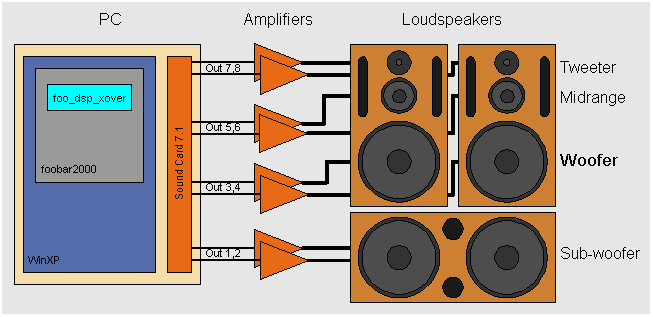
foo_dsp_xover is a software digital crossover implementation that I have been working on for a while in my spare time as a hobby. It is a Foobar2000 audio player plugin that implements this digital crossover to achieve active multi-amplification.
This software needs to run on a WinXP PC equipped with a multi-channel sound card (e.g. 5.1 or 7.1 surround sound card) feeding the various voices of a multi-amplifier and loudspeaker active configuration set-up.




 For example to make a pool of blues albums use the following criteria: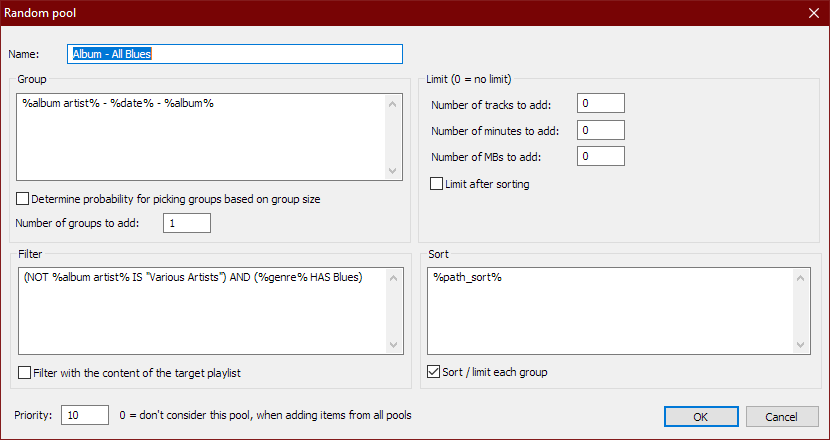



 The Audio File