v2strip is a simple command-line utility that lets you remove the ID3v2 tag from an MP3 file. The ID3v2 format is nice in many ways, but it can cause problems when being parsed by MP3 players and utilities that don’t support ID3v2 tags.
Tag Archives: Tags
puddletag ~ GNU \ Linux Audio Tag Editor
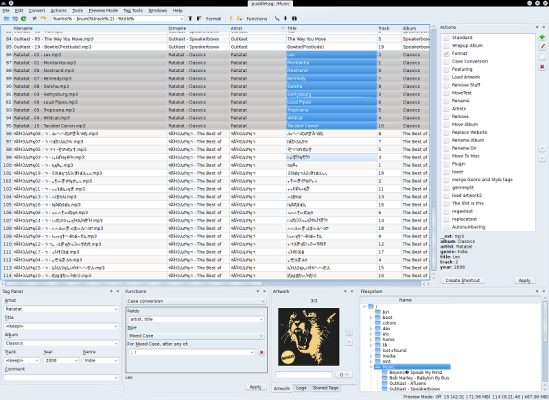
puddletag is an audio tag editor (primarily created) for GNU/Linux similar to the Windows program, Mp3tag. Unlike most taggers for GNU/Linux, it uses a spreadsheet-like layout so that all the tags you want to edit by hand are visible and easily editable.
The usual tag editor features are supported like extracting tag information from filenames, renaming files based on their tags by using patterns and basic tag editing.
Then there are Functions, which can do things like replace text, trim it, do case conversions, etc. Actions can automate repetitive tasks. Doing web lookups using Amazon (including cover art), Discogs (does cover art too!), FreeDB and MusicBrainz is also supported. There’s quite a bit more, but I’ve reached my comma quota.
Supported formats: ID3v1, ID3v2 (mp3), MP4 (mp4, m4a, etc.), Vorbis Comments (ogg, flac), Musepack (mpc), Monkey’s Audio (.ape) and WavPack (wv).

Flacon ~ Unix Audio File Encoder
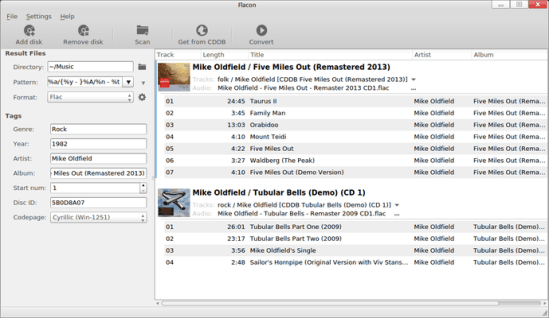
Flacon extracts individual tracks from one big audio file containing the entire album of music and saves them as separate audio files.
To do this, it uses information from the appropriate CUE file. Besides, Flacon makes it possible to conveniently revise or specify tags both for all tracks at once or for each tag separately.
- Supported input formats: WAV, FLAC, APE, WavPack, True Audio (TTA).
- Supported out formats: FLAC, WAV, WavPack, AAC, OGG or MP3.
- ReplayGain analysis (album-gain and track-gain modes).
- Multi-threaded conversion process.
- Automatic character set detection for CUE files.
- Generation of the pertrack CUE file in the output dir.

MediaInfo ~ Media Metadata Tool
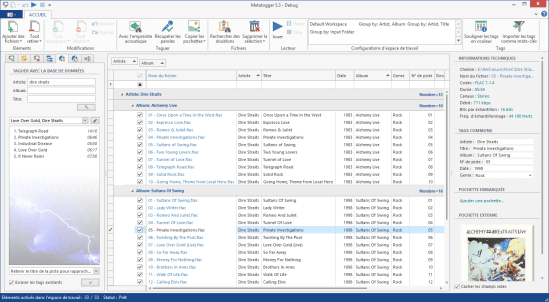
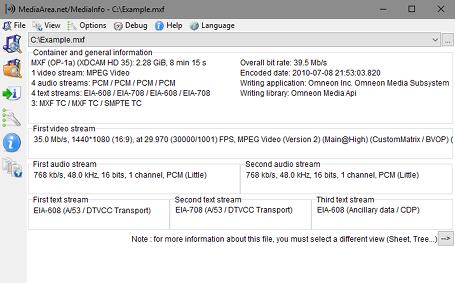
MediaInfo is a convenient unified display of the most relevant technical and tag data for video and audio files.

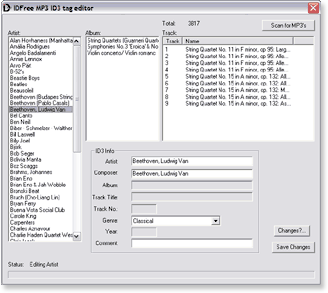
IDFree ~ Simple Windows Tag Editor
IDFree is a simple MP3 ID3 tag editor for Windows. It uses the excellent Open Source id3lib library to read and write these ID3 tags.

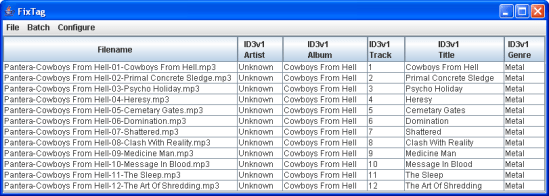
FixTag ~ Repair Inconsistent mp3 Meta-data
FixTag is a Java/Swing application that lets you edit the fields within MP3 ID3 tags.

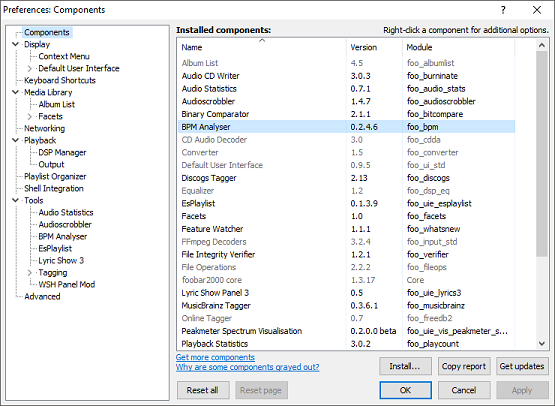
foo_bpm ~ Foobar2000 & BPM
foo_bpm – A Foobar component for automatically analyzing the number of beats per minute in audio files.
Installing and using foo_bpm:
First download and install foo_bpm.fb2k-component.

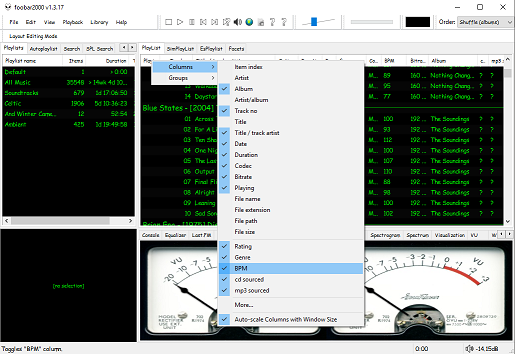
The second step is adding a new BPM playlist column to the DUI playlist viewer:

The third step, add an Analyze BPM toolbar button:
- Right click on the metronome icon ico file shown below and download / save it locally
- Right click the Foobar toolbar
- Select the Customize button
- Select from Available Commands [context] > BPM Analyzer > Automatically analyze BPMs
- Click Add
- Click
Change Iconand select the downloaded metronome.ico file - Click
OK


The fourth step is to select and scan files:
Once the toolbar button is installed, songs can be selected then scanned. The songs will now be tagged with the %bpm% tag and can be selected or sorted by beats per minute as displayed in the playlist column.
The fifth step is to update your entire library:
Open Library > Search and insert the query %bpm% MISSING then click … and then click Create Autoplaylist. Rename the new autoplaylist located at the bottom of the playlist switcher Missing BPM. Activate the playlist, select the entire contents, automatically analyze them and then apply the changes.
Video: www.youtube.com/watch?v=Pg_wJH6TjcY
References:
www.foobar2000.org/components/view/foo_bpm
hydrogenaud.io/index.php/topic,77142.0
Updated Configuration
github.com/stengerh/foo_bpm
foobar.hyv.fi/?view=foo_bpm (latest version)
Kid3 ~ Cross-platform Audio Tagger
Kid3 audio tag editor can edit the tags of MP3, Ogg, FLAC, MPC & WMA files in an efficient way, convert between ID3v1 and ID3v2, set the tags of multiple files, generate tags from file names or vice versa and import from freedb, MusicBrainz and Discogs.
Features
- Edit and convert between ID3v1.1, ID3v2.3 and ID3v2.4 tags of MP3 files
- Supports MP3, Ogg/Vorbis, FLAC, MPC, MP4/AAC, MP2, Speex, TrueAudio, WavPack, WMA, WAV and AIFF files
- Generate tags from filenames and file-, directorynames from tags
- Mass-tagging of multiple files
- Import from gnudb.org, MusicBrainz and Discogs

apps.kde.org/kid3
apps.kde.org/kid3-qt
github.com/KDE/kid3
kid3.sourceforge.io
sourceforge.net/projects/kid3
en.wikipedia.org/wiki/Kid3
foo_playcount ~ Foobar2000 Playback Stats
You can extend Foobar2000 functionality by increasing the information the player maintains. Installing the foo_playcount component allows Foobar to both keep track of additional data, and adds the following user available fields:
- Date and time a track was first played ~ %first_played%
- Date and time a track was last played ~ %last_played%
- The number of times a track has been played ~ %play_count%
- Date and time a track was first added to the Media Library ~ %added%
- Song rating ~ %rating%
Song Rating Playlist Display
The songs rating can now be displayed in a playlist viewer in two ways:
- On a 1 to 5 scale with %rating%
- Displayed as up to five stars, “★★★”, with %rating_stars%
- Displayed as five stars, “★★★☆☆”, with %rating_stars_fixed%
Note: This component should be installed at the same time as Foobar2000, if your goal is to have a complete play count history.
Discussion
Download
Documentation
Display (Title) Formattingplaylist viewer
foo_playcount_2003
This component uses the same database backend that foo_playcount utilises for logging plays but has many more advanced features and fewer limitations.
- Playcounts and dates can edited for any context menu selection.
- Data can be imported from file tags or fields provided by other components.
- Ratings up to 10 are supported.
- You can customise how long you have to listen before a play count is incremented.
- The current time is available via title formatting as a full date time string or Unix timestamp.
- First played, last played and added are all available as Unix timestamps.
- How records are bound to tracks can be configured in the
Advanced Preferences.
gnudb.org ~ CD Metadata Database
An opensource alternative CDDB / FreeDB service.
gnudb.org ~ a new home for the freedb database
How to use gnudb.org:
- Configure your CDDB or freedb-aware software to point to gnudb.gnudb.org as your CDDB / freedb-server.
All official gnudb servers are running cddbp at port 8880 and http at port 80
The path for http-access is
/~cddb/cddb.cgiAccess a xmcd file directly when you know the genre and discid at:
http://www.gnudb.org/gnudb/genre/discidExample ~
http://www.gnudb.org/gnudb/rock/390f1215
Source: gnudb.org CD database
Search By Artist, Album or Artist And Album:
foo_discogs ~ Foobar2000 & Discogs
Greatly extend the information in your music files by using the foo_discogs component to tag albums with Discogs information. Once the additional Discogs release information is stored in the song tags, it’s possible to search for catalog numbers, secondary artists or studios, etc. You can now also create toolbar buttons which open the corresponding artist or release pages in Discogs, the artist’s own website or other links.
- download Discogs album and artist artwork
- retrieve more information than most taggers
- goes that extra length to make sure retrieved data is correct and well formatted
- flexible tag mapping allows you to write only what you want, where you want
- use meta-data in tags to display Discogs artist / label / release web pages
able to later update specified tags (useful in update ratings)

Album’s properties when tagged with Discogs info
Installing & Configuration:
- Install the foo_discogs component
- Select any song on any playlist
- Right click the song and select Tagging
- From the sub-menu select Discogs
- Now select Configuration
- Change any settings needed.
Tagging Files:
- Select an entire album on a playlist
- Right click the album and select Tagging
- Select Discogs
- Select Write Tags…
- Click Search then select the correct match and click Next
- Confirm that the tracks match the files and click Write tags
Your audio files should now be tagged with additional Discogs metadata.
Open Release Page Button:
- Right click on Foobar’s Toolbar area and select “Customise Buttons…“
- In “Available Commands” navigate to and select [context] > Tagging > Discogs > View Release Page
- Change Icon and then click “OK“
- Select a song, or album that has been tagged with Discogs metadata, and click the new custom button
References:
www.foobar2000.org/components/view/foo_discogs
hydrogenaud.io/index.php/topic,50523.0.html
Latest update:
github.com/ghDaYuYu/foo_discogs
bitbucket.org/fooDaYuyu/foo_discogs/downloads/
AcousticBrainz ~ Analyze Your Music
The AcousticBrainz project aims to crowd source acoustic information for all music in the world and to make it available to the public. This acoustic information describes the acoustic characteristics of music and includes low-level spectral information and information for genres, moods, keys, scales and much more. The goal of AcousticBrainz is to provide music technology researchers and open source hackers with a massive database of information about music. ~ AcousticBrainz