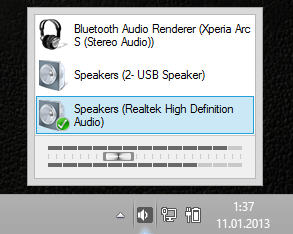
A small, self-contained tray utility for Windows that lets you cycle through your audio playback devices with a single hotkey, and shows an on-screen overlay telling you which one is now active.
It’s a single ~4 MB
.exewith no installation dependencies, no admin rights required, and nothing running except while you’re logged in.What it does:
- Cycles the default playback device. Press Win+A (the default hotkey, changeable), left-click the tray icon, or pick a device from the right-click menu, and Windows’ default audio output moves to the next active playback device in the list, wrapping back to the first one after the last. It takes effect for every application immediately — the same as changing it by hand in the Windows sound settings.
Win+Aactually works for this, even though Windows normally reserves it for Quick Settings (same goes for any other reserved combo you configure it to instead). See how.- Shows an on-screen overlay on every switch — styled after Windows’ own volume/brightness OSD, not a toast notification — naming the device that is now active, so you get instant confirmation of what you just switched to. A burst of rapid switches only ever shows the latest one.
- Lives in the system tray:
- Left-click the tray icon to switch to the next output device.
- Hovering it shows the app version and the currently active device.
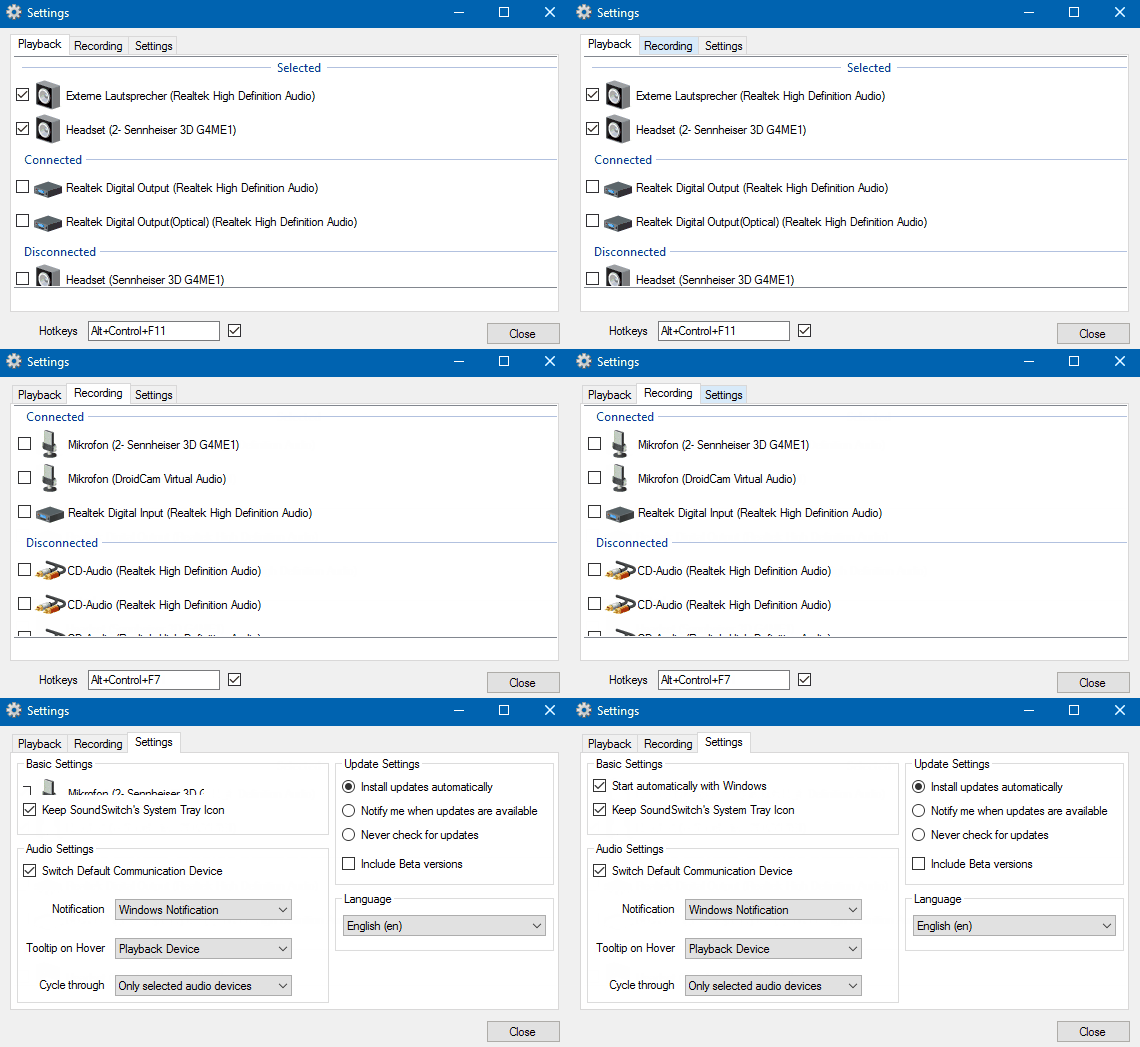
- Right-click opens a menu listing every currently active output device — click one to switch to it directly (the active one is checked) — followed by Configure and Exit.
github.com/SpikePy/Windows-Audio-Output-Switcher
Security note: The Win+A hotkey requires a Windows low-level keyboard hook, which can receive system-wide keyboard events. The author says the program only checks for the configured hotkey and does not record or transmit keystrokes. Because this technique can also be used by keyloggers, security software may flag the executable heuristically.