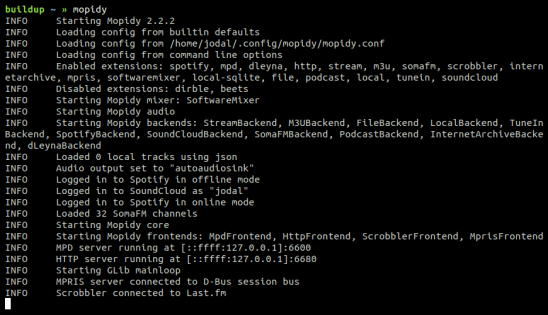
Written in Python, Mopidy plays music from a local disk, Spotify, SoundCloud, Google Play Music, and more. You edit the playlist from any phone, tablet, or computer using a range of MPD and web clients.
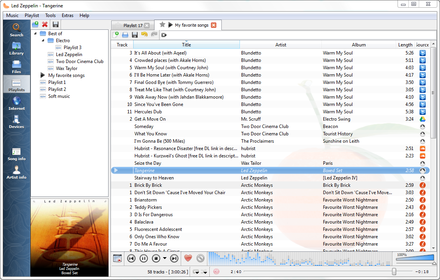
Clementine is a multi-platform music player. It’s inspired by Amarok 1.4, focusing on a fast and easy-to-use interface for searching and playing your music.
Meson Player is a very convenient music player if you don’t need a GUI to control playback or manage playlists. You just run it and then forget about it. The player runs in the background. Switching tracks, volume control, loading and saving playlists, all of this is performed by using hotkeys, therefore you can control the player while working in any application.
Meson Player supports gapless playback, Last.FM, a lot of music file formats (stream and tracker), Internet radio and playlist management.
Drag & drop files or folders to create .m3u playlists. For each folder, a single .m3u file is created named after that folder. It will not replace already existing playlists of that name. The generated playlists do not contain EXTM3U information because a simple .m3u is nothing more than a text file with a list of file names per line. The initial tool for this task for me was a batch file. 😉
As the generated playlists only include filenames without any path, and they are located with the media files, they can be moved together with the files, as an example, for portable mp3 player usage.
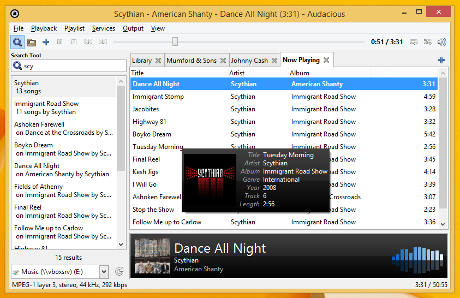
Audacious is an open source audio player. A descendant of XMMS, Audacious plays your music how you want it, without stealing away your computer’s resources from other tasks. Drag and drop folders and individual song files, search for artists and albums in your entire music library, or create and edit your own custom playlists. Listen to CD’s or stream music from the Internet. Tweak the sound with the graphical equalizer or experiment with LADSPA effects. Enjoy the modern GTK-themed interface or change things up with Winamp Classic skins. Use the plugins included with Audacious to fetch lyrics for your music, to set an alarm in the morning, and more.
Following the Unix philosophy “one tool for one job” Playlist Creator enables you to create playlists of your precious music within seconds.
The composition and creation of a playlist is quite intuitive: Add all desired files, enter a name for the playlist and select its save location. Hit the create button and one moment later your brand-new playlist is ready.
You don’t have to recreate your playlist every time you want to make changes to it. Just open the existing playlist file, make the changes you want and save the playlist. It’s as simple as that!
Combining several playlists into a single big playlist is quite simple as well: Insert as many existing playlist files to your current playlist as you like and save the playlist. Done!
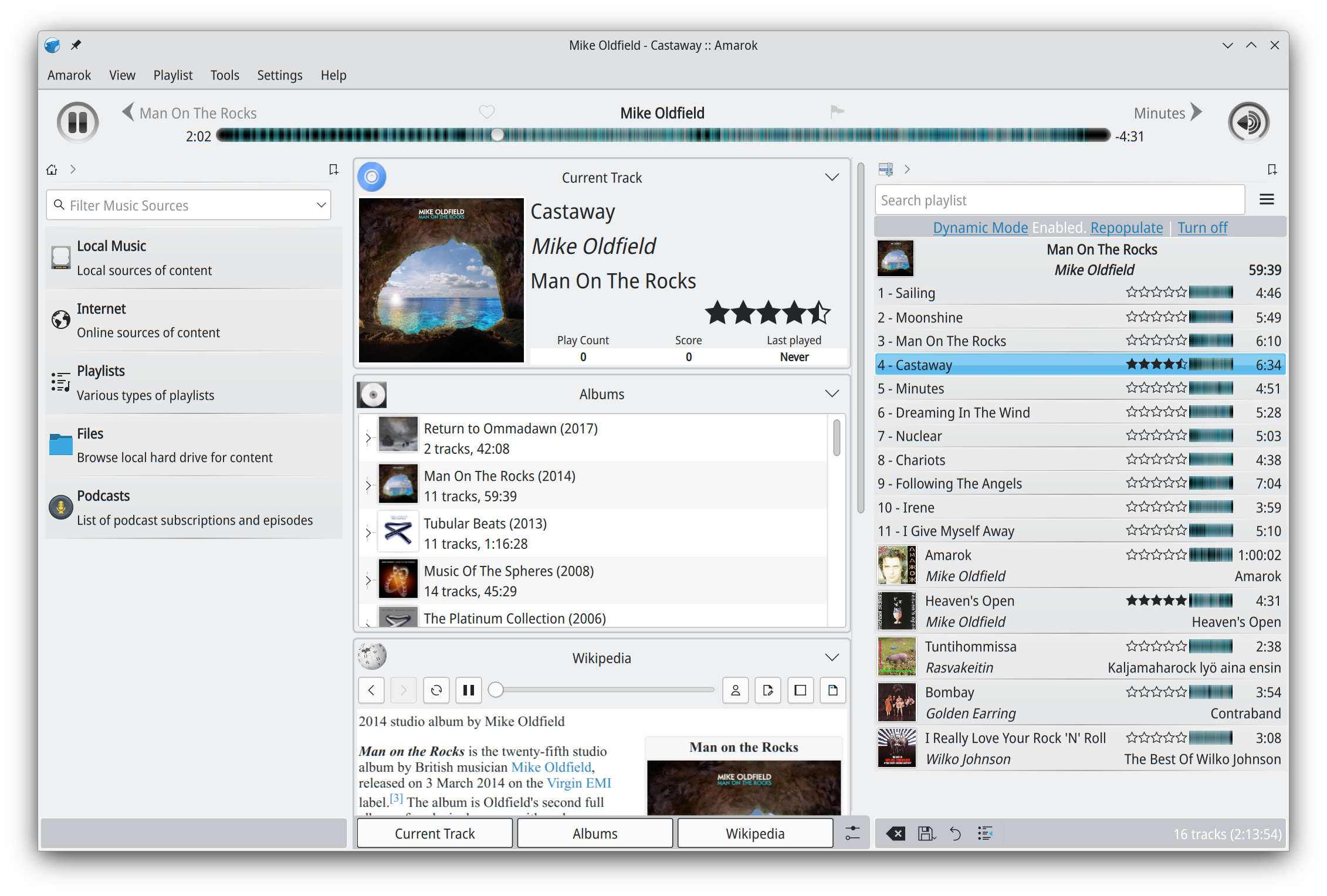
Amarok is a powerful music player, with multi-language support, for Macs, Unix/Linux and Windows. It has an intuitive interface and makes playing the music you love, and discovering new music, easier than ever before – and it looks good doing it!
Features:
Dynamic playlists matching different criteria
Collection managing with rating support
Support for basic iPod, MTP and UMS music player devices
Playlists, or named lists of songs, are an essential aspect of Foobar2000. Whenever you add a song to Foobar, you are adding it to one of Foobar’s playlists. Foobar allows you to create and maintain different playlists, which are just entitled lists of your audio tracks (files). The playlists link to audio files in a ‘many to one’ relationship; that is, there can be many tracks on different playlists that reference the same audio track. Foobar can import and exports playlists in a variety of formats; and stores its own playlists as .fpl files. (This is different from adding a song to your Foobar2000 Library).
Playlists can be created manually by adding individual songs, or automatically by specifying a set of conditions in a query with the result displayed as an “Autoplaylist”. Manually created playlists are static, they don’t change unless you change them; Autoplaylists are dynamic, that is the results may change whenever the Autoplaylist is queried.
Playlists created manually can be edited directly, while Autoplaylists are edited by modifying the query. However, you can save the results of an Autoplaylist as a new static, and therefore editable, playlist.
Creating an Autoplaylist of an Albumlist item like genre:
Select by genre from the Albumlist view selector
Select a genre from the list of genres
Right click that selected genre and select Create Autoplaylist
You will now have a new Autoplaylist listed on the playlist manager tab with the name of the genre you selected. Playlists created this way are called an Album List branch.
Creating an Autoplaylist of a folder’s contents:
Select the Search tab
enter %path% HASreplace this with the actual path in the search field
No Dynamic Range info ~ %dynamic_range_album% MISSING
No ReplayGain info ~ %replaygain_track_gain% MISSING
No Artist info ~ %path% HAS album AND album artist MISSING
Played often ~ %play_count% GREATER 9
Randomly sorted ~ ALL SORT BY “$rand()”
Recently added ~ %added% DURING LAST 1 WEEKS
Recently played ~ %last_played% DURING LAST 1 WEEK
Recently modified ~ %last_modified% DURING LAST 2 WEEKS
Foobar Playlist Management Components:
foo_new_playlist replicates the regular “New playlist” command with a customizable pattern in advanced configuration using %always_counter% and %maybe_counter% to enumerate possible names.
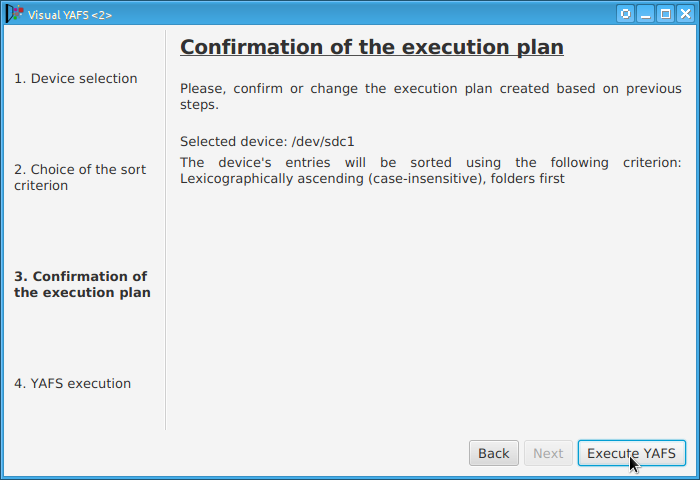
Some players display, or play files, in the order that the file was originally copied to a USB drive or stick. YAFS (Yet Another FAT Sorter) allows the order to be changed to whatever you prefer. YAFS is a multi-platform, open source, freeware, command line utility with a GUI (Graphical User Interface).
Foobar2000Playlist Viewers display the current playlist of songs. Different playlist viewers offer various capabilities such as formatting, grouping and visual options. A playlist viewer is usually the central panel and main focus of a Foobar2000 interface. Foobar2000 plays the next song of the current playlist unless the play order has been changed from default, to repeat, random or shuffle. There is a playback queue but it is not visible or used in normal operation.
mtpl Playlist (supports folders, playlist in playlist and sub-tracks)
SimPlaylist (multiple grouping levels, album art, etc.)
SimPlaylist
Adding a custom column to a playlist view: (using play count as an example)
When adding a column view in a playlist, you’ll need to define the column first.
Navigate to Preferences > Display > Default User Interface > Playlist View > Custom Columns
at the bottom of the custom columns windows, click “Add new‘
Name the Column “Played‘ and %play_count% as the ‘pattern’
click apply, ok
Now right click the title bar of the playlist and select “Columns” and make sure ‘Played‘ is selected (checkmarked) and that you can see the column in the playlist, it will be last but you can rearrange it.









 The Audio File