
The sc68 is a Atari-ST and Amiga music player. It comes as a command line music player as well as libraries for developers and various plugins for well know programs.
Category Archives: Mac

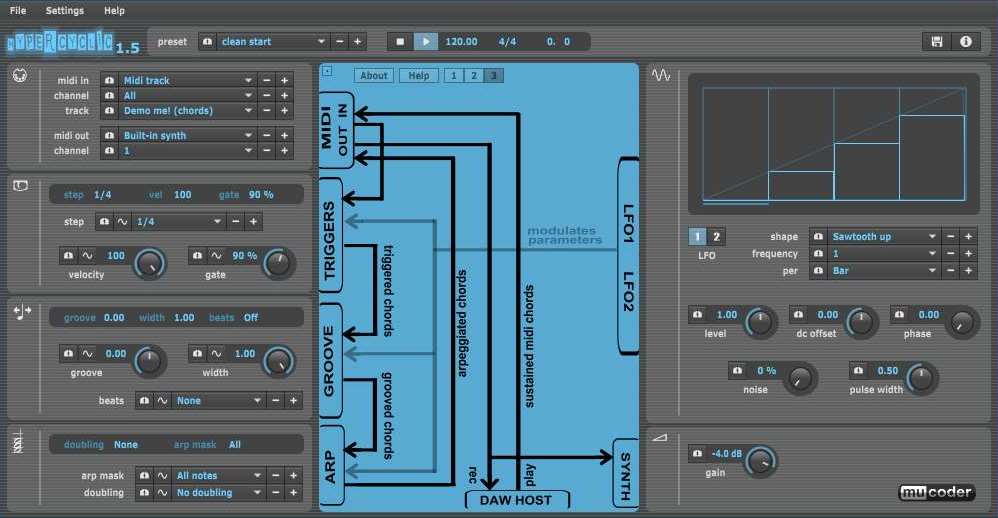
hypercyclic ~ LFO-driven, MIDI-mangling Arpeggiator
What is hypercyclic?
- an LFO-driven MIDI arpeggiator, gate effect and step sequencer
- for mangling sustained MIDI input chords
- the output of which can then drive other MIDI instruments
- acts either as a VST or Audio Unit plugin for your DAW, or as a standalone application
- the original hypercyclic won 2nd place in the KVRAudio.com Developer Challenge ‘07
- the sweet spot for hypercyclic is the narrow border between chaos and regularity. Or, in other words, how to induce a certain pleasant randomness and syncopation, yet forcing everything to align again on the bar or beat boundaries
How do you use it?
- the main use for hypercyclic is to generate midi that can be recorded and/or sent to other plugins. However it also features a simple built-in synth for testing purposes
- you can use two tempo-synced LFOs to modulate various parameters for creating interesting rhythmic effects and chord variations
- a unique feature is the possibility to modulate the sequencer step size itself, which is useful for creating glitchy stuttering effects
- another thing you can use is a groove function for playing slightly off the beat. The groove parameters can also be modulated over time by the LFOs, adding to the rhythmic variation
www.mucoder.net/en/hypercyclic
Share this:

Soft Playlists ~ Foobar & Last.fm
Can create different Last.fm related playlists:
- loved tracks of a single user, multiple users, friends or neighbours.
- recent tracks of a single user, multiple users, friends or neighbours.
- top tracks of a single user, multiple users, friends or neighbours over different periods.
- top tracks of an artist.
- top tracks of artists similar to an artist.
- top tracks with certain tag.
- tracks similar to a track.
Can also…
- love, unlove, ban and unban a track on your Last.fm account.
- add a track to a custom playlist on your Last.fm account.
- save and load XSPF playlists (make playlists without hard paths). This makes it possible to easily share playlists with other people. Also when you restructure your library (change location of your music files), these playlists will continue to work.
www.foobar2000.org/components/view/foo_softplaylists
hydrogenaud.io/index.php?topic=76133.0
Integrating Last.fm with Foobar2000 Using Soft Playlists
Step 1: Install Soft Playlists
Begin by downloading the foo_softplaylists component from the foobar2000 website. Once downloaded, open foobar2000 and navigate to File → Preferences → Components → Install…, then select the downloaded .fb2k-component file. Restart foobar2000 to activate the plugin. This component enables you to generate dynamic playlists directly from your Last.fm data.
Step 2: Connect Your Last.fm Account
After installation, go to Preferences → Tools → Soft Playlists → Last.fm. Enter your Last.fm username and password to authorize the connection. Once you are logged in, the plugin can fetch your loved tracks, recent plays, top tracks, and tag-based data.
Step 3: Creating Loved Tracks Playlists
Soft Playlists can generate playlists of tracks in your library that are marked as loved on Last.fm. Simply create a new playlist, Open the Library Menu and choose the “Loved Tracks” option, and the plugin will match these tracks with your local files and create a new playlist. You can now play or sort these loved tracks directly from foobar2000.
Step 4: Generating Top Tracks Playlists
You can also create playlists based on top tracks from your Last.fm account, your friends, or neighbors. Select the “Top Tracks” option and filter by user, artist, or tag. This allows you to automatically build playlists of your most-played tracks, popular tracks by similar artists, or tracks labeled with specific moods or genres.
Step 5: Recent Tracks Playlists
Soft Playlists supports recent tracks queries from Last.fm. You can generate playlists of your most recently played tracks or recent tracks from other users. This is ideal for keeping up to date with current listening trends.
Additional Features:
Soft Playlists allows you to save sharable playlists in XSPF format, which keeps them portable and resilient to file location changes. The plugin also lets you love or unlove tracks directly from foobar2000, updating your Last.fm account automatically. This integration creates a seamless workflow between your local library and Last.fm.
Adding a toolbar button to love a track:
- Right click the Foobar2000 toolbar and select “
Customize Buttons...“ - In the
Available Commands Panel, open “Context Menu” and then “Last.fm” - Select
"Last.fm Love Track” and click the “Add” button then click “Ok” - Change the button icon to a Last.fm icon (.ico file)
Tips and Considerations
Soft Playlists is an older 32bit component. The plugin works best if most of your Last.fm scrobbled tracks are present in your local library. For more advanced integration, consider combining Soft Playlists with Spider Monkey Panel scripts to pull additional data, such as playcounts, tags, or charts.
Share this:

foo_infospect ~ Expose Low-level Playback Information
This component displays several groups of items which are described in the following sections. The item names are displayed in upper-case letters in the UI element, but can also be used in lower-case in title formatting code, since field names in title formatting are case-insensitive.
- The Location group contains information about the physical location of the track.
- The Tag Fields group contains the user-modifiable metadata fields of the track.
- The technical Fields groups contains technical information fields that are provided by the decoder.
- The Replaygain group contains the Replaygain data of the track.
foosion.foobar2000.org/components/?id=infospect
Share this:

Cheeze Machine 2 ~ Virtual String Instrument
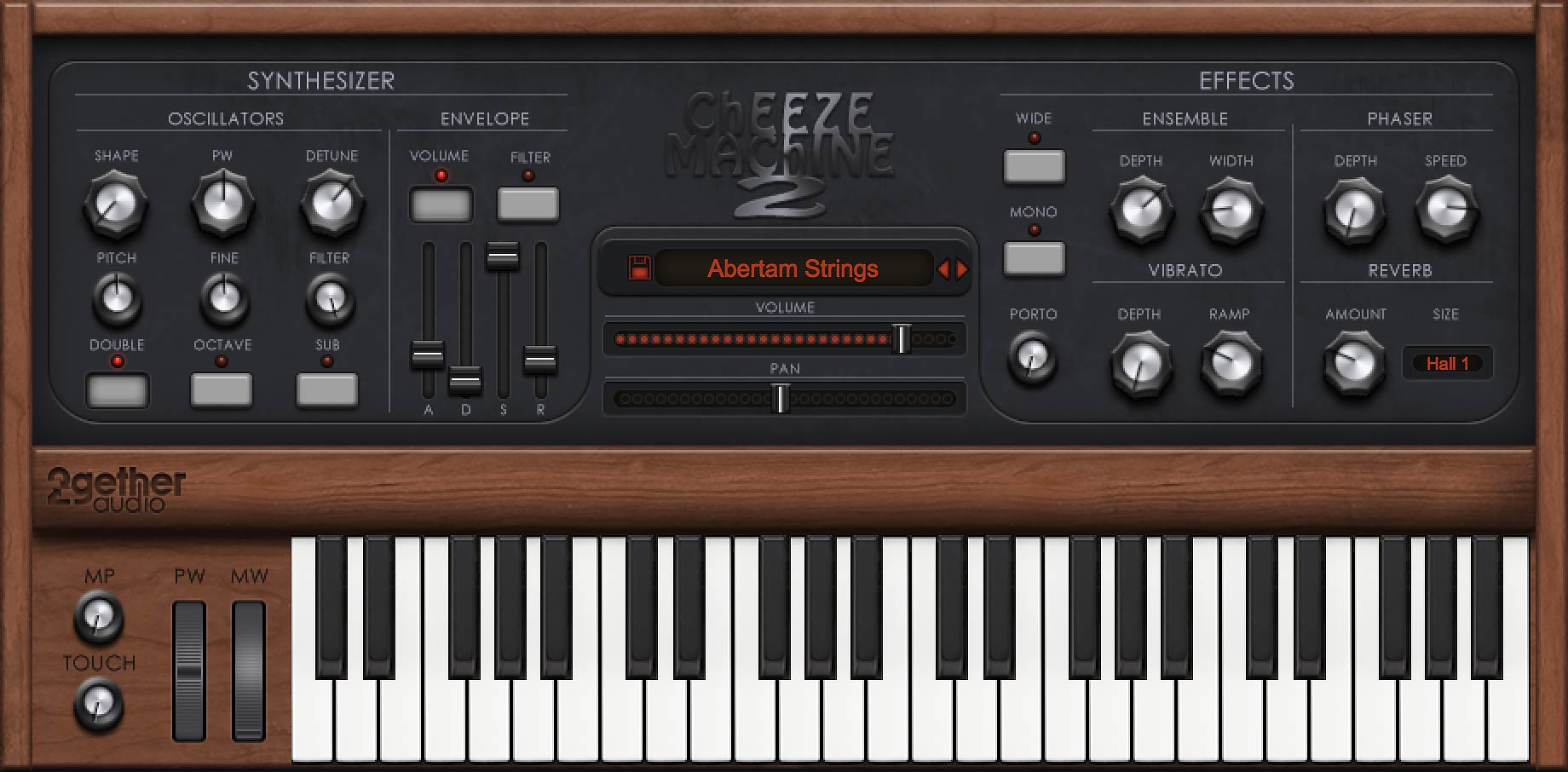
Back by popular demand comes a remastered version of the extremely popular Cheeze Machine virtual instrument by Big Tick Audio. An extra cheesy, extra saucy string box in the style of the original vintage string machines. Cheeze Machine 2 includes an expanded oscillator section, convolution reverb, a vintage ensemble chorus, and 64 bit compatibility for VST, AU, AAX and standalone applications.
www.2getheraudio.com/instruments/cheeze-machine-2
Share this:

foo_AdvancedControls ~ Foobar2000 Advanced Controls
Control all the playback functions of Foobar2000 from icons on the Taskbar Notification Area. Using an area only two tray icons wide, you have the playback functions, and the volume or the seek bar, as well as a context menu.
A popup balloon (which can be disabled) appears each time a new song begins, to provide fully customizable information about the song that is playing.
The Delete Current File function deletes the file that is currently playing. It always asks for confirmation and puts the file into the recycle bin if possible, so you won’t delete files without intending to.
The extra functions introduced by this component can also be mapped to a shortcut key.
www.niversoft.com/products/fac
www.foobar2000.org/components/view/foo_advancedcontrols
Wiki
Share this:

foo_logitech_lcd ~ Foobar2000 & Logitech LCDs
A component to display visualisations and track information on a variety of Logitech LCD screens.
Features:
- Support for monochrome LCDs (G13, G15, G510 & Z-10)
- Support for colour LCDs (G19)
- 11 different visualisations (4 spectrum analysers, 4 oscilloscopes, 3 VU meters)
- Track info display
- Massively customisable
www.foobar2000.org/components/view/foo_logitech_lcd
Share this:

Foobar2000 ~ Title Formatting Guide
Table of Contents
- Introduction: What Title Formatting Is
- Why Title Formatting Exists
- Where You Use Title Formatting
- Core Concepts You Need to Know
- Plain Text in Title Formatting
- Fields (Metadata Tags)
- Combining Plain Text and Fields
- Handling Missing Information
- Using Conditional Logic with $if()
- Practical Examples
- Useful Built-In Fields
- Things Beginners Can Ignore
- Starter Setup for New Users
- Final Notes
Introduction: What Title Formatting Is
Title formatting in foobar2000 is a system that allows you to control how information about your music is displayed in the interface. It doesn’t modify the audio files themselves or change tags — it only affects how metadata and other information is shown in playlists, status bar, or window title.
Think of it like a template language: you define a pattern for text, and foobar2000 fills in the fields with actual track information. For example, you can make the playlist display tracks as:
Artist - Track Title (Album)
Why Title Formatting Exists
Music files contain metadata such as:
- Artist
- Album
- Track title
- Track number
- Year
- Duration
Different users want to display this information differently. Title formatting lets you:
- Decide which information to display
- Choose the order of information
- Add separators, labels, or punctuation
- Optionally display certain information only when it exists
For example, you might want to show the album only if it exists. Title formatting makes that possible.
Where To Use Title Formatting
You typically use title formatting in three main places:
- Playlist columns — to customize how each column displays track info.
- Status bar — to show the “Now Playing” track in a readable format.
- Window title — to display the currently playing track in the foobar2000 window or taskbar.
Core Concepts You Need to Know
There are three core concepts that beginners must understand:
- Plain Text: Text you type exactly as it should appear.
- Fields: Metadata values from the audio files (e.g.,
%artist%,%title%). - Conditional Logic: Optional logic to handle missing fields or customize output dynamically.
Plain Text in Title Formatting
Any normal text you type is displayed exactly as written. This is useful for labels, punctuation, or separators:
Now Playing:
You can combine plain text with fields to make output more readable:
Now Playing: %artist% - %title%
This will display something like:
Now Playing: Radiohead - Paranoid Android
Fields (Metadata Tags)
Fields are placeholders that pull metadata from your music files. They are written inside percent signs:
%artist%
Some common fields include:
| Field | Meaning |
|---|---|
| %artist% | Track artist |
| %album% | Album name |
| %title% | Track title |
| %tracknumber% | Track number |
| %date% | Year or release date |
| %length% | Track duration |
Example combining fields:
%artist% - %title%
Output:
Radiohead - Paranoid Android
Combining Plain Text and Fields
You can mix plain text with fields to create more structured output. For example:
%artist% – %title% (%album%)
Output:
Radiohead – Paranoid Android (OK Computer)
Handling Missing Information
If a field does not exist in the file, foobar2000 simply displays nothing. For example, if %composer% is missing:
%composer%
The output will be blank. To prevent blank parentheses or awkward spacing, you can use conditional logic.
Using Conditional Logic with $if()
The $if() function allows you to display text only when a field has a value:
$if(condition,then,else)
Example:
%artist% - %title%$if(%album%, (%album%),)
This will display the album in parentheses only if %album% exists. Otherwise, it leaves that part empty.
Practical Examples
Playlist Column
%artist% - %title%
Status Bar
Now Playing: %artist% – %title%
Window Title
%artist% – %title% | foobar2000
Useful Built-In Fields
These fields are always available and do not require files to be tagged:
| Field | Meaning |
|---|---|
| %filename% | File name |
| %path% | Full file path |
| %codec% | Audio codec |
| %bitrate% | Bitrate |
| %samplerate% | Sample rate |
Things Beginners Can Ignore
- Nested functions
- Math expressions
- String replacement logic
- Legacy syntax
- Advanced grouping
Starter Setup for New Users
For someone just installing foobar2000, start with these basic formats:
%artist% - %title%
Now Playing: %artist% – %title%$if(%album%, (%album%),)
%artist% – %title%
Final Notes
%field%is the most important concept$if()handles missing or optional data elegantly- Some data and fields depend upon components being installed
foo_tfsandbox
A good place to start is by installing foo_tfsandbox, this component allows you to experiment with title formatting expressions and fields before you implement them.
Title Formatting Fields:
$info(referenced_offset) ~ shows time in format mm:ss:ff where ff are CD frames. For the first track it will show nothing instead of 00:00:00
hydrogenaud.io/index.php?topic=118733.msg979344
Title Formatting Examples:
Name | Pattern | Alignment
Display Dynamic Range:
Album DR: $if2(%album dynamic range%,–) | Track DR: $if2(%dynamic range%,–)
Bits (bit depth) | $ifequal([%__bitspersample%],0,16,%__bitspersample%) | Left
$if($or($stricmp(%codec%,DTS),$stricmp($cut(%codec%,3),DCA)),$if($info(bitspersample),$ifequal(%samplerate%,96000,$ifgreater(%bitrate%,1537,DTS-HD,DTS 96/$info(bitspersample)),DTS-HD),DTS),%codec% [%codec_profile%])
Release Date (earliest):
hydrogenaud.io/index.php/topic,125532.0
$max(%DATE%,$min($year(%DATE%),$year(%DISCOGS_RELEASED%),$year(%DISCOG_MASTER_RELEASE_DATE%)))
References:
Title_Formatting_Introduction
Title Formatting Reference
Titleformat Examples
Titleformat_Album_List
Share this:

zxtune ~ Cross-platform Chiptunes Player
Plays audio files from many systems including the ZX Spectrum, Acorn, Amstrad, Amiga, Atari, Commodore 64, GameBoy, MSX, Nes, PC, Phillips, SNES, Sam Coupe, Sega, TurboGrafX, etc.
zxtune.bitbucket.io
github.com/vitamin-caig/zxtune
Share this:

foo_input_vgmstream ~ Foobar2000 Plays Game Audio
This Foobar2000 component decodes dozens of streamed ADPCM or other compressed format files extracted from various console and PC games.
www.foobar2000.org/components/view/foo_input_vgmstream
Supported codec types:
Quick list of codecs vgmstream supports, including many obscure ones that are used in few games.
PCM 16-bit
PCM 8-bit (signed/unsigned)
PCM 4-bit (signed/unsigned)
PCM 32-bit float
u-Law/a-LAW
CRI ADX (standard, fixed, exponential, encrypted)
Nintendo DSP ADPCM a.k.a GC ADPCM
Nintendo DTK ADPCM
Nintendo AFC ADPCM
ITU-T G.721
CD-ROM XA ADPCM
Sony PSX ADPCM a.k.a VAG (standard, badflags, configurable, Pivotal)
Sony HEVAG
Electronic Arts EA-XA (stereo, mono, Maxis)
Electronic Arts EA-XAS (v0, v1)
DVI/IMA ADPCM (stereo/mono + high/low nibble, 3DS, Omikron, SNDS, etc)
Microsoft MS IMA ADPCM (standard, Xbox, NDS, Radical, Wwise, FSB, WV6, etc)
Microsoft MS ADPCM (standard, Cricket Audio)
Westwood VBR ADPCM
Yamaha ADPCM (AICA, Aska)
Procyon Studio ADPCM
Level-5 0x555 ADPCM
lsf ADPCM
Konami MTAF ADPCM
Konami MTA2 ADPCM
Paradigm MC3 ADPCM
FMOD FADPCM 4-bit ADPCM
Konami XMD 4-bit ADPCM
Platinum 4-bit ADPCM
Argonaut ASF 4-bit ADPCM
Ocean DSA 4-bit ADPCM
Circus XPCM ADPCM
OKI 4-bit ADPCM (16-bit output, 4-shift, PC-FX)
Ubisoft 4/6-bit ADPCM
SDX2 2:1 Squareroot-Delta-Exact compression DPCM
CBD2 2:1 Cuberoot-Delta-Exact compression DPCM
Activision EXAKT SASSC DPCM
Xilam DERF DPCM
InterPlay ACM
VisualArt’s NWA
Electronic Arts MicroTalk a.k.a. UTK or UMT
CRI HCA
Xiph Vorbis (Ogg, FSB5, Wwise, OGL, Silicon Knights)
MPEG MP1/2/3 (standard, AHX, XVAG, FSB, AWC, P3D, etc)
ITU-T G.722.1 annex C (Polycom Siren 14)
ITU G.719 annex B (Polycom Siren 22)
Electronic Arts EALayer3
Electronic Arts EA-XMA
Sony ATRAC3, ATRAC3plus
Sony ATRAC9
Microsoft XMA1/2
Microsoft WMA v1, WMA v2, WMAPro
AAC
Bink
AC3/SPDIF
Xiph Opus (Ogg, Switch, EA, UE4, Exient)
Xiph CELT (FSB)
Musepack
FLAC
Others
Share this:

ASAP ~ Another Slight Atari Player
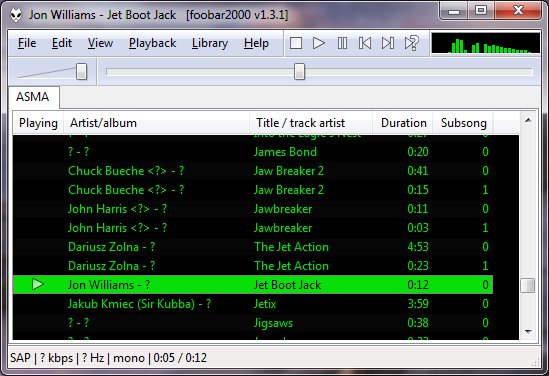
ASAP (Another Slight Atari Player) plays and converts 8-bit Atari music (*.sap, *.cmc, *.mpt, *.rmt, *.tmc, …) on modern computers and mobile devices.
asap.sourceforge.net
sourceforge.net/projects/asap
asap.sourceforge.net/web
github.com/epi/asap
Share this:

foo_input_sacd ~ Foobar2000 Super Audio CD Decoder
Super Audio CD Decoder input plugin for foobar2000. Decoder is capable of playing back Super Audio CD ISO images, DSDIFF, DSF and DSD WavPack files. Direct DSD playback for compatible devices.
Separate DSD Processor/DSD Converter plugins for track extraction into DSD/DST encoded files.
sourceforge.net/projects/sacddecoder
Foobar2000:Components/Super_Audio_CD_Decoder_(foo_input_sacd)
Sony: How to install a Super Audio CD Decoder component
I’ve successfully followed these steps to get DSD (.dsf filetype) and SACD (.iso filetype) playing at high bit rate using foobar2000 on my S.M.S.L M500 DAC.
This has been adapted from “SECTION II” of this page, thanks to “sirblew” for the tip!
Introduction
DSD stands for Direct Stream Digital and it is a high-definition lossless audio format with a twist. PCM signal solutions (like FLAC, TTA or APE) measure a set of bits multiple times per second to capture the audio data, hence the 16/24-bit parameter. On the other hand, DSD uses only one bit but samples it 2.8 million times a second to capture the audio signal.
ASIO Output (Required)
Download and extract foo_out_asio – ASIO Output
Install the asio component:
- File > Preferences > Components
- Click Install.
- Select “foo_out_asio.fb2k-component”.
- Click OK, then OK again to restart Foobar2000.
Set the asio component as the output device:
- File > Preferences > Playback > Output
- Device: “ASIO : USB DAC ASIO” (or name of your device)
Optionally, disable all other devices:
- File > Preferences > Playback > Output > Devices
- (uncheck all but “ASIO : USB DAC ASIO”, for example)
SACD (ISO) Playback
Download and extract foo_input_sacd – Super Audio CD Decoder. This decoder is capable of playing back Super Audio CD ISO images, DSDIFF, DSF and DSD WavPack files.
Install DSD SACD component:
- File > Preferences > Components
- Click Install.
- Select only “foo_input_sacd.fb2k-component”.
- Click OK, then OK again to restart Foobar2000.
Set plugin for “PCM” as output mode:
- File > Preferences >Tools > SACD
- Output (per device)
- Type: “DSD+PCM” (was PCM). Note: DSD+PCM will send a converted to PCM stream to Foobar so graphic add-ons like VU-meters, spectrographs and so on will work as they do when playing regular PCM files.
- Samplerate: 384000 (was 44100)
- Converter
- DSD2PCM Mode: “Direct (64fp, 30kHz lowpass)” (was “Multistage (32fp)”). 30KHz low pass filtered means all DSD noise above that frequency is removed and does not reach the amp.
- Input
- Preferable Area: “Stereo” (was “None”). Only stereo tracks are displayed.
- Editable Tags (was unchecked).
- Store Tags With ISO (was unchecked). Stores tag info in the plugin folder.
- Linked 2CH/MCH Tags (was unchecked). Tags added to a SACD ISO will be shared between stereo and multichannel tracks.
- Click OK
DSF Extraction (optional)
This can be useful if you open an ISO file and want to extract the contained files to DSF.
Download and extract foo_dsd_converter.
Install DSD Converter component:
- File > Preferences > Components
- Click Install.
- Select only “foo_dsd_converter.fb2k-component”.
- Click OK, then OK again to restart Foobar2000.
Ensure “Convert” menu item is enabled:
- File > Preferences > Display > Context Menu
- Ensure “Convert” (and child items) are checked.
Now right click a file in the playlist an choose “Convert > DSD Convert”.
- Output format: DSF
- Path:
- Output style: “…” then choose file name: “nn. title” and close dialog.
- Click “Convert”.

 The Audio File