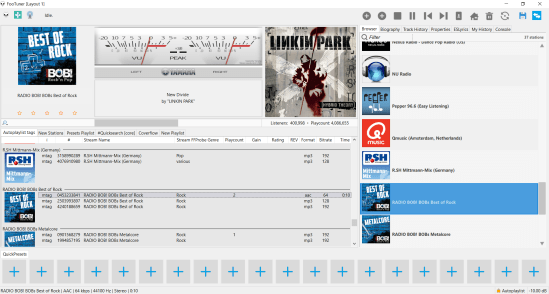
A foobar2000 skin / theme designed for internet streams. Search and import streams from tunein.com and Community Radio Browser
github.com/smoralis/footuner
hydrogenaud.io/index.php?topic=119049.0

A foobar2000 skin / theme designed for internet streams. Search and import streams from tunein.com and Community Radio Browser
github.com/smoralis/footuner
hydrogenaud.io/index.php?topic=119049.0

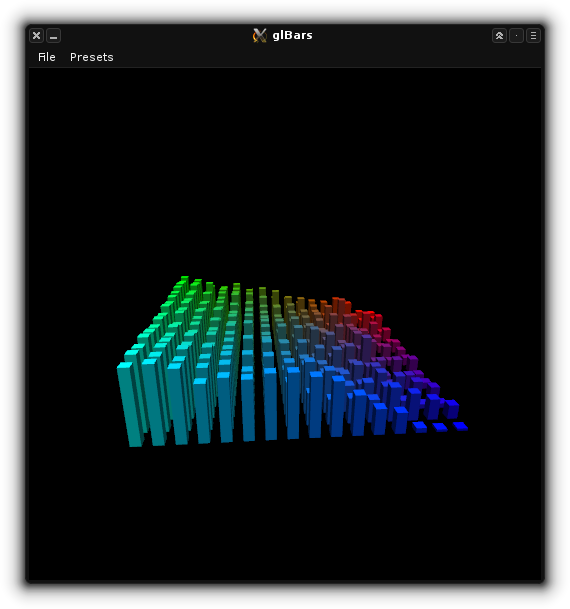
This is an OpenGL bars visualization plugin (as seen in XMMS and XBMC/Kodi). It’s adapted from the jack_glbars project by Nedko Arnaudov. glBars works as a JACK standalone and audio plugin (LV2 or VST).
github.com/DISTRHO/glBars
distrho.sourceforge.io/plugins
github.com/DISTRHO/DPF-Plugins

www.reddit.com/r/foobar2000/comments/hf83m9/foobar_wallpaper_engine
CUI & DUI Themes List
Icons & Icon Sets

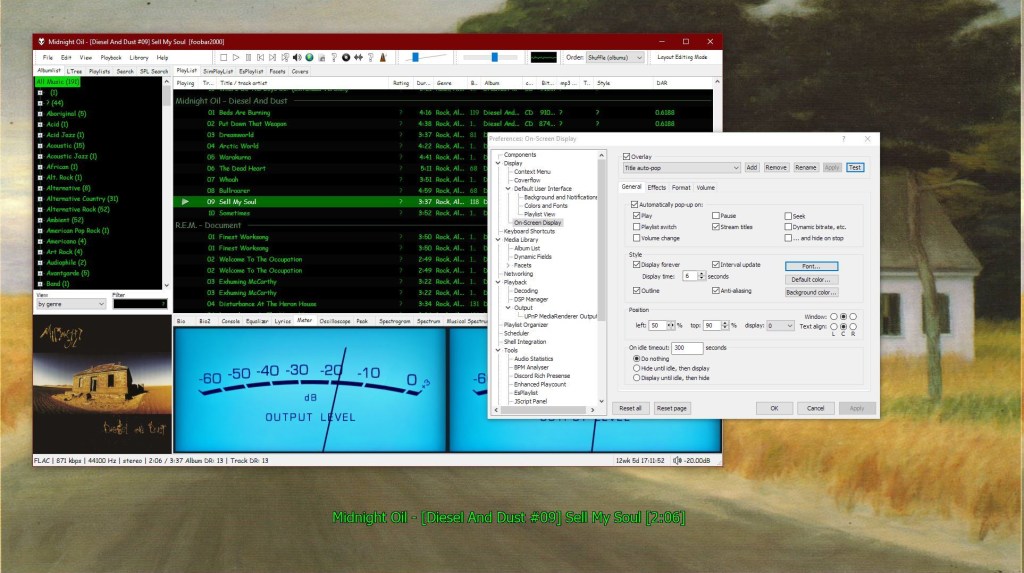
This component provides configurable screen overlays which may be opened with hotkeys, or appear on specific events. Each overlay is configured separately, and has its own set of events.
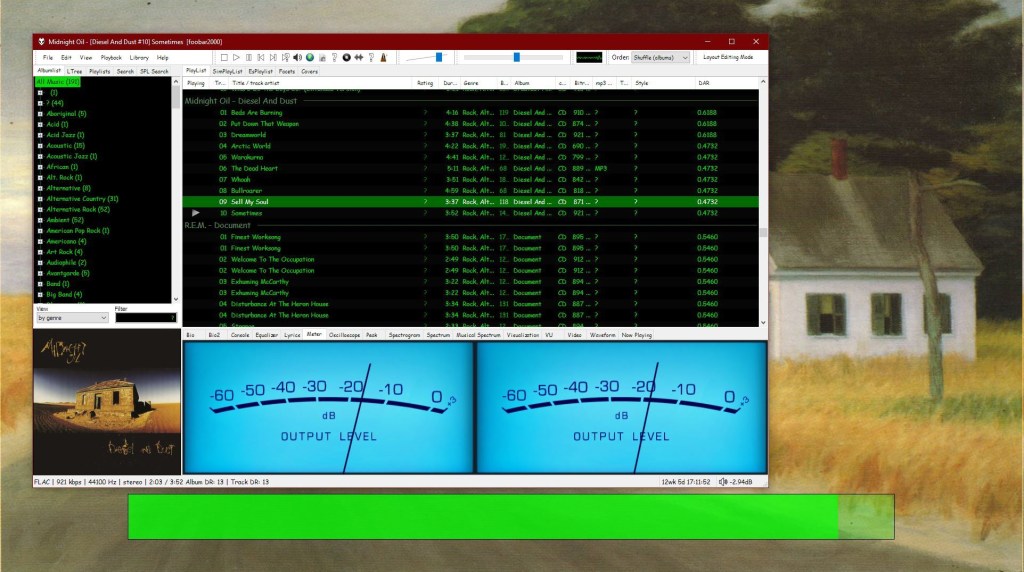
www.foobar2000.org/components/view/foo_osd
hydrogenaud.io/index.php/topic,43044.0
foobar_osd (On-Screen Display) is a foobar2000 component that shows track information as a floating overlay on your desktop during playback events.
Instead of opening the player window to see what’s playing, foobar_osd displays relevant information directly on your screen.
Typical uses include:
Unlike standard operating system notifications, foobar_osd is fully customizable using foobar2000’s powerful title formatting system.
The display appears briefly and then fades away automatically.
You control when the OSD appears. Common trigger events include:
Careful selection of events is important to avoid excessive on-screen interruptions.
One of the strongest features of foobar_osd is that it supports full foobar2000 title formatting.
This means you can display virtually any tag or metadata field stored in your files.
Example format:
[%artist% - ]%title%%album%$if(%album_avg_bpm%,Album BPM: %album_avg_bpm%)
Conditional formatting allows the display to remain clean by only showing information when available.
After installing the component:
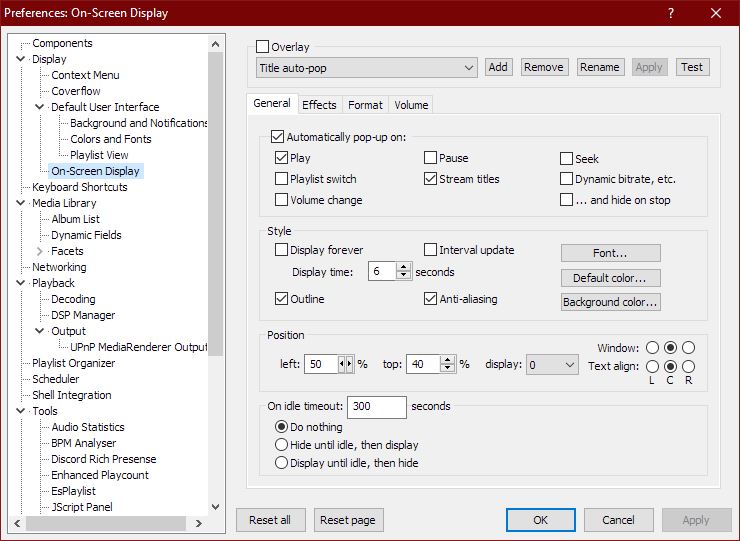
Preferences → Tools → On-Screen Display
All configuration options are available in this section.
foobar_osd allows extensive visual customization:
Many users install foobar_osd but never use its full potential. The following strategies significantly improve usability.
If your library uses structured tagging, include useful fields.
Example:
[%artist% - ]%title%%album%$if(%album_avg_bpm%,Album Tempo: %album_avg_bpm% BPM)$if(%genre%,Genre: %genre%)
This transforms the overlay into a quick contextual information panel.
Depending on your workflow, consider:
Setting a hotkey to manually trigger the OSD is extremely useful.
Advantages include:
Conditional statements prevent empty lines or clutter:
$if(%album_avg_bpm%,Album BPM: %album_avg_bpm%)
Only displays when the tag exists.
Elapsed / Percent / Duration / Remaining
$puts(Elapsed,$if(%isplaying%,$pad_right(%_time_elapsed%,5,0),00:00))
$puts(Duration,$pad_right(%length%,5,0))
$puts(P,$muldiv(%_time_elapsed_seconds%,100,%_time_total_seconds%))
$puts(Percent,$if(%isplaying%,$if($greater($get(P),99),99,$pad_right($get(P),2,0)),00)'%')
$puts(Remaining,$if(%isplaying%,$pad_right(%playback_time_remaining%,5,0),$get(Duration)))
$get(Elapsed)  |  $get(Percent)  |  $get(Duration)  |  $get(Remaining)

AnSpec is an analog-style one/third-octave spectrum analyzer AAX, AudioUnit and VST plugin for professional sound and music production applications. It was designed to be a handy visual feedback tool for those who like visual smoothness and easiness of use of analog analyzers. AnSpec also provides peak level indication.
While there are no adjustable parameters available in this plugin, you can still change level meter ballistics and resize plugin’s window.
Features:
- 1/3 octave analog-style spectrum analyzer
- Peak level indication
- User interface window resizing
- Stereo and mono analysis
- All sample rates support
- Zero processing latency
- User interface color schemes
- Resizable user interface
- Retina and High DPI support
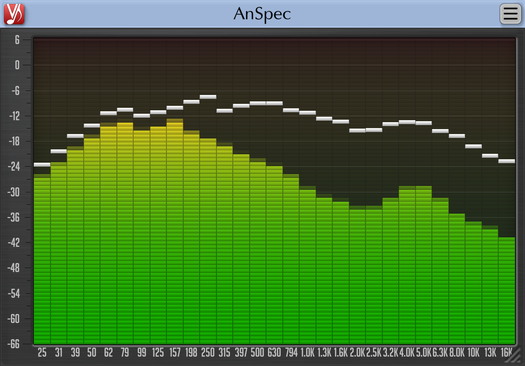
www.voxengo.com/product/anspec
en.wikipedia.org/wiki/Spectrum_analyzer

A volume unit (VU) meter or standard volume indicator (SVI) is a device displaying a representation of the signal level in audio equipment.
Application is developed on WinForms with .Net 4.8. (Windows 11 compatible).
New version 1.1.0.0 is not developed on XNA.

sourceforge.net/projects/vumeter

Save the original icons and replace them in C:\Program Files (x86)\foobar2000\icons
File > Preferences > Display > Default User Interface > Background and Notifications > System Tray Icon

A component to display visualisations and track information on a variety of Logitech LCD screens.
Features:
www.foobar2000.org/components/view/foo_logitech_lcd

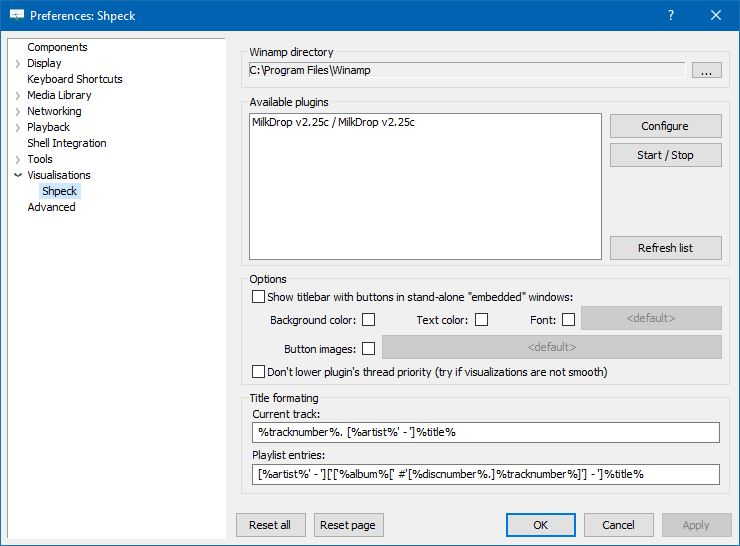
The foo_vis_shpeck component runs Winamp visualization plugins in a stand-alone window, a Columns UI panel or Default UI element.
Documentation
Download
Hydrogen Audio Topic
Download Winamp
Shpeck enables Foobar2000 to display dynamic graphics that react to the beat. It’s possible to toggle between fullscreen and windowed modes.
Install the foo_vis_shpeck plugin, combined with Winamp’s MilkDrop visualizations.
Resources:
www.foobar2000.org/components/view/foo_vis_shpeck
www.winamparchive.org
archive.org/details/tucows_193563_Winamp
www.mediafire.com/download/8hxarja92q9q99c/foobar2000-milkdrop-2.25c.7z
forums.winamp.com/forum/winamp/winamp-discussion/4615655-winamp-5-9-2-released
Guides:
Milkdrop in Foobar on Windows 8 ~ vault-tec.info/post/51743506694/milkdrop-in-foobar2000-on-windows-8
Additional Presets:
sourceforge.net/projects/mdpresetpack/
www.thefreewindows.com/21777/download-free-milkdrop2-50000-presets-megapack/
archive.org/details/Milkdrop252kPresetCollection.7z
… some archives from this milkdrop contest thread on Winamp forum and put everything into a single archive. Some of the presets are nice and quite original, but most of them are variations. The ones that seemed nice to me I copied and added exclamation mark to their names. ~ hydrogenaud.io/index.php/topic,59388.msg914054.html#msg914054

XMPlay is an audio player, supporting the OGG / MP3 / MP2 / MP1 / WMA / AAC / MP4 / WAV / AIFF / CDA / MO3 / IT / XM / S3M / MTM / MOD / UMX audio formats, PLS / M3U / ASX / WAX / CUE playlists, and ZIP archives. A load more audio and archive file formats are also supported via plugins.
When XMPlay was first released in 1998, only the XM file format was supported, hence the name “XMPlay”.
www.xmplay.com
support.xmplay.com
ssz.bitbucket.io (Input & Archive plugins)

Title formatting in foobar2000 is a system that allows you to control how information about your music is displayed in the interface. It doesn’t modify the audio files themselves or change tags — it only affects how metadata and other information is shown in playlists, status bar, or window title.
Think of it like a template language: you define a pattern for text, and foobar2000 fills in the fields with actual track information. For example, you can make the playlist display tracks as:
Artist - Track Title (Album)
Music files contain metadata such as:
Different users want to display this information differently. Title formatting lets you:
For example, you might want to show the album only if it exists. Title formatting makes that possible.
You typically use title formatting in three main places:
There are three core concepts that beginners must understand:
%artist%, %title%).Any normal text you type is displayed exactly as written. This is useful for labels, punctuation, or separators:
Now Playing:
You can combine plain text with fields to make output more readable:
Now Playing: %artist% - %title%
This will display something like:
Now Playing: Radiohead - Paranoid Android
Fields are placeholders that pull metadata from your music files. They are written inside percent signs:
%artist%
Some common fields include:
| Field | Meaning |
|---|---|
| %artist% | Track artist |
| %album% | Album name |
| %title% | Track title |
| %tracknumber% | Track number |
| %date% | Year or release date |
| %length% | Track duration |
Example combining fields:
%artist% - %title%
Output:
Radiohead - Paranoid Android
You can mix plain text with fields to create more structured output. For example:
%artist% – %title% (%album%)
Output:
Radiohead – Paranoid Android (OK Computer)
If a field does not exist in the file, foobar2000 simply displays nothing. For example, if %composer% is missing:
%composer%
The output will be blank. To prevent blank parentheses or awkward spacing, you can use conditional logic.
The $if() function allows you to display text only when a field has a value:
$if(condition,then,else)
Example:
%artist% - %title%$if(%album%, (%album%),)
This will display the album in parentheses only if %album% exists. Otherwise, it leaves that part empty.
Playlist Column
%artist% - %title%
Status Bar
Now Playing: %artist% – %title%
Window Title
%artist% – %title% | foobar2000
These fields are always available and do not require files to be tagged:
| Field | Meaning |
|---|---|
| %filename% | File name |
| %path% | Full file path |
| %codec% | Audio codec |
| %bitrate% | Bitrate |
| %samplerate% | Sample rate |
For someone just installing foobar2000, start with these basic formats:
%artist% - %title%
Now Playing: %artist% – %title%$if(%album%, (%album%),)
%artist% – %title%
%field% is the most important concept$if() handles missing or optional data elegantlyA good place to start is by installing foo_tfsandbox, this component allows you to experiment with title formatting expressions and fields before you implement them.
$info(referenced_offset) ~ shows time in format mm:ss:ff where ff are CD frames. For the first track it will show nothing instead of 00:00:00
hydrogenaud.io/index.php?topic=118733.msg979344
$if($or($stricmp(%codec%,DTS),$stricmp($cut(%codec%,3),DCA)),$if($info(bitspersample),$ifequal(%samplerate%,96000,$ifgreater(%bitrate%,1537,DTS-HD,DTS 96/$info(bitspersample)),DTS-HD),DTS),%codec% [%codec_profile%])
Release Date (earliest):
hydrogenaud.io/index.php/topic,125532.0
$max(%DATE%,$min($year(%DATE%),$year(%DISCOGS_RELEASED%),$year(%DISCOG_MASTER_RELEASE_DATE%)))
Title_Formatting_Introduction
Title Formatting Reference
Titleformat Examples
Titleformat_Album_List

Customizable windows – taskbar deskband control
www.foobar2000.org/components/view/foo_deskband_controls
hydrogenaud.io/index.php?topic=78234.0

 The Audio File