
Looking for some good dynamic mics to add to your locker? Well in this post, I reveal 6 of the greatest ones in music history. ~ Best Dynamic Microphones of all time: The Top 6 List
Author Archives: tom2tec


ReplayGain ~ Advanced Volume Normalization
ReplayGain is … a technique invented to achieve the same perceived playback loudness of audio files. ~ Hydrogenaudio Knowledgebase
ReplayGain … allows players to normalize loudness for individual tracks or albums. This avoids the common problem of having to manually adjust volume levels between tracks when playing audio files from albums that have been mastered at different loudness levels. ~ en.wikipedia.org/wiki/ReplayGain
If you’re using track gain, every song is played at 89 dB; no song is any louder than any other. If you’re using album gain, tracks will be played at 89 dB plus or minus a few dB, depending on how much louder or quieter each track is relative to the other tracks on the album. By definition, album gain is not going to make all tracks as loud as possible; the quieter tracks are going to remain that much quieter than the louder tracks, and they’ll average out to 89. ~ Hydrogen Audio
Using ReplayGain in Foobar
(1) First set the ReplayGain target values:
Preferences / Playback / ReplayGain
Source mode: by playback order
Processing: apply gain and prevent clipping according to peak

Recommended Values:
Set Preferences / Preamp / Without RG values: to around -8.0 db
If you are also playing tracks which aren’t RG-tagged, they’ll be playing quite loud in comparison to the RG-tagged ones. To mitigate that, you can set the “Without RG info” Preamp level to, say, -11.9. This will make the player pretend they have -11.9 dB album gain. Thus if you played a non-RG-tagged copy of that loudest track, it would be played at 89 dB instead of its natural 100.91 dB, and would thus match the level that all the RG-tagged tracks are played at. However, then the quieter non-RG-tagged tracks would still be that much quieter. So you may find -8 or so to be a better “without RG info” preamp level, on average.~ HA Forum
I usually set my non-RG preamp to somewhere in the range of -7.0 dB to -9.0 dB. ~ HA Forum
I recommend setting the slider labelled “Without RG info” to -8.0 (that’s minus eight) or less. ~ www.bobulous.org.uk/misc/Replay-Gain
If you listen to modern music -7dB/-10dB value should be correct. If you listen to older music, keep the value a bit lower because the average level of recently released tracks are higher. ~ eolindel.free.fr/foobar0.9/Replaygain
(2) Next scan files:
- Select Files / Right mouse / ReplayGain / Scan selection as single album (adds album and track ReplayGain tags)
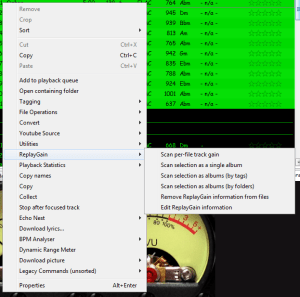
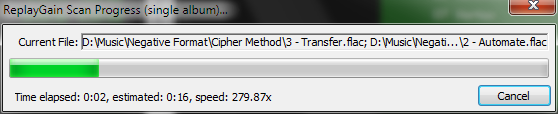
Once the files are scanned, they can be played.
True Peak Scanner
The foo_truepeak component scans ReplayGain, Dynamic Range, LUFS, PLR RMS values, etc.
Foobar ReplayGain Override Component
For older versions that lack the “by playback order” option, this component provides a way to specify which ReplayGain modes to use for each playback order. Track gain is probably desirable for random playback while with regular playback album gain is more suitable.

Download ~ www.foobar2000.org/components/view/foo_rg_trn
Alternative ReplayGain
Alternative ReplayGain engine. Should be faster as it does not use FFT.
www.foobar2000.org/components/view/foo_arg
ReplayGain in Linux
ReplayGain in Winamp
WinAmp’s use of these RG tags is enabled / disabled via the General Preferences – Playback – Replay Gain options ~ forums.winamp.com/showthread.php?t=345520
ReplayGain DLL
Win32 dll to normalize wav pcm files using replaygain
sourceforge.net/projects/rspgain
Foobar2000 DSP Plugin:
foo_dsp_replaygain ~ Temporary Replaygain
Additional References:
wiki.hydrogenaud.io/index.php?title=ReplayGain
wiki.hydrogenaud.io/index.php?title=ReplayGain_1.0_specification
replaygain.hydrogenaud.io/proposal/index.html
replaygain.hydrogenaud.io/proposal/calibration.html
www.hydrogenaud.io/forums/index.php?showtopic=96391
www.hydrogenaud.io/forums/index.php?showtopic=35255
www.techspot.com/tweaks/foobar/index
stephan.win31.de/music.htm#rg-levels
forum.audacityteam.org/t/replaygain-plug-in/22589
Track Gain (relative to the ReplayGain target volume)
[%replaygain_track_gain%]ReplayGain’s Track Volume
$if(%replaygain_track_gain%,$puts(X,$sub(8900,$replace(%replaygain_track_gain%,.,)))$ifgreater($get(X),9999,$substr($get(X),1,3).$substr($get(X),4,5),$substr($get(X),1,2).$substr($get(X),3,4)) dB))Track Volume (-18dB is equivalent to the ReplayGain target volume of 89dB)
$if(%replaygain_track_gain%,$puts(X,$sub(-1800,$replace(%replaygain_track_gain%,.,)))$ifequal($get(X),0,0,$ifgreater($get(X),0,$replace(+$substr($num($get(X),4),1,2),+0,+),$replace($substr($num($get(X),5),1,3),-0,-))).$substr($num($get(X),5),4,5) dB)Album Gain (relative to the ReplayGain target volume)
[%replaygain_album_gain%]ReplayGain’s Album Volume
$if(%replaygain_album_gain%,$puts(X,$sub(8900,$replace(%replaygain_album_gain%,.,)))$ifgreater($get(X),9999,$substr($get(X),1,3).$substr($get(X),4,5),$substr($get(X),1,2).$substr($get(X),3,4)) dB))Album Volume (-18dB is equivalent to the ReplayGain target volume of 89dB)
$if(%replaygain_album_gain%,$puts(X,$sub(-1800,$replace(%replaygain_album_gain%,.,)))$ifequal($get(X),0,0,$ifgreater($get(X),0,$replace(+$substr($num($get(X),4),1,2),+0,+),$replace($substr($num($get(X),5),1,3),-0,-))).$substr($num($get(X),5),4,5) dB)Track Peak
hydrogenaud.io/index.php?topic=121273.msg1000424#msg1000424
[%replaygain_track_peak_db%]
Share this:

Foobar2000 Tagging ~ Fixing Swapped Artist | Title Tag Info
Do you have albums where the artist’s names are in the track title field, and the title of the track is in the artist name field? Here’s how to fix this.
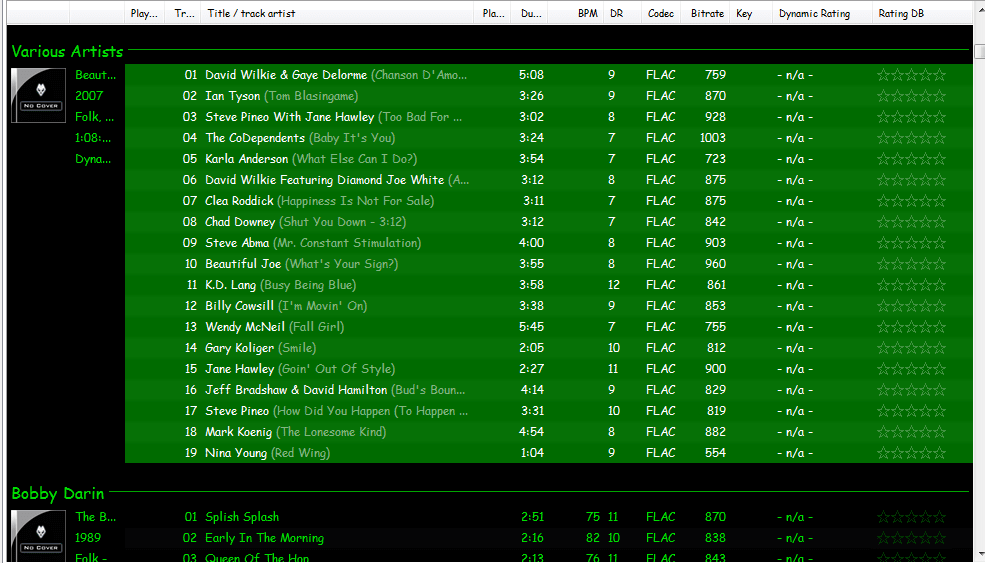
Start by checking the file names. If the file names have both artist name and track title information, then the fix is easy, just retag the files using the Automatically fill values function.
First, select the files, then open the Properties dialog window.
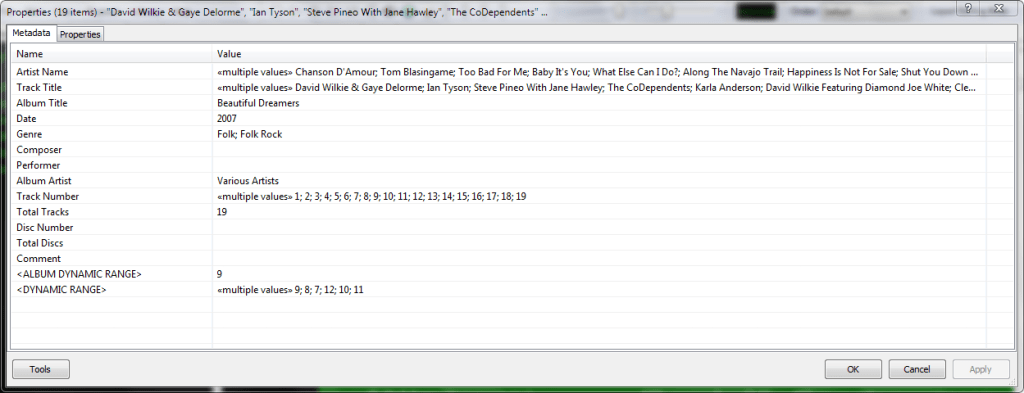
Right click and select Automatically Fill Values…

Then with the source set to File names, fill in or select a Pattern which puts the information in the correct fields.
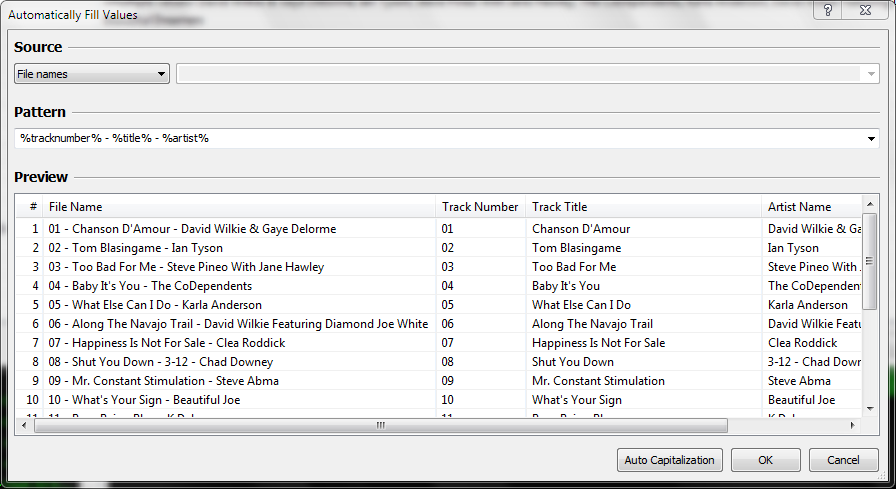
After you select Ok, Foobar will retag the files properly.
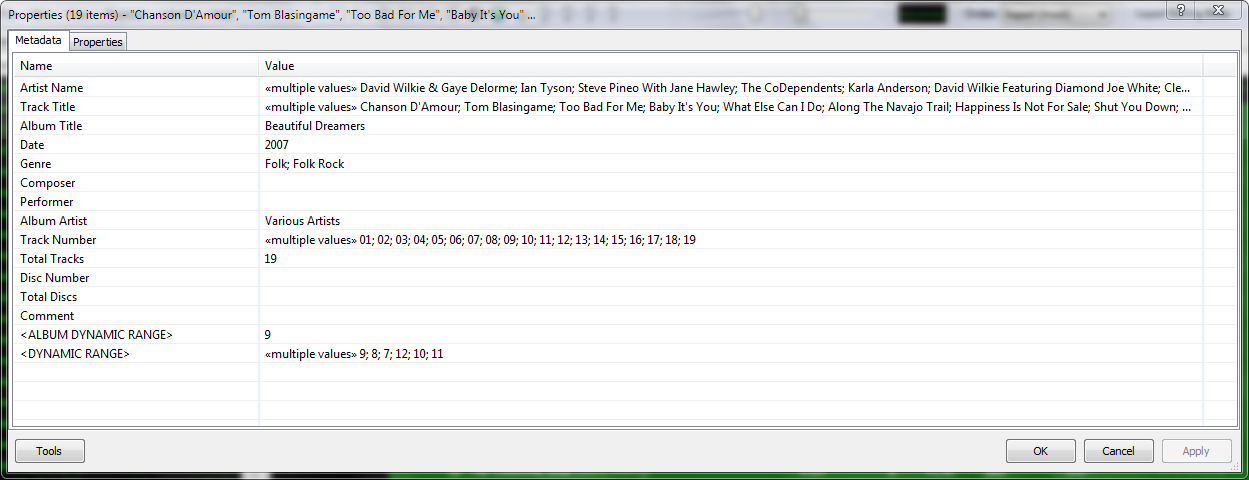
However, if the file names don’t contain both artist names and track title information, you’ll have to rename the files from the tags first. Select the files then right click and select File Operations>Rename
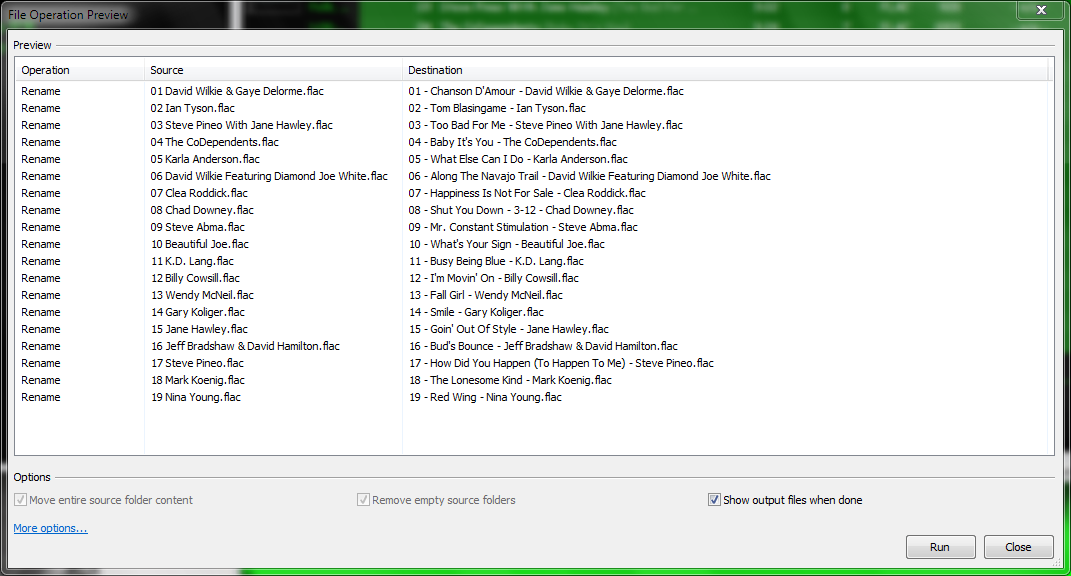
and after the files have been renamed, carry out the rest of the above procedure.
Share this:

Ex Falso / Quod Libet ~ Tag Editor / Player
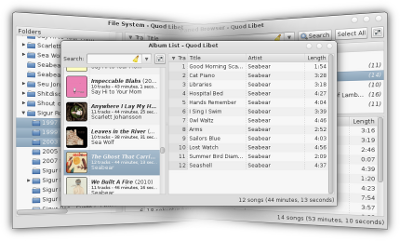
Quod Libet is a GTK+-based audio player written in Python, using the Mutagen tagging library. It’s designed around the idea that you know how to organize your music better than we do. It lets you make playlists based on regular expressions (don’t worry, regular searches work too). It lets you display and edit any tags you want in the file, for all the file formats it supports.
Unlike some, Quod Libet will scale to libraries with tens of thousands of songs. It also supports most of the features you’d expect from a modern media player: Unicode support, advanced tag editing, ReplayGain, podcasts & Internet radio, album art support and all major audio formats – see the screenshots.
Ex Falso is a program that uses the same tag editing backend as Quod Libet, but isn’t connected to an audio player. If you’re perfectly happy with your favorite player and just want something that can handle tagging, Ex Falso is for you.
Website
Download
Features
Guide
Screenshots
Quod Libet Companion Plugins
Share this:

Audio RightMark ~ Independent Audio Benchmarking
Need help deciding which PC audio hardware to purchase? Want to test some gear? Open source, freeware hardware analysis software and posted RMAA test results for common hardware.
Share this:

RareWares ~ Freeware Audio Archive
Providing hard-to-find pieces of software since 2001
Repository of open audio CODECs, compiled LAME binaries and freeware utilities.
Share this:

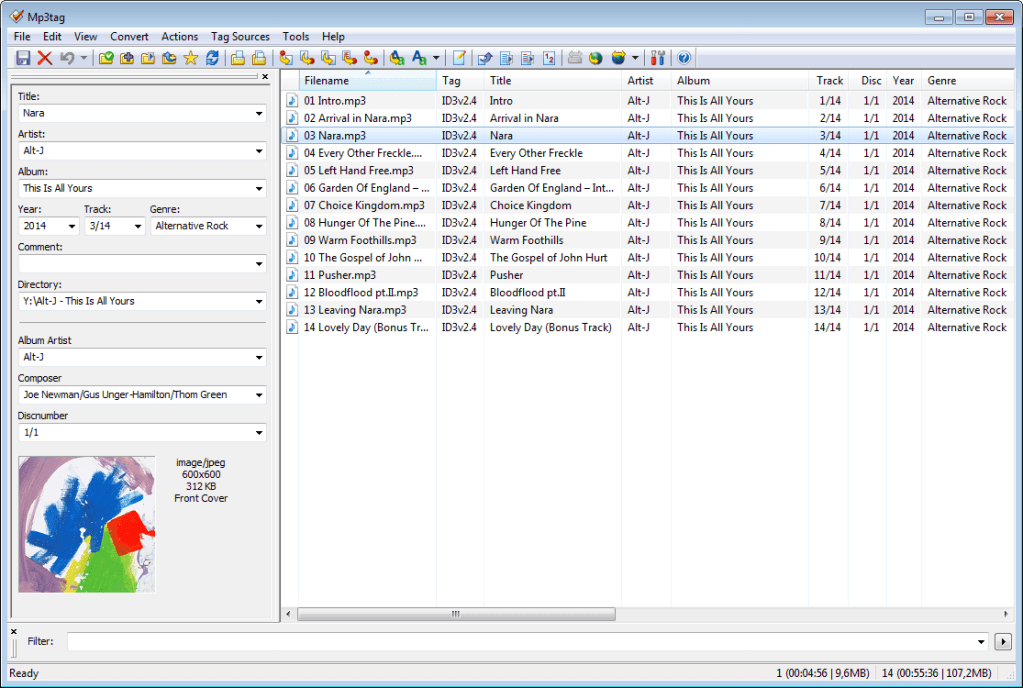
Mp3tag ~ Universal Tag Editor
Mp3tag is a powerful and easy-to-use tool to edit metadata of audio files.
It supports batch tag-editing of ID3v1, ID3v2.3, ID3v2.4, iTunes MP4, WMA, Vorbis Comments and APE Tags for multiple files at once covering a variety of audio formats.
Furthermore, it supports online database lookups from, e.g., Discogs, MusicBrainz or freedb, allowing you to automatically gather proper tags and download cover art for your music library.
You can rename files based on the tag information, replace characters or words in tags and filenames, import/export tag information, create playlists and more.
www.mp3tag.de
www.mp3tag.de/en/screenshots
community.mp3tag.de
twitter.com/mp3tag
hydrogenaud.io/index.php?topic=122049.0
en.wikipedia.org/wiki/Mp3tag
apps.apple.com/us/app/mp3tag/id1532597159
www.microsoft.com/en-us/p/mp3tag/9nn77tcq1nc8
www.portablefreeware.com/?id=1137
musicbrainz.org/doc/Mp3tag
Share this:

freedb.org ~ Metadata Lookup Service
Sadly, this service was terminated as of March 2020, apparently due to corporate indifference.
freedb was a free CD and music database service to look up textual metadata about music, audio or data CDs. This was done by a client which queried the freedb database. As a result, the client displayed the artist, CD title, track list and some additional information. Clients are for example CD players, CD rippers and CD burning software.
www.freedb.org
en.wikipedia.org/wiki/Freedb
Alternative CDDB servers:
- freedb.dbpoweramp.com – defunct link
- gnudb.org
Resources:
- archive.org/details/freedb
- en.wikipedia.org/wiki/CDDB
- en.wikipedia.org/wiki/Freedb
- libcddb.sourceforge.net
- sourceforge.net/projects/cddbnet
Share this:

Foobar2000 ~ How To Install A Component
Add-on components greatly extend the appearance and functionality of Foobar2000.
- Open the Foobar Preferences dialog (File | Preferences or press CTRL+P)
- Go to the Components page (click components at the top of the list)
- Click the “Install…” button and select the component archive (zip) file, or drag the component’s file to the
Installed componentslist box. - Press “OK“, you will be prompted to restart foobar2000 in order to load the newly installed component.
- If the component has a visual element, you’ll need to add the component to the DUI (Default User Interface) now. Toggle View\Layout\Enable Layout Editing Mode and then add a new panel or tab. Right click the new panel or tab area and select “Add New UI Element …“, then select the new component from the list. You may need to adjust borders to fit. Exit layout mode.

Foobar2000: How to install a component
Additional Resources:
List Of Foobar Components
New Feature Monitor ~ foo_whatsnew
Share this:

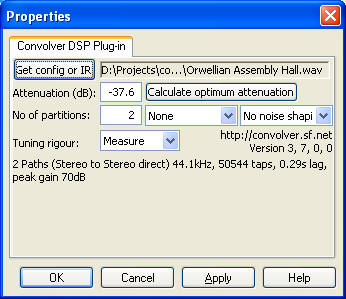
Convolver ~ A Convolution Plugin
Convolver is an open source, high performance Windows application for applying finite impulse response (FIR) filters to multi-channel digital audio in the form of
- a real time DSP audio plug-in (DMO) for Windows Media Player. The install package also contains
- two DirectX / DirectShow filter versions — ConvolverWrapper or the equivalent ConvolverFilter — for Adobe Audition and real time applications such as Zoom Player Pro, TheaterTek 2.2, Windows Media Player Classic, J.River Media Center (when used with the DirectX host plug-in), or Console. See the setup walkthrough for ZoomPlayer after reading this page for further details. In many cases the DMO will also work.
- a VST plug-in version (convolverVST). Finally, there are a number of
- command line applications for testing performance, and convolving files offline, for example. convolverPipe can filter SlimServer playback.
Convolver will take a set of FIR filter files (sound files) and convolve them with sound paths mixed from the input channels, mixing the results into a set of specified output channels.
convolver.sourceforge.net
Download
Documentation
Share this:

DRC ~ Digital Room Correction Filter Generator
DRC is a program used to generate correction filters for acoustic compensation of HiFi and audio systems in general, including listening room compensation. DRC generates just the FIR correction filters, which can be used with a real time or offline convolver to provide real time or offline correction. DRC doesn’t provide convolution features, and provides only some simplified, although really accurate, measuring tools.
drc-fir.sourceforge.net
sourceforge.net/projects/drc-fir/files/
Documentation
Wikipedia
Share this:

Foobar2000 ~ DADA Automatic Song Rating
Date and duration adjusted (DADA) auto-rating algorithm for foobar2000
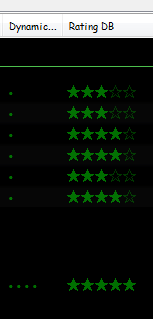
The DADA Auto-Rating algorithm (DAR) automatically rates music according to a variety of statistics collected by foobar2000’s official “playback statistics” plugin.If done well, an auto-rating algorithm will simply tell you what your favorite (and conversely, least favorite) music is, and the rating will be derived from and reflect actual listening behavior. This is quite different from manual ratings (e.g. 1 – 5 stars set by the user), since there’s very often a disparity between what we’d like ourselves to like, and what we actually like. For those interested in uncovering their actual musical tastes, a good auto-rating formula can be quite illuminating.
www.giantpygmy.net/studio/?post=dada-music-auto-rating-algorithm-foobar2000
Hydrogen Audio Discussion

 The Audio File