Floating window for Default UI of foobar2000
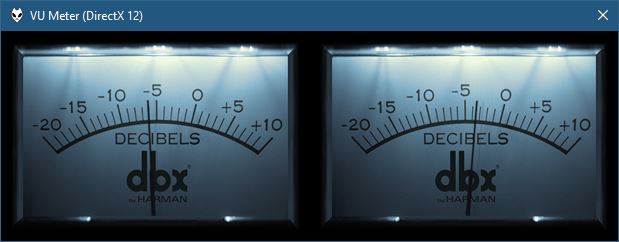
github.com/ttsping/foo_flowin
wiki.hydrogenaudio.org/foo_flowin
Usage:
- Install foo_flowin
- View > Flowin > New Flowin
- Add new foobar user interface element
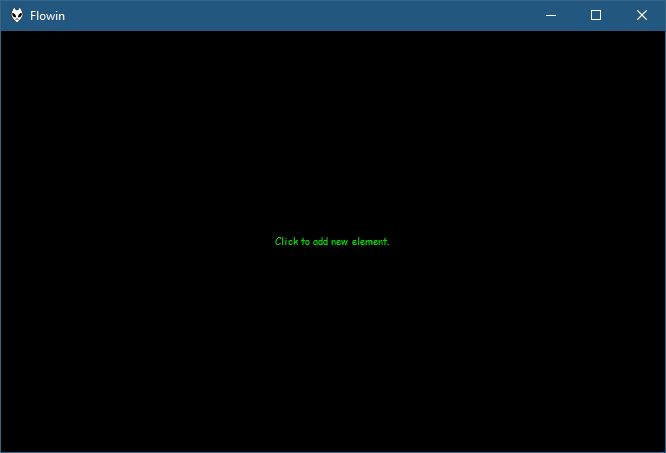

Floating window for Default UI of foobar2000
github.com/ttsping/foo_flowin
wiki.hydrogenaudio.org/foo_flowin
Usage:

OpenVoiceOS is a community-driven, open-source voice AI platform for creating custom voice-controlled interfaces across devices with NLP, a customizable UI, and a focus on privacy and security.
www.openvoiceos.org
github.com/OpenVoiceOS
github.com/OpenVoiceOS/ovos-installer

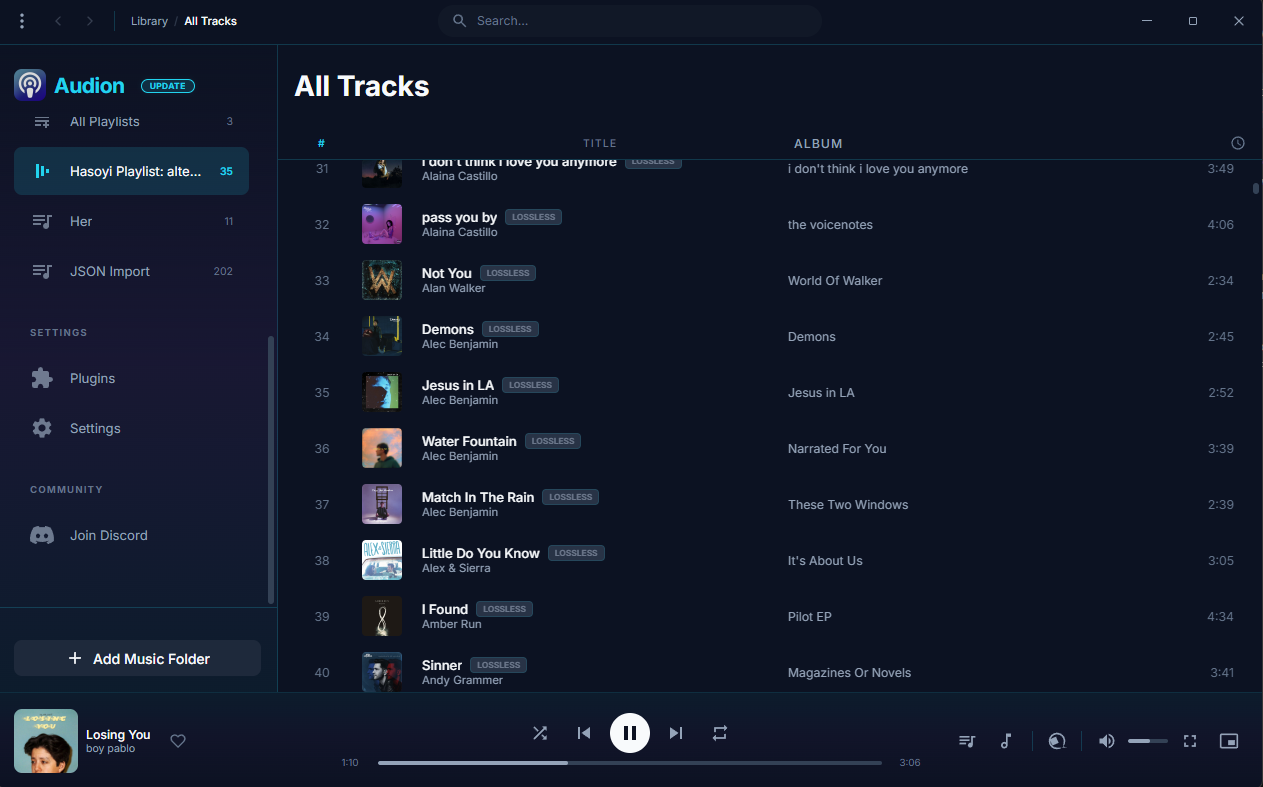
Audion is a privacy-focused music player that brings the Spotify experience to your local music library. No internet required, no tracking, just your music, beautifully organized.
Key highlights:
- Synced lyrics with karaoke-style word highlighting
- Extensible plugin system
- Gorgeous, customizable interface
- Fully offline
www.audionplayer.com
github.com/dupitydumb/Audion

This is a small web app for controlling a Foobar2000 instance. It calls the REST interface provided by foo_beefweb but provides an alternative web interface.

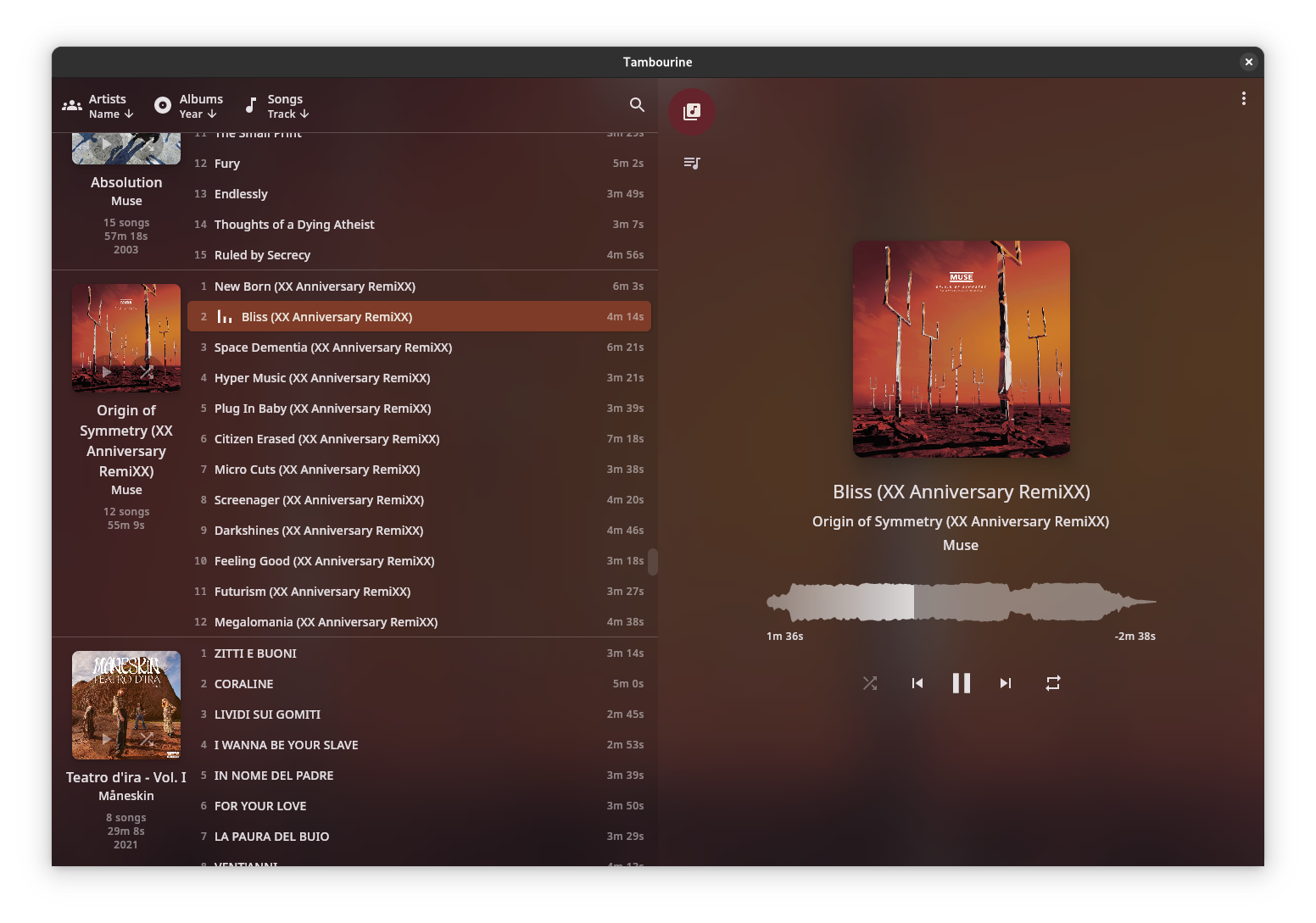
A music player for your local music library.
- Linux first
- Local only: no internet connection will ever be established.
- Read only: your music will be accessed only in read mode.
- Stateless: no cache/database/whatever will be created. The metadata in your songs are the database.
- Imperfect: there will be use-cases that are not solved by this software, and that’s fine.
github.com/MMarco94/tambourine-music-player

FlavourMTC follows classic “passive” equalizer designs where the EQ circuits itself are not able to amplify signals but a dedicated amplifier stage takes care of it. Those EQ designs are well known for allowing very transparent frequency changes while their amplifier designs do add some icing on the cake quite often.
FlavourMTC implements this by utilizing 1st order shelving filter designs avoiding unwanted resonances and takes advantage of “zero delay” implementations for most accurate higher order filtering and w/o introducing curve warping near Nyquist frequency. The output amplifier stage of the plugin can be calibrated according specific mixing levels, provides a distinct “box tone” and glues everything together. Parts of the plugin are oversampled internally for maximum transparency and sound quality.
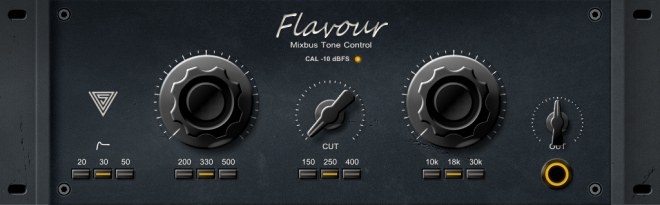
varietyofsound.wordpress.com/downloads

Amberol is a music player with no delusions of grandeur. If you just want to play music available on your local system then Amberol is the music player you are looking for.
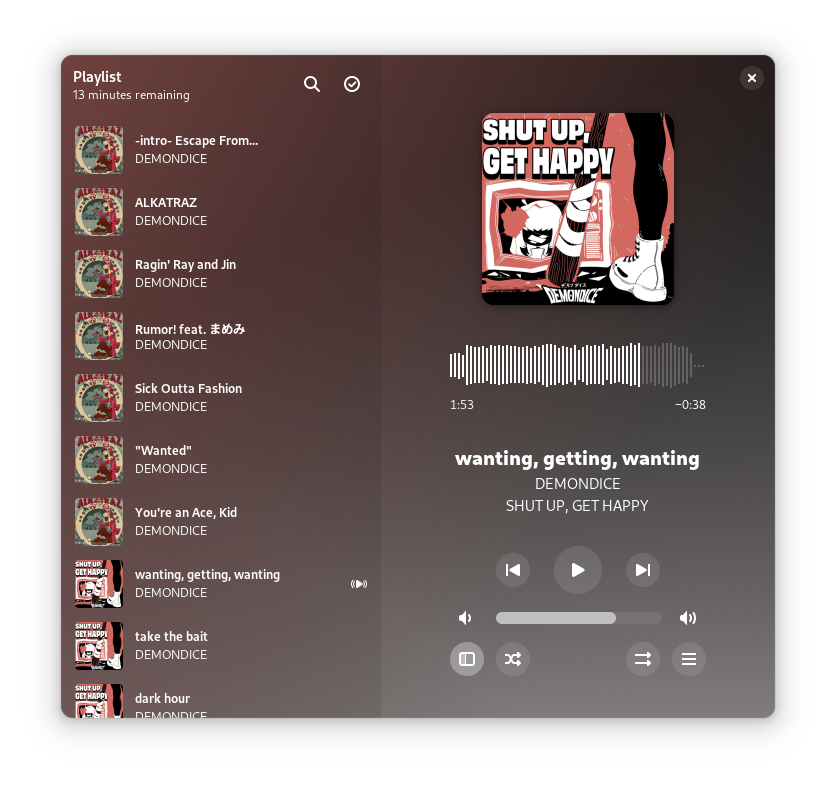
gitlab.gnome.org/World/amberol
apps.gnome.org/en/Amberol
flathub.org/en/apps/io.bassi.Amberol

/synth is a minimalist, array-oriented synthesis environment. Heavily inspired by the K/Simple lineage and the work of Arthur Whitney, it treats sound not as a stream, but as a holistic mathematical vector.
This isn’t a DAW; it’s a vector-processing engine designed for “Base Camp” signal processing.
It uses:
Sound is a vector. A kick drum is a vector. A two-second bell tone is a vector. You do math on vectors and the result is audio. There are no tracks, no timelines, no patch cables — only expressions.
octetta.github.io/k-synth
github.com/octetta/k-synth

Four easy steps to make your headphones sound better.
autoeq.app
github.com/jaakkopasanen/AutoEq

Deep brown noise for focus, for the macOS menu bar.
Single-purpose menu bar app that generates deep brown noise locally and plays it on loop. Install it, click play, forget about it. Cumulative-sum brown noise through a Butterworth bandpass (1 to 500 Hz, 20 Hz sub-bass highpass), RMS-normalized per chunk, crossfaded at boundaries. Everything is stored in
~/.lowhum/. Playback streams through PortAudio via memory-mapped files, so the full WAV never sits in RAM. The app polls audio devices every 2 seconds and stops instantly if headphones disconnect or a Bluetooth device drops.Menu bar controls
The menu bar icon is a template image, so macOS handles dark/light mode automatically. Further, use it for:
- Play / Stop from the menu bar
- Pick any connected audio device from the Output Device submenu
- Noise color selection (brown, pink, white)
- Auto-stops when headphones connect or disconnect
Requires macOS and Python 3.12+.
lmarkmann.github.io/lowhum
github.com/lmarkmann/lowhum
References:
en.wikipedia.org/wiki/Brownian_noise

AceForge is a local-first AI music workstation for macOS Silicon powered by ACE-Step
_prompt.txt / _lyrics.txt files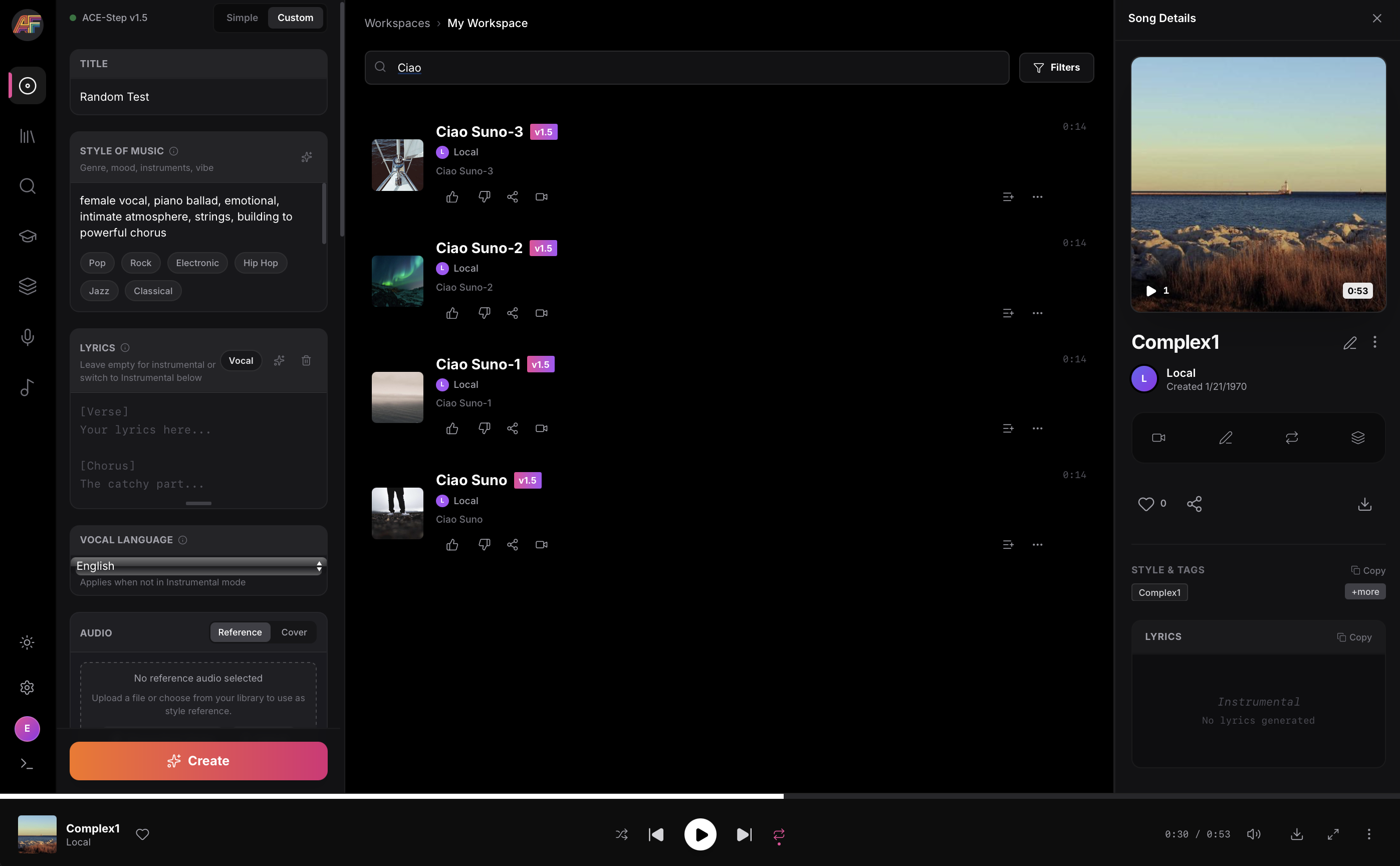
github.com/audiohacking/AceForge


