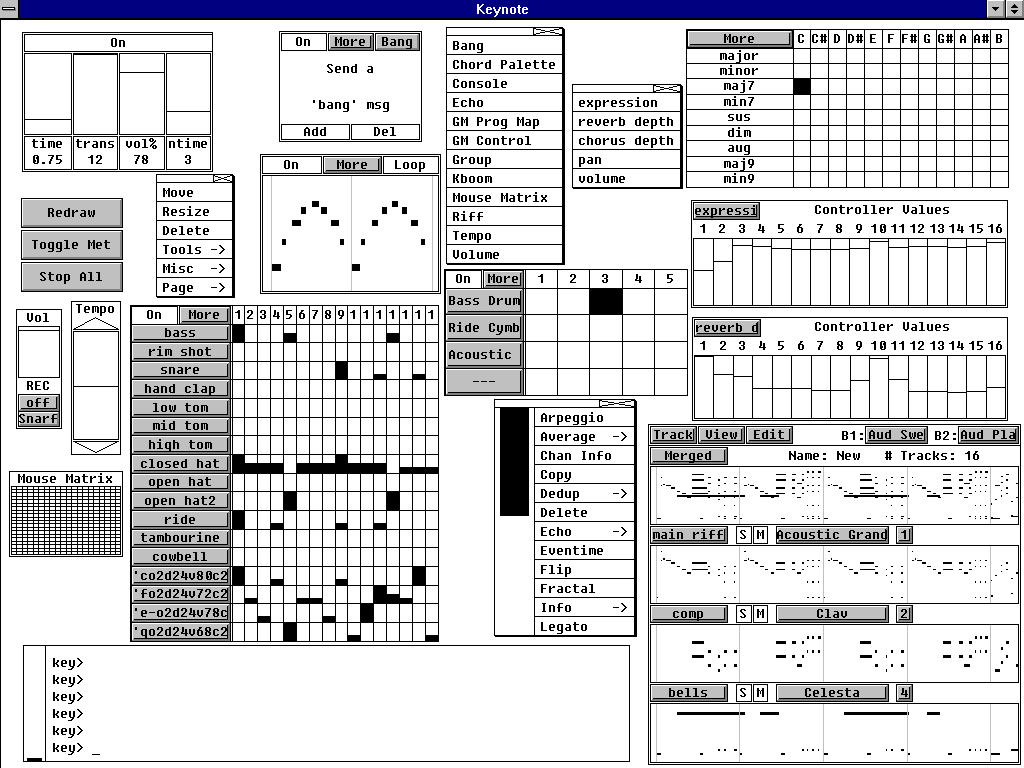
Navigate to the KeyKit GitHub repository (nosuchtim/keykit).
Open the /dist/ directory.
Download the appropriate archive for your system: Windows (key_nt.zip), Linux (key_linux_alsa.zip), or Raspberry Pi (key_raspbian.zip).
On Windows, right-click the downloaded .zip file, select “Extract All,” and extract it to a simple path such as C:\tools\keykit\.
On Windows, open the extracted folder and double-click key.exe to launch KeyKit and in the KeyKit console enter midiout("KeyKitPort").
On Linux, open a terminal, navigate to your download directory, run unzip key_linux_alsa.zip, then cd keykit, then run ./key from inside the keykit folder.
If Linux reports a permission error, run chmod +x key and then ./key.
Install a virtual MIDI driver on Windows (for example, loopMIDI).
Launch the MIDI driver and create a virtual port (for example, KeyKitPort).
Route the virtual MIDI port to a sound source such as a software synthesizer, DAW, or virtual MIDI instrument.
On Linux, verify MIDI devices by running aconnect -l.
Start a software synthesizer on Linux, for example fluidsynth -a alsa -m alsa_seq soundfont.sf2.
Run aconnect -l again to view available ports.
Connect KeyKit to the synthesizer using aconnect <keykit_port> <synth_port>.
In the KeyKit console, type 'c d e f g' and press Enter to test audio output.
Load a built-in sequencer by entering load "lib/seq.k" in the KeyKit console.
Optionally load a demo by entering load "lib/demo.k".
Ensure KeyKit is always launched from its root directory.
On Windows, if using a shortcut, set the “Start in” field to the KeyKit folder path.
On Linux, always run cd ~/keykit followed by ./key before launching.
If KeyKit cannot locate its libraries on Linux, set the environment variable with export KEYROOT=~/keykit.
Copy any additional .k scripts into the keykit/lib/ directory or your working directory.
Load additional scripts in KeyKit using load "myscript.k".
Create a startup script by making a file named startup.k.
Add commands such as load "lib/seq.k" and midiout("KeyKitPort") to startup.k.
Load the startup script in KeyKit using load "startup.k".
If KeyKit produces no sound, confirm MIDI devices exist and are properly connected.
If KeyKit fails to start, confirm you are running it from the correct directory and that permissions are set correctly on Linux.
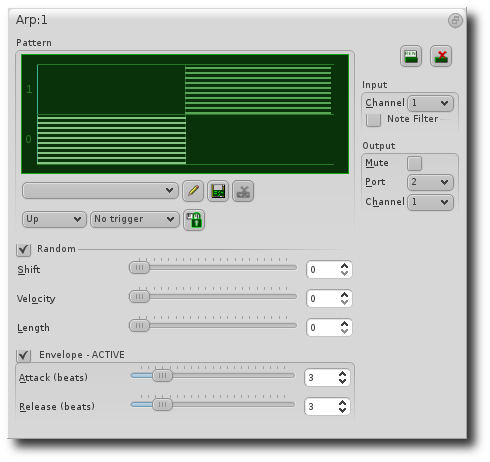
QMidiArp is a MIDI arpeggiator, phrase generator and controller LFO for ALSA and JACK. It can run multiple synchronized arpeggiators, LFOs and step sequencers. The modules are also available as LV2 plugins with Qt user interface. QMidiArp has been growing since June 2009 on top of Matthias Nagorni’s original arp idea.
Features:
Programmable arpeggio patterns, LFO waveforms and sequences
Modular setup of arpeggiators, MIDI LFOs and step sequencers
MIDI-controllable (MIDI-Learn)
Synchronization with MIDI Clock or JACK Transport possible
Optional triggering by keyboard or continuous play mode for all modules
Patterns can be stored and switched by MIDI control while running
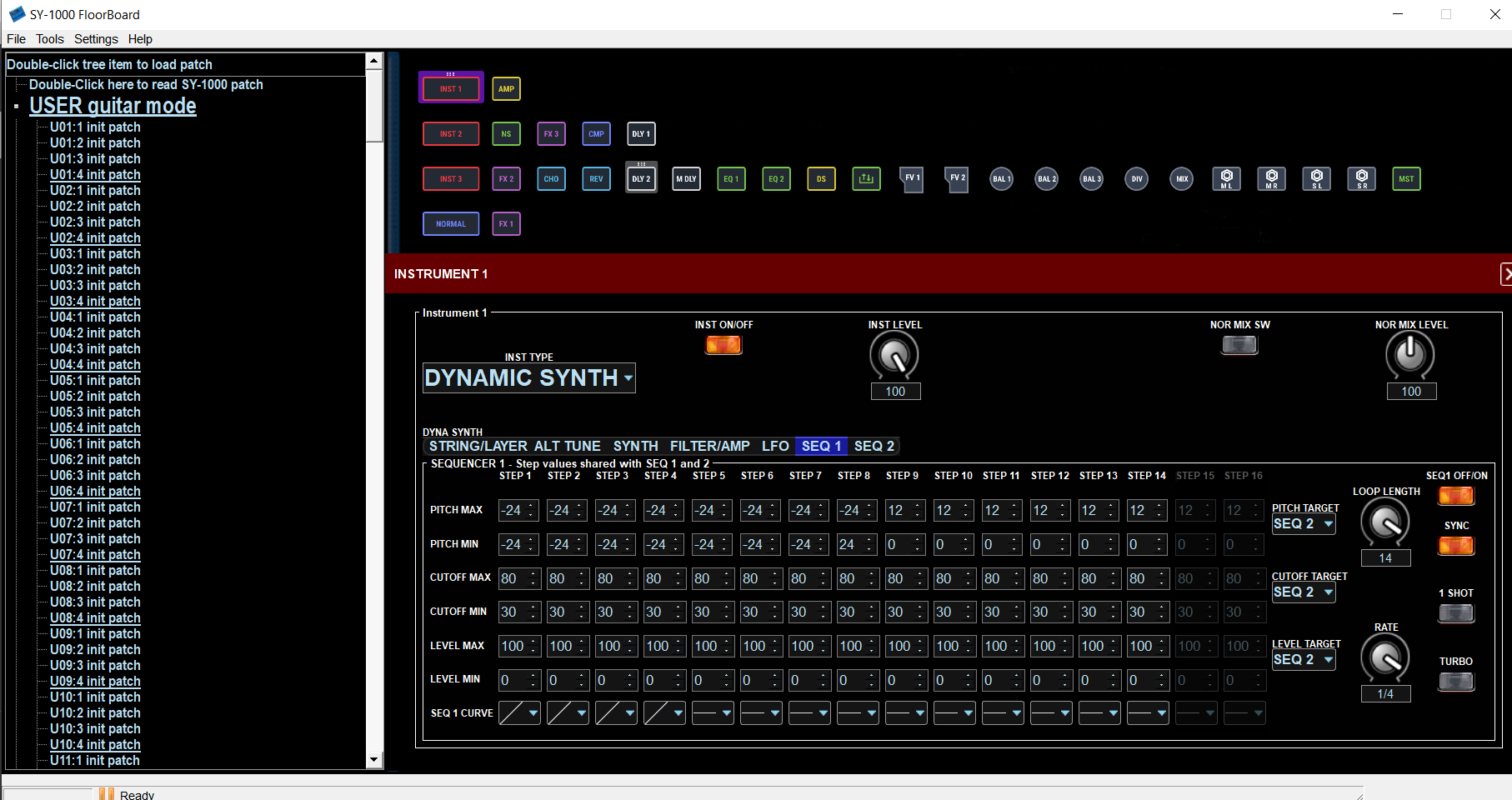
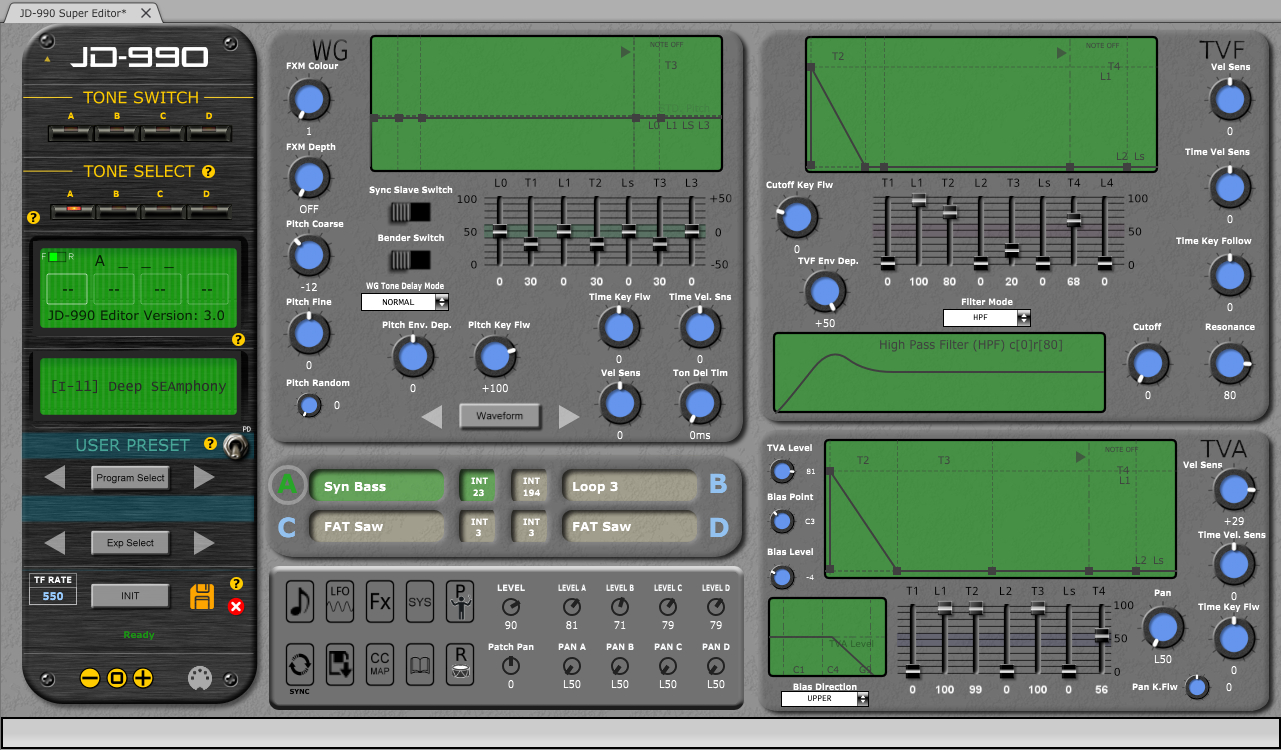
A collection of graphical midi based editors, each made specifically for the BOSS SY-1000 , Roland VG-99 guitar, or VB-99 bass synth units, which provide an alternative to the Boss or Roland version of midi editors, with full features and control of the SY-1000, VG-99, or VB-99 from a Windows, Mac, or Linux computer.
Features:
Midi editing of parameters on-line or off-line, text list generation of settings, file load/save/backup/restore, ease of use with graphical interface.
A different version specific for each device.
SY-1000FloorBoard version also has features to convert patches from VG-99,VB-99, GP-10, GT-1000 units.
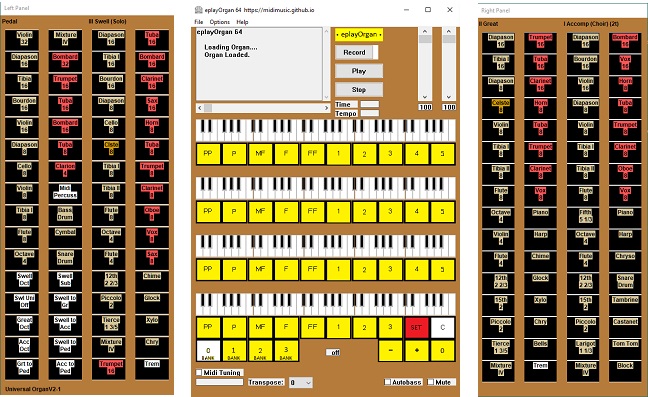
Midimusic provides archives of Wurlitzer and Estey music rolls in e-roll format. These are downloadable and the music can be played using eplayOrgan. An archive of Miditzer organ midi files is also provided.
All features of the original e-rolls and midis are available including stops and swell.
eplayOrgan is a fully featured organ which can also be played from a full midified console or standard midi keyboards. Stops may be set using a touch screen.
eplayOrgan operates under Windows. Mac and Linux are supported under Wine. The programs work just the same under Wine on Mac and Linux as they do under Windows.
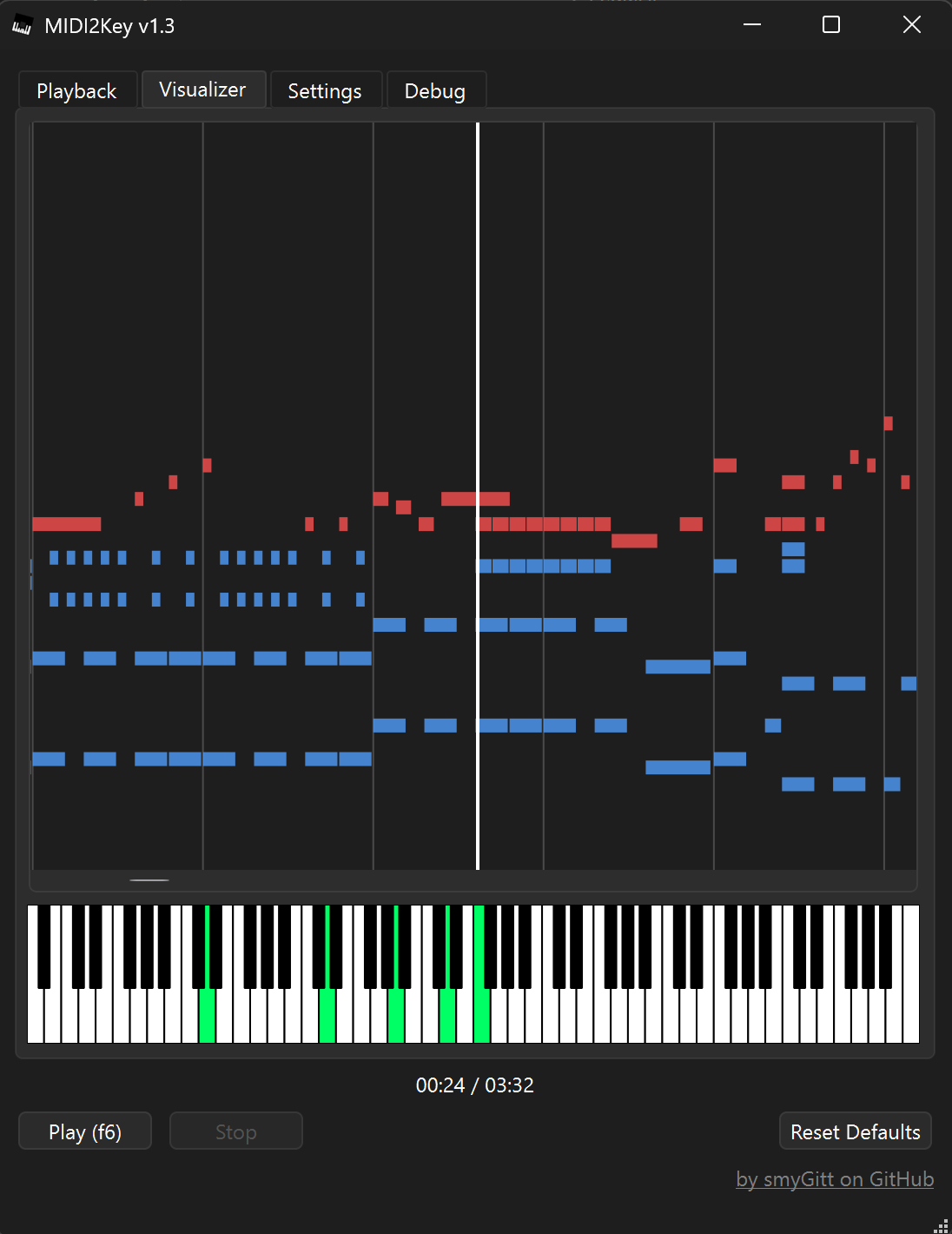
HuMidi is a universal piano auto player for ROBLOX. It plays even the most generic MIDI file with great depth, thanks to the humanization and automatic sustain pedal generation algorithms. The pedals are generated with a thorough analysis of the MIDI data, adding more depth to your performance that no other MIDI players could!
Personally have been tested in:
Visual Pianos
Starving Pianists
Digital Piano
Piano’s Got Talent
This tool is universal, as long as the piano in-game allows to be played on a keyboard.
Features:
MIDI auto player
Humanization options
Automatic sustain pedal (even if your MIDI doesn’t have the data!)
Visualization
Pause and resume
Scrubbing / seeking – You don’t have to play from the beginning every time, just skip to the part you want to play!
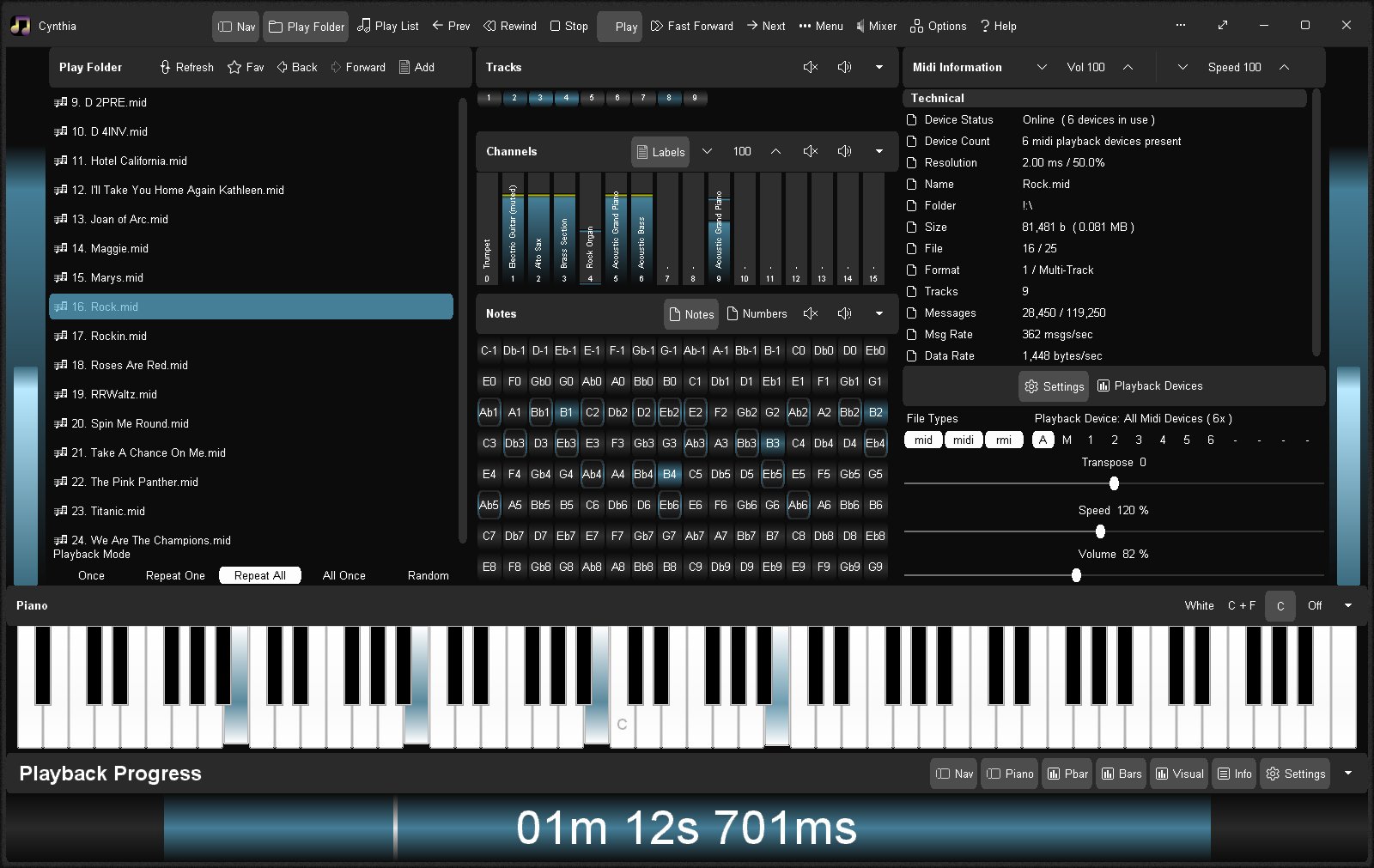
Reliably play midi music files from a folder or “.m3u” playlist. Adjust playback speed, volume and output device on the fly during playback. A large playback progress bar makes jumping forward and backward in time a breeze with just a single click or tap. Supports “.mid”, “.midi” and “.rmi” files in format 0 (single track) and format 1 (multi-track). Comes complete with 24 sample midis ready to play.
Features:
Dual play systems – Play Folder and Play List
Comes with 24 built-in sample midis on a virtual disk
Elapsed, Remaining and Total time readouts
Native “.m3u” playlist support (copy, paste, open, save, build)
Drag and drop midi files to play / add to playlist
Play Modes: Once, Repeat One, Repeat All, All Once, Random
Play Speed: 10% to 1,000% (1/10th to 10x)
Intro Mode: Play first 2s, 5s, 10s or 30s of midi
Rewind / Fast Forward by: 1s, 2s, 5s, 10s or 30s
Play on Start option – playback commences on app start
Always on Midi option – maintain connection to midi device for instant playback
Auto Fade In – eliminate loud or abrupt notes during rewind, fast forward or reposition operations
Playback Progress bar – click to reposition/jump backward or forward in time
Volume control with volume boost (up to 200%)
Play “.mid”, “.midi” and “.rmi” midi files in 0 and 1 formats
Custom built midi playback subsystem for high playback stability
Scrolling lyrics viewer
Detailed midi information panel
Tracks Panel: Realtime track data indicators with mute all, unmute all, and mute individual track options
Channels Panel: Realtime channel output volume indicators with peak level hold and variable hold time, unmute all, mute all, and mute individual channel options
Notes Panel: 128 realtime note usage indicators with variable hold time, 8-12 notes per line display, labels as letters or numbers, unmute all, mute all, and mute individual note options
Piano Panel: View realtime piano keystrokes on a 128, 88, 76, 61, 54, 49 or 37 key keyboard with animated and lit keystrokes
Piano: Mark middle C key, C + F keys, or all white keys
Transpose option: Shift all notes up or down music scale
Use an Xbox Controller to control Cynthia’s main functions – playback speed and volume, song position, display panels, song file navigation, jump to start of song, toggle fullscreen mode, etc
Large list capacity for handling thousands of midi files
Switch between up to 10 midi playback devices
Simple and easy to use
Options Window – Easily change app color, font and settings