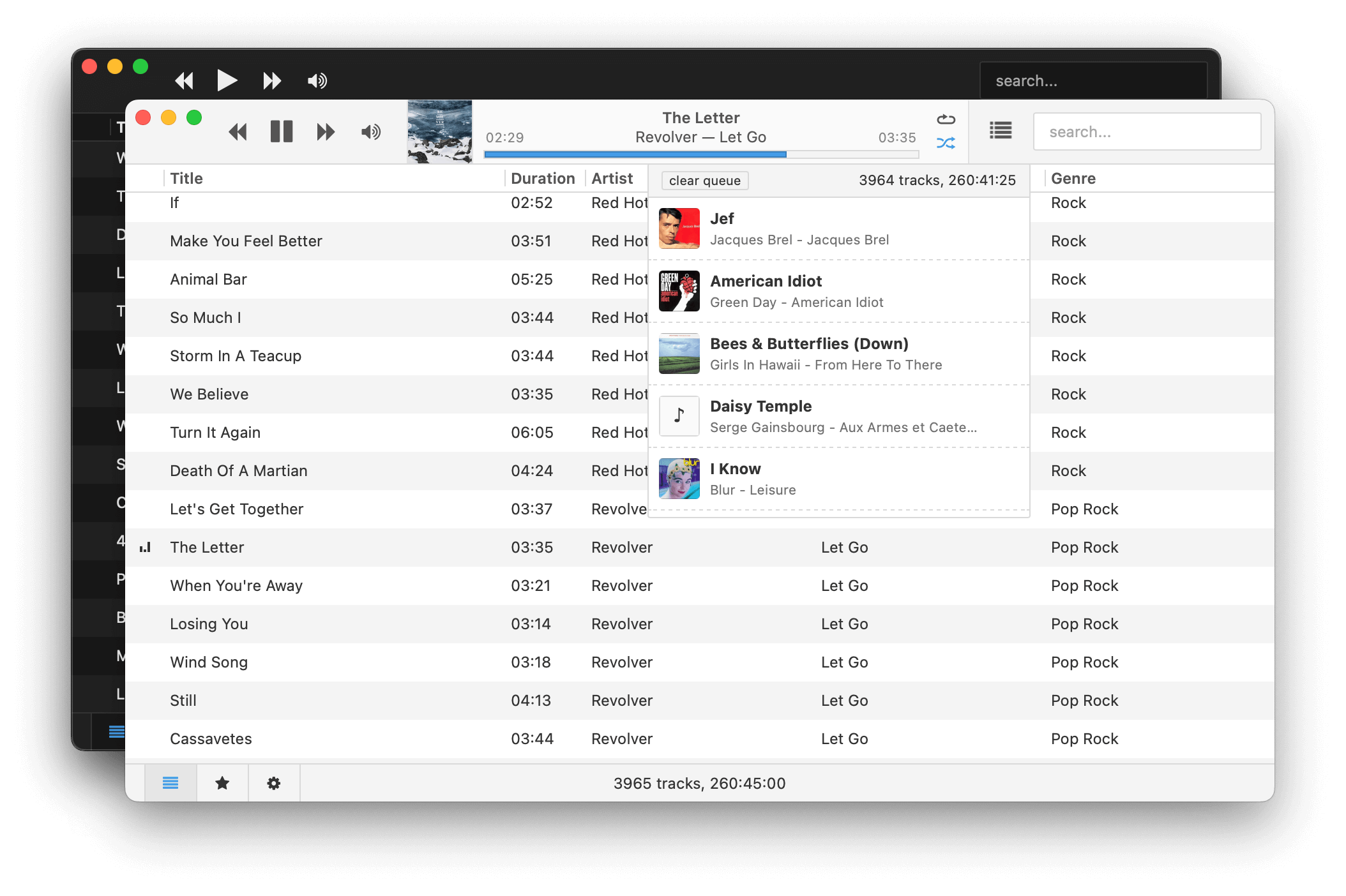
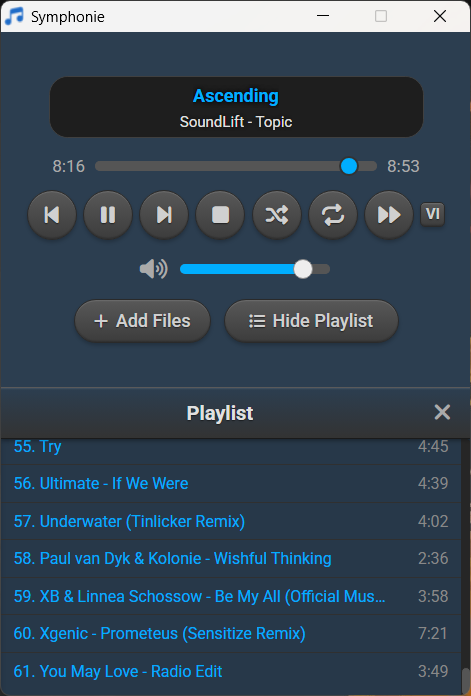
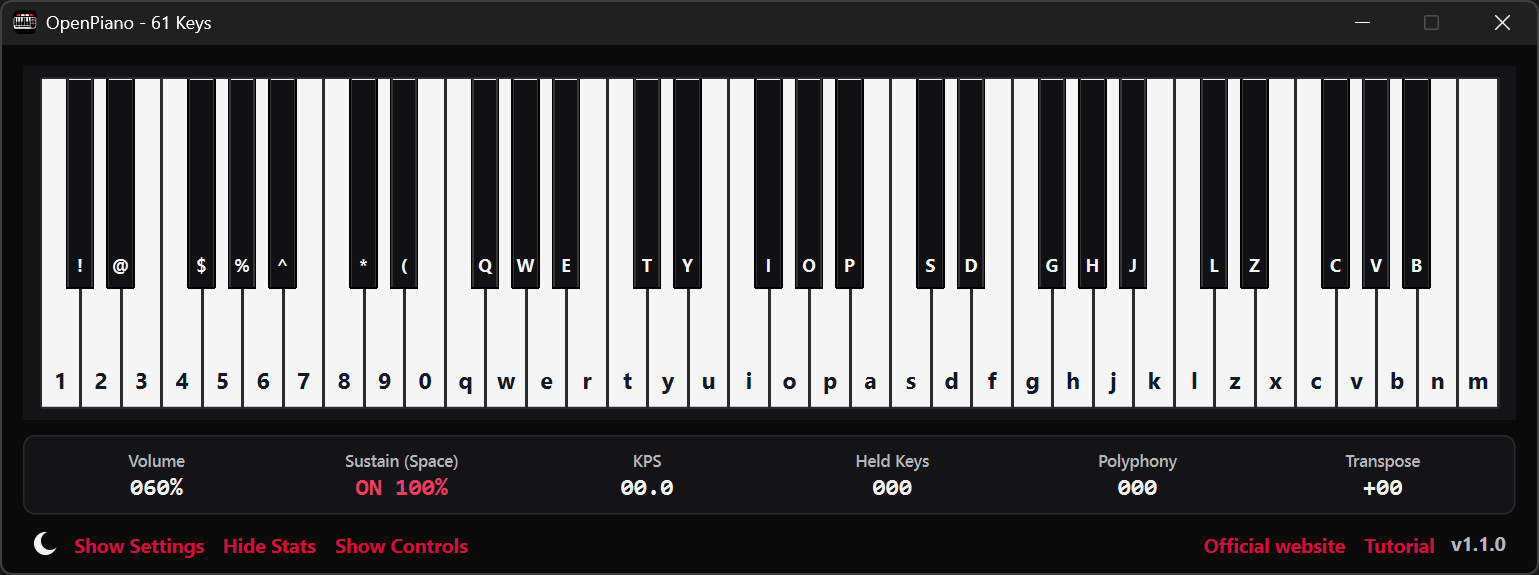
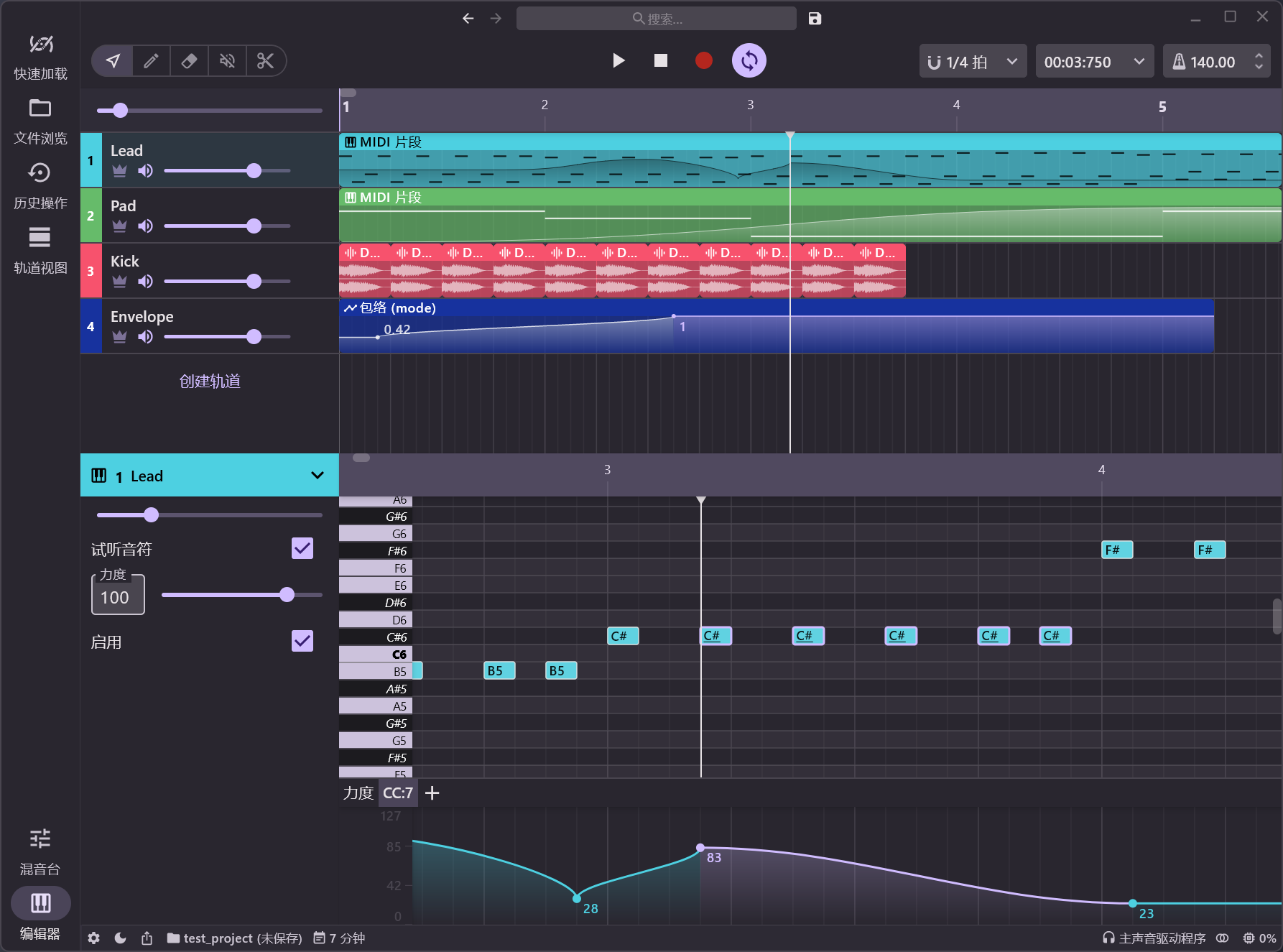
Multi-format audio player with MIDI, minigames, playlists & many visualizations
Lightweight GTK3 audio player supporting MIDI, WAV, MP3, OGG, FLAC, AIFF, and Opus formats. Features OPL3 FM synthesis for authentic MIDI playback, drag-and-drop playlist queue, real-time spectrum visualization, 10-band equalizer, and M3U playlist support. Built with SDL2 audio backend for cross-platform compatibility across Linux and Windows. Includes intuitive controls with keyboard shortcuts, 5-second seek buttons, and efficient format conversion. Perfect for musicians and audio enthusiasts needing reliable playback of both modern and legacy audio formats. Multi-threaded architecture ensures smooth performance. MIT License.
Foobar2000 displays artwork in a panel which can be added and configured to suit your preferences. The artwork panel displays the image file associated with an audio track. If the standard options are insufficient, Foobar’s image handling can be extended via additional components.
To add an artwork panel to the default user interface (DUI), Enable Layout Editing Mode from the menu View > Layout. Add the Album Art Viewer from the Selection Information section.
Selecting the Album Art Viewer on the Add New UI Element menu
Clamps, short for “Common Lisp Aided Music Production System”, is a software system for realtime and non-realtime music production written in Common Lisp. It enables a seamless workflow between high-level structures to define musical processes all the way down to low level DSP definitions for sound creation including browser based interfaces for interactive work and control useable for live performances. In that respect it combines features of systems like OpenMusic, SuperCollider or the Pure Data/Max family of software.
This plugin uses a WaveNet model to recreate the sound of real world hardware. The current version models a small tube amp at clean and overdriven settings. Gain and EQ knobs were added to modulate the modeled sound.
I had one of these trivial problems. Yesterday I wanted to create a new stroboscope disc for my Metzner rebuild (now with 50HZ 🙂 … After fiddling around with some graphic tools I decided to build a small Web-App (quick and dirty) to support me on this task. It might be of interest? You can use it offline or via the web site…
Main Features:
– Supports 33⅓, 45, 78 RPM + custom speeds – 50Hz, 60Hz, 300Hz lamp frequencies + custom frequency – Adjustable disk size, bar length, smoothing – Custom colors and logo upload – Drag/rotate/resize logo interactively – Export: SVG (print), STL/3MF (3D print), FreeCAD macro – Light/dark theme, EN/DE bilingual – Offline-capable (standalone download)
foo_vis_wispan is a Foobar2000 spectrum analyzer visualization implemented with GDI. It is a port of the Classic Spectrum Analyzer (vis_classic) Winamp visualization plug-in by Mike Lynch.
Bitter shows how many of the available bits are being used by the audio signal, reports clipping samples, and estimates when digital-to-analog conversion would cause inter-sample clips. Typical uses for a bitscope include: verifying that a render dither is working properly; verifying that a particular plugin is not reducing the signal bit depth; testing for faulty audio source data.
Features:
Check for Intersample Clipping that may appear during digital-to-analog conversion
Detailed display of the usage density of each bit
Reveal the bitrate of the digital signal, which may well differ from that of the file’s bitrate or your DAW’s audio engine bitrate
The foo_outinfo component exposes information about the current audio output and signal, such as the active output device, sample rate, bit depth, and channel count. These fields are especially useful in the status bar, where you want quick technical confirmation without cluttering playlists.
A simple and practical example is:
Now Playing: %artist% - %title% | %output_samplerate% Hz / %output_bitdepth% bit
What This Displays
When a track is playing, the status bar would show something like:
Now Playing: Miles Davis - So What | 44100 Hz / 16 bit
This tells you at a glance:
What is playing
The actual output sample rate
The output bit depth being sent to your audio device
Step By Step Explanation:
Music Metadata (Standard Fields)
%artist% - %title%
%artist% → Track artist tag
%title% → Track title tag
These are standard foobar2000 title formatting fields and work everywhere.
Separator
|
This is just plain text. It visually separates the music info from the technical output info. You can replace it with a dash, bullet, or brackets if you prefer.
foo_outinfo Output Fields
%output_samplerate%
Displays the actual output sample rate in Hertz
Reflects resampling, DSP changes, or output driver behavior
This is more reliable than %samplerate% when DSPs are active
%output_bitdepth%
Displays the bit depth used by the output
Shows what is being sent to the DAC, not just what is in the file
More Informative Versions
If you want to include channels and output device name:
Now Playing: %artist% - %title% | %output_samplerate% Hz / %output_bitdepth% bit / %output_channels% channels
Displays:
Now Playing: Aphex Twin - Xtal | 48000 Hz / 24 bit / 2 channels
If you want to add the current Replaygain mode:
Now Playing: %artist% - %title% | %output_samplerate% Hz / %output_bitdepth% bit / %output_channels% channels | RG %output_rg_source%
Displays:
Now Playing: Aphex Twin - Xtal | 48000 Hz / 24 bit / 2 channels | RG Album
If you want to display the active DSP
$if(%output_dsp%, | DSP: %output_dsp%)
Displays the separator and active DSP, otherwise displays nothing:
| DSP: Resampler (SoX)
Minimal Technical Version (Very Clean)
For users who want only output confirmation:
Output: %output_samplerate% Hz / %output_bitdepth% bit
Displays:
Output: 96000 Hz / 24 bit
Why Use foo_outinfo in the Status Bar?
Confirms what your DAC is actually receiving
Helps verify exclusive mode, resampling, and DSP behavior
Avoids cluttering playlists with technical data
Ideal for users who care about signal integrity but want a clean UI
Beginner Notes and Caveats
All output_* fields require foo_outinfo to be installed
These fields only show values while audio is playing
If nothing is playing, the fields will appear empty
S Pulser is a unique tremolo effect plugin, designed to help you effortlessly create captivating and rhythmic melodies. Ideal for music producers, sound designers, musicians, and DJs alike, this versatile tool is available for free download. Give it a try and explore new ways to streamline your music-making process.
Rusty Pipes is a digital organ instrument compatible with GrandOrgue sample sets. It features both graphical and text-based user interface, can be controlled via MIDI and play back MIDI files. Rusty Pipes can stream samples from disk instead of load them into RAM, though a RAM precache mode similar to GrandOrgue and Hauptwerk is available too.