foo_discogs ~ Foobar2000 & Discogs


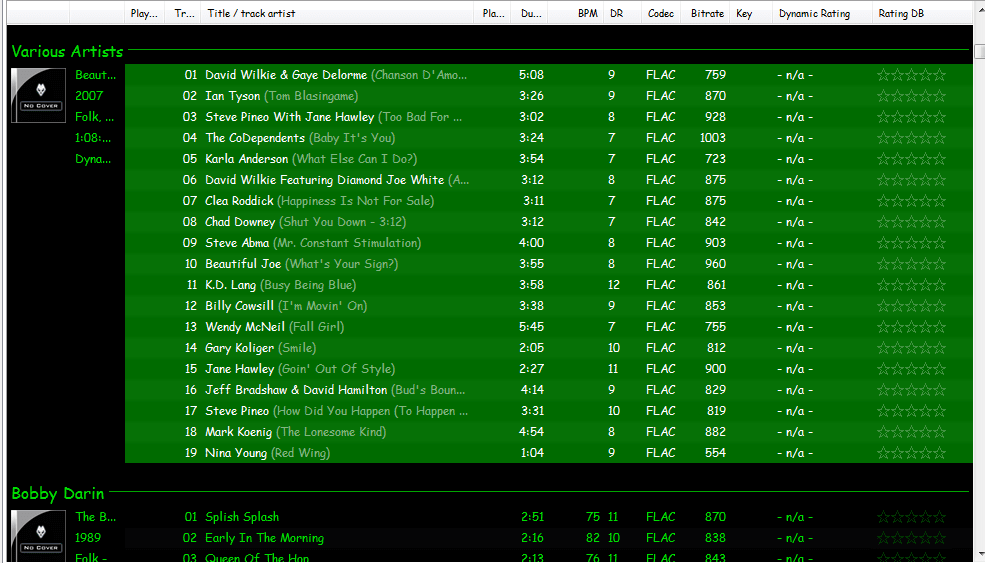
Greatly extend the information in your music files by using the foo_discogs component to tag albums with Discogs information. Once the additional Discogs release information is stored in the song tags, it’s possible to search for catalog numbers, secondary artists or studios, etc. You can now also create toolbar buttons which open the corresponding artist or release pages in Discogs, the artist’s own website or other links.

  • download Discogs album and artist artwork
  • retrieve more information than most taggers
  • goes that extra length to make sure retrieved data is correct and well formatted
  • flexible tag mapping allows you to write only what you want, where you want
  • use meta-data in tags to display Discogs artist / label / release web pages
    able to later update specified tags (useful in update ratings)
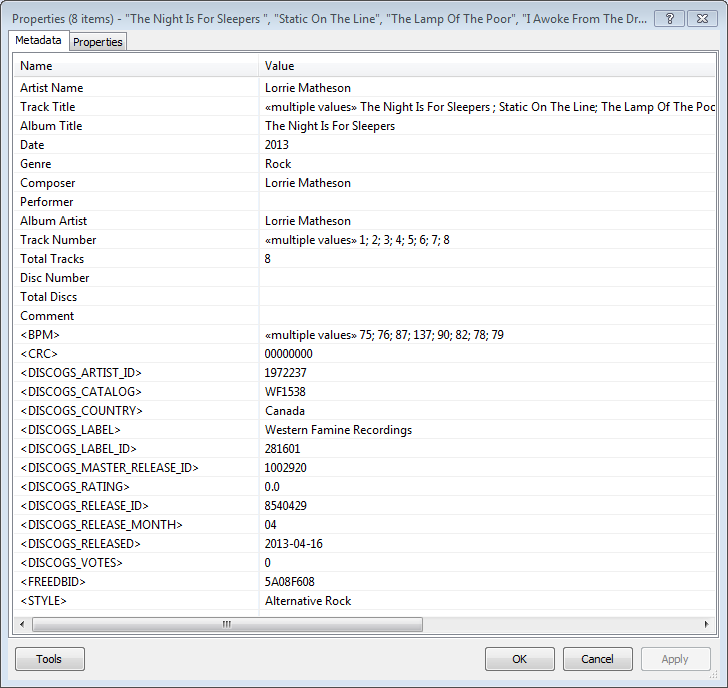
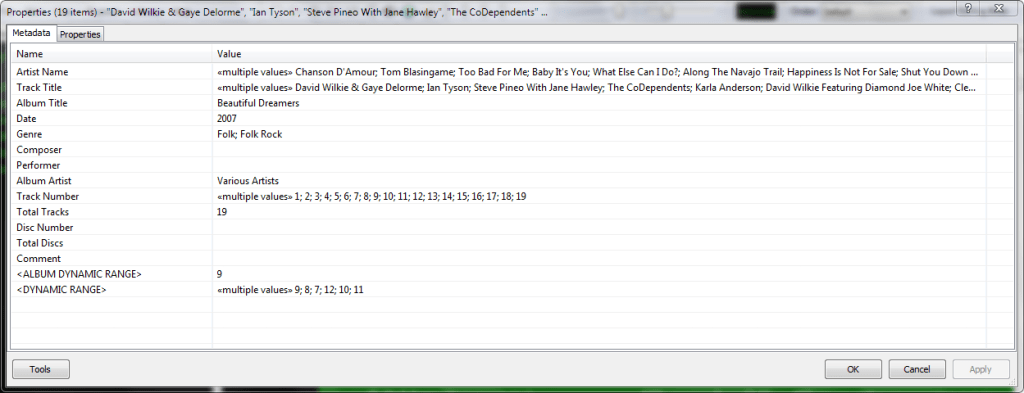
foobar - foo_discogs - resulting tags

Album’s properties when tagged with Discogs info

Installing & Configuration:

  1. Install the foo_discogs component
  2. Select any song on any playlist
  3. Right click the song and select Tagging
  4. From the sub-menu select Discogs
  5. Now select Configuration
  6. Change any settings needed.

Tagging Files:

  1. Select an entire album on a playlist
  2. Right click the album and select Tagging
  3. Select Discogs
  4. Select Write Tags…
  5. Click Search then select the correct match and click Next
  6. Confirm that the tracks match the files and click Write tags

Your audio files should now be tagged with additional Discogs metadata.

Open Release Page Button:

  1. Right click on Foobar’s Toolbar area and select “Customise Buttons…
  2. In “Available Commands” navigate to and select [context] > Tagging > Discogs > View Release Page
  3. Change Icon and then click “OK
  4. Select a song,  or album that has been tagged with Discogs metadata, and click the new custom button

References:

www.foobar2000.org/components/view/foo_discogs
hydrogenaud.io/index.php/topic,50523.0.html

Latest update:

github.com/ghDaYuYu/foo_discogs
bitbucket.org/fooDaYuyu/foo_discogs/downloads/

EAC ~ Archiving CDs Losslessly


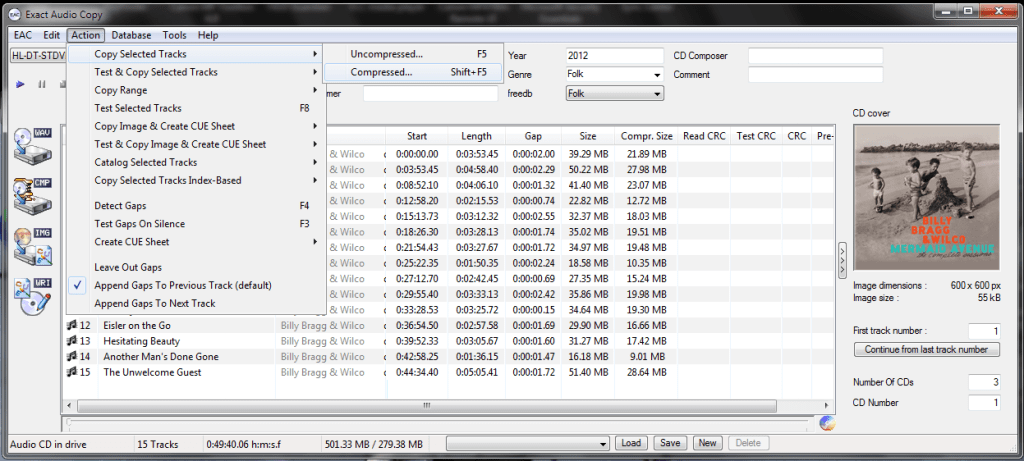
Exact Audio Copy, also known as EAC is often used to create an exact copy of a CD which can be stored in a digital media archive or audio library. The goal is to preserve all information from a CD, such that the CD can be recreated from an archive and / or is playable from an audio library.  With EAC, the original audio files and a .cue file, an exact copy can be reburnt back onto a CDR; and with FLAC files, a compressed lossless music library may be built. Creating an individual folder which contains the album’s compressed audio files and a cue file is done via the following method:

  1. Open EAC and select the FLAC encoder
  2. Insert the CD you wish to archive
  3. If using the freedb or CTDB plugins, select the correct cover art
  4. You may also add lyrics to each track at this point
  5. Verify that the downloaded information is complete and correct
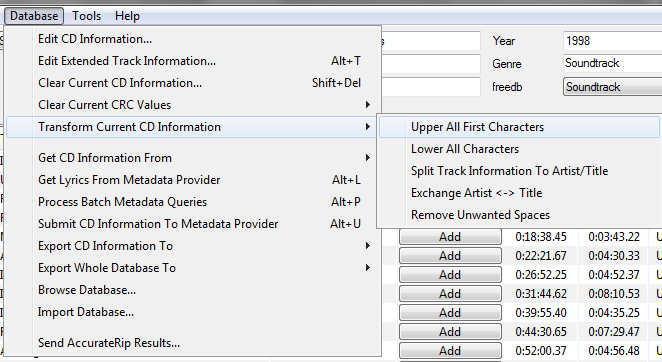
  6. Convert all CD information to title case
    Ripping - Upper All First Characters - Cropped
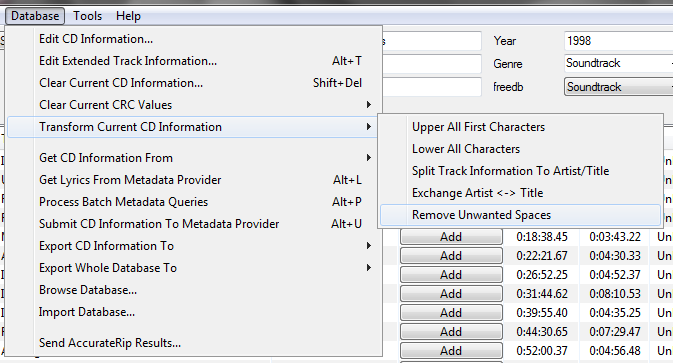
  7. Remove any extra spaces
    Ripping - Remove Unwanted Spaces - Cropped
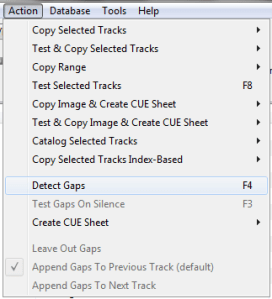
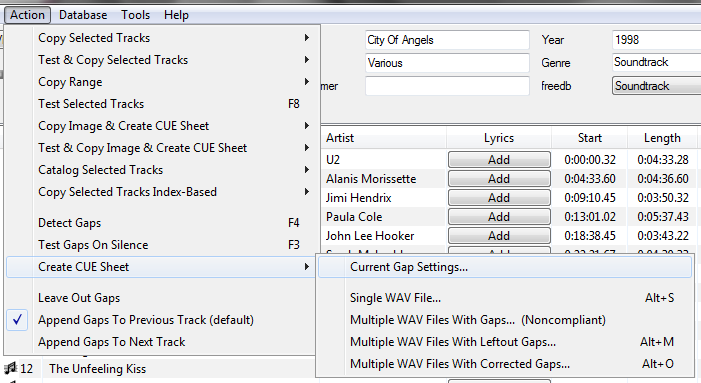
  8. Detect the CD’s gaps
    Ripping - Action - Detect Gaps
  9. Create the cue sheet and album folders
    Ripping - Create Cue Sheet - Current Gap Settings
  10. Rip the CD in Burst Mode, which creates the individual audio files
    ripping to FLAC
  11. Switch to Secure Mode and re-rip tracks any tracks that did not rip accurately

This process also creates an EAC log file in the same folder.

Determining Which EAC Gap Detection Method To Use:
hydrogenaud.io/index.php/topic,115657.msg954261.html#msg954261
Sources:
wiki.hydrogenaud.io/index.php?title=EAC_Lossless_Backup
wiki.hydrogenaud.io/index.php?title=EAC_Configuration_Wizard
dbpoweramp.com/spoons-audio-guide-cd-ripping.htm

AcousticBrainz ~ Analyze Your Music


The AcousticBrainz project aims to crowd source acoustic information for all music in the world and to make it available to the public. This acoustic information describes the acoustic characteristics of music and includes low-level spectral information and information for genres, moods, keys, scales and much more. The goal of AcousticBrainz is to provide music technology researchers and open source hackers with a massive database of information about music. ~ AcousticBrainz

Blog
Downloads
FAQ
Github
Wiki

ReplayGain ~ Advanced Volume Normalization


ReplayGain is … a technique invented to achieve the same perceived playback loudness of audio files. ~ Hydrogenaudio Knowledgebase

ReplayGain … allows players to normalize loudness for individual tracks or albums. This avoids the common problem of having to manually adjust volume levels between tracks when playing audio files from albums that have been mastered at different loudness levels. ~ en.wikipedia.org/wiki/ReplayGain

If you’re using track gain, every song is played at 89 dB; no song is any louder than any other. If you’re using album gain, tracks will be played at 89 dB plus or minus a few dB, depending on how much louder or quieter each track is relative to the other tracks on the album. By definition, album gain is not going to make all tracks as loud as possible; the quieter tracks are going to remain that much quieter than the louder tracks, and they’ll average out to 89. ~ Hydrogen Audio

Using ReplayGain in Foobar

(1) First set the ReplayGain target values:

Preferences / Playback / ReplayGain
Source mode: by playback order
Processing: apply gain and prevent clipping according to peak

Foobar2000 Preferences - Playback

Foobar2000 Preferences – Playback – ReplayGain

Recommended Values:

Set Preferences / Preamp / Without RG values: to around -8.0 db

If you are also playing tracks which aren’t RG-tagged, they’ll be playing quite loud in comparison to the RG-tagged ones. To mitigate that, you can set the “Without RG info” Preamp level to, say, -11.9. This will make the player pretend they have -11.9 dB album gain. Thus if you played a non-RG-tagged copy of that loudest track, it would be played at 89 dB instead of its natural 100.91 dB, and would thus match the level that all the RG-tagged tracks are played at. However, then the quieter non-RG-tagged tracks would still be that much quieter. So you may find -8 or so to be a better “without RG info” preamp level, on average.~ HA Forum

I usually set my non-RG preamp to somewhere in the range of -7.0 dB to -9.0 dB. ~ HA Forum

I recommend setting the slider labelled “Without RG info” to -8.0 (that’s minus eight) or less. ~ http://www.bobulous.org.uk/misc/Replay-Gain.html

If you listen to modern music -7dB/-10dB value should be correct. If you listen to older music, keep the value a bit lower because the average level of recently released tracks are higher. ~ http://eolindel.free.fr/foobar0.9/Replaygain.php

(2) Next scan files:

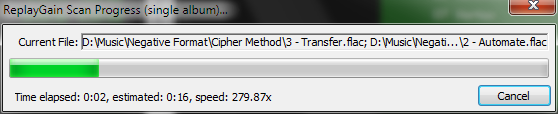
  • Select Files / Right mouse / ReplayGain / Scan selection as single album (adds album and track ReplayGain tags)
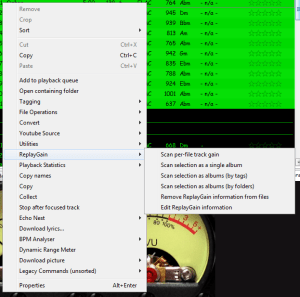
Context - ReplayGain

ReplayGain - Scanning - small

Once the files are scanned, they can be played.

Foobar ReplayGain Override Component

For older versions that lack the “by playback order” option, this component provides a way to specify which ReplayGain modes to use for each playback order. Track gain is probably desirable for random playback while with regular playback album gain is more suitable.

Preferences - ReplayGain override.PNG
Download ~ http://www.foobar2000.org/components/view/foo_rg_trn

Alternative ReplayGain

Alternative ReplayGain engine. Should be faster as it does not use FFT.

http://www.foobar2000.org/components/view/foo_arg

ReplayGain in Linux

http://www.bobulous.org.uk

ReplayGain in Winamp

WinAmp’s use of these RG tags is enabled / disabled via the General Preferences – Playback – Replay Gain options ~ forums.winamp.com/showthread.php?t=345520

ReplayGain DLL

Win32 dll to normalize wav pcm files using replaygain

sourceforge.net/projects/rspgain

Foobar2000 DSP Plugin:

foo_dsp_replaygain ~ Temporary Replaygain

Additional References:

wiki.hydrogenaud.io/index.php?title=ReplayGain
wiki.hydrogenaud.io/index.php?title=ReplayGain_1.0_specification
replaygain.hydrogenaud.io/proposal/index.html
replaygain.hydrogenaud.io/proposal/calibration.html
www.hydrogenaud.io/forums/index.php?showtopic=96391
www.hydrogenaud.io/forums/index.php?showtopic=35255
www.techspot.com/tweaks/foobar/index
stephan.win31.de/music.htm#rg-levels

Track Gain (relative to the ReplayGain target volume)
[%replaygain_track_gain%]

ReplayGain’s Track Volume
$if(%replaygain_track_gain%,$puts(X,$sub(8900,$replace(%replaygain_track_gain%,.,)))$ifgreater($get(X),9999,$substr($get(X),1,3).$substr($get(X),4,5),$substr($get(X),1,2).$substr($get(X),3,4)) dB))

Track Volume (-18dB is equivalent to the ReplayGain target volume of 89dB)
$if(%replaygain_track_gain%,$puts(X,$sub(-1800,$replace(%replaygain_track_gain%,.,)))$ifequal($get(X),0,0,$ifgreater($get(X),0,$replace(+$substr($num($get(X),4),1,2),+0,+),$replace($substr($num($get(X),5),1,3),-0,-))).$substr($num($get(X),5),4,5) dB)

Album Gain (relative to the ReplayGain target volume)
[%replaygain_album_gain%]

ReplayGain’s Album Volume
$if(%replaygain_album_gain%,$puts(X,$sub(8900,$replace(%replaygain_album_gain%,.,)))$ifgreater($get(X),9999,$substr($get(X),1,3).$substr($get(X),4,5),$substr($get(X),1,2).$substr($get(X),3,4)) dB))

Album Volume (-18dB is equivalent to the ReplayGain target volume of 89dB)
$if(%replaygain_album_gain%,$puts(X,$sub(-1800,$replace(%replaygain_album_gain%,.,)))$ifequal($get(X),0,0,$ifgreater($get(X),0,$replace(+$substr($num($get(X),4),1,2),+0,+),$replace($substr($num($get(X),5),1,3),-0,-))).$substr($num($get(X),5),4,5) dB)

Track Peak
[%replaygain_track_peak_db%]

https://hydrogenaud.io/index.php?topic=121273.msg1000424#msg1000424

Foobar2000 Tagging ~ Fixing Swapped Artist | Title Tag Info


Do you have albums where the artist’s names are in the track title field, and the title of the track is in the artist name field?

Reversed artist - track title - playlist

Start by checking the file names. If the file names have both artist name and track title information, then the fix is easy, just retag the files using the Automatically fill values function.

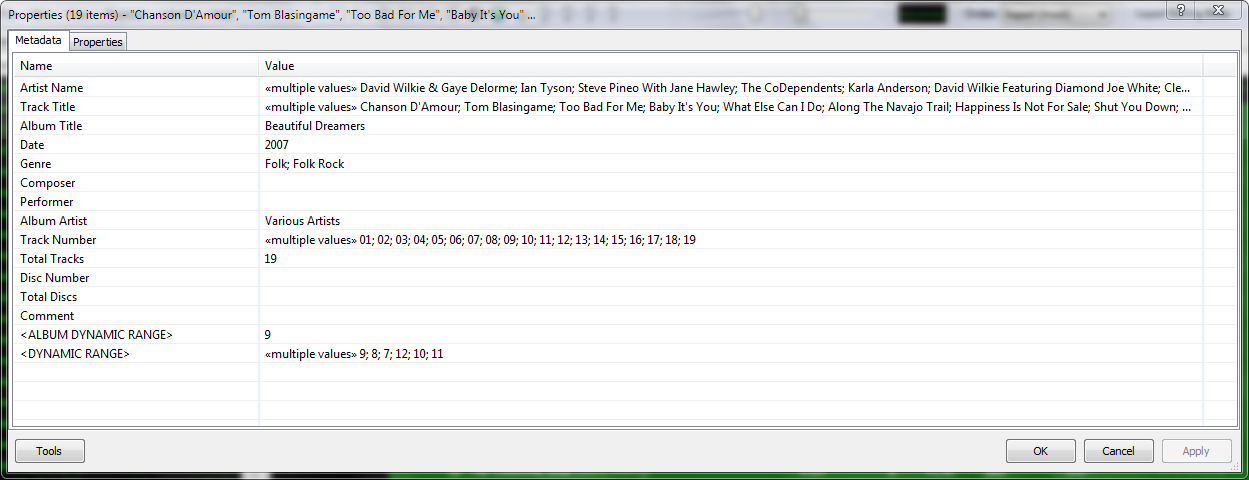
First, select the files, then open the Properties dialog window.

Reversed artist - track title - properties

Right click and select Automatically Fill Values…

Automatically fill values

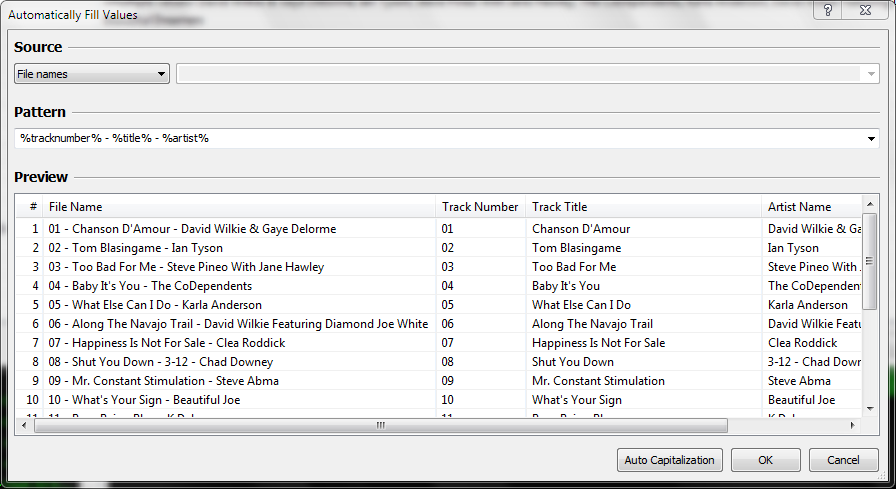
Then with the source set to File names, fill in or select a Pattern which puts the information in the correct fields.

Reversed artist - track title - auto fill values.PNG

After you select Ok, Foobar will retag the files properly.

Reversed artist - track title - properties - fixed.PNG

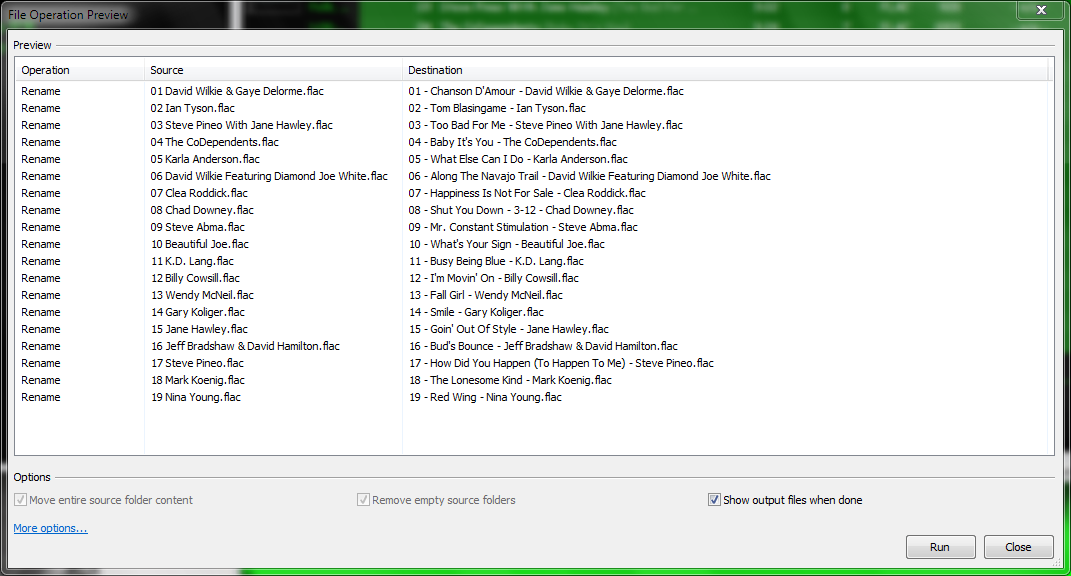
However, if the file names don’t contain both artist names and track title information, you’ll have to rename the files from the tags first. Select the files then right click and select File Operations>Rename

Reversed artist - track title - rename.PNG

and  after the files have been renamed, carry out the rest of the above procedure.

Ex Falso/Quod Libet ~ Cross Platform Music Editor / Library / Player


Quod Libet

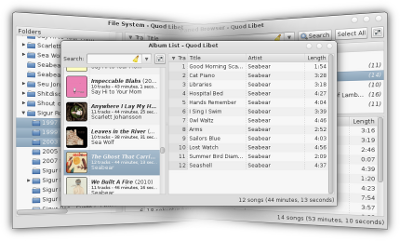
Quod Libet is a GTK+-based audio player written in Python, using the Mutagen tagging library. It’s designed around the idea that you know how to organize your music better than we do. It lets you make playlists based on regular expressions (don’t worry, regular searches work too). It lets you display and edit any tags you want in the file, for all the file formats it supports.

Unlike some, Quod Libet will scale to libraries with tens of thousands of songs. It also supports most of the features you’d expect from a modern media player: Unicode support, advanced tag editing, ReplayGain, podcasts & Internet radio, album art support and all major audio formats – see the screenshots.

Ex Falso is a program that uses the same tag editing backend as Quod Libet, but isn’t connected to an audio player. If you’re perfectly happy with your favorite player and just want something that can handle tagging, Ex Falso is for you.

Website
Download
Features
Guide
Screenshots

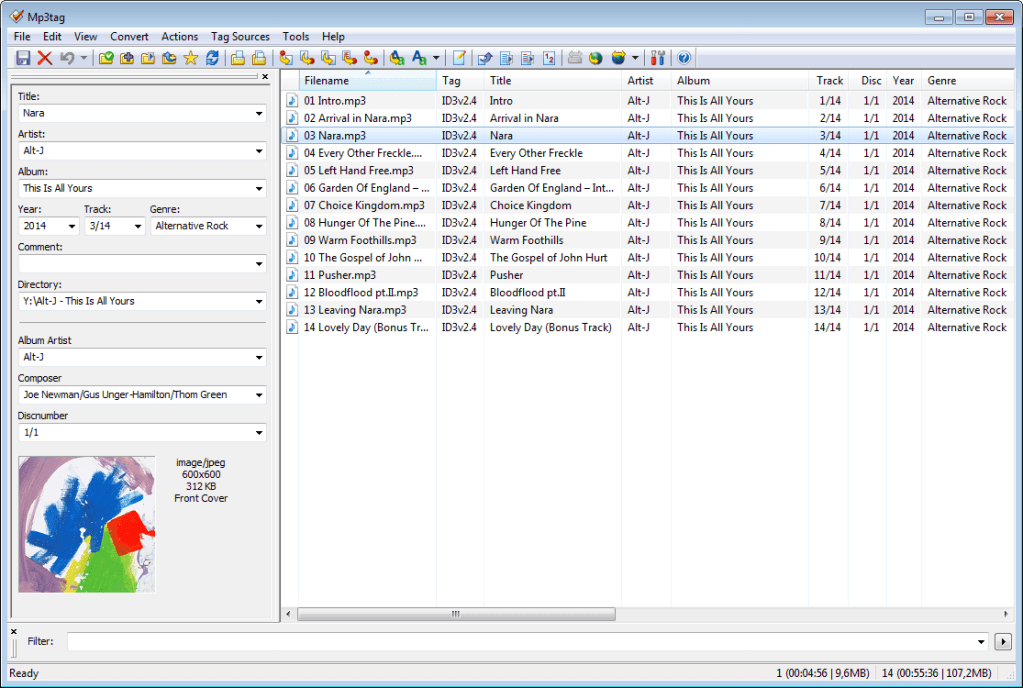
Mp3tag ~ Universal Tag Editor


Mp3tag is a powerful and easy-to-use tool to edit metadata of audio files.

It supports batch tag-editing of ID3v1, ID3v2.3, ID3v2.4, iTunes MP4, WMA, Vorbis Comments and APE Tags for multiple files at once covering a variety of audio formats.

Furthermore, it supports online database lookups from, e.g., Discogs, MusicBrainz or freedb, allowing you to automatically gather proper tags and download cover art for your music library.

You can rename files based on the tag information, replace characters or words in tags and filenames, import/export tag information, create playlists and more.

mp3tag-en

www.mp3tag.de
www.mp3tag.de/en/screenshots
community.mp3tag.de
twitter.com/mp3tag
hydrogenaud.io/index.php?topic=122049.0
en.wikipedia.org/wiki/Mp3tag
apps.apple.com/us/app/mp3tag/id1532597159
www.microsoft.com/en-us/p/mp3tag/9nn77tcq1nc8
www.portablefreeware.com/?id=1137
musicbrainz.org/doc/Mp3tag

freedb.org ~ Metadata Lookup Service


Sadly, this service was terminated as of March 2020, apparently due to corporate indifference.

freedb was a free CD and music database service to look up textual metadata about music, audio or data CDs. This was done by a client which queried the freedb database. As a result, the client displayed the artist, CD title, track list and some additional information. Clients are for example CD players, CD rippers and CD burning software.

www.freedb.org
en.wikipedia.org/wiki/Freedb

Alternative CDDB servers:

  • freedb.dbpoweramp.com – defunct link
  • gnudb.org

Resources:

MusicBrainz Picard ~ Tag Audio Files With MusicBrainz Metadata


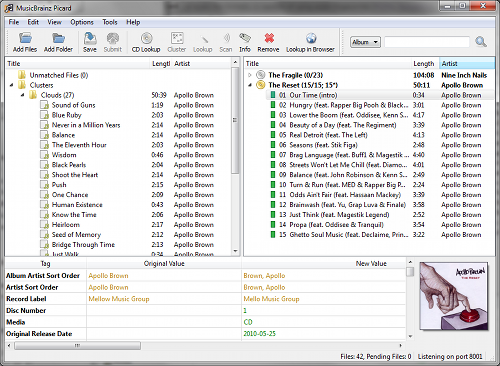
MusicBrainz Picard is a cross-platform (Linux, macOS, Windows) audio tagging application. It is the official MusicBrainz tagger.

Picard supports the majority of audio file formats, is capable of using audio fingerprints (AcoustIDs), performing CD lookups and disc ID submissions, and it has excellent Unicode support. Additionally, there are several plugins available that extend Picard’s features.

Features:

  • Multiple formats: Picard supports all popular music formats, including MP3, FLAC, OGG, M4A, WMA, WAV, and more.
  • AcoustID: Picard uses AcoustID audio fingerprints, allowing files to be identified by the actual music, even if they have no metadata.
  • Comprehensive database: Picard uses the open and community-maintained MusicBrainz database to provide accurate information about millions of music releases.
  • CD lookups: Picard can lookup entire music CDs with a click.
  • Plugin support: If you need a particular feature, you can choose from a selection of available plugins or write your own.
  • Scripting: A flexible and powerful, yet easy to learn, scripting language allows you to exactly specify how your music files will be named and how the tags will look like.
  • Cover Art: Picard can find and download the correct cover art for your albums.
  • Open Source: Picard is licensed under the GNU General Public License 2.0 or later, and is hosted on GitHub where it is actively developed.
Picard GUI

picard.musicbrainz.org
picard.musicbrainz.org/downloads
picard.musicbrainz.org/plugins
picard.musicbrainz.org/docs/faq
picard.musicbrainz.org/quick-start
github.com/metabrainz/picard
Youtube: What is MusicBrainz Picard?

Max ~ Mac Audio CD Ripper


A Mac application for ripping high quality audio files from CDs. Integrated with MusicBrainz.

github.com/sbooth/Max

macOS 10.7 or greater.

Main site is 404, source code needs to be compiled. Any takers? Let me know.

Discogs ~ Music Database & Marketplace


Discover the largest music database and marketplace in the world. Buy and sell vinyl, CDs and more with collectors from around the globe. Catalog and complete your collection.

www.discogs.com
Discogs Index
Discogs Lists
r/discogs
Ogger Club

Python API ~ github.com/joalla/discogs_client