foo_masstagger ~ Automate Foobar2000 Tag Editing


Automates various tag editing operations.

www.foobar2000.org/components/view/foo_masstag
wiki.hydrogenaudio.org/…/Masstagger_(foo_masstag)

Usage:

Adding MOOD tags:

  1. Select tracks
  2. Right-click → Tagging → Manage Scripts
  3. Create a script:
    • Add value
    • Field: MOOD
    • Value: Calm
  4. Save as preset (Mood: Calm)

Repeat once per mood.

After that:

  1. Select tracks
  2. Right Click > Tagging > Scripts
  3. Apply mood script preset

DawDreamer ~ Audio Processing Python Framework


DawDreamer is an audio-processing Python framework supporting core DAW features and beyond:

  • Composing graphs of multi-channel audio processors
  • Audio playback
  • VST instruments and effects (with UI editing and state loading/saving)
  • FAUST effects and polyphonic instruments
  • Time-stretching and looping, optionally according to Ableton Live warp markers
  • Pitch-warping
  • Parameter automation at audio-rate and at pulses-per-quarter-note
  • Parameter automation saving in absolute audio-rate time
  • MIDI playback in absolute time and PPQN time
  • MIDI file export in absolute time
  • Rendering and saving multiple processors simultaneously
  • Support for the Faust Box and Signal APIs
  • Transpiling Faust code to JAX/Flax and other target languages (C++, Rust, Wasm, etc.)
  • Machine learning experiments with QDax
  • Multiprocessing support
  • Full support on macOS, Windows, Linux, Google Colab, and Ubuntu Dockerfile

DawDreamer’s foundation is JUCE, with a user-friendly Python interface thanks to pybind11. DawDreamer evolved from an earlier VSTi audio “renderer”, RenderMan.

github.com/DBraun/DawDreamer

Fooyin ~ Linux Audio Player


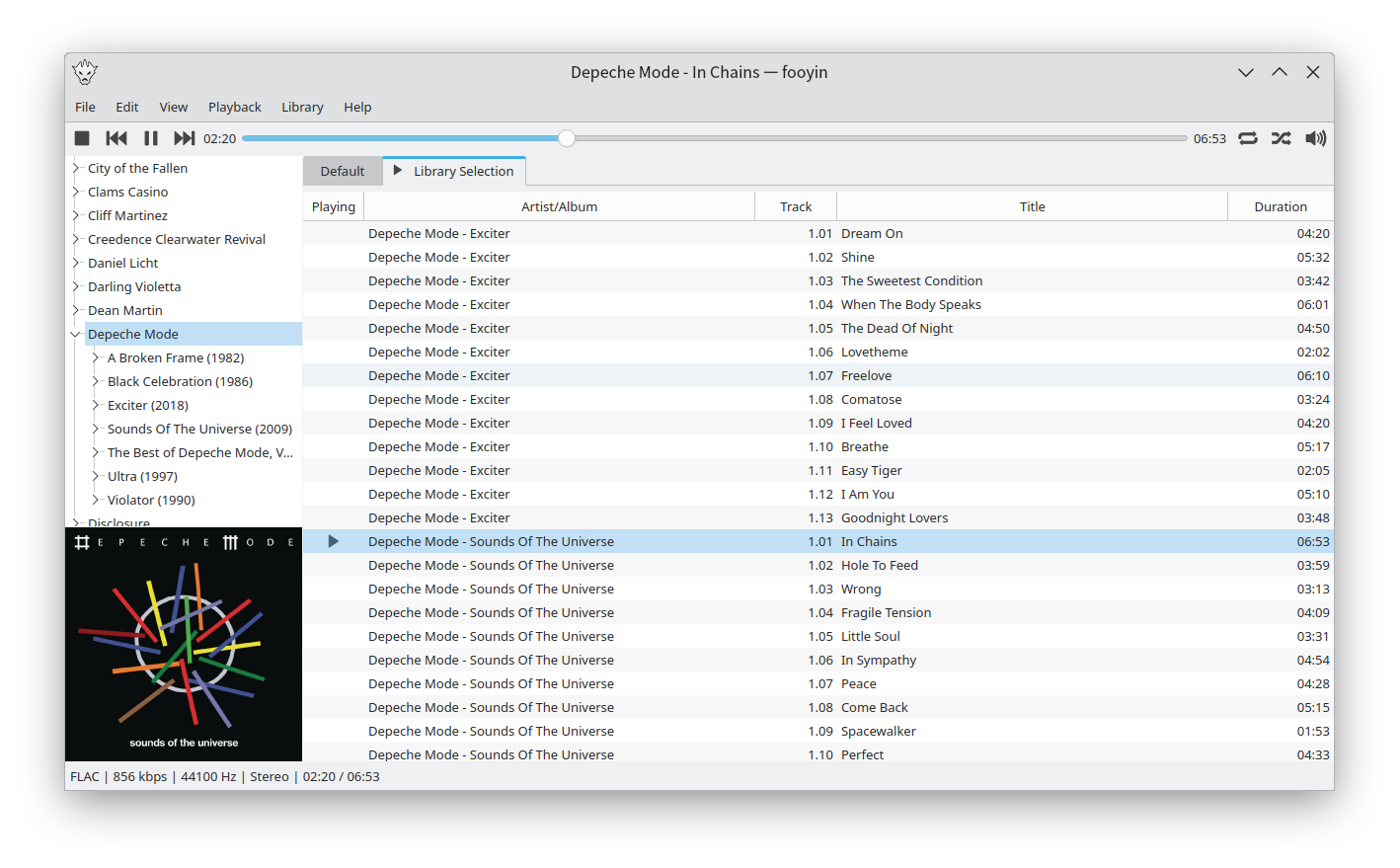
Fooyin is a customisable music player for Linux. Fooyin features a layout editing mode in which the entire user interface can be customised, starting from a blank state or a default layout. FooScript takes this further by extending the customisation to individual widgets themselves.

Features:

  • Playback FLAC, MP3, MP4, Vorbis, Opus, WavPack, WAV, AIFF, Musepack, Monkey’s Audio
  •  Playback popular VGM and tracker module formats
  •  Gapless playback
  •  Add and play files from within compressed archives
  •  Audio output and device configuration
  •  CUE sheet support (including embedded)
  •  Fully customisable layout, starting from a blank window
  •  Customisable keyboard shortcuts
  •  Filter library on any field(s)
  •  Create and manage playlists
  •  Import/export playlists (M3U/M3U8)
  •  Extensible using a plugin system
  •  Tag editing
  •  Library tree, including directory structure view
  •  Directory browser
  •  Waveform seekbar
  •  MPRIS support
  •  ReplayGain support
  •  Scrobbling

www.fooyin.org
github.com/ludouzi/fooyin

foo_jscript_panel3 ~ JScript Panel 3


This component for foobar2000 is based on WSH Panel Mod.

It allows the creation of customisable panels that can be written with JavaScript rather than the C++ required by the foobar2000 SDK.

Under the hood, it uses Windows Script Host. Because of this, JS language support is limited to ECMAScript 5. Nothing newer will ever be supported.

Here are just some of the features provided by the component…

  • Custom drawing of text, external images, lines, rectangles, etc.
  • Use fonts/colours from the main preferences of whichever user interface you are using.
  • Executing main/context menu commands.
  • Ability to create custom buttons/menus.
  • Capture keystrokes/mouse movement/clicks.
  • Callbacks can be used to trigger code based on foobar2000 events.
  • Read/write file tags.
  • Complete manipulation of playlists.
  • Media Library display/sorting/filtering
  • Save settings on a per panel basis. These persist between restarts and are stored inside the layout configuration file for whichever UI your are using. You can also write your own functions to load/save settings from JSON or plain text files.
  • Built in support for making GET / POST requests which return plain text and there is also a method for downloading binary files. If you prefer, you can use the Microsoft.XMLHTTP ActiveX object.
  • There are many built in methods for working with the local filesystem, launching external applications etc. Previous versions / other scripting components rely on ActiveX objects but the need for those is greatly reduced.
  • And much more…

github.com/jscript-panel
jscript-panel.github.io

mp3view ~ Linux Perl Script


Unlike a lot of people, I strangely like to have my individual non-mixed tracks located in one flat folder and any mixes (such as Ministry Of Sound mix albums, etc…) go into another folder sorted by Albums in separate folders. I also embed all of my MP3s with the album art from the album it is from so they are fully portable across a multi-tude of systems.

Therefore, I want my original system kept as is for me, but software like Windows Media Center annoyingly requires you to have it structured in the ‘Album Artist -> Album’ directory structure with the album art stored as ‘Folder.jpg’.

I will not be ranting about how rubbish that required structure is on a technical level; I have got over that now :). But instead, I wrote a PERL script that runs on my Linux NAS that does the following:

  • Only runs on Linux – if anyone wants to code link support in for Windows / NTFS partitions, please go ahead and mail back the changes.
  • Scans a directory (–mp3dir) (recursion is optional using –recursive) for MP3s / M3U playlists and creates softlinks pointing back to the original files under the ‘Album Artist\Album’ folder structure within –linksdir.
  • The embedded album art is then checked across the album being processed to ensure it is the same – if not, a Warning is output leaving you to fix it. The embedded album art is created as ‘Folder.jpg’ for Windows Media Center.
  • If you want it to delete soft links for tracks / directories that no longer exist in –linksdir (i.e. if you have moved / renamed the original file), you can use –delnonexists.
  • On the off chance you want the –linksdir within the directory structure of –mp3dir, you can use –excludemp3dir to ensure the –linksdir isn’t double scanned.
  • For the first run, I strongly recommend not using the –createlinks switch so you can view any errors you may get.
  • You need to have the library MP3::Tag installed for this to run – you can get this from CPAN.
www.flumps.org/mp3z/tagging

mp3menu ~ Linux Console Audio Player


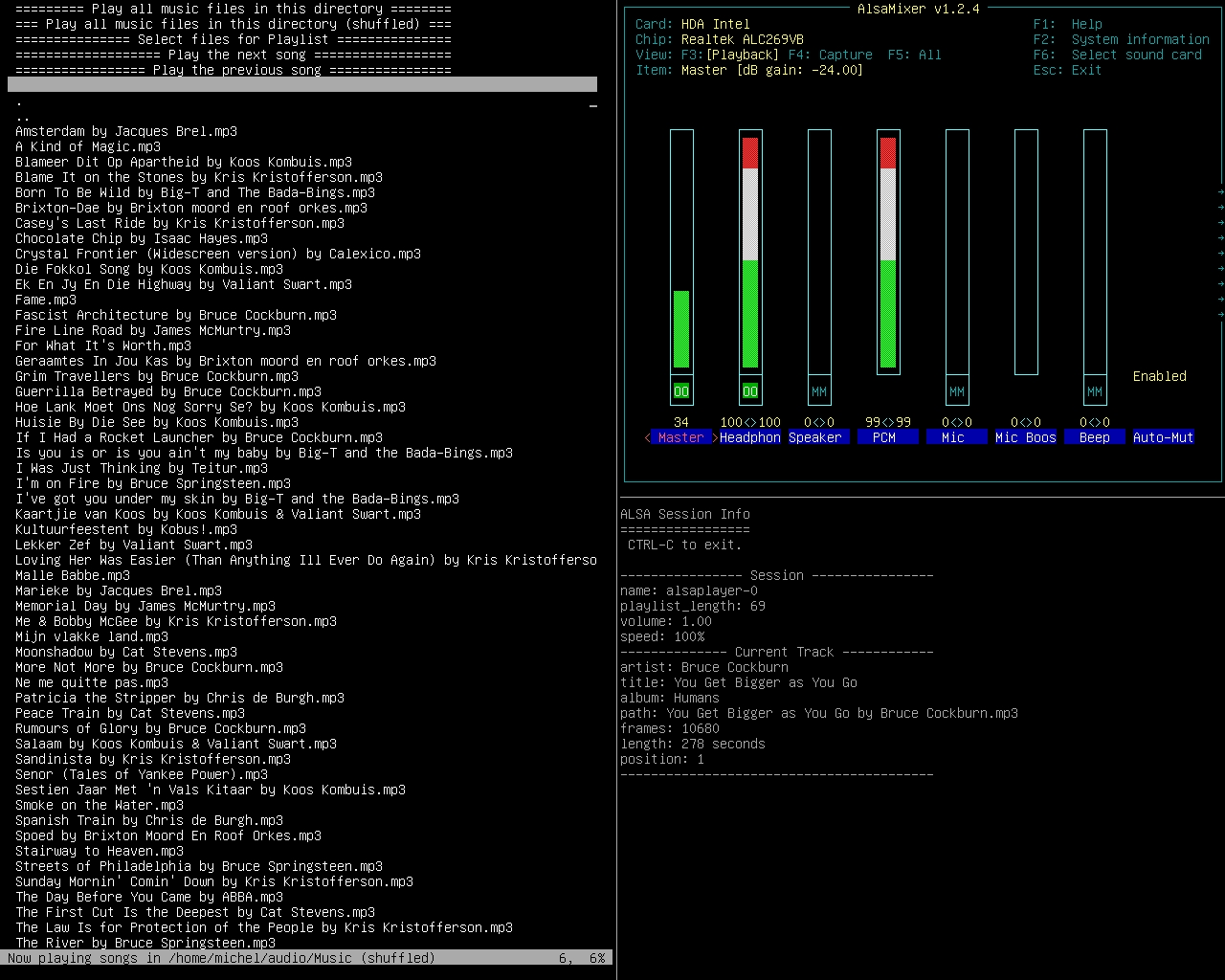
mp3menu lets you select and play your music files using iselect and AlsaPlayer. Mainly MP3’s, but this will actually play anything AlsaPlayer and libaudio can handle, so WAV and FLAC are covered, as well as a bunch of ancient formats dating back to the 1980s. Sadly, M4A is not.

Requires:
1. AlsaPlayer
2. Iselect
3. Bash – mp3menu is a bash script. It might work with zsh, dash and other shells, or it might not.

sourceforge.net/projects/mp3menu

FoobarSync ~ Syncronize Your Media


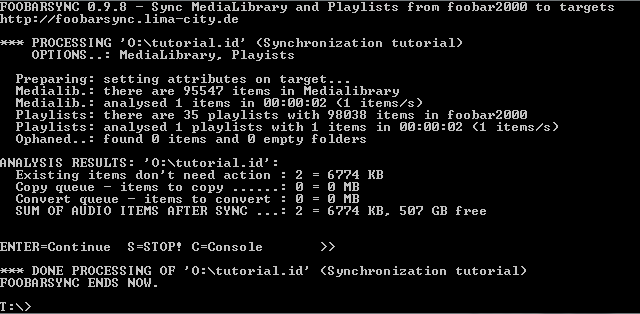
FoobarSync is an command line driven VBscript which will synchonize parts from your foobar2000 Medialibrary and Playlists to one or more targets in a very flexible way.

Lets say you have a USB-Stick for your car entertainment system plus an Android device. Sure you want to have some music in your car and on your Android. But your car only accepts MP3 and needs a special folder-layout while your Android device plays many formats, but you want to save space and therefore want lower bitrates. And at least you want to have different albums and playlists in your car then on your Android. FoobarSync will help you to meet those demands plus more.

FoobarSync will get a subset of items from your Medialibrary AND your playlists, defined by a search-query and other rules. The selected items can be defined per target (one configuration file per target). This configuration file is stored in the root folder of the target. When synchronizing each item is checked against the defined rule sets and then a) copied to the target or b) converted to the target. If your subset (choosen items) in foobar2000 changes, these changes will get synchonized as soon as you rerun FoobarSync.

foobarsync.lima-city.de/wikka/HomePage
hydrogenaud.io/index.php?topic=108834.0

Tomita ~ python-tomita Synthesizer


tomita is a command-line music and synthesizer package based on PySynth.

github.com/g4brielvs/python-tomita

PySynth ~ Python Synthesizers & Scripts


PySynth is a suite of simple music synthesizers and helper scripts written in Python 3. It is based on a synth script I found on the Web and then modified for my purposes. The goal is not to produce many different sounds, but to have scripts that can turn ABC notation or MIDI files into a WAV file without too much tinkering.

There are nine PySynth variants now: PySynth A, the oldest variant, only needs Python itself, and sounds somewhat like a cross between a flute and organ. PySynth B is more complex in sound and needs NumPy. It is supposed to be a little closer to a piano. No competition for Pianoteq of course, but a reasonable fit for keyboard music. PySynth E is similar, but an FM-synthesized e-piano so it sounds much brighter than B (slightly DX7 e-piano-like; I used the DX7 presets in hexter as a basis). PySynth S is more comparable to a guitar, banjo, or harpsichord, depending on note length and pitch. PySynth C, D, and P are subtractive synths, reminiscent of 1970s analog synthesizer voices.

The synthesizers are all monophonic, i.e. they can only play one note at a time. (Although successive notes can overlap in PySynth B and S, but not A.) However, two or more output files can be mixed together…

mdoege.github.io/PySynth/

github.com/g4brielvs/python-tomita

libraries.io/pypi/PySynth

en.wikipedia.org/wiki/PySynth

foo_tfsandbox ~ Foobar2000 Title Formatting


This component provides an editor for title formatting code [mainly targeted at title formatting beginners]. The editor includes syntax highlighting, a preview of the selected fragment of the code and a view of the code structure. The idea behind the component is to allow users to explore title formatting scripts by exposing aspects which are normally hidden on the user interface of foobar2000 and its components.

www.foobar2000.org/components/view/foo_tfsandbox
github.com/stengerh/foo_tfsandbox
Hydrogenaudio Topic

Protoplug ~ Scriptable Audio Plugins


Create audio plugins on-the-fly with LuaJIT.

Protoplug is a VST/AU plugin that lets you load and edit Lua scripts as audio effects and instruments. The scripts can process audio and MIDI, display their own interface, and use external libraries. Transform any music software into a live coding environment!

Cross-platform: builds for Windows, Mac OS X and Linux. This means that all protoplug scripts are compatible with these platforms and can be loaded into a huge amount of audio software (glory to JUCE).

Fast: Use the speed of LuaJIT, and perform DSP tasks as efficiently as old school C implementations.

Free and open source: Want a new feature? Add it yourself. The source is MIT-licensed and available on Github.

protoplug_example_5-6

www.osar.fr/protoplug
github.com/pac-dev/protoplug

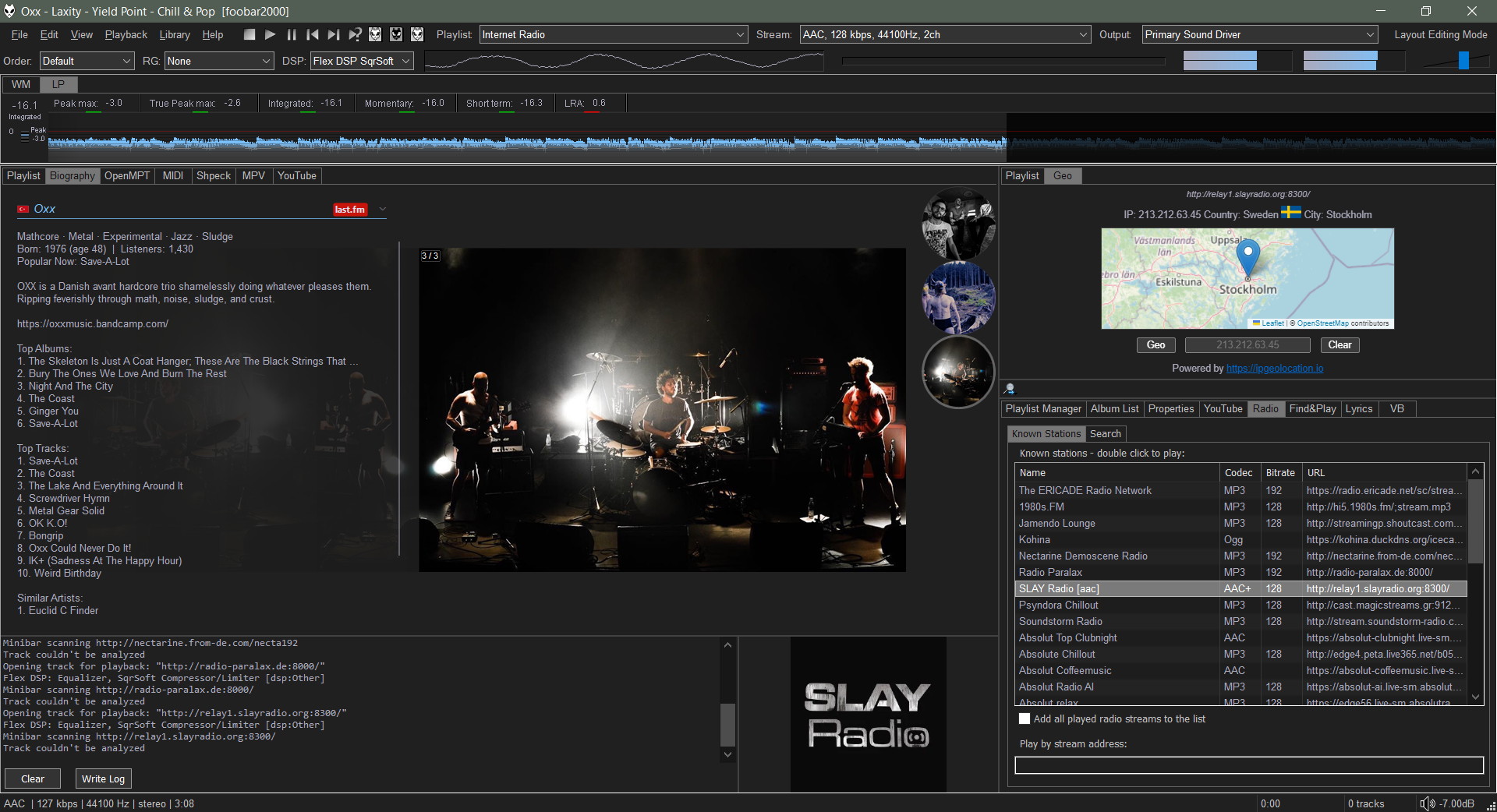
Foobar2000 ~ Biography Display Script


This is an updated biography script that works in the 32bit Spider Monkey Javascript panel. This won’t work in 64bit Foobar2000 installations.

biography_new_1

Spider Monkey Panel ~ github.com/TheQwertiest/foo_spider_monkey_panel

Biography Script: The most recent version of the script is on, or near, the last page of this discussion. ~ hydrogenaud.io/index.php/topic,112913.0.html

  1. Download and install foo_spider_monkey_panel
  2. Download and unzip the newest version of the Biography script
  3. In Foobar2000 select “View > Layout > Enable Layout Editing Mode
  4. Add a new panel or tab to your Foobar interface
  5. Right click in the new area and select “Add New UI Element…
  6. Select “Spider Monkey Panel” in the Utility section
  7. You should now see a blank Spider Monkey panel and the message “Click here to open editor.
  8. Click on the panel to open the editor and click the “Files” button and select “Import” and navigate to the biography script folder, select the script file “biography.x.x.x.js” and click “Open
  9. Click “Apply” and click “Ok
  10. Rename the Tab
  11. Disable “Layout editing mode” in the “View” menu

Forum Discussion:
hydrogenaud.io/index.php/topic,112914.msg929674