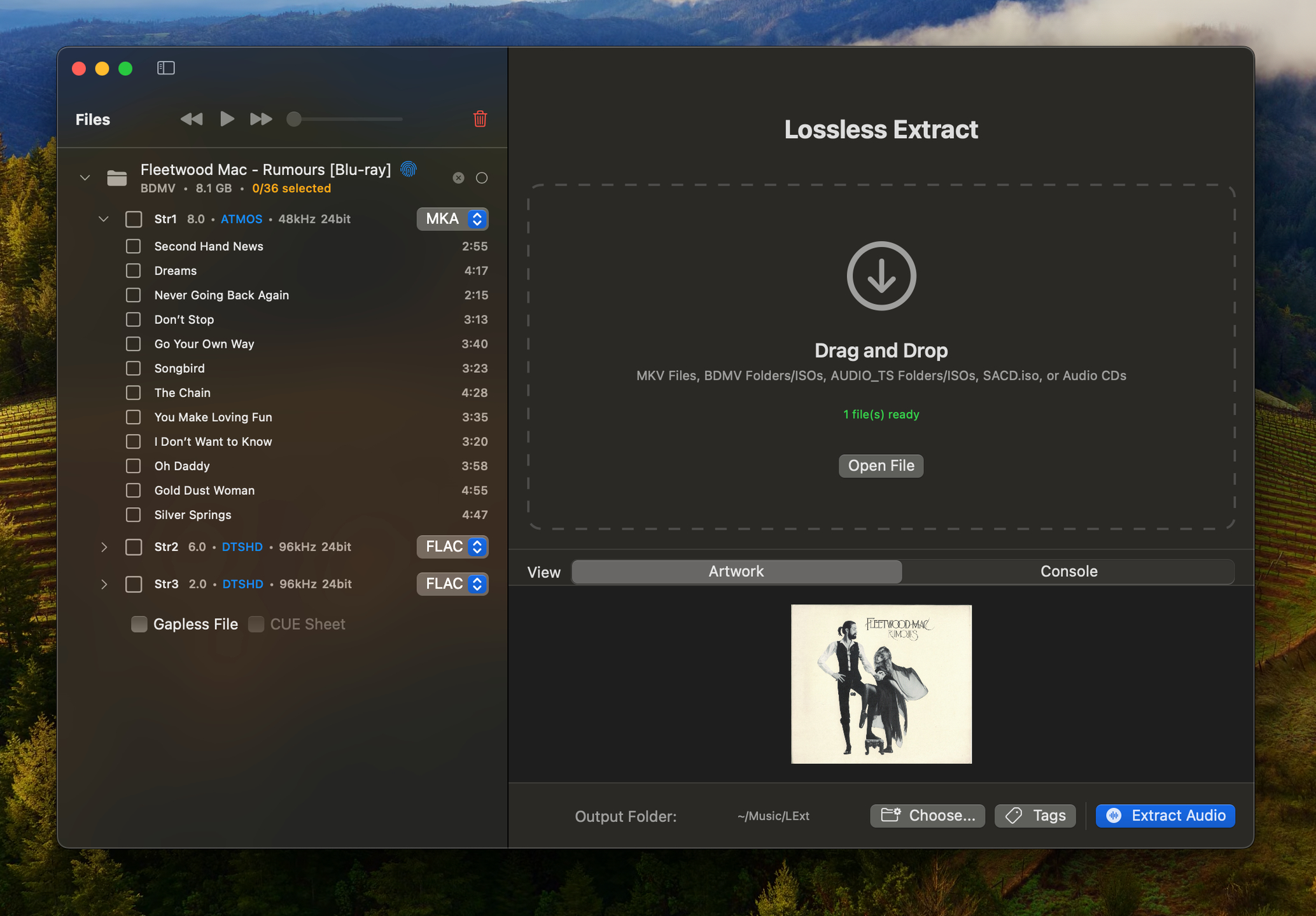
Lossless Extract for macOS and Windows is a tool for purists who demand perfect audio preservation. Designed for precision and simplicity, it effortlessly extracts high-resolution audio from Blu-ray, SACD, MKV or DVD=Audio sources. It handles Dolby TrueHD (with Atmos) and DTS-HD Master Audio preserving atmos object based meta data. Many tools decode immersive audio into PCM, which permanently destroys spatial metadata. Lossless Extract preserves the original audio stream so the immersive mix plays correctly on compatible AVRs and streaming devices.
Accepts MKV, BLU-Ray BDMV, and DVD-AUDIO ISO, AUDIO_TS folders, and SACD.isos as input files. Choose your preferred output format—FLAC , MKA, M4A, DSF, DFF, or Direct stream copy and Lossless Extract will deliver pristine, bit-for-bit copies of your original audio streams. Whether you’re archiving your home theater collection or preparing high-end audio projects, Lossless Extract ensures every detail is preserved, every time.
Pine Player is an exclusive listening digital music player for music lovers who use the OSX operating system. It can play almost all existing digital audio forms such as MP3, FLAC, APE, AAC, M4A, WAV, AIFF, OGG, WMA, DSD, SACD ISO etc. and it also has a strong playing capability for listening to CUE files in the most convenient way.
1. Maximum 32Bit 768kHz Up Sampling Function
Pine Player supports various kinds of PCM formats, so it can play sound sources from 16 to 32 bit; it can also reproduce clear and abundant sound quality by supporting a maximum of 768kHz.
Pine Player’s unique Over Sampling Filter is a technique that upconverts an ordinary MP3 file into a 32bit, maximum of 768kHz, and high sound quality sound source and sends it to the DAC for it to be played in best performance. Ordinary MP3 files’ sound quality can actually be heard more clearly and plentifully. Obviously, HD audio files such as MQS and DSD can be upconverted to a maximum of 768kHz as well.
2. Convenient and Strong Playlist & Prevention of Text Cracking
Pine Player has a very convenient playlist because users can save and manage the music they wish to listen to, change the order of the music being played by simply dragging, and express any kind of language or text encoding perfectly because of its flawless decoding function. There is no Korean code cracking.
3. Cross Fade and Gapless set-up
Cross Fade function, which is a technique that decreases the gap between songs when listening to files on the playlist or overlaps the songs for no gaps at all, can be set into seconds.
4. Mass Storage of Audio Queue for Real Time Converting
Pine Player prevents damage of sound quality by having a high-powered Audio Queue for processing excessive amount of digital data. Therefore, it takes a considerable amount of memory compared to other music players.
5. Automatic Isolation of Damaged Sound Sources
Pine Player has an automatic isolation function for damaged sound sources called Vault. If a damaged sound source is detected while playing the music, the music is stopped and taken to the Vault file for isolation. Through this convenient function, users can easily figure out which sound source is damaged and restore it.
Even with all these functions, Pine Player is a free app. Moreover, there are not any marketing or advertising material. Especially, no information including personal ones are sent to the outside or the Internet.
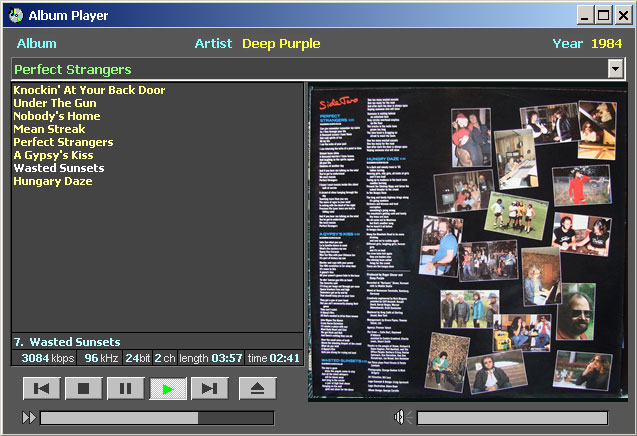
Album Player is designed for composing and listening to compilations of music albums on your hard drive and CD/DVD. The Album Player plays audio files of popular formats, such as WAV, FLAC, APE, WavPack, ALAC, AIFF, TAK, MP3, MP4, OGG, MPC, Audio-CD, SACD and DVD-A. Playlists are built based on information read from .cue files.
The Album Player supports modes of direct output from a sound decoder to an output device. The elimination of intermediate processing and mixing provides the most accurate sound reproduction. The Album Player’s supported output modes are ASIO, Kernel Streaming and exclusive WASAPI.
The player displays a list of albums located on a selected drive or directory, content of a selected album, album art, artist name, and the year of release of the album. If an album’s folder contains more than one picture, they are displayed as a slide show.
No installation is required, just right-click on the player to configure it.
Super Audio CD Decoder input plugin for foobar2000. Decoder is capable of playing back Super Audio CD ISO images, DSDIFF, DSF and DSD WavPack files. Direct DSD playback for compatible devices.
Separate DSD Processor/DSD Converter plugins for track extraction into DSD/DST encoded files.
I’ve successfully followed these steps to get DSD (.dsf filetype) and SACD (.iso filetype) playing at high bit rate using foobar2000 on my S.M.S.L M500 DAC.
This has been adapted from “SECTION II” of this page, thanks to “sirblew” for the tip!
Introduction
DSD stands for Direct Stream Digital and it is a high-definition lossless audio format with a twist. PCM signal solutions (like FLAC, TTA or APE) measure a set of bits multiple times per second to capture the audio data, hence the 16/24-bit parameter. On the other hand, DSD uses only one bit but samples it 2.8 million times a second to capture the audio signal.
Device: “ASIO : USB DAC ASIO” (or name of your device)
Optionally, disable all other devices:
File > Preferences > Playback > Output > Devices
(uncheck all but “ASIO : USB DAC ASIO”, for example)
SACD (ISO) Playback
Download and extract foo_input_sacd – Super Audio CD Decoder. This decoder is capable of playing back Super Audio CD ISO images, DSDIFF, DSF and DSD WavPack files.
Install DSD SACD component:
File > Preferences > Components
Click Install.
Select only “foo_input_sacd.fb2k-component”.
Click OK, then OK again to restart Foobar2000.
Set plugin for “PCM” as output mode:
File > Preferences >Tools > SACD
Output (per device)
Type: “DSD+PCM” (was PCM). Note: DSD+PCM will send a converted to PCM stream to Foobar so graphic add-ons like VU-meters, spectrographs and so on will work as they do when playing regular PCM files.
Samplerate: 384000 (was 44100)
Converter
DSD2PCM Mode: “Direct (64fp, 30kHz lowpass)” (was “Multistage (32fp)”). 30KHz low pass filtered means all DSD noise above that frequency is removed and does not reach the amp.
Input
Preferable Area: “Stereo” (was “None”). Only stereo tracks are displayed.
Editable Tags (was unchecked).
Store Tags With ISO (was unchecked). Stores tag info in the plugin folder.
Linked 2CH/MCH Tags (was unchecked). Tags added to a SACD ISO will be shared between stereo and multichannel tracks.
Click OK
DSF Extraction (optional)
This can be useful if you open an ISO file and want to extract the contained files to DSF.
I’ve successfully followed these steps to get DSD (.dsf filetype) and SACD (.iso filetype) playing at high bit rate using foobar2000 on my S.M.S.L M500 DAC.





 The Audio File