CUETools ~ CUE File Utility & Transcoder


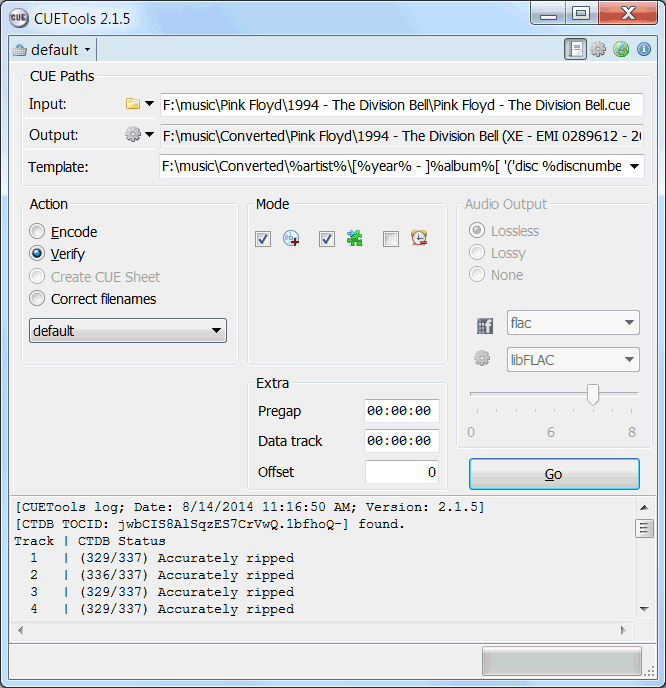
CUETools is a tool for lossless audio/CUE sheet format conversion. The goal is to make sure the entire album image is preserved accurately. A lossless disc image must be lossless not only in preserving contents of the audio tracks, but also in preserving gaps and CUE sheet contents. Many applications lose vital information upon conversion, and don’t support all possible CUE sheet styles. For example, foobar2000 loses disc pre-gap information when converting an album image, and doesn’t support gaps appended (noncompliant) CUE sheets.

CUETools215

cue.tools/wiki/Main_Page
cue.tools/wiki/CUETools
cue.tools/wiki/CUETools_Download
cue.tools/wiki/Category:CUETools_Guides
hydrogenaud.io/index.php?board=74.0

Boom Audio Player ~ Foobar2000 Simplified


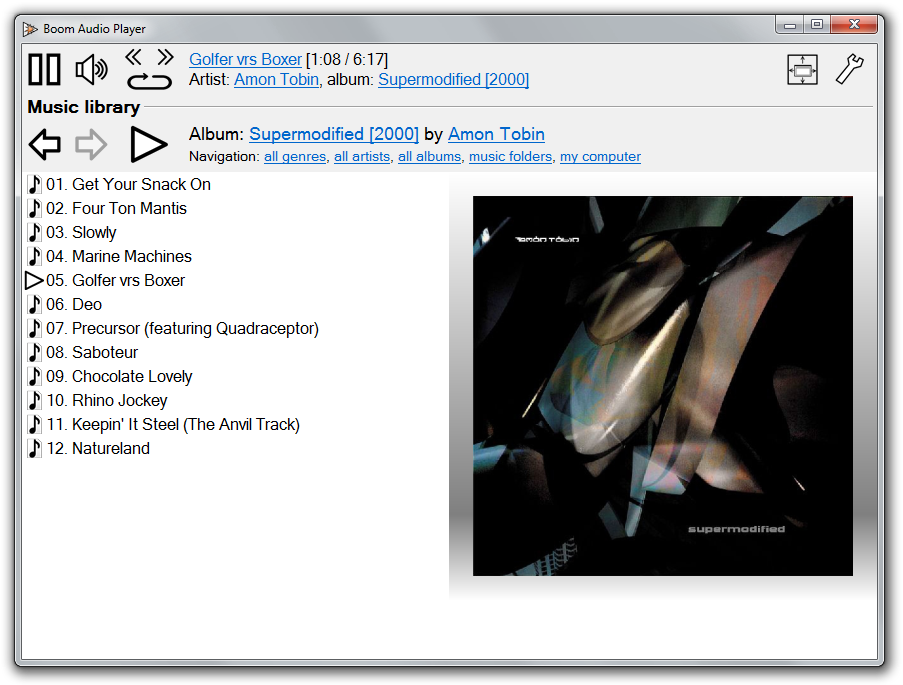
Frome the same developer who brought you Foobar2000 comes Boom.

Boom is an easy to use audio player intended for casual computer users who do not wish to spend their time on figuring more sophisticated software out. All of its most important features are easily accessible out-of-the-box.

Features:

  • No installation or administrator rights required! Just download and run.
  • Gapless playback of properly encoded files. Enjoy smooth transitions between tracks.
  • ReplayGain support. External software is currently required to write ReplayGain information to file tags to utilize this functionality.
  • Contents of your music folders are shown, in a convenient structured genre/artist/album/song view.
  • By default, contents of “my music” folder or Windows Music library folders are shown. You can configure Boom to index music from any other folders though.
  • You can install Boom to removable media and have it index contents of the folder it is installed in.
  • Are your files badly tagged or missing tags all together? No problem, Boom can browse your music library by its folder structure.
  • Supports variety of popular audio formats, including: MP3, Ogg Vorbis, FLAC, Musepack (MPC), WavPack, WAV, AIFF, MP4/M4A, WMA.
  • For emergency tagging needs, Boom includes a simplified version of the foobar2000 Properties dialog.
  • Easily configured to run from removable media.
  • Multi-language support.
boom-1

perkele.cc/software/boom
apps.microsoft.com/detail/9NQNS46R8T75

Lacinato ABX ~ Comparing Track Quality


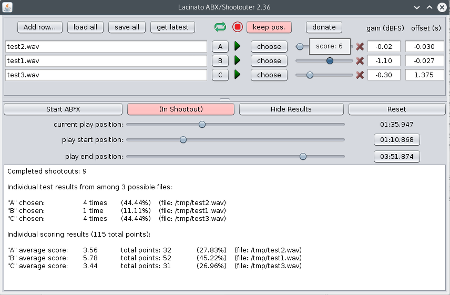
Lacinato ABX is the only cross-platform ABX and shootout blind testing software for audio. It allows double-blind ABX testing of audio files (seeing if you can tell which file is being played), as well as “shootouts” (picking your favorite from a shuffled, anonymized list). Or you can just use it as a convenient way to switch between files (maintaining the current play position, if you like.

Lacinato ABX

Website
Web Service ~ online version
ABX Testing ~ Wikipedia

Audacious & XMMS ~ VU Meters Plugin


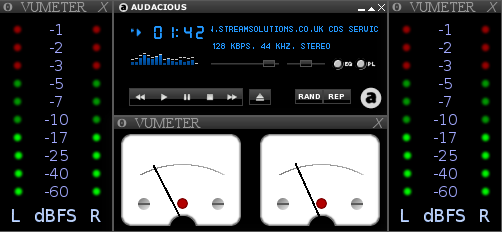
Open source, multi-instance, skinnable VU meters for Audacious and XMMS.

sc5

Audacious with several instances

vumeterplugin.sourceforge.net
Discussion
Downloads

Skins:
http://vumeterplugin.sourceforge.net/themes.php
http://www.gnome-look.org/content/show.php/LED+VU+meter?content=140540

Sox ~ The Swiss Army Knife Of Sound Processing


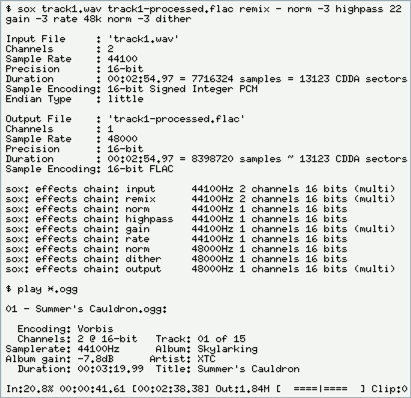
SoX is a cross-platform command line utility that can convert various formats of computer audio files into other formats. It can also apply various effects to these sound files, and, as an added bonus, SoX can play and record audio files on most platforms.

Sox
Sox sample session

Website
Features
Download
Documentation
Scripts
FAQ

Additional resources:
www.audiofaidate.org/sw/sox-dsd/
codeberg.org/sox_ng

NirCmd ~ Windows Command Line Tool


NirCmd is a small command-line utility that allows you to do some useful tasks without displaying a user interface. By running NirCmd with simple command-line options, or via a shortcut, you can decrease or increase the system volume, mute or unmute the system volume, speak the text currently in the clipboard or text file, change the default sound device, display a list of sound devices, change the volume of an app, change the display settings, turn off the monitor, open the door of a CD-ROM drive and more…

www.nirsoft.net/utils/nircmd
Command Reference
Change Default Sound Device
List Sound Devices
Change System Volume
Change App Volume

BatchEncoder ~ Audio Conversion GUI


BatchEncoder is audio file conversion software. It supports most of popular audio file formats including both lossy and lossless compression. The program is very simple to use. BatchEncoder is basically a GUI front-end for command-line tools. All it does is create background processes and pass arguments to it with options set in the presets / format menu and additionally adds input and output file paths.

Features:

  • Open-source, fast and simple.
  • Front-end for command-line tools.
  • Supports popular audio formats.
  • File transcoding between audio formats.
  • Multi-threaded conversion.
  • Full UNICODE support.
  • Multi-language user interface.
  • Out of the box configuration for new users.
  • Advanced options for experienced users.
BatchEncoder

wieslawsoltes.github.io/BatchEncoder
github.com/wieslawsoltes/BatchEncoder
hydrogenaud.io/index.php/topic,50822.0

YAFS ~ Changing Song Order On USB Sticks


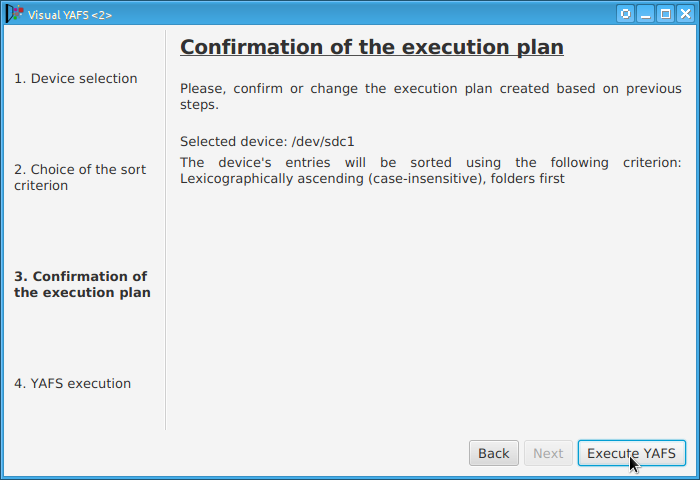
Some players display, or play files, in the order that the file was originally copied to a USB drive or stick. YAFS (Yet Another FAT Sorter) allows the order to be changed to whatever you prefer. YAFS is a multi-platform, open source, freeware, command line utility with a GUI (Graphical User Interface).

image2

Website
Visual YAFS ~ Frontend

Foobar2000 ~ Playing CDs With Pre-emphasis


Pre-emphasis & CDs

Although rarely used, there exists the capability for standardized emphasis in Red Book CD mastering. As CDs were intended to work on 14-bit audio, a specification for ‘pre-emphasis’ was included to compensate for quantization noise. After production spec was set at 16 bits, quantization noise became less of a concern, but emphasis remained an option through standards revisions. The pre-emphasis is described as a first-order filter with a gain of 10 dB (at 20 dB/decade) and time constants 50 μs and 15 μs ~ http://en.wikipedia.org/wiki/Emphasis_(telecommunications)#Red_Book_Audio

Emphasis came about because of early converter design. The entire sampling process was new, and A to D converters exhibited low level noise because of bad linearity in the conversion process. This process added some high frequency broadband noise to the digital signal. Manufacturers overcame this byproduct by boosting (emphasis) the high frequencies during the conversion from analog to digital, and then rolling off (de-emphasis) the high frequencies by the same amount after the conversion back from digital to analog. This process was optional and there was a switch to select emphasis on each track during record. A flag was set in the digital bit-stream, which automatically activated de-emphasis during playback. All CD players, DVD players, and DAT machines detect this flag and turn on a high frequency roll-off in the analog domain during playback. If the digital signal contains emphasis and the flag is missing or turned off, then the roll-off does not occur and the audio will be brighter than normal.

This emphasis feature was the biggest reason why different CD players sounded different when playing back the same CD, or DAT machines differed playing back the same DAT tape. The digital part and the conversion to analog were basically the same in all of the machines. The de-emphasis circuit was implemented in the analog domain using the least expensive circuit to perform the operation. There was high-end EQ on the output of every digital playback device, and there was no standard or calibration for how it was performed. If you played back a CD without emphasis, then all of the CD players sounded pretty much the same. If you played a CD with emphasis, then each playback device sounded very different from every other player.

Producers and engineers started turning off the emphasis switches. Converters were getting better so there was less converter noise, and the use of de-emphasis circuits was eliminated. ~ Roger Nicolls

As I understand it, the Redbook CD standard calls for decoding of pre-emphasis flags. So any player bearing the CD format logo should handle pre-emphasis discs properly. ~ http://forums.stevehoffman.tv/threads/whats-pre-emphasis.49396/#post-971902

Working with CDs with pre-emphasis

Foobar plugins to de-emphasis pre-emphasized CDs:

  • Postprocessing (foo_deemph): works only with lossless sources; always active during playback and ReplayGain scan.
  • * DSP plugin (foo_dsp_deemph): works with any source

Download ~ http://wiki.hydrogenaud.io/index.php?title=Pre-emphasis

Use post-processing if you want to add correct ReplayGain tags to your files.
Use DSP if you have lossy files that you want to de-emphasize.
Otherwise, there’s no difference. ~ http://hydrogenaud.io/index.php/topic,99394.50.html

Lists of CD’s with pre-emphasis:

http://www.studio-nibble.com/cd/index.php?title=Pre-emphasis_(release_list)
http://www.discogs.com/lists/CDs-with-pre-emphasis-my-collection-only/243100
http://www.discogs.com/lists/CDs-suspected-to-have-pre-emphasis/308012

ORBAN Loudness Meter ~ Loudness & Peak Display


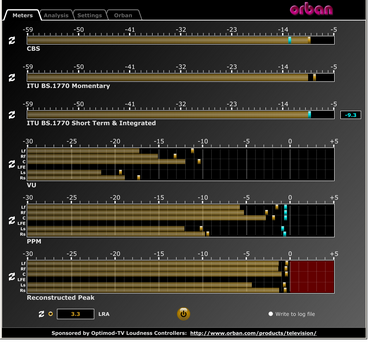
This software simultaneously displays instantaneous peaks, VU, PPM, CBS Technology Center loudness, and ITU BS.1770 loudness. All meters include peak-hold functionality that makes the peak indications of the meters easy to see.

The software accepts two-channel stereo inputs. The VU and PPM meters are split to indicate the left and right channels. The PPM meter also displays the instantaneous peak values of the L and R digital samples. ~ Hydrogen Audio

ORBAN Meter

www.orban.com/orban/meter

foo_plorg ~ Playlist Organizer With Folders


The Foobar2000 Playlist Organizer component allows playlists to be organized into folders.

  1. Install the foo_plorg component
  2. Add a new panel or tab, then add Playlist Organizer

capture-foobar2000-dui-foo_plorg

Importing playlists using foo_plorg and foo_playlist_revive

  1. Install foo_playlist_revive
  2. Drag playlist files and drop on the Playlist Organizer panel
  3. Select Edit > Revive Dead Items

Note: The imported playlist will have the same name as the original playlist filename.

Resources:

Website
Documentation – Hydrogenaudio
foo_playlist_revive – Hydrogenaudio
Foobar2000 – How to install a component

CueMake ~ Create Cue Sheets From WAVs


Subscribe to continue reading

Subscribe to get access to the rest of this post and other subscriber-only content.