FluidEQ ~ System-wide Parametric Equalizer


FluidEQ is a free, open-source system-wide parametric equalizer for Windows 10 and 11, processed by its own audio engine or by Equalizer APO — your choice. Tune once per output, and the right sound follows the right device without you touching anything again.

fluideq user interface

github.com/StartSWest/FluidEQ

Windows-Audio-Output-Switcher ~ Audio Device Switch


A small, self-contained tray utility for Windows that lets you cycle through your audio playback devices with a single hotkey, and shows an on-screen overlay telling you which one is now active.

It’s a single ~4 MB .exe with no installation dependencies, no admin rights required, and nothing running except while you’re logged in.

What it does:

  • Cycles the default playback device. Press Win+A (the default hotkey, changeable), left-click the tray icon, or pick a device from the right-click menu, and Windows’ default audio output moves to the next active playback device in the list, wrapping back to the first one after the last. It takes effect for every application immediately — the same as changing it by hand in the Windows sound settings.
  • Win+A actually works for this, even though Windows normally reserves it for Quick Settings (same goes for any other reserved combo you configure it to instead). See how.
  • Shows an on-screen overlay on every switch — styled after Windows’ own volume/brightness OSD, not a toast notification — naming the device that is now active, so you get instant confirmation of what you just switched to. A burst of rapid switches only ever shows the latest one.
  • Lives in the system tray:
    • Left-click the tray icon to switch to the next output device.
    • Hovering it shows the app version and the currently active device.
    • Right-click opens a menu listing every currently active output device — click one to switch to it directly (the active one is checked) — followed by Configure and Exit.

github.com/SpikePy/Windows-Audio-Output-Switcher

Security note: The Win+A hotkey requires a Windows low-level keyboard hook, which can receive system-wide keyboard events. The author says the program only checks for the configured hotkey and does not record or transmit keystrokes. Because this technique can also be used by keyloggers, security software may flag the executable heuristically.

foo_spectrum_compare ~ Multispectrogram Comparison


A vertical multitrack spectrum comparison panel component designed for foobar2000, suitable for the default UI (DUI).

Features:

Configuration persistence: Panel settings are serialized using the .fth format.

Floating panel: Supports use as an independent floating panel, which can be opened through the main menu “View” (hold Shift to show hidden menu items).

Vertical multi-track comparison: Select multiple audio tracks and divide them vertically into equal sections. Up to 4 audio tracks can be compared simultaneously to show frequency characteristics.

Background thread analysis: Each audio track is decoded and analyzed in an independent thread, without blocking the UI. Analysis begins immediately upon selection, with loading in seconds.

Spek-style color schemes: 3 built-in color palettes—Spectrum (Spek’s classic rainbow), SoX, and Mono (monochrome).

Frequency axis labeling: The left side displays a linear frequency scale of 0–22 kHz, which can be toggled in the right-click menu.

Timeline markings: The bottom displays time scales at 20-second intervals, which can be toggled in the right-click menu.

Custom title format: Supports foobar2000 titleformat syntax for custom track tags, displayed by default %title% | %codec% | %bitrate% kbps[ | $info(bitspersample) bit] | %samplerate% Hz | $info(channels) CH | %path%. Right-click to edit the format and press Enter to confirm; the spectrum will not be reloaded.

DPI-aware: Correctly scales on high-resolution screens such as 4K, with spacing, fonts, and axes all adapting automatically.

Double-buffered rendering: The overall image is output with double buffering, resulting in flicker-free switching between songs.

Bilingual interface: The right-click menu supports one-click switching between Chinese and English, and the language setting is persistent with the panel configuration.

foo_spectrum_compare display

github.com/a1waysbeta/foo_spectrum_compare

CassettePlayer ~ Terminal Music Player


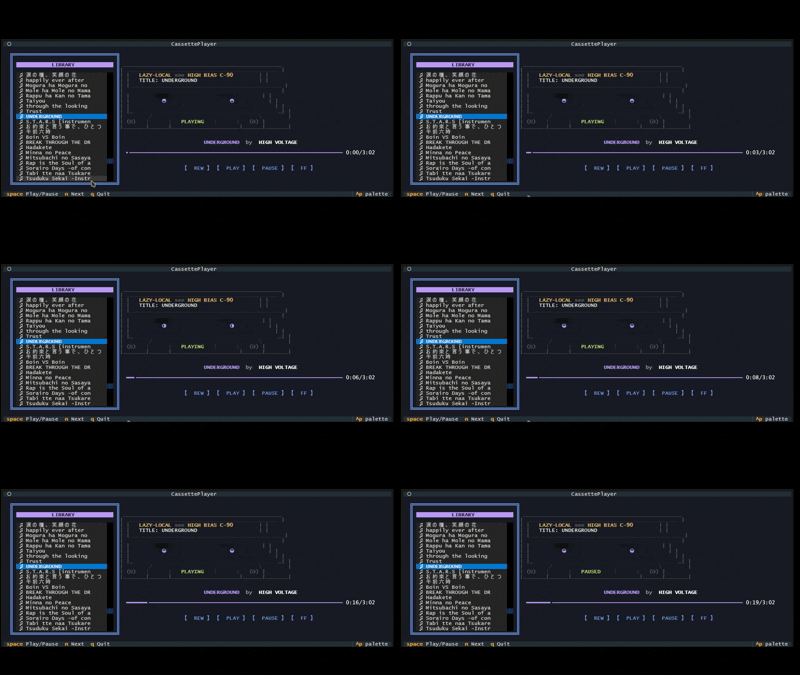
A retro-themed terminal music player featuring an animated ASCII cassette tape. Built with Python and Textual.

cassette player interface

github.com/Kizarov3/CassettePlayer

CDPlayer ~ CD Player App


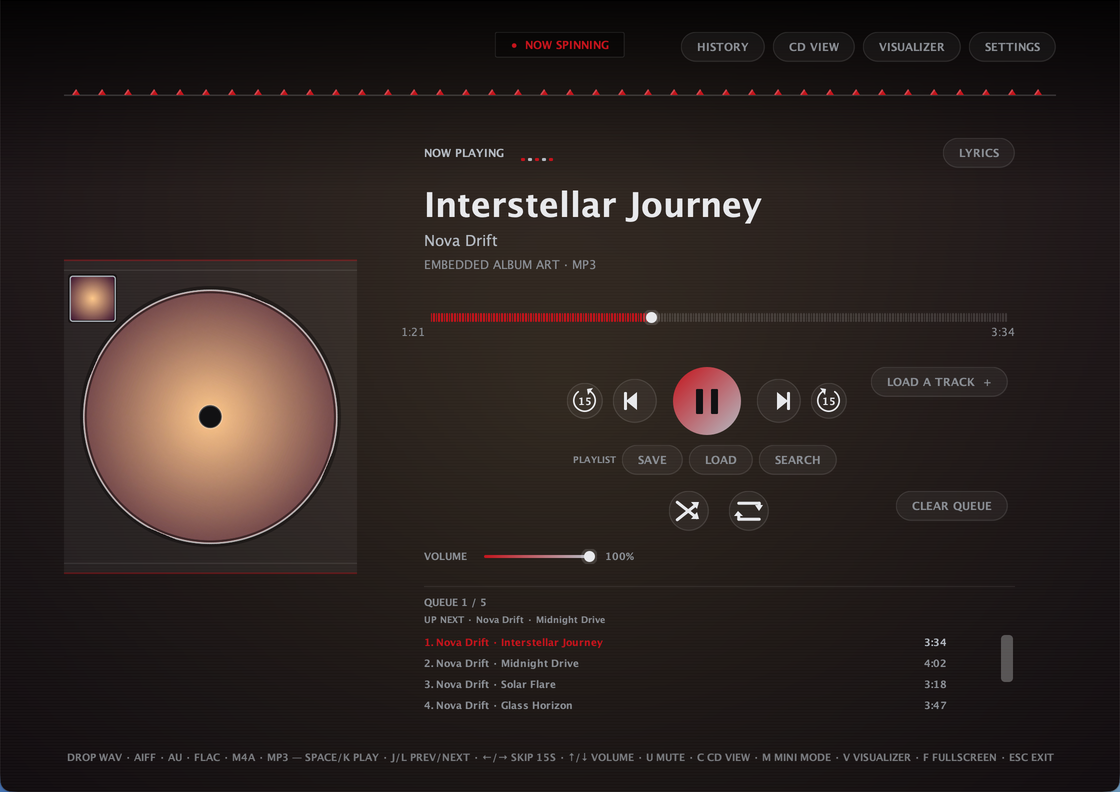
CDPlayer is a Java desktop app that recreates the tactile feel of a physical CD player for local audio playback. Load a track, press play, and enjoy a simple, distraction-free music experience without relying on a browser or web app — no accounts, no streaming, no internet required to play a song. Built with plain Java and native Swing/AWT — no external UI framework, single self-contained app

Plays local audio files through a custom low-latency streaming engine, with FFmpeg handling the formats Java can’t decode natively

Full queue management: drag-and-drop, drag-to-reorder, shuffle, repeat, crossfade, volume, mono downmix, and per-track removal — queue is saved automatically and restored next launch

Ten built-in themes — nine animated ones plus AUTO, which derives its whole palette from the current track’s own album art

A sleep timer that pauses playback after a set time, with a live countdown in the header

A 10-band graphic equalizer with built-in and savable custom presets, and a beat-synced visualizer

True fullscreen, a distraction-free fullscreen Visualizer Mode, and a Mini Mode that shrinks the whole app down to a small always-on-top widget

A dedicated Settings dialog for theme, crossfade, mono, and an ambient blurred-cover-art background wash

Automatic metadata and album art, with an online lookup fallback when a file has none

Works on Windows, macOS, and Linux. ffmpeg required.

CDPlayer User Interface

github.com/Kizarov3/CDPlayer

Manifold ~ Audio Batch Processing Tool


Manifold is a desktop audio batch-processing tool built for inspecting, transforming, and exporting large collections of audio files with a visual workflow editor. Useful for checking and pre-processing audio for game-audio production, podcasts and broadcast, it is designed to make repetitive tasks more efficient and reproducible.

It combines a polished ImGui-based interface with a custom node-based audio pipeline, allowing you to build repeatable processing chains for tasks such as loudness normalization, peak limiting, DC offset cleanup, resampling, and format conversion.Why Manifold?

Manifold was designed to make audio batch work feel more structured and reproducible. Instead of manually running ad-hoc commands or scripting every step, you can:

  • import whole folders of audio files,
  • inspect their metadata and analysis results,
  • create reusable processing chains,
  • export processed files with consistent naming and format settings.

This makes it useful for workflows such as podcast preparation, mastering prep, broadcast delivery, and game-audio asset processing.

Key Features:

  • Batch import of files and folders
  • Drag-and-drop support from the file explorer
  • Built-in audio playback for quick previews
  • File table with metadata and analysis metrics
  • Configurable processing workflows using nodes
  • Output settings for folder, naming, format, and subtype
  • Background processing with task history and logs
  • Parallel analysis for loudness and DC offset metrics

Supported Processing Nodes:

Manifold includes a growing set of audio processing and analysis nodes, including:

  • Loudness analysis
  • Loudness normalization
  • True peak limiting
  • DC offset removal
  • Peak normalization
  • Channel mixing
  • Silence trimming
  • Fade in/out
  • Loudness compliance checks
  • Clipping detection
  • Dynamic range analysis

These nodes can be chained together to create custom pipelines for different production scenarios.

github.com/AnClark/Manifold

mp3-packer ~ Bitrate Reduction Script


I have more music than would fit onto the memory card of my phone. This is largely due to the 256 kBit/s versions that are sold now. On the phone, I do not really hear the difference between 256 kBit/s and 128 kBit/s, but I can clearly see the difference in size.

This script creates a whole copy of your music library, just with a smaller bitrate. It uses either ffmpeg or lame to convert the tracks.

github.com/martin-ueding/mp3-packer

Sound Ninja ~ Crossplatform Customisable Soundboard


Sound Ninja is an Open Source Soundboard App with maximal customizability option to create your best Soundboard. Perfect for live streaming, chatting with friends or podcast recording.

github.com/marcus-universe/SoundNinja

NxTakt ~ Native Linux DAW


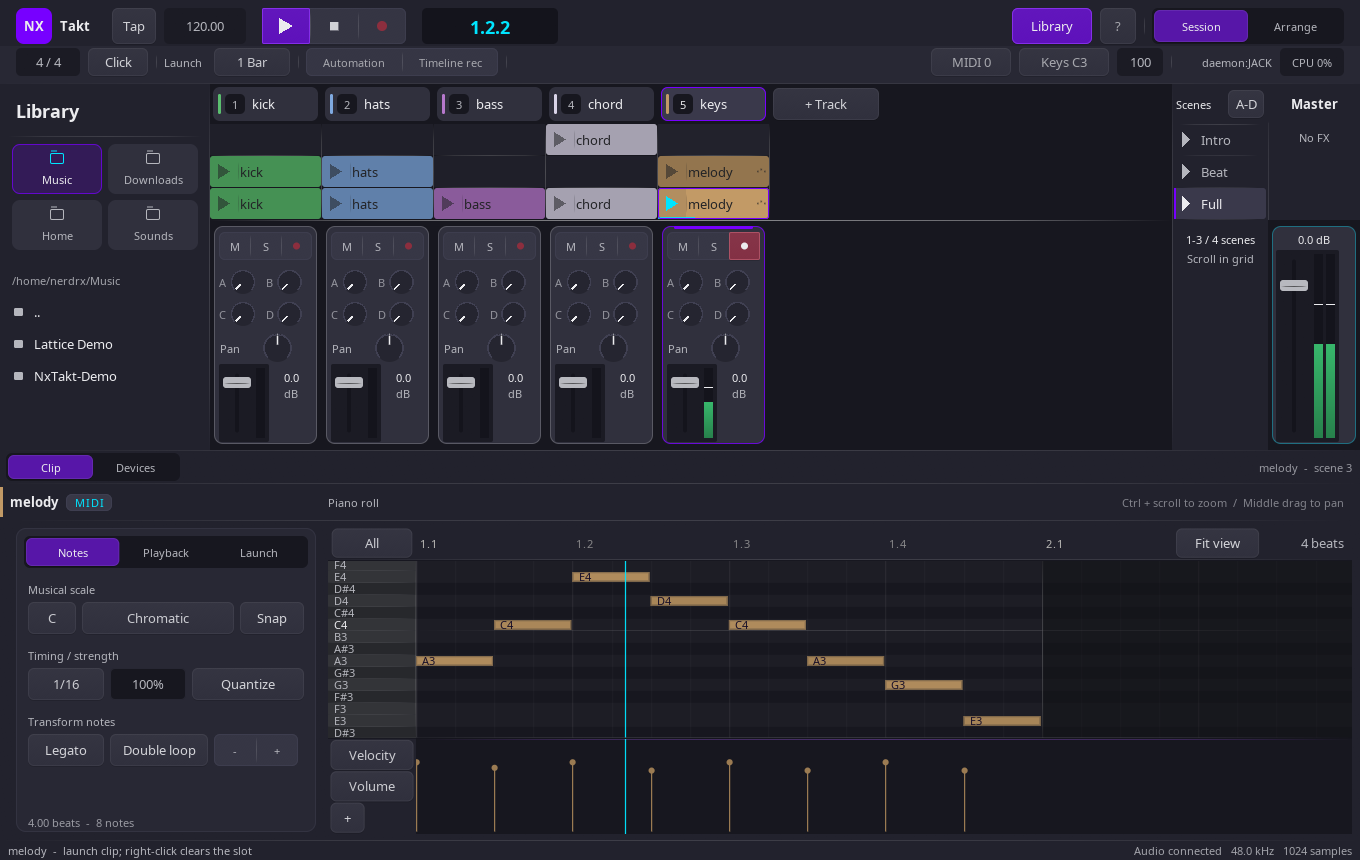
The workflow is Ableton Live’s: a grid of clips you launch against a global tempo grid, quantised to musical boundaries. The architecture is not Live’s, and that is the point.

Your set is text

A project is one line-oriented plain-text file with a byte-identical round-trip and stable per-entity uids. A melody is eight note <beat> <len> <pitch> <vel> lines. Diff a mix, branch an arrangement, review a track in a pull request, generate a set from a script.

The audio thread shares nothing

No allocation, no locks, no pointers into GUI memory: the interface reaches the engine through a lock-free command ring and a block of atomics. Launches are split inside the buffer, so a clip starts on the exact frame of its quantum rather than at the top of the next block. nxtaktd already runs that engine as its own process, playing clips out of a shared-memory sample pool.

CI plays what it builds

Every push builds the whole application, runs the headless suite — 2,500+ assertions across the engine, the IPC layer, the daemon and the devices — and then renders five passes of the demo set to FLAC, printing the peak and RMS of each into the run summary. The pipeline does not just compile this DAW. It hands you the audio.

nxtakt user interface

github.com/nerdrx/nxtakt

OBS-vst3 ~ OBS Safe VST3 Host


Native VST3 audio effects for OBS Studio on Windows — isolated plug-in hosting, vendor GUIs, automatic discovery, state restore and dry fail-open recovery.

Why this project exists

OBS Studio’s built-in VST filter does not provide VST3 hosting. Many current studio EQs, compressors, restoration tools, reverbs, saturators, limiters and mastering processors are distributed primarily, or only, as VST3s.

OBS Safe VST3 Host adds two OBS-native workflows on Windows:

  • VST 3.x Plug-in — a simple one-effect filter for the common case.
  • VST3 Rack — a separate isolated serial multi-effect chain with a dedicated graphical Rack Editor and broadcast-oriented master console.

Third-party VST3 runtime code, vendor editors and plug-in scanning are deliberately kept outside the OBS process.

github.com/masarray/obs-vst3

RackForge ~ Playable Musical Instrument Host


RackForge is a cross-platform instrument and live-performance host. Connect a MIDI keyboard, choose an instrument, combine sounds into Racks, organize a show into Songs and Setlists, and play without building a DAW session first.

RackForge uses the same musical model on Windows, Linux, Android, and Raspberry Pi. Portable .rfplugin instruments bring their sound and interface with them, while RackForge owns the audio, MIDI, routing, presets, and live performance workflow.

RackForge v0.1.x is a public preview. It is ready to explore and play, but native packages are not yet production-signed.

github.com/kalexis1994/rackforge

spotatui ~ Standalone Terminal Player


spotatui plays Spotify natively and streams YouTube, your local files, Subsonic or Navidrome and 30,000+ internet radio stations from a single keyboard-driven player. Spotify is optional. So is the AI DJ.

Features:

  • Multiple sources — Spotify optional. Play from Spotify, Local Files, a Subsonic/Navidrome server, Internet Radio, YouTube, or Qobuz. The free sources need no Spotify account; press d to switch between them at any time.
  • Native streaming. Play Spotify audio directly, no official app or spotifyd required — spotatui appears as its own Spotify Connect device (Premium required).
  • Synced lyrics. Line-by-line lyrics that follow playback.
  • Real-time audio visualizer. A system-wide FFT visualizer (press v) that reacts to whatever is playing.
  • Cross-source play queue. Press z on any track to queue it — the queue plays across every source before your current context resumes.
  • Lua plugins. Extend spotatui with event hooks, commands, keybindings, popups, and theming.
  • Listening history & recap. spotatui keeps a local play history and can generate a shareable HTML recap (spotatui history recap).
  • Full CLI. Most of what the UI does is scriptable — playback, search, playlists, shell completions. Run spotatui --help.
  • Lightweight. ~78 MB RAM while streaming, versus a full Electron client. See Performance.

spotatui.com
github.com/LargeModGames/spotatui