It’s MyTabs ~ Tablature Viewer & Player


Open source, web based, self hostable guitar/bass tab viewer and player, similar to Songsterr.

github.com/louislam/its-mytabs
sourceforge.net/projects/it-s-mytabs.mirror

foo_truepeak ~ True Peak Scanner


foo_truepeak is a ITU-R BS.1770-5 compliant True Peak scanner. It can also scan ReplayGain, Loudness Range (LRA), Dynamic Range (DR), show the amount of clipping samples and report the position of highest peak.

www.foobar2000.org/components/view/foo_truepeak

For users primarily concerned with playback quality and simplicity, foo_truepeak can replace foobar2000’s ReplayGain and DR scanners. It uses modern loudness standards, detects true peaks and can write all relevant tags in a single pass. While its ReplayGain and DR values may not exactly match legacy scanners, they are more appropriate for real-world playback on modern systems.

1. Download and install foo_truepeak

  1. Download foo_truepeak.fb2k-component from the official component page.
  2. In foobar2000, open File → Preferences → Components.
  3. Click Install…, select the foo_truepeak.fb2k-component file.
  4. Restart foobar2000 when prompted.

2. Disabling legacy scanners (optional but recommended)

To avoid confusion or duplicate workflows:

  1. Don’t try removing the ReplayGain scanner as it’s built in.
  2. You can uninstall foo_dr_meter and or foo_dynamic_meter.

This keeps foo_truepeak as your single analysis tool.

3. Open foo_truepeak preferences

Go to File → Preferences → Advanced Tools → True Peak Scanner

4. Ensure the following is enabled

Scan True Peak Values

True peak scanning accounts for inter-sample peaks created during digital-to-analog conversion, ensuring that peak levels reflect what a real DAC actually outputs, not just what is stored in the file.

5. Enable ReplayGain scanning

Scan ReplayGain values

Notes:
  • Gains are derived from EBU R128 loudness, but written as ReplayGain tags.
  • Peaks are true peaks, not simple sample peaks.
  • Playback normalization works normally in foobar2000.

6. Enable Dynamic Range scanning

Scan Dynamic Range (DR) values

Notes:

  • These values are analytical, not official TT DR Meter values.
  • They are suitable for comparison within your library, not for DR Database submissions.

7. Choose tag writing behavior

Use ReplayGain tag fields for peak and gain

8. Run a True Peak scan

  1. Select a track, tracks or albums in a playlist.
  2. Right-click → True Peak Scan.

You can also create custom buttons on the toolbar for Album or Track scans.

Download True Peak Toolbar Button Icons

9. Verify tags at first

After scanning, check the file(s) to ensure tagging happened correctly:

  • Open Properties > ReplayGain
  • Confirm presence of values for:
    • Track Gain
    • Album Gain
    • Total Peak
    • Lowest gain (loudest track)
    • Highest gain (quietist track)

10. Use ReplayGain during playback

  1. Enable ReplayGain in Preferences → Playback → ReplayGain.
  2. Choose your preferred mode, Track or Album.

foobar2000 will now use modern loudness analysis and playback without intersample clipping.

Summary:

  • One scan
  • One pass
  • Peak safe playback
  • Modern loudness normalization

This setup is ideal for users who prioritize listening quality and ease of use over legacy metric compatibility.

References:

www.foobar2000.org/components/view/foo_truepeak
foobar.hyv.fi/?view=foo_truepeak
wiki.hydrogenaudio.org/Foobar2000:Components/True_Peak_Scanner
hydrogenaudio.org/index.php/topic,125719.0
en.wikipedia.org/wiki/Amplitude
en.wikipedia.org/wiki/Audio_normalization
en.wikipedia.org/wiki/Dynamic_range
en.wikipedia.org/wiki/ReplayGain

Alternative DSP
www.foobar2000.org/components/view/foo_dsp_replaygain

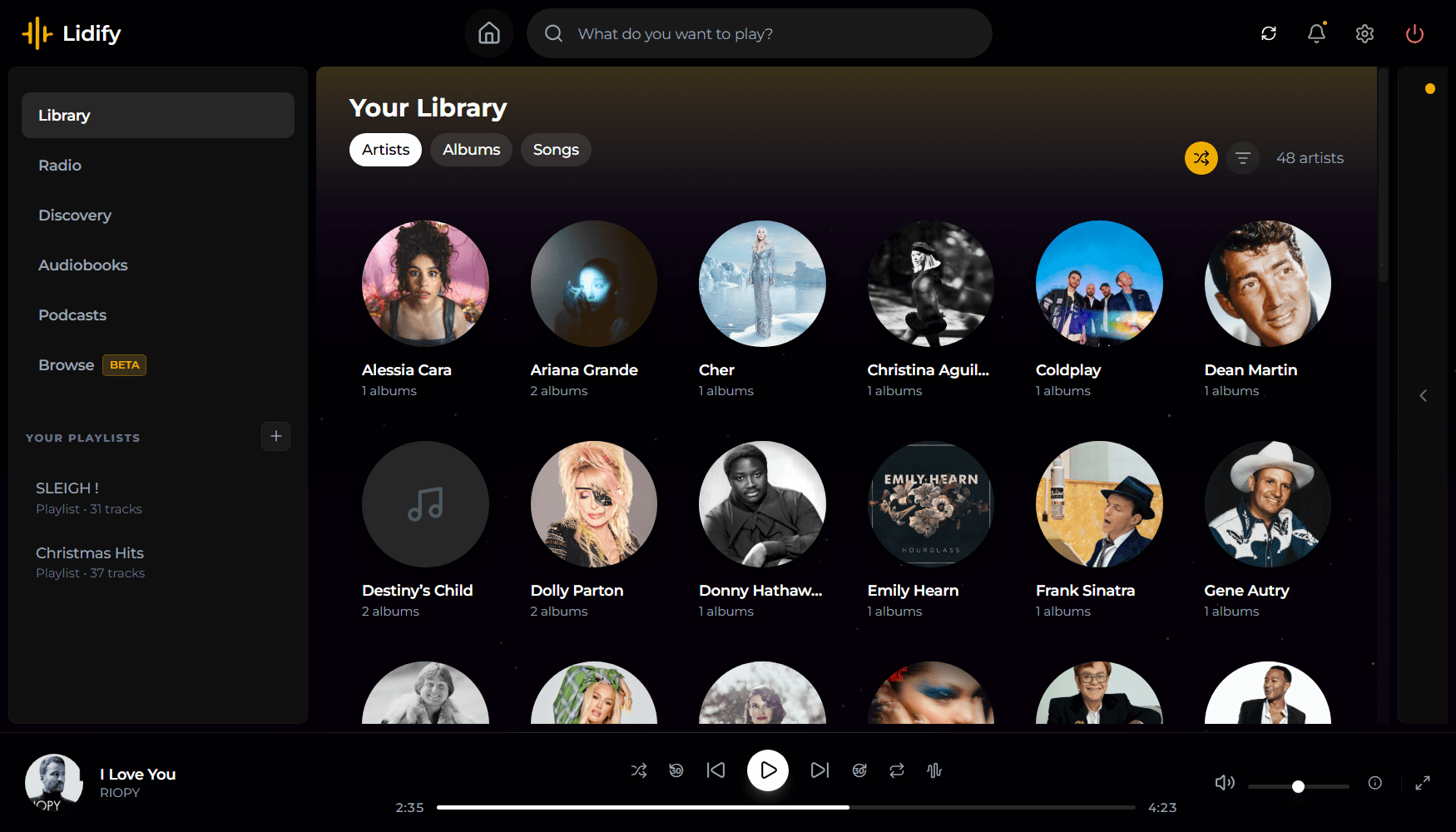
Harmonoid ~ Play & Manage Music Library


Plays & manages your music library. Looks beautiful & juicy.

Features:

  • Fluid animations & beautiful design, everywhere you navigate
  • It’ll find lyrics or give your own .LRC files
  • Closely paired to work together. Windows & Linux
  • Experience the consistent Material Design
  • Music library management based on metadata tags
  • Capable of indexing 30+ files/second & saves cache for future app start-ups
  • Very strictly follows Material Design guidelines for UI & animations
  • Taskbar & System Media Transport Controls for Windows
  • Small installer (≈ 35 MB) & low RAM usage (≈ 150 MB)
  • Discord RPC integration with album art support & “Find”/”Listen” buttons

harmonoid.com
github.com/harmonoid
sourceforge.net/projects/harmonoid.mirror
itsfoss.com/harmonoid

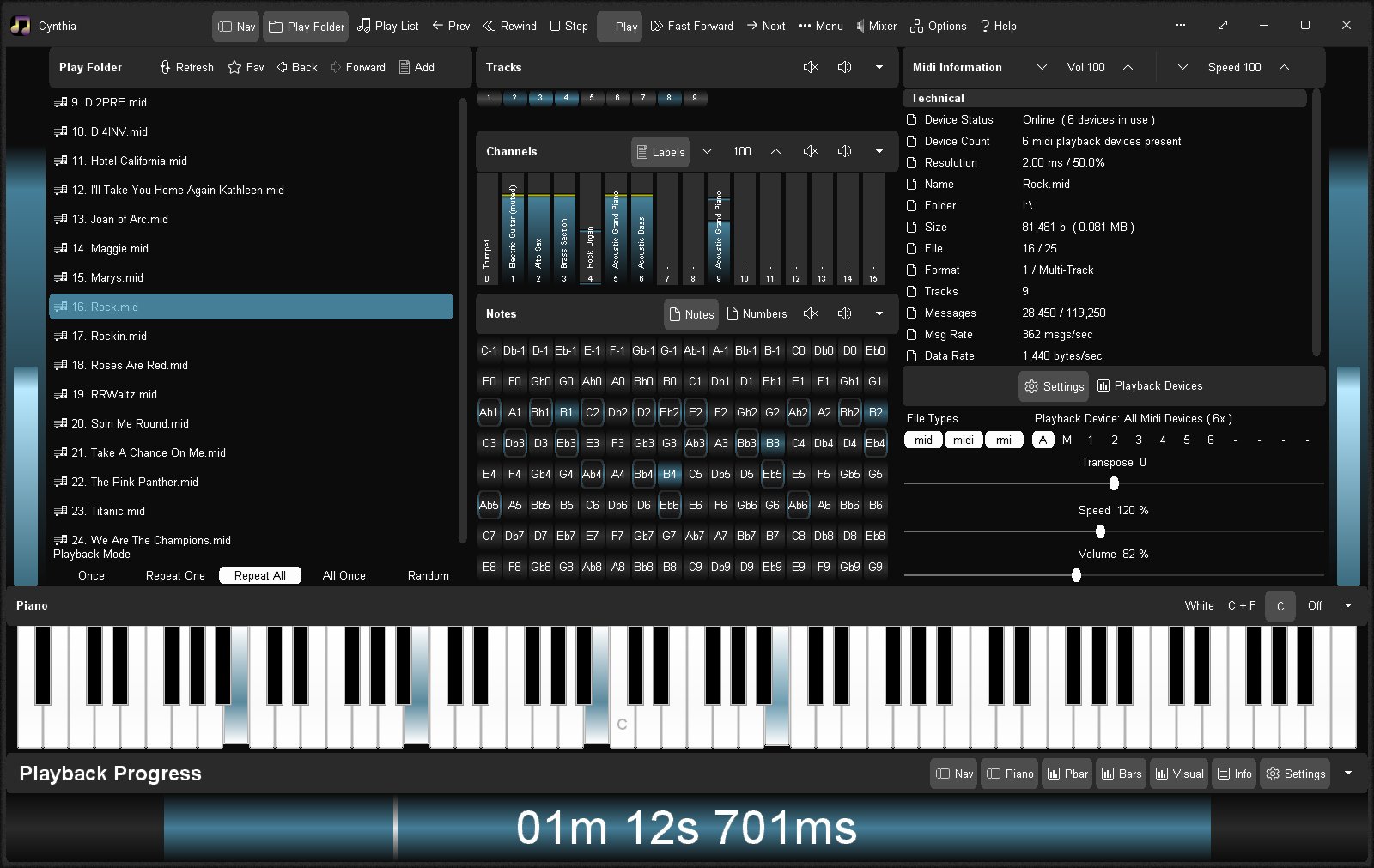
Zenamp ~ Player With Visualizations & Games


Multi-format audio player with MIDI, minigames, playlists & many visualizations

Lightweight GTK3 audio player supporting MIDI, WAV, MP3, OGG, FLAC, AIFF, and Opus formats. Features OPL3 FM synthesis for authentic MIDI playback, drag-and-drop playlist queue, real-time spectrum visualization, 10-band equalizer, and M3U playlist support. Built with SDL2 audio backend for cross-platform compatibility across Linux and Windows. Includes intuitive controls with keyboard shortcuts, 5-second seek buttons, and efficient format conversion. Perfect for musicians and audio enthusiasts needing reliable playback of both modern and legacy audio formats. Multi-threaded architecture ensures smooth performance. MIT License.

Features:

  • Music Player
  • Queue Support
  • Playlist Support
  • Visualizations
  • Minigames

sourceforge.net/projects/midiplayer
apps.microsoft.com/detail/9p7ddq785vq2

Foobar2000 ~ Album & Artist Artwork


Foobar2000 displays artwork in a panel which can be added and configured to suit your preferences. The artwork panel displays the image file associated with an audio track. If the standard options are insufficient, Foobar’s image handling can be extended via additional components.

To add an artwork panel to the default user interface (DUI), Enable Layout Editing Mode from the menu View > Layout. Add the Album Art Viewer from the Selection Information section.

Context Menu (Right Mouse Button On Artwork Panel)
Selecting the Album Art Viewer on the Add New UI Element menu

Album Art Viewer (built-in)

Sources:

  • Embedded tags (front, back, disc, artist, etc.)
  • External image files (folder.jpg, cover.png, etc.)

Notes:

  • Supports multiple artwork types.
  • Very stable, but basic (no advanced layout or scripting).
  • Artist art is only shown if tagged or present as files.
Foobar2000 Artwork Display Context Submenu

Context Menu

Display Components (Artwork panels)

foo_ui_columns (Columns UI)

Displays: Album & artist art
Sources: Embedded tags and external files

Notes:

  • Legacy but still widely used.
  • Artwork panels are static (no scripting).
  • No longer actively developed, but stable.

Resources:

CLAMPS ~ Common Lisp Aided Music Production System


Clamps, short for “Common Lisp Aided Music Production System”, is a software system for realtime and non-realtime music production written in Common Lisp. It enables a seamless workflow between high-level structures to define musical processes all the way down to low level DSP definitions for sound creation including browser based interfaces for interactive work and control useable for live performances. In that respect it combines features of systems like OpenMusic, SuperCollider or the Pure Data/Max family of software.

codeberg.org/ormf/clamps
codeberg.org/ormf/clamps-install
github.com/arclanguage/Clamp

SmartGuitarAmp ~ Neural Network Hardware Emulation


Guitar plugin made with JUCE that uses neural network models to emulate real world hardware.

See video demo on YouTube

This plugin uses a WaveNet model to recreate the sound of real world hardware. The current version models a small tube amp at clean and overdriven settings. Gain and EQ knobs were added to modulate the modeled sound.

github.com/GuitarML/SmartGuitarAmp

Strobo ~ Turntable Strobe Disk Generator


I had one of these trivial problems. Yesterday I wanted to create a new stroboscope disc for my Metzner rebuild (now with 50HZ 🙂 … After fiddling around with some graphic tools I decided to build a small Web-App (quick and dirty) to support me on this task. It might be of interest? You can use it offline or via the web site…

Main Features:

– Supports 33⅓, 45, 78 RPM + custom speeds
– 50Hz, 60Hz, 300Hz lamp frequencies + custom frequency
– Adjustable disk size, bar length, smoothing
– Custom colors and logo upload
– Drag/rotate/resize logo interactively
– Export: SVG (print), STL/3MF (3D print), FreeCAD macro
– Light/dark theme, EN/DE bilingual
– Offline-capable (standalone download)

strobo.apfelbeck.at
www.diyaudio.com/community/threads/stroboscope-disc-tool-webtool-to-automatically-create-them

Namida ~ Android Media Player


A Beautiful and Feature-rich Android Music & Video Player with Youtube Support, Built in Flutter.

Namida Interface

github.com/namidaco/namida

foo_vis_wispan ~ Winamp Spectrum Analyzer


foo_vis_wispan is a Foobar2000 spectrum analyzer visualization implemented with GDI. It is a port of the Classic Spectrum Analyzer (vis_classic) Winamp visualization plug-in by Mike Lynch.

Features:

  • Accurate, detailed, customizable spectrum analyzer.
  • vis_classic library has been upgraded to compile with a modern toolset.
    • Upgraded the resolution of the waveform passed into the library from 8 bits to 16 bits.
    • Other changes are mainly to integrate with foobar2000 instead of Winamp.
    • That means bugs in the original are still likely to be present.
  • Options can be modified and their effects viewed in real-time as the component is running.
  • Compatible with the Default User Interface (Default UI) and the Columns User Interface (Columns UI).
  • Tested on foobar2000 v2.25.3 (x86 32-bit and x86 64-bit) and Microsoft Windows 11 (Build 26200).

www.foobar2000.org/components/view/foo_vis_wispan
wiki.hydrogenaudio.org/…/Foobar2000_visualization_components

Resources:

en.wikipedia.org/wiki/Spectrum_analyzer

Bitter ~ Bitscope & Intersample Clip Monitor


Bitter shows how many of the available bits are being used by the audio signal, reports clipping samples, and estimates when digital-to-analog conversion would cause inter-sample clips. Typical uses for a bitscope include: verifying that a render dither is working properly; verifying that a particular plugin is not reducing the signal bit depth; testing for faulty audio source data.

Features:

  • Check for Intersample Clipping that may appear during digital-to-analog conversion
  • Detailed display of the usage density of each bit
  • Reveal the bitrate of the digital signal, which may well differ from that of the file’s bitrate or your DAW’s audio engine bitrate
  • Display the audio sample rate

www.stillwellaudio.com/plugins/bitter

foo_outinfo ~ Foobar2000 Output Information


Installing foo_outinfo allows for accessing the actual specs of the audio being played and the output device information using titleformatting.

The fields exposed by this component are:

%output_samplerate%Returns the sample rate entering output component
%output_channels%Returns the number of channels entering output component
%output_channel_mask%Returns the description of above channel configuration
%output_bitdepth%Returns the bitdepth used by output component, or best guess in case output doesn’t specify
%output_device%Returns the name of the output device
%output_dsps%Returns the list of active DSPs
%output_dsp_preset%Returns the name of the active DSP chain preset
%output_volume%Returns the playback volume in dB
%output_rg_source%Returns the ReplayGain source mode
%output_rg_mode%Returns the ReplayGain processing mode
%output_rg_gain%Returns the effective ReplayGain gain value in dB
%output_rg_peak%Returns the effective ReplayGain peak value
%output_rg_peak_db%Returns the effective ReplayGain peak value in dBFS
%output_buffer_length%Returns the output buffer length in ms

foobar.hyv.fi/?view=foo_outinfo
hydrogenaudio.org/index.php/topic,127228.0

Basic Status Bar Example Using foo_outinfo Fields

The foo_outinfo component exposes information about the current audio output and signal, such as the active output device, sample rate, bit depth, and channel count. These fields are especially useful in the status bar, where you want quick technical confirmation without cluttering playlists.

A simple and practical example is:

Now Playing: %artist% - %title% | %output_samplerate% Hz / %output_bitdepth% bit


What This Displays

When a track is playing, the status bar would show something like:

Now Playing: Miles Davis - So What | 44100 Hz / 16 bit

This tells you at a glance:

  • What is playing
  • The actual output sample rate
  • The output bit depth being sent to your audio device

Step By Step Explanation:

Music Metadata (Standard Fields)

%artist% - %title%
  • %artist% → Track artist tag
  • %title% → Track title tag

These are standard foobar2000 title formatting fields and work everywhere.


Separator

 |

This is just plain text. It visually separates the music info from the technical output info. You can replace it with a dash, bullet, or brackets if you prefer.


foo_outinfo Output Fields

%output_samplerate%
  • Displays the actual output sample rate in Hertz
  • Reflects resampling, DSP changes, or output driver behavior
  • This is more reliable than %samplerate% when DSPs are active
%output_bitdepth%
  • Displays the bit depth used by the output
  • Shows what is being sent to the DAC, not just what is in the file

More Informative Versions

If you want to include channels and output device name:

Now Playing: %artist% - %title% | %output_samplerate% Hz / %output_bitdepth% bit / %output_channels% channels

Displays:

Now Playing: Aphex Twin - Xtal | 48000 Hz / 24 bit / 2 channels

If you want to add the current Replaygain mode:

Now Playing: %artist% - %title% | %output_samplerate% Hz / %output_bitdepth% bit / %output_channels% channels | RG %output_rg_source%

Displays:

Now Playing: Aphex Twin - Xtal | 48000 Hz / 24 bit / 2 channels | RG Album

If you want to display the active DSP

$if(%output_dsp%, | DSP: %output_dsp%)

Displays the separator and active DSP, otherwise displays nothing:

| DSP: Resampler (SoX)

Minimal Technical Version (Very Clean)

For users who want only output confirmation:

Output: %output_samplerate% Hz / %output_bitdepth% bit

Displays:

Output: 96000 Hz / 24 bit

Why Use foo_outinfo in the Status Bar?

  • Confirms what your DAC is actually receiving
  • Helps verify exclusive mode, resampling, and DSP behavior
  • Avoids cluttering playlists with technical data
  • Ideal for users who care about signal integrity but want a clean UI

Beginner Notes and Caveats

  • All output_* fields require foo_outinfo to be installed
  • These fields only show values while audio is playing
  • If nothing is playing, the fields will appear empty
  • Output fields are best used in:
    • Status bar
    • Window title
    • Custom display panels