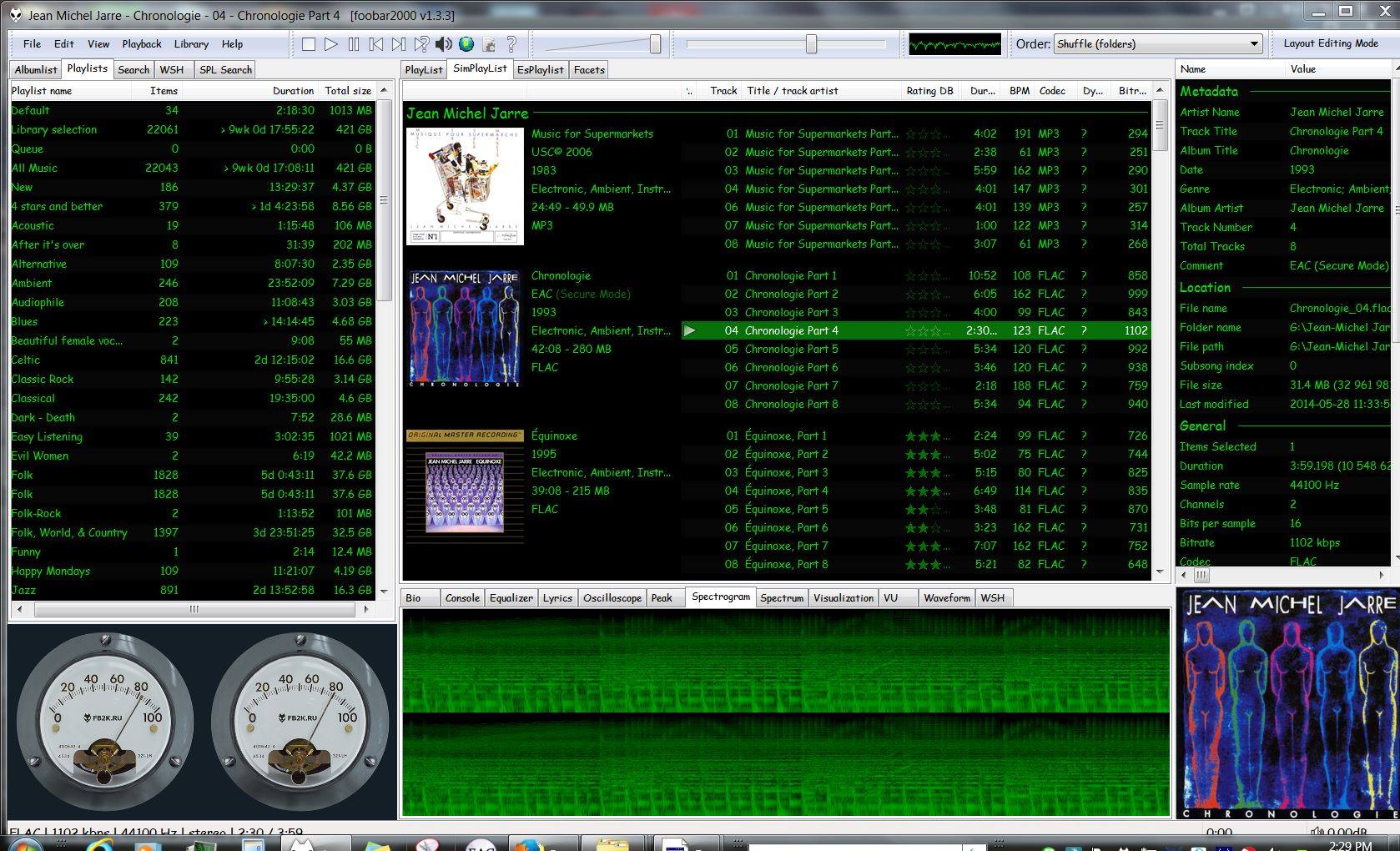
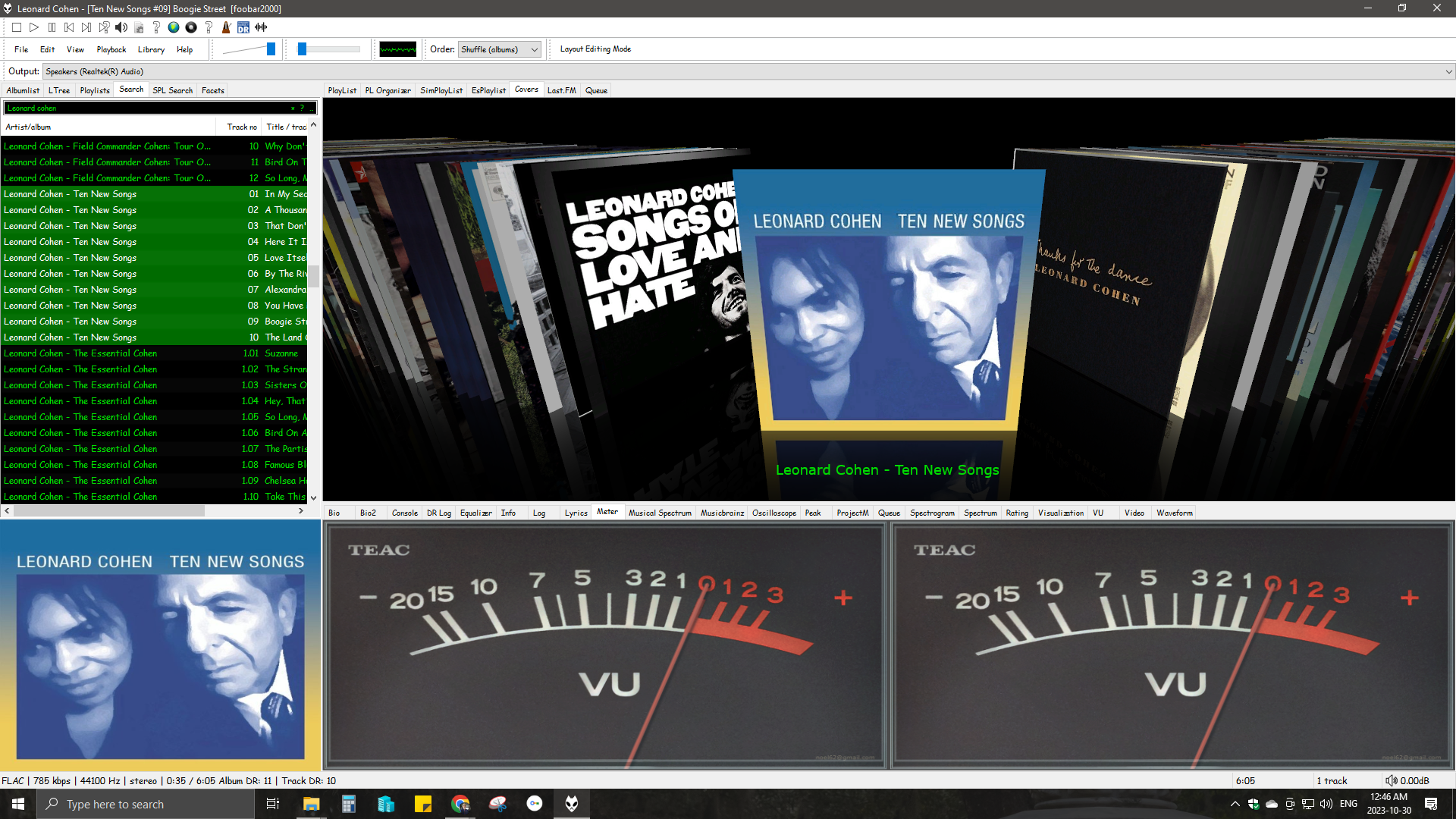
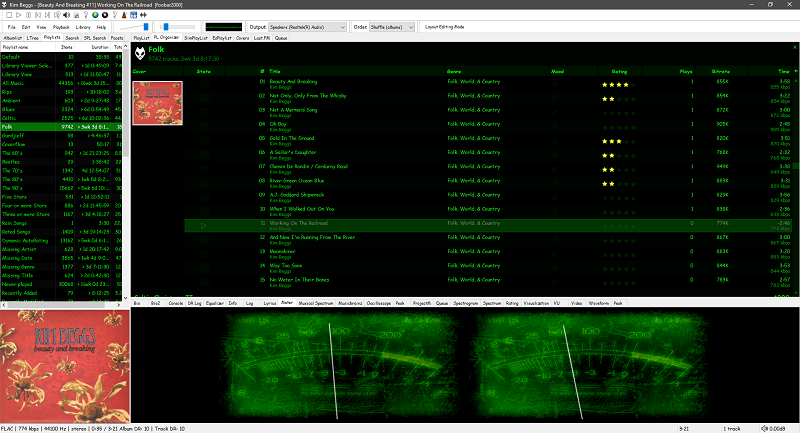
foo_plorg ~ Playlist Organizer With Folders


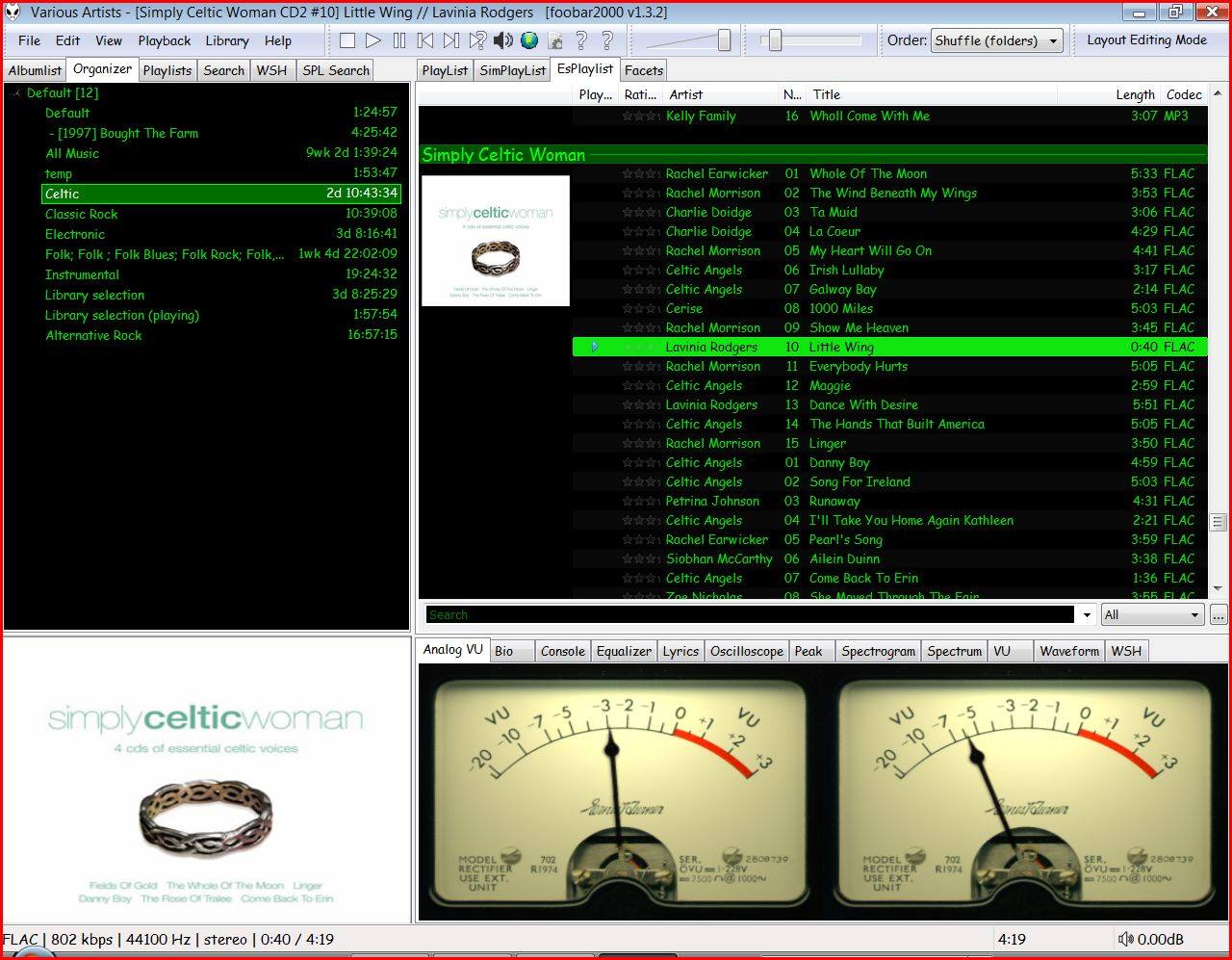
The Foobar2000 Playlist Organizer component allows playlists to be organized into folders.

  1. Install the foo_plorg component
  2. Add a new panel or tab, then add Playlist Organizer
capture-foobar2000-dui-foo_plorg

Importing playlists using foo_plorg and foo_playlist_revive

  1. Install foo_playlist_revive
  2. Drag playlist files and drop on the Playlist Organizer panel
  3. Select Edit > Revive Dead Items

Note: The imported playlist will have the same name as the original playlist filename.

Resources:

Website
Documentation – Hydrogenaudio
foo_playlist_revive – Hydrogenaudio
Foobar2000 – How to install a component

foo_discogs ~ Foobar2000 & Discogs


Greatly extend the information in your music files by using the foo_discogs component to tag albums with Discogs information. Once the additional Discogs release information is stored in the song tags, it’s possible to search for catalog numbers, secondary artists or studios, etc. You can now also create toolbar buttons which open the corresponding artist or release pages in Discogs, the artist’s own website or other links.

  • download Discogs album and artist artwork
  • retrieve more information than most taggers
  • goes that extra length to make sure retrieved data is correct and well formatted
  • flexible tag mapping allows you to write only what you want, where you want
  • use meta-data in tags to display Discogs artist / label / release web pages
    able to later update specified tags (useful in update ratings)
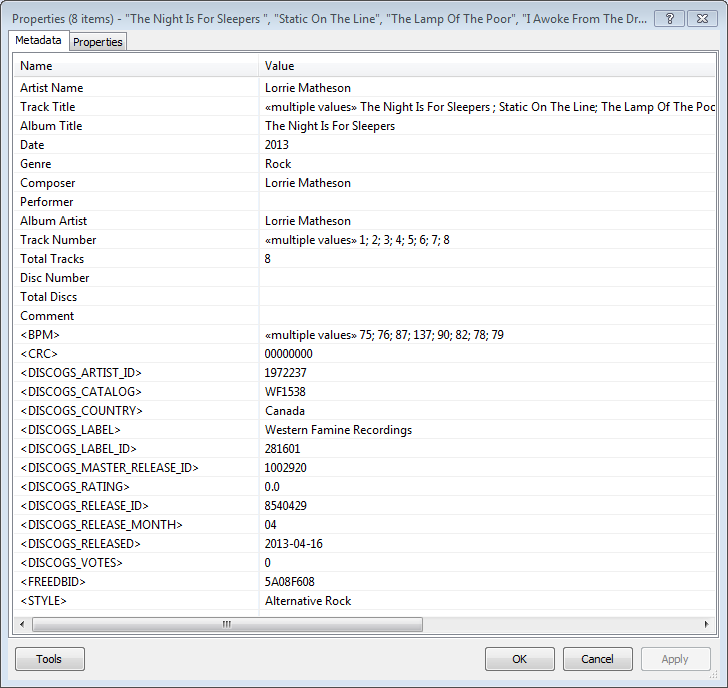
foobar - foo_discogs - resulting tags

Album’s properties when tagged with Discogs info

Installing & Configuration:

  1. Install the foo_discogs component
  2. Select any song on any playlist
  3. Right click the song and select Tagging
  4. From the sub-menu select Discogs
  5. Now select Configuration
  6. Change any settings needed.

Tagging Files:

  1. Select an entire album on a playlist
  2. Right click the album and select Tagging
  3. Select Discogs
  4. Select Write Tags…
  5. Click Search then select the correct match and click Next
  6. Confirm that the tracks match the files and click Write tags

Your audio files should now be tagged with additional Discogs metadata.

Open Release Page Button:

  1. Right click on Foobar’s Toolbar area and select “Customise Buttons…“
  2. In “Available Commands” navigate to and select [context] > Tagging > Discogs > View Release Page
  3. Change Icon and then click “OK“
  4. Select a song,  or album that has been tagged with Discogs metadata, and click the new custom button

References:

www.foobar2000.org/components/view/foo_discogs
hydrogenaud.io/index.php/topic,50523.0.html

Latest update:

github.com/ghDaYuYu/foo_discogs
bitbucket.org/fooDaYuyu/foo_discogs/downloads/

Foobar2000 ~ Playlist Viewers


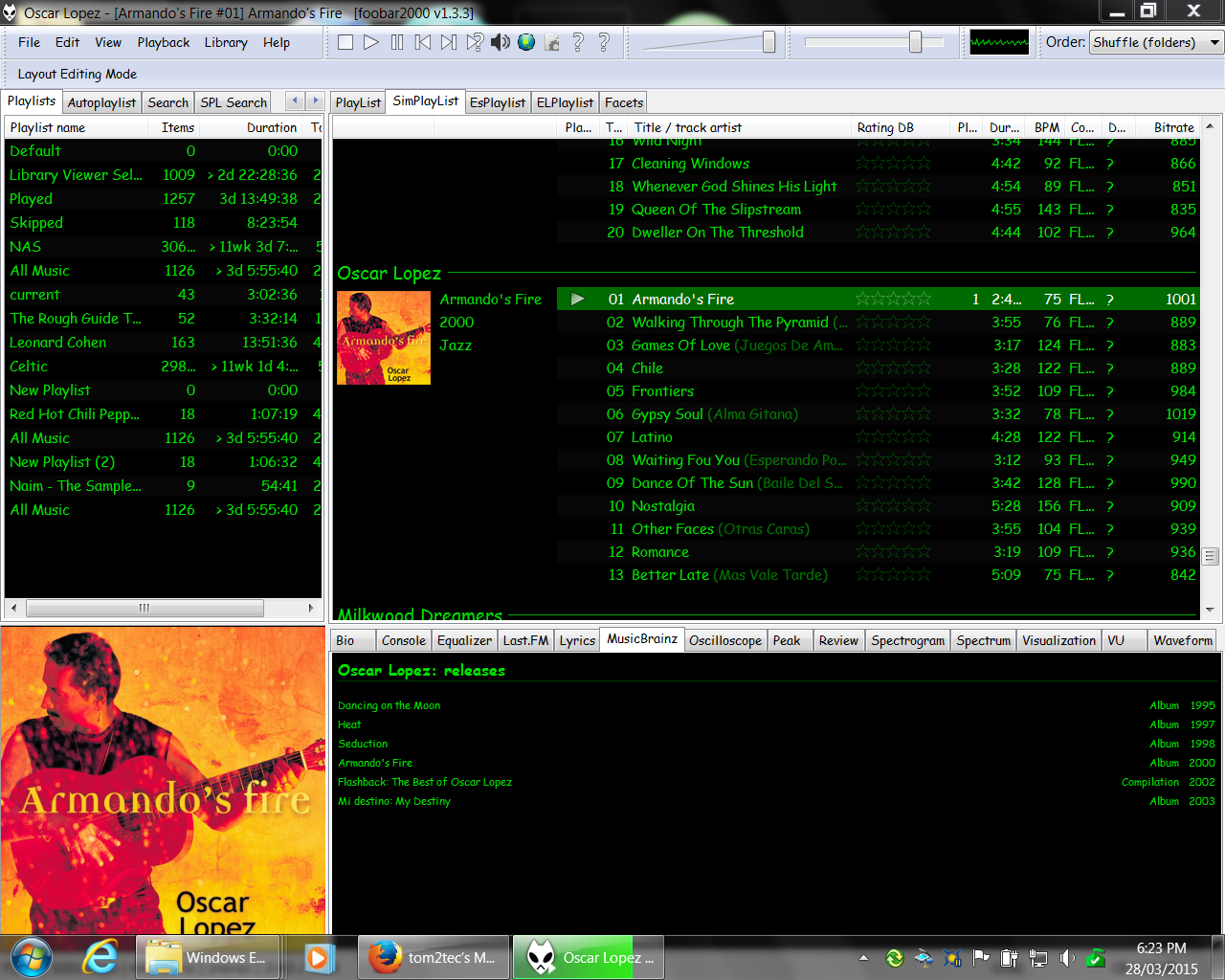
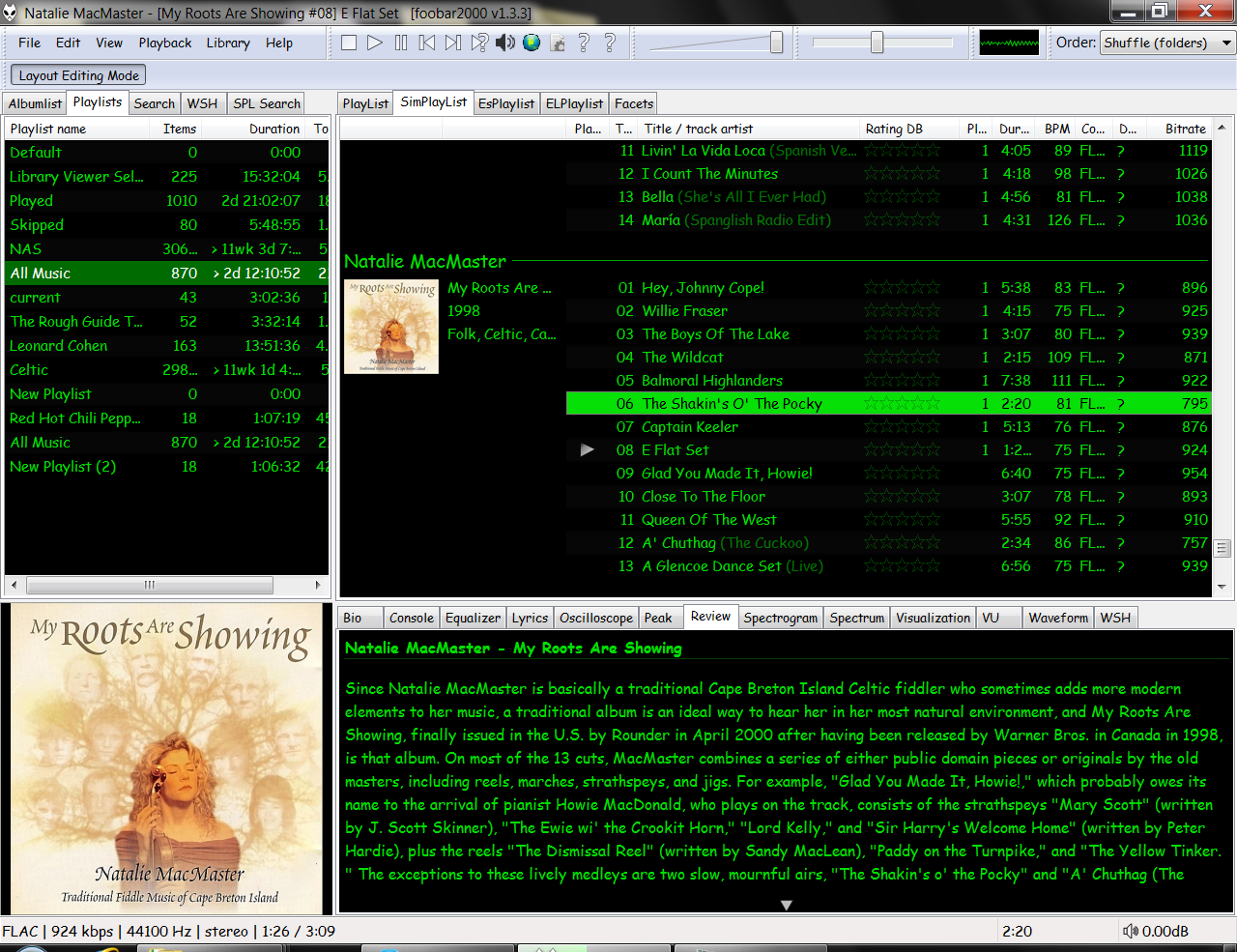
Foobar2000 Playlist Viewers display the current playlist of songs. Different playlist viewers offer various capabilities such as formatting, grouping and visual options. A playlist viewer is usually the central panel and main focus of a Foobar2000 interface. Foobar2000 plays the next song of the current playlist unless the play order has been changed from default, to repeat, random or shuffle. There is a playback queue but it is not visible or used in normal operation.

foobar2000-simplaylist-groups-v1
SimPlaylist

Adding a custom column to a playlist view: (using play count as an example)

  • When adding a column view in a playlist, you’ll need to define the column first.
  • Navigate to Preferences > Display > Default User Interface > Playlist View > Custom Columns
  • at the bottom of the custom columns windows, click “Add new‘
  • Name the Column “Played‘ and %play_count% as the ‘pattern’
  • click apply, ok
  • Now right click the title bar of the playlist and select “Columns” and make sure ‘Played‘ is selected (checkmarked) and that you can see the column in the playlist, it will be last but you can rearrange it.

Resources:

Configuring the default playlist viewer

Foobar2000 ~ How To Install A Component


Add-on components greatly extend the appearance and functionality of Foobar2000.

  1. Open the Foobar Preferences dialog (File | Preferences or press CTRL+P)
  2. Go to the Components page  (click components at the top of the list)
  3. Click the “Install…” button and select the component archive (zip) file, or drag the component’s file to the Installed components list box.
  4. Press “OK“, you will be prompted to restart foobar2000 in order to load the newly installed component.
  5. If the component has a visual element, you’ll need to add the component to the DUI (Default User Interface) now. Toggle View\Layout\Enable Layout Editing Mode and then add a new panel or tab. Right click the new panel or tab area and select “Add New UI Element …“, then select the new component from the list. You may need to adjust borders to fit. Exit layout mode.
foobar - preferences - components - install

Foobar2000: How to install a component

Additional Resources:

List Of Foobar Components

New Feature Monitor ~ foo_whatsnew

Foobar2000 ~ DADA Automatic Song Rating


Date and duration adjusted (DADA) auto-rating algorithm for foobar2000

The DADA Auto-Rating algorithm (DAR) automatically rates music according to a variety of statistics collected by foobar2000’s official “playback statistics” plugin.

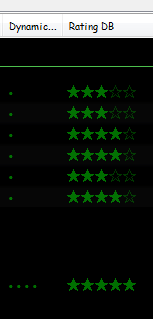
If done well, an auto-rating algorithm will simply tell you what your favorite (and conversely, least favorite) music is, and the rating will be derived from and reflect actual listening behavior. This is quite different from manual ratings (e.g. 1 – 5 stars set by the user), since there’s very often a disparity between what we’d like ourselves to like, and what we actually like. For those interested in uncovering their actual musical tastes, a good auto-rating formula can be quite illuminating.

Foobar - Ratings and DAR - cropped

www.giantpygmy.net/studio/?post=dada-music-auto-rating-algorithm-foobar2000
Hydrogen Audio Discussion

foo_input_usf ~ Foobar Plays Nintendo 64


foo_input_usf is an input plugin for Foobar2000.

USF is a format which allows emulation of the sound of an Nintendo 64, which would allow (almost) perfect replication of the music in games. USFs are then played through a player, with a suitable plugin, which allows it to be played.

https://www.foobar2000.org/components/view/foo_input_usf

foo_jesus ~ Saves Foobar2000 Configurations


One of the first Foobar components to consider installing is foo_jesus. This component automatically saves your current configuration and creates backup copies on a regular basis. If you have a problem, or a regret, you can easily restore Foobar to an earlier state.

Adds submenu: File>Preferences>Advanced>Autosave & Autobackup
Backs up to: \Users\username\AppData\Roaming\foobar2000\autobackup

www.foobar2000.org/components/view/foo_jesus
Discussion ~ Hydrogen Audio

Next: Adding Panels To The Default User Interface

My Current Foobar Interfaces ~ Default User Interface (DUI)