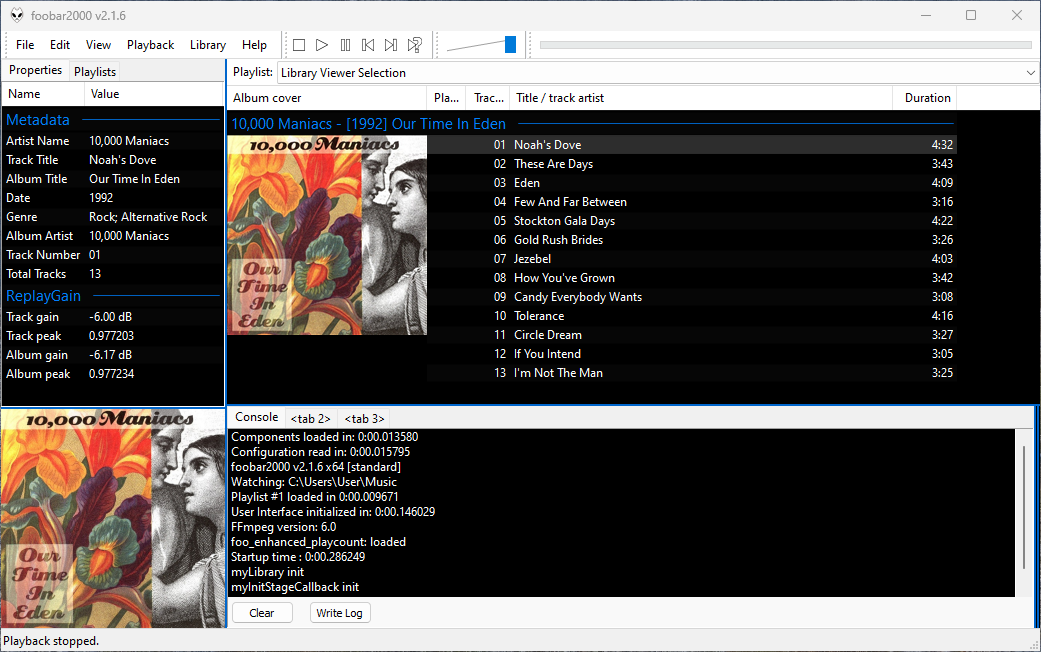
foobar has a diagnostic console that displays confirmations, events and error messages. The console can be accessed via the View > Console submenu or a panel or tab can be assigned to it.
Steps to add a Console Display panel or tab
Create a new area with a splitter or add a new Tab and select it.
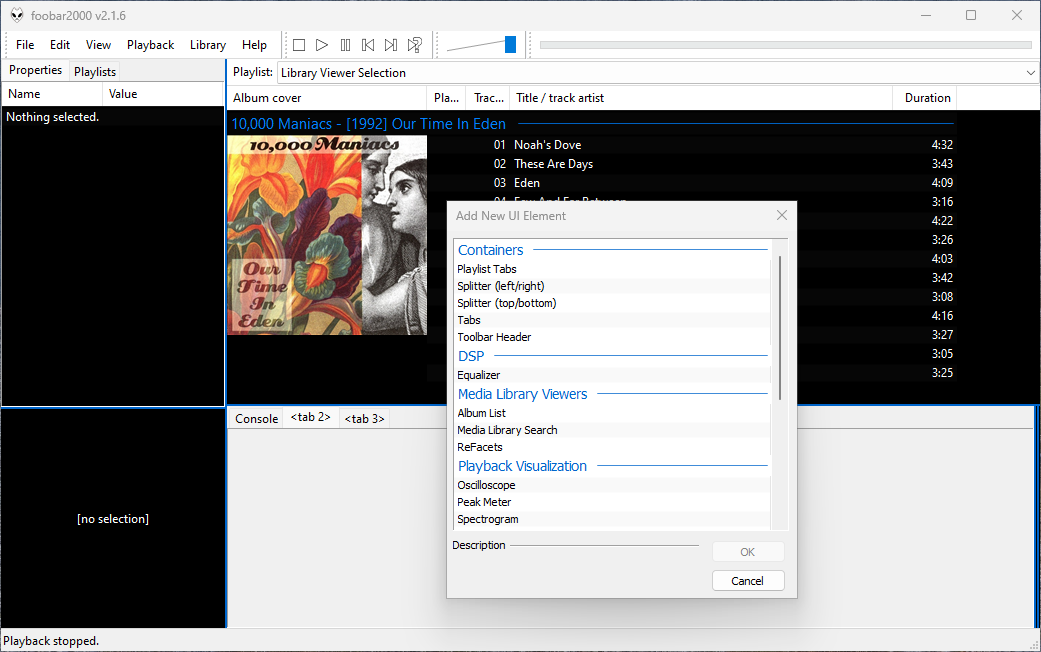
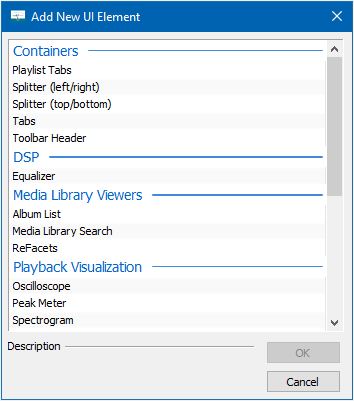
Right-click the blank area or new tab area and choose Add New UI Element.
Navigate down to the Utility section and select Console and click Ok.
For tabs, right-click the tab header and choose Rename Tab. Provide a descriptive name like “Console” or “Diagnostics”.
Toggle Layout Editing Mode off.
The console display can be toggled to read from the left or the right sides.
Note for Columns User Interface (CUI) Users
If you are using the Columns User Interface (CUI), you will need the foo_ui_console component:
Tabs are a row of individual containers selectable by a tab at the top of the parent container. Tabs are used to display a number of different panels in the same area.
Adding and Customizing Tabs in Foobar2000 DUI
Open the View menu in the top menu bar.
Select Layout > Enable Layout Editing Mode.
Add a Splitter if necessary
Right-click the area where you want to insert tabs.
Select Add New UI Element from the context menu.
Choose Tabs from the list of available elements and click ok.
Right-click the newly created top tab row and select Add Tab to create a new tab or name the tabs.
Add Content to Tabs:
Inside each tab, right-click and select Add New UI Element to insert components such as the Console, Equalizer, or Visualizations, etc.
Finalize Your Layout:
After configuring the tabs and naming them, return to the View menu and deselect Enable Layout Editing Mode.
Tip: The mouse wheel switches tabs when hovering over the tab row.
Before some foobar2000 components can be utilized, the component’s visual interface must also be added to the Default User Interface in order to be seen or interacted with. It just takes a few steps to add new panels and interfaces to foobar2000.
Step 1: Open the Layout Editor
Click on View in the foobar2000 menu bar
Select Layout → Enable Layout Editing Mode
A checkmark indicates that layout editing mode is enabled.
Step 2: Choose the location for the new panel
First Right-click on the area where you want to add a new panel.
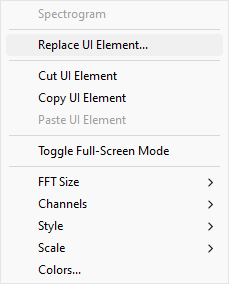
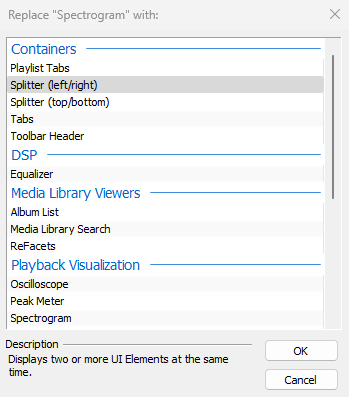
Then select Replace UI Element from the context menu.
A submenu will allow you to choose the splitter orientation:
Splitter (left/right): Divides the area into two vertical sections, side by side.
Splitter (top/bottom): Divides the area into two horizontal sections, stacked one above the other.
Select the desired orientation and click OK.
The new splitter will now divide the selected area into two sections. Splitters can be moved by by dragging.
Step 3: Add a new panel
After adding the splitter, right-click on the new empty white section.
The selected panel will now appear in the designated section.
Select Add New UI Element from the context menu.
A dialog will appear with a list of available UI elements. Examples include:
Playlist View: Displays your playlists.
Album List: Provides a tree view of your library.
Vu Meter: Adds a VU meter.
Choose the panel you want to add and click OK.
Step 4: Customize the new panel
Right-click on the newly added panel to access its specific settings (e.g., appearance, behavior).
If additional configuration is required, check the panel’s settings in the Preferences menu:
Go to File → Preferences.
Navigate to the corresponding section under Display or Components.
Step 5: Save the layout
When you’re satisfied with the changes, click on the yellow bar at the top and choose Apply Layout.
To save the layout permanently:
Go to View → Layout → Save Layout.
Provide a name for the layout for easy restoration later.
Step 6: Install additional panels (Optional)
If the desired panel isn’t available, you may need to install third-party components:
Download components from the official foobar2000 components repository: foobar2000 Components.
Install the component:
Go to File → Preferences → Components.
Click Install and select the downloaded .fb2k-component file.
Restart foobar2000.
After installation, repeat Step 3 to add the new panel.
Working with panels or splitters:
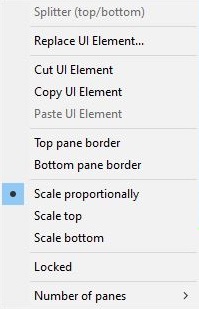
Right mouse clicking on any UI Element brings up the context submenu.
Scatchbox Mode:
View > Layout > Create Scratchbox
Opens a window which acts like the user interface allowing for splitter, tabs and UI elements to be prearranged. Themes can also be loaded, edited and saved.
Key Concepts: Splitters divide areas to create new spaces called containers Containers are then populate by either a tabbed container or with UI Elements Tabbed containers are also then populated by UI Elements
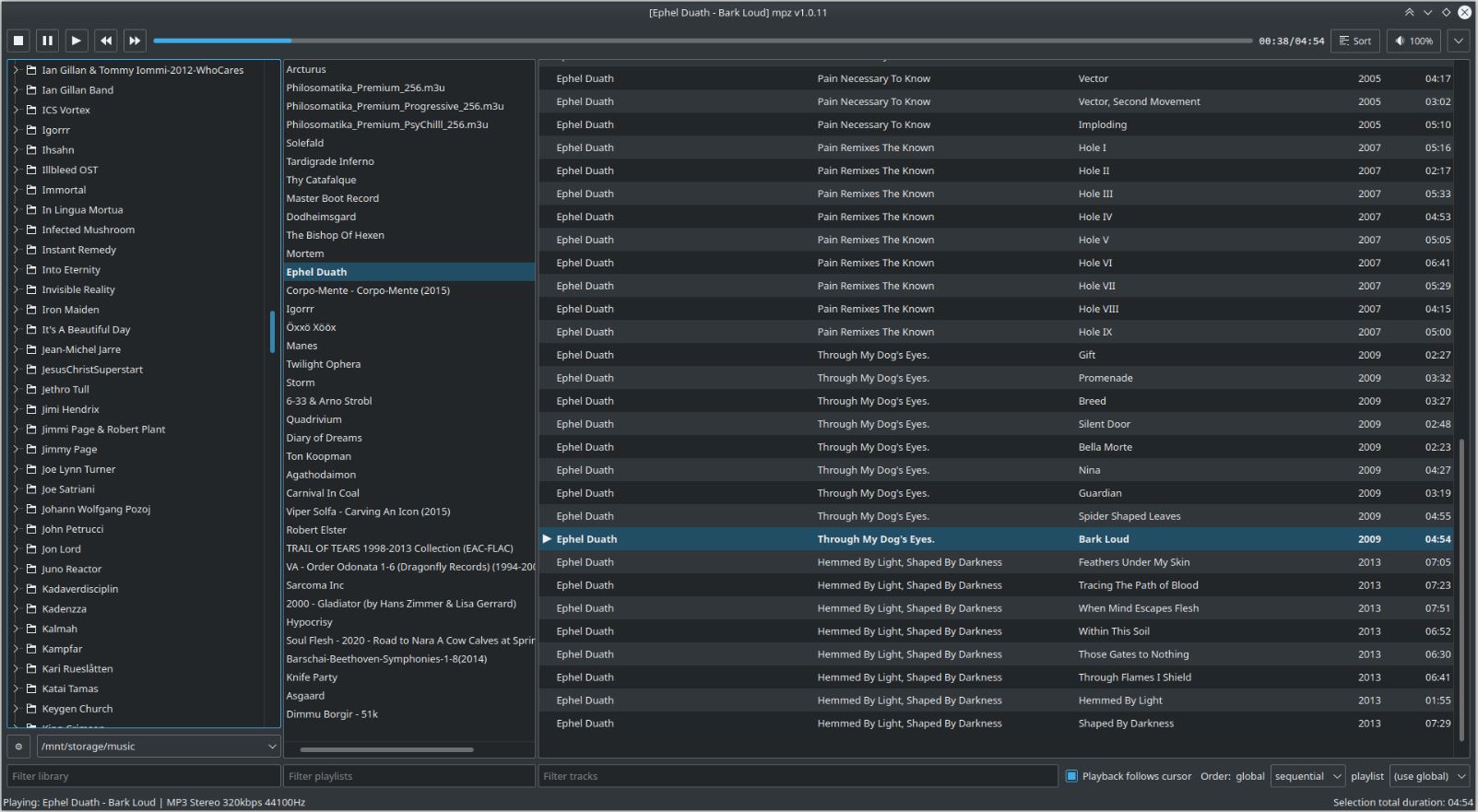
Features 3 columns UI: directory tree (aka library), playlists and tracks from selected playlist. Middle-click on folder or track in the directory view and it will become a playlist an its content will be loaded into tracks view. Create multiple playlists from folders in your library and switch between them quickly. Similar to “Album list” in Foobar2000.
Ecoute was designed in order to be easy to use in any circumstances. We focused on artworks for the main view so you can make your choice more easily. Any item handles a long-press action and brings cool options to facilitate your navigation. Quickly jump on the now playing artist or album and select an other song you wish to listen next. We also rebuilt the standard iOS navigation system from the ground up so you can quickly select / go back while a transition occurs. Moreover, as Ecoute doesn’t need any pull-to-refresh, we decided to use the same principle for the search. Just pull down the current list and the search bar will appear in the coolest way ever.
Wax is a program for cataloging and playing a collection of music recordings. Wax is able to rip CDs and import downloads so that you can create a sound archive complete with metadata.
Wax is fundamentally different from existing music managers in two important ways. First, the fundamental unit for recordings is a “work”, not a track. A work is usually a collection of tracks. It can encapsulate whatever tracks you choose. In pop music, a work can be an album. For symphonic music, a work can be a single symphony, even when the tracks come from a CD with more than one symphony. For operas, a work can be a single opera even when the tracks come from multiple CDs. Music collectors usually think in terms of works, so a music manager that supports the concept makes operation more natural.
The other distinguishing characteristic of Wax is that genres are fundamental to the organization of a collection rather than a mere attribute of a track. Wax recognizes that the ideal way to catalog works varies by genre. For example, symphonic works can be cataloged by composer, work, conductor whereas shows can be cataloged by show, composer, lyricist. By organizing collections around genres, Wax supports an operation sequence that is natural for music lovers: first select the genre, then the work, and finally the tracks.
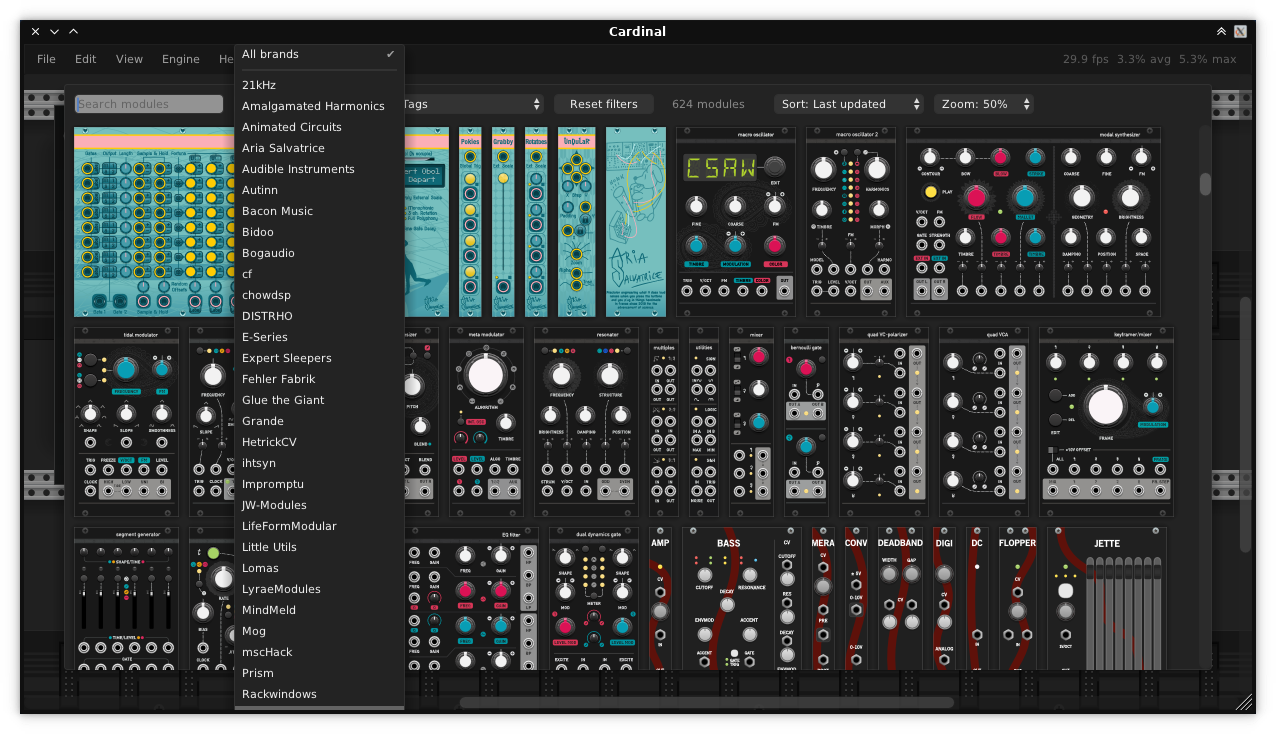
A fully free and self-contained modular synthesizer based on the popular VCV Rack. Available in AudioUnit/CLAP/LV2/VST2/VST3 plugin formats and as a standalone app for FreeBSD, Linux, macOS, Windows and the Web.
Recognize any music from any website in your browser. Install the AudD extension and click on its icon to identify the song playing on the current tab.
The AudD extension:
Recognizes the music playing in your browser
Finds music in the AudD database with more than 80 million songs using its music recognition technology
Shows lyrics for identified songs
Shows links to listen to the songs on Apple Music, Spotify, Deezer, YouTube Music
Displays the exact moment in the recognized song when the sound from the browser is played






 , Mac OSX
  and Windows







 The Audio File