Modern Flyouts ~ Windows Volume Flyout


This application aims to provide a Fluent Design System based replacement for the old, built-in, Metro Design based Audio/Airplane mode/Brightness flyouts in Windows which are shown while pressing the media or volume keys or even the brightness keys or when airplane/flight mode is toggled.

In case of Windows 11, this application will have the same UI but will provide additional features and customizability compared to the built-in redesigned flyouts.

github.com/ModernFlyouts-Community/ModernFlyouts
modernflyouts-community.github.io

Deej ~ Hardware Volume Mixer


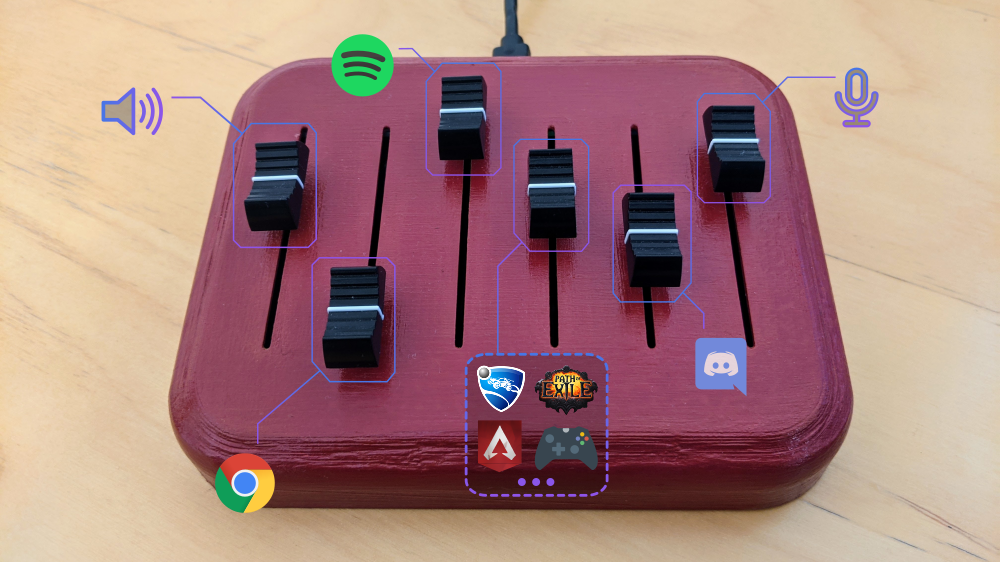
deej is an open-source hardware volume mixer for Windows and Linux PCs. It lets you use real-life sliders (like a DJ!) to seamlessly control the volumes of different apps (such as your music player, the game you’re playing and your voice chat session) without having to stop what you’re doing.

red deej hardware with five sliders

github.com/omriharel/deej

FluentFlyout ~ Windows Audio Flyout


FluentFlyout is a simple and modern audio flyout for Windows, built with Fluent 2 Design principles. The UI seemingly blends in with Windows 10/11, providing you an uninterrupted, clean, and native-like experience when controlling your media.

FluentFlyout features smooth animations, blends with your system’s color themes, includes multiple layout positions and a suite of personalization settings while providing media controls and information in a nice and modern looking popup flyout.

Features:

  • Native Windows-like design
  • Uses Fluent 2 components
  • Utilises Windows Mica blur
  • Supports Light and Dark mode
  • Matches your device color theme
  • Smooth animations
  • Customizable flyout positions
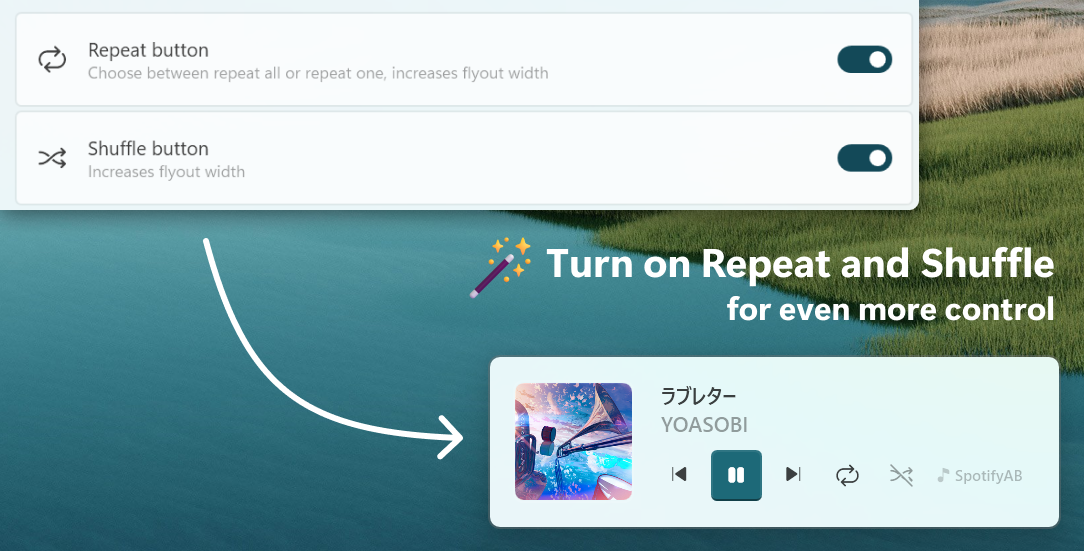
  • Includes Repeat All, Repeat One and Shuffle
  • Listens to both volume and media inputs
  • Sits unobtrusively in system tray
  • Audio flyout: Displays Cover, Title, Artist and media controls
  • “Up Next” flyout: shows what’s next when a song ends
  • Lock Keys flyout: displays the status of lock keys at a glance

github.com/unchihugo/FluentFlyout

audiovolumesyncer ~ Sync Output Device Volumes


Use this application to sync the volume of several audio playback devices.

sourceforge.net/projects/audiovolumesyncer

GVolWheel ~ Linux Volume Control


GVolWheel is a Linux application which lets you control the volume easily through a tray icon you can scroll on. Easily integrate with minimal desktops (Openbox,IceWM,XFCE etc).

github.com/Junker/gvolwheel

Volume²~ Advanced Windows Volume Control


Volume² is an freeware app which is an advanced Windows volume control, a complete replacement for the default Volume Control on Windows. This application lets you easily change the sound volume just by rotating the mouse wheel or by using keyboard hot keys or just mouse move on screen border. The app comes with customization themes and interface and also other options like setting hotkey for changing volume.

irzyxa.blogspot.com
github.com/irzyxa/Volume2

Quiet on the Set ~ Windows Volume Limiter


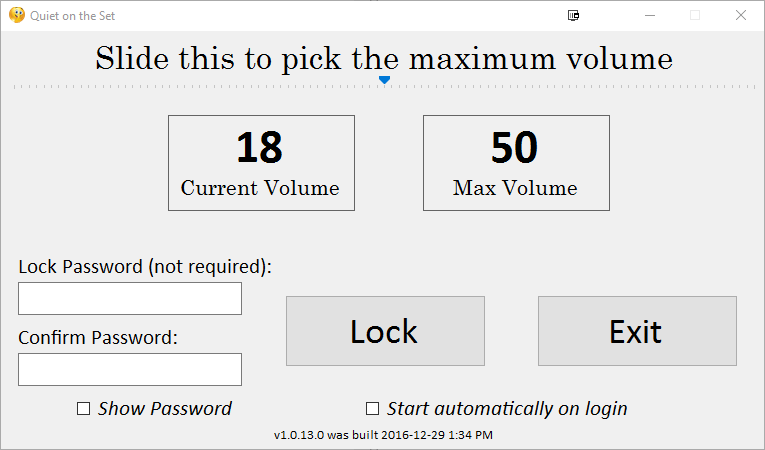
Prevent someone from turning up the volume on a Windows machine beyond a maximum volume.

This is a very simple Windows Forms application that lets you set a maximum value on for your volume, and then lock the setting so that a user cannot change the volume.

Disclaimer: This app is primarily geared toward young/special needs children. The “lock” provides a basic level of control, but it could be easily bypassed by someone with technical knowledge.

github.com/troylar/quiet-on-the-set

AppAudioConfig ~ Audio App Registry Editor


Starting from Windows Vista, you are allowed to change the sound volume of every application separately, and after you exit from the application, the last settings are saved in the Registry under:

HKEY_CURRENT_USER\Software\Microsoft\InternetExplorer\LowRegistry\Audio\PolicyConfig\PropertyStore 

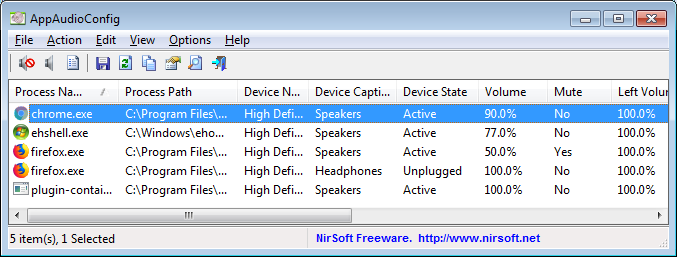
So the next time you run the application, your last settings are used. This tool displays your current audio settings of every application on your system, and allows you to easily change the setting of multiple applications at once. You can change the mute/unmute status, the sound volume level, and the right/left audio balance of the application.

www.nirsoft.net/utils/app_audio_config

MicMute ~ Windows Microphone Level Utility


MicMute is a small program that will enable you to easily manage the level of a connected microphone. The application also supports push-to-talk thanks to the built-in ‘Transmitter Mode’. While it runs minimized in the system tray, MicMute can be controlled through keyboard shortcuts you choose. The software uses tray notification balloons and it also has a sound signal option you can activate.

sourceforge.net/projects/micmute

Free Clip ~ Transparently Boost Volume


Free Clip is an intuitive multi algorithm soft clipper / wave shaper plugin, available as a Windows VST or Mac Audio Unit. The plugin allows you to choose between a range of wave shapes or ‘sigmoid functions’, from the most transparent but harshest hard clip, to the ‘softest’ but most saturated arctangent shape. You can then intuitively set the ceiling level using the slider that perfectly matches the level meter next to it. Oversampling is also available to remove high frequency aliasing; when oversampling is on this does introduce peaks slightly over the ceiling level however, so if you intend to use this plugin with oversampling as the final plugin on the master chain, ensure the ceiling level is set appropriately and/or the post-oversampling clip setting is set.

This plugin is a great way to conveniently transparently boost volume without clipping your DAW, whether it be an individual stem or sound effect, or an entire track that you made. It is recommended that the hardclip, quantic or cubic shape be used for mastering, as these introduce no or minimal saturation.

The plugin can be also used as a more traditional saturation / distortion plugin by setting a ‘softer’ wave shape, such as algebraic or arctangent – simply lower the ceiling level to provide more saturation to the signal – just remember to boost the output afterwards. Alternatively you can boost the input gain into the clipper for the same effect. In this case, increasing the oversampling value is helpful if you’re hearing high frequency aliasing! Be warned that high oversampling values such as 16 or 32 times can be very heavy on the CPU.

gitlab.com/JHVenn/Free-Clip

AudioSwitch ~ Taskbar Volume & I/O Switch


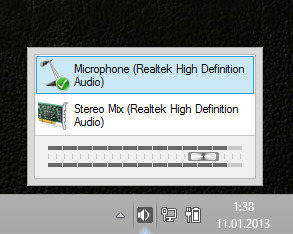
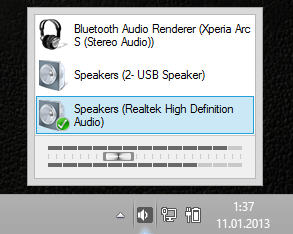
Switch between default audio input or output + change volume.

github.com/sirWest/AudioSwitch

www.facebook.com/AudioSwitchSoftware

Volume Limiter ~ Lock MS Windows Volume Control


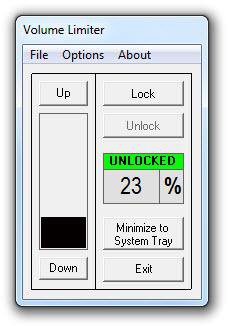
Volume Limiter is a small application that allows you to set a maximum volume limit on your windows PC. This is designed to protect children from turning the volume up to a level that would damage their hearing.

The application can be password protected to prevent children from changing your defined limit. The application runs in the background and minimizes to the system tray. Volume settings, the lock or unlocked status, and password information are stored in the windows registry. If the application is set to start up upon login (by placing it in the startup group) it will load the previous settings.

This application is compatible with Windows Vista, 7 and 8 and will run on 32 bit or 64 bit systems.

Features:
  • Can be password protected
  • Volume level and lock status auto-saved to registry
  • Minimizes to system tray rather than task bar
  • Lightweight (Uses 2MB of system RAM when running)

https://sourceforge.net/projects/volumelimiter/