Another type of Foobar2000’s playlists are randomly generated autoplaylists where songs, or groups of songs, are selected randomly from a pool of the same. By predefining a subset of a media library, “pools” of refined selections can be created and then drawn from.
foo_random_pools is a foobar2000 component for creating random playlist entries selected and grouped by various pool definitions.
Let’s say you want a playlist of random blues albums from your library.
First you’ll need to install the foo_random_pools component.
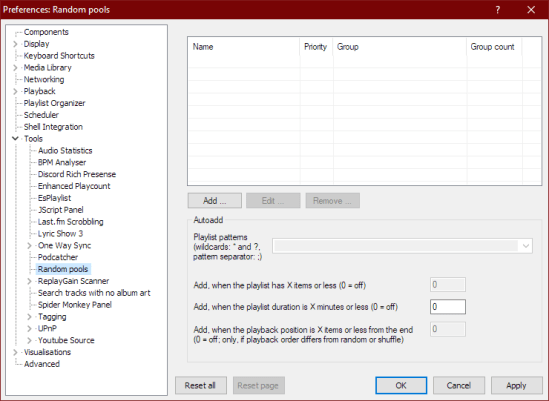
After you’ve installed foo_random_pools, you’ll need to set up a pool in the File > Preferences > Tools > Random pools sub-menu.
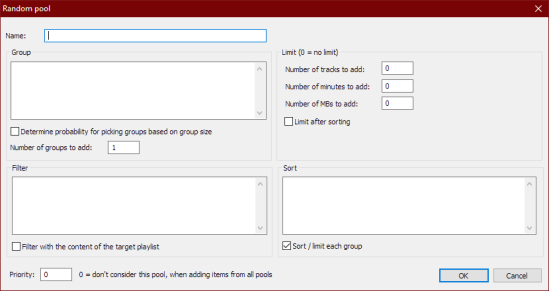
You’ll need to select the “Add …” button which brings up the Random pool criteria form.For example to make a pool of blues albums use the following criteria:
Name: Album – All Blues
Group: %album artist% – %date% – %album%
Determine probability for picking groups …: Unchecked
Number of groups to add: 1
Filter: (NOT %album artist% IS “Various Artists”) AND (%genre% HAS Blues)
Filter with the content of the target playlist: Unchecked
Number of tracks to add: 0
Number of minutes to add: 0
Number of MBs to add: 0
Limit after sorting: Unchecked
Sort: %path%
Sort / limit each group: Checked
Priority: 10
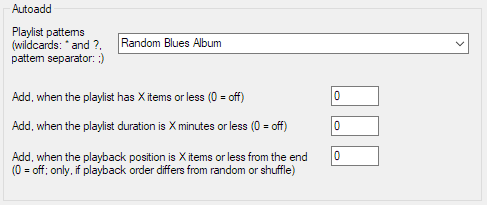
Now you have to link pools to a playlist by specifying a name in the Autoadd section’s Playlist patterns field of the Random pools preferences menu.
Create a new playlist, File>New Playlist Ctrl+N, and name it “Random Blues Album” and then select and display it.
To add a random blues album to the playlist, select File > Random pools > Album – All Blues. Each time it’s selected, another random blues album will be added to the playlist.
A digital signal processor that makes dull songs sound sharper, as in brighter.
Strictly speaking, nobody really needs this DSP. It’s just that some people like the effect. If you want to compensate deficiencies in your playback equipment or listening environment, the convolver or the equalizer are more appropriate tools. ~ HA post
There are four interrelated DSPs enclosed, only use the last one, Noise Sharpening.
Noise sharpening can/should be used alone. ~ HA post
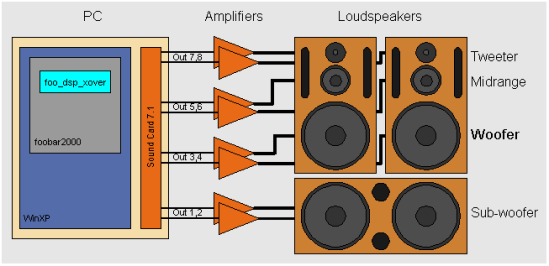
foo_dsp_xover is a software digital crossover implementation that I have been working on for a while in my spare time as a hobby. It is a Foobar2000 audio player plugin that implements this digital crossover to achieve active multi-amplification.
This software needs to run on a WinXP PC equipped with a multi-channel sound card (e.g. 5.1 or 7.1 surround sound card) feeding the various voices of a multi-amplifier and loudspeaker active configuration set-up.
Listing of specialized output components that extend Foobar2000 in order to interface directly with system hardware or software output devices. Some of these are already installed by default and the remainder should be installed as needed.
By default foobar2000 uses the Windows Audio Session API (WASAPI) output in shared mode on modern versions (v1.6 and later). This means foobar2000 sends audio through the standard Windows audio stack using WASAPI unless you explicitly select another output (like WASAPI exclusive, ASIO with a plugin, or other output components).
The built in outputs and all installed output components can be selected from in the Preferences: Playback > Output > Device submenu.
Exclusive mode (in the context of foobar2000 and Windows audio) means that the player takes sole control of the audio device, bypassing the Windows system mixer for the duration of playback.
Here is what that entails, factually and practically:
What happens in exclusive mode
The audio device is locked to foobar2000 while playback is active.
No other application can play sound through that device at the same time.
Audio data is sent directly to the driver via WASAPI Exclusive (or ASIO), without Windows resampling or mixing.
The device switches to the exact sample rate and bit depth of the track being played, if the driver supports it.
How this differs from shared mode
In shared mode, Windows mixes audio from multiple applications and resamples everything to the format set in Windows Sound → Device Properties → Advanced.
In exclusive mode, Windows’ mixer is bypassed entirely, so there is no system-level resampling, mixing, or volume processing.
Technical implications
Enables bit-perfect playback, assuming no DSPs or volume scaling are active in foobar2000.
Prevents interference from system sounds, notifications, or browser audio.
Reduces latency and avoids format conversions imposed by the OS mixer.
Trade-offs and limitations
System sounds and other apps will be silent while exclusive playback is active.
If an application already has exclusive control, foobar2000 cannot start playback on that device.
Some USB DACs and Bluetooth devices have limited or unstable exclusive support, depending on drivers.
Exclusive mode does not improve audio quality if the DAC or downstream hardware already resamples internally.
Right click in the new area and select “Add New UI Element…“
Select “Spider Monkey Panel” in the Utility section
You should now see a blank Spider Monkey panel and the message “Click here to open editor.“
Click on the panel to open the editor and click the “Files” button and select “Import” and navigate to the biography script folder, select the script file “biography.x.x.x.js” and click “Open“
foobarCon is a Foobar2000 remote control app for Android. foobarCon needs Foobar2000 components to be installed for proper operation. There are basic and pro editions on Google Play and both are now free.

 For example to make a pool of blues albums use the following criteria: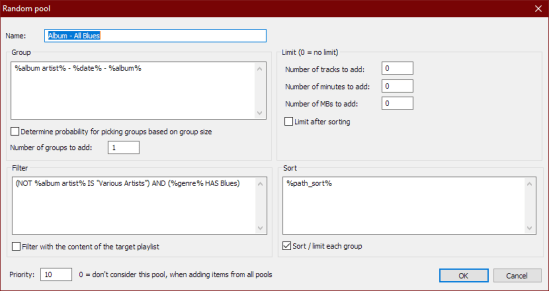










 The Audio File