Show full script
'use strict';

/*
====================================================
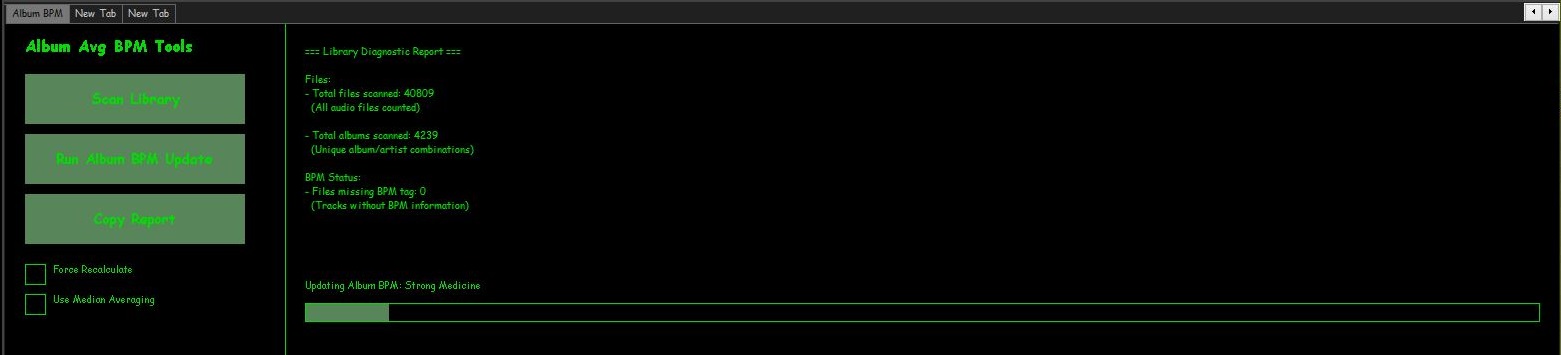
Album Average BPM Panel - FULL PRO v5
- Immediate feedback for buttons
- Status line in report section
- Progress bars appear immediately
- Logs skipped files
- Inconsistent albums listed
====================================================
*/

function RGB(r,g,b){ return (0xff000000 | (r<<16) | (g<<8) | b); }

////////////////////////////////////////////////////
// TitleFormats
////////////////////////////////////////////////////
const tf_album = fb.TitleFormat("%album%");
const tf_albumArtist = fb.TitleFormat("%album artist%");
const tf_artist = fb.TitleFormat("%artist%");
const tf_bpm = fb.TitleFormat("%bpm%");
const tf_existing = fb.TitleFormat("%album_avg_bpm%");

////////////////////////////////////////////////////
// UI Colours + Font
////////////////////////////////////////////////////
function getUIColours(){
    try{
        return { bg: window.GetColourDUI(1), text: window.GetColourDUI(0), accent: window.GetColourDUI(2) };
    }catch(e){
        return { bg: RGB(30,30,30), text: RGB(255,255,255), accent: RGB(0,200,0) };
    }
}

function getUIFont(){ try{ return window.GetFontDUI(0); } catch(e){ return gdi.Font("Segoe UI",13,0); } }

////////////////////////////////////////////////////
// Library cache
////////////////////////////////////////////////////
let libHandles = null;
function loadLibraryOnce(){ if(!libHandles) libHandles = fb.GetLibraryItems(); }

////////////////////////////////////////////////////
// State
////////////////////////////////////////////////////
let runningUpdate=false;
let reporting=false;
let updateIndex=0, updateTimer=0;
let reportIndex=0, reportTimer=0;
let currentAlbum="Idle", currentFile="";
let updates=0;

let totalFiles=0, totalAlbums={};
let missingBPM=0, zeroBPM=0, missingAlbumAvg=0;
let minBPM=999999, maxBPM=0;
let albumConsistency={}, inconsistentAlbums=0;
let skippedFiles=[];

let forceRecalc=false, useMedian=false;

////////////////////////////////////////////////////
// Layout
////////////////////////////////////////////////////
const LEFT_WIDTH = 280;
const buttonScan={x:20,y:50,w:220,h:50};
const buttonUpdate={x:20,y:110,w:220,h:50};
const buttonCopy={x:20,y:170,w:220,h:50};
const checkboxForce={x:20,y:240,size:20};
const checkboxMedian={x:20,y:270,size:20};

////////////////////////////////////////////////////
// Album BPM Update Logic
////////////////////////////////////////////////////
let albumsMap=[];

function buildAlbums(){
    loadLibraryOnce();
    albumsMap = [];
    let map={};

    for(let i=0;i400) continue; // Filter extreme BPMs

        let groupingArtist = albumArtist ? albumArtist : artist;
        let key = groupingArtist+"|||"+album;

        if(!map[key]){
            map[key]={ handles:new FbMetadbHandleList(), sum:0, count:0, hasExisting:true, existingValues:{} };
        }

        map[key].handles.Add(h);
        map[key].sum += bpm;
        map[key].count++;

        let albumAvg = tf_existing.EvalWithMetadb(h);
        if(albumAvg) map[key].existingValues[albumAvg]=true;

        if(!albumAvg) map[key].hasExisting=false;
    }

    albumsMap = Object.values(map);
}

function stopUpdateTimer(){ if(updateTimer){ window.ClearInterval(updateTimer); updateTimer=0; } }

function processUpdateNext(){
    if(!runningUpdate) return;

    if(updateIndex>=albumsMap.length){
        runningUpdate=false;
        stopUpdateTimer();
        currentAlbum="Finished";
        fb.ShowPopupMessage("Album BPM Update Finished. Updated Albums: "+updates);
        window.Repaint();
        return;
    }

    let data = albumsMap[updateIndex++];
    currentAlbum = tf_album.EvalWithMetadb(data.handles[0]);

    // Determine if update needed
    let inconsistent = Object.keys(data.existingValues).length > 1;
    if(!forceRecalc && !inconsistent) return;

    let avg=0;
    if(useMedian){
        let arr=[];
        for(let i=0;i<data.handles.Count;i++){
            let val=parseFloat(tf_bpm.EvalWithMetadb(data.handles[i]));
            if(!isNaN(val) && vala-b);
        let mid=Math.floor(arr.length/2);
        avg = arr.length%2===0 ? (arr[mid-1]+arr[mid])/2 : arr[mid];
    }else{
        avg = data.sum / data.count;
    }
    avg = avg.toFixed(2);

    let json=[];
    for(let i=0;i<data.handles.Count;i++){
        try{
            json.push({"ALBUM_AVG_BPM":avg});
        }catch(e){
            skippedFiles.push(data.handles[i].Path);
        }
    }

    try{
        data.handles.UpdateFileInfoFromJSON(JSON.stringify(json));
        updates++;
    }catch(e){
        for(let i=0;i0){
        currentAlbum = tf_album.EvalWithMetadb(albumsMap[0].handles[0]);
    }

    window.Repaint();
    updateTimer = window.SetInterval(processUpdateNext,100);
}

////////////////////////////////////////////////////
// Report Logic
////////////////////////////////////////////////////
let reportText="Press Scan Library.";

function stopReportTimer(){ if(reportTimer){ window.ClearInterval(reportTimer); reportTimer=0; } }

function processReportNext(){
    if(!reporting) return;
    let batch=500;

    for(let c=0;c<batch && reportIndex0){
                if(bpmmaxBPM) maxBPM=bpm;
            }
        }
        if(!albumAvg) missingAlbumAvg++;

        if(!albumConsistency[key]) albumConsistency[key]={};
        if(albumAvg) albumConsistency[key][albumAvg]=true;

        currentFile = groupingArtist+" - "+album;
    }

    if(reportIndex>=libHandles.Count){
        reporting=false;
        stopReportTimer();

        inconsistentAlbums=0;
        let inconsistentList=[];
        for(let k in albumConsistency){
            let vals=Object.keys(albumConsistency[k]);
            if(vals.length>1){
                inconsistentAlbums++;
                if(inconsistentList.length0?inconsistentList.join("\n"):"None"}

Skipped / Inaccessible Files:
${skippedFiles.length>0?skippedFiles.join("\n"):"None"}

Current Status: Idle

BPM Range:
- Lowest BPM found: ${minBPM===999999?"N/A":minBPM}
- Highest BPM found: ${maxBPM}`;
    }

    window.Repaint();
}

function startReport(){
    if(reporting) return;
    loadLibraryOnce();
    reportIndex=0;
    totalFiles=0; totalAlbums={};
    missingBPM=0; zeroBPM=0; missingAlbumAvg=0;
    minBPM=999999; maxBPM=0; albumConsistency={};
    skippedFiles=[];

    reporting=true;
    reportText="Scanning library...";

    // show first file immediately
    if(libHandles.Count>0){
        currentFile = tf_album.EvalWithMetadb(libHandles[0]) || "(No Album)";
    }

    window.Repaint();
    reportTimer = window.SetInterval(processReportNext,10);
}

////////////////////////////////////////////////////
// Drawing
////////////////////////////////////////////////////
function drawButton(gr,b,label,ui,font){
    gr.FillSolidRect(b.x,b.y,b.w,b.h,ui.accent);
    gr.DrawString(label,gdi.Font(font.Name,14,1),ui.text,b.x,b.y,b.w,b.h,0x11000000);
}

function drawCheckbox(gr,c,label,state,ui,font){
    gr.DrawRect(c.x,c.y,c.size,c.size,1,ui.text);
    if(state) gr.FillSolidRect(c.x+4,c.y+4,c.size-8,c.size-8,ui.accent);
    gr.DrawString(label,font,ui.text,c.x+28,c.y-2,300,24,0);
}

function on_paint(gr){
    let ui=getUIColours();
    let font=getUIFont();
    let titleFont=gdi.Font(font.Name,16,1);

    gr.FillSolidRect(0,0,window.Width,window.Height,ui.bg);

    // LEFT PANEL
    gr.DrawString("Album Avg BPM Tools",titleFont,ui.text,20,10,LEFT_WIDTH,30,0);
    drawButton(gr,buttonScan,"Scan Library",ui,font);
    drawButton(gr,buttonUpdate,"Run Album BPM Update",ui,font);
    drawButton(gr,buttonCopy,"Copy Report",ui,font);
    drawCheckbox(gr,checkboxForce,"Force Recalculate",forceRecalc,ui,font);
    drawCheckbox(gr,checkboxMedian,"Use Median Averaging",useMedian,ui,font);

    gr.DrawLine(LEFT_WIDTH,0,LEFT_WIDTH,window.Height,1,ui.text);

    // RIGHT PANEL - report text
    let statusText = reporting ? "Scanning: "+currentFile : runningUpdate ? "Updating Album BPM: "+currentAlbum : "Idle";
    let reportWithStatus = reportText.replace("Current Status: Idle","Current Status: "+statusText);

    gr.GdiDrawText(reportWithStatus,font,ui.text,
        LEFT_WIDTH+20,20,
        window.Width-(LEFT_WIDTH+40),
        window.Height-160,0); // leave 160px for progress bars

    // Progress bars
    const barHeight = 18;
    const margin = 8;
    const barYUpdate = window.Height - 2*barHeight - 2*margin;
    const barYScan   = window.Height - barHeight - margin;

    if(runningUpdate){
        let prog=Math.floor((updateIndex/albumsMap.length)*(window.Width-LEFT_WIDTH-40));
        gr.FillSolidRect(LEFT_WIDTH+20,barYUpdate,prog,barHeight,ui.accent);
        gr.DrawRect(LEFT_WIDTH+20,barYUpdate,window.Width-LEFT_WIDTH-40,barHeight,1,ui.text);
        gr.DrawString("Updating Album BPM: "+currentAlbum,font,ui.text,LEFT_WIDTH+20,barYUpdate-25,window.Width-LEFT_WIDTH-40,20,0);
    }

    if(reporting){
        let prog=Math.floor((reportIndex/libHandles.Count)*(window.Width-LEFT_WIDTH-40));
        gr.FillSolidRect(LEFT_WIDTH+20,barYScan,prog,barHeight,ui.accent);
        gr.DrawRect(LEFT_WIDTH+20,barYScan,window.Width-LEFT_WIDTH-40,barHeight,1,ui.text);
        gr.DrawString("Scanning: "+currentFile,font,ui.text,LEFT_WIDTH+20,barYScan-25,window.Width-LEFT_WIDTH-40,20,0);
    }
}

////////////////////////////////////////////////////
// Mouse
////////////////////////////////////////////////////
function on_mouse_lbtn_up(x,y){
    if(hit(buttonScan,x,y)) {
        startReport();
        reportText = "Scanning library...";
        currentFile = libHandles.Count>0 ? tf_album.EvalWithMetadb(libHandles[0]) || "(No Album)" : "Idle";
        window.Repaint();
    }
    if(hit(buttonUpdate,x,y)) {
        startUpdate();
        currentAlbum = albumsMap.length>0 ? tf_album.EvalWithMetadb(albumsMap[0].handles[0]) : "Preparing update...";
        window.Repaint();
    }
    if(hit(buttonCopy,x,y) && reportText){
        utils.SetClipboardText(reportText);
        fb.ShowPopupMessage("Report copied to clipboard.");
    }

    if(hitSquare(checkboxForce,x,y)){ forceRecalc=!forceRecalc; window.Repaint(); }
    if(hitSquare(checkboxMedian,x,y)){ useMedian=!useMedian; window.Repaint(); }
}

function hit(b,x,y){ return x>=b.x && x=b.y && y=c.x && x=c.y && y<=c.y+c.size; }











 The Audio File