
A foobar user interface element providing a seekbar that displays the waveform of the playing song, compatible with both the Default and the Columns interface components.

www.foobar2000.org/components/view/foo_wave_minibar_mod
- Download the component file (
foo_wave_minibar_mod.fb2k-component) - Open foobar2000
- Open the Preferences dialog using File → Preferences or the Ctrl + P shortcut
- Select Components in the left-hand pane
- Click the Install… button at the bottom of the Components page
- Browse to the downloaded component file, select it, and click Open
- Click OK or Apply to confirm the installation
- Restart foobar2000 when prompted
- After restart, open View → Layout → Enable Layout Editing Mode
- Right-click anywhere in the layout and choose Add New UI Element → Tabs (or Tab Stack, depending on your UI)
- Right-click the new tab and choose Add New UI Element → Seekbar → Waveform Minibar (mod)
- Resize the panel as needed so the waveform is clearly visible
- Exit layout editing mode using View → Layout → Disable Layout Editing Mode
- Play a track and allow the waveform to generate; it may take a few seconds on first playback
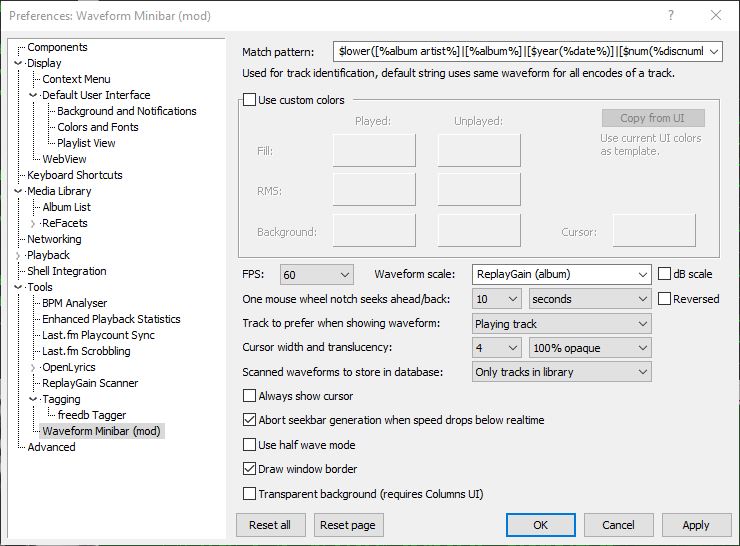
Options:
Match pattern
Title-formatting pattern used to identify tracks when storing and reusing generated waveforms.
Use custom colors
Enables manual color selection for the waveform instead of using the active UI theme colors.
FPS
Sets the frame rate for waveform rendering. Higher values produce smoother movement but increase CPU usage.
Waveform scale
Controls vertical scaling of the waveform. Original preserves natural peak levels, while Normalize scales all tracks to fill the available height.
dB scale
Switches between linear amplitude scaling and logarithmic decibel scaling.
One mouse wheel notch seeks ahead/back
Defines how far playback jumps when using the mouse wheel over the waveform. A value of 0 disables wheel seeking.
Reversed
Reverses the mouse wheel seek direction.
Track to prefer when showing waveform
Determines which track’s waveform is displayed: the playing track, the selected track, or the playing track with fallback to selected when stopped.
Cursor width
Adjusts the thickness of the playback position indicator.
Do not revert to rendering the active track on player start
Prevents the waveform from automatically rendering on startup until playback begins.
Always show cursor
Keeps the playback position marker visible even when playback is stopped.
Abort seekbar generation when speed drops below real time
Stops waveform generation if decoding becomes too slow, preventing playback or UI performance issues.
Half wave mode
Displays only one polarity of the waveform (typically the positive half) instead of mirroring the signal above and below the center line. This creates a flatter, denser display that works well in very short or narrow panels and improves readability when vertical space is limited.
Draw window border
Enables or disables a border around the waveform panel.
Transparent background
Removes the panel’s background fill so the waveform blends with the surrounding UI or theme. This is useful when embedding the minibar into tab stacks, splitters, or custom layouts where a solid background would look out of place.
This component is highly configurable, making it suitable both as a simple compact seekbar replacement and as a detailed visual waveform display in more complex foobar2000 layouts.
References:
wiki.hydrogenaud.io/index.php?title=Foobar2000:Components_0.9/foo_wave_minibar_mod
foobar.hyv.fi/pre1.4/?view=foo_wave_minibar_mod
Foobar2000 ~ How To Install A Component


