foo_playcount ~ Foobar2000 Playback Stats


You can extend Foobar2000 functionality by increasing the information the player maintains. Installing the foo_playcount component allows Foobar to both keep track of additional data, and adds the following user available fields:

  • Date and time a track was first played ~ %first_played%
  • Date and time a track was last played ~ %last_played%
  • The number of times a track has been played ~ %play_count%
  • Date and time a track was first added to the Media Library ~ %added%
  • Song rating ~ %rating%

Song Rating Playlist Display

The songs rating can now be displayed in a playlist viewer in two ways:

  • On a 1 to 5 scale with %rating%
  • Displayed as up to five stars, “★★★”, with %rating_stars%
  • Displayed as five stars, “★★★☆☆”, with %rating_stars_fixed%

Note: This component should be installed at the same time as Foobar2000, if your goal is to have a complete play count history.

Discussion
Download
Documentation
Display (Title) Formattingplaylist viewer

foo_playcount_2003

This component uses the same database backend that foo_playcount utilises for logging plays but has many more advanced features and fewer limitations.

  • Playcounts and dates can edited for any context menu selection.
  • Data can be imported from file tags or fields provided by other components.
  • Ratings up to 10 are supported.
  • You can customise how long you have to listen before a play count is incremented.
  • The current time is available via title formatting as a full date time string or Unix timestamp.
  • First played, last played and added are all available as Unix timestamps.
  • How records are bound to tracks can be configured in the Advanced Preferences.

marc2k3.github.io/component/playcount-2003

BatchEncoder ~ Audio Conversion GUI


BatchEncoder is audio file conversion software. It supports most of popular audio file formats including both lossy and lossless compression. The program is very simple to use. BatchEncoder is basically a GUI front-end for command-line tools. All it does is create background processes and pass arguments to it with options set in the presets / format menu and additionally adds input and output file paths.

Features:

  • Open-source, fast and simple.
  • Front-end for command-line tools.
  • Supports popular audio formats.
  • File transcoding between audio formats.
  • Multi-threaded conversion.
  • Full UNICODE support.
  • Multi-language user interface.
  • Out of the box configuration for new users.
  • Advanced options for experienced users.
BatchEncoder

wieslawsoltes.github.io/BatchEncoder
github.com/wieslawsoltes/BatchEncoder
hydrogenaud.io/index.php/topic,50822.0

YAFS ~ Changing Song Order On USB Sticks


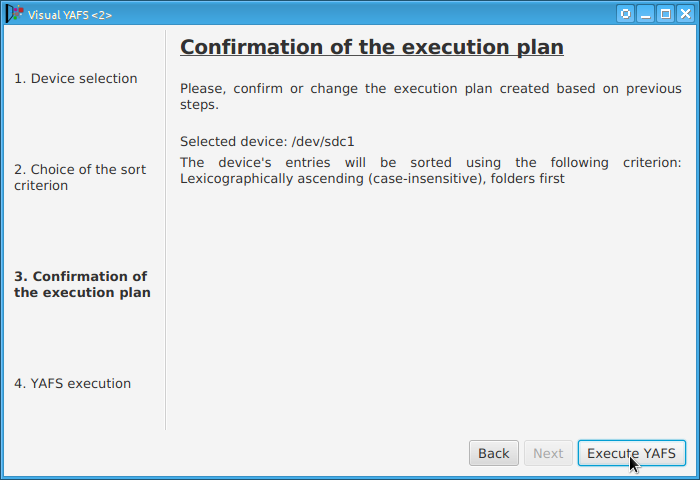
Some players display, or play files, in the order that the file was originally copied to a USB drive or stick. YAFS (Yet Another FAT Sorter) allows the order to be changed to whatever you prefer. YAFS is a multi-platform, open source, freeware, command line utility with a GUI (Graphical User Interface).

image2

Website
Visual YAFS ~ Frontend

Foobar2000 ~ Playing CDs With Pre-emphasis


Pre-emphasis & CDs

Although rarely used, there exists the capability for standardized emphasis in Red Book CD mastering. As CDs were intended to work on 14-bit audio, a specification for ‘pre-emphasis’ was included to compensate for quantization noise. After production spec was set at 16 bits, quantization noise became less of a concern, but emphasis remained an option through standards revisions. The pre-emphasis is described as a first-order filter with a gain of 10 dB (at 20 dB/decade) and time constants 50 μs and 15 μs ~ http://en.wikipedia.org/wiki/Emphasis_(telecommunications)#Red_Book_Audio

Emphasis came about because of early converter design. The entire sampling process was new, and A to D converters exhibited low level noise because of bad linearity in the conversion process. This process added some high frequency broadband noise to the digital signal. Manufacturers overcame this byproduct by boosting (emphasis) the high frequencies during the conversion from analog to digital, and then rolling off (de-emphasis) the high frequencies by the same amount after the conversion back from digital to analog. This process was optional and there was a switch to select emphasis on each track during record. A flag was set in the digital bit-stream, which automatically activated de-emphasis during playback. All CD players, DVD players, and DAT machines detect this flag and turn on a high frequency roll-off in the analog domain during playback. If the digital signal contains emphasis and the flag is missing or turned off, then the roll-off does not occur and the audio will be brighter than normal.

This emphasis feature was the biggest reason why different CD players sounded different when playing back the same CD, or DAT machines differed playing back the same DAT tape. The digital part and the conversion to analog were basically the same in all of the machines. The de-emphasis circuit was implemented in the analog domain using the least expensive circuit to perform the operation. There was high-end EQ on the output of every digital playback device, and there was no standard or calibration for how it was performed. If you played back a CD without emphasis, then all of the CD players sounded pretty much the same. If you played a CD with emphasis, then each playback device sounded very different from every other player.

Producers and engineers started turning off the emphasis switches. Converters were getting better so there was less converter noise, and the use of de-emphasis circuits was eliminated. ~ Roger Nicolls

As I understand it, the Redbook CD standard calls for decoding of pre-emphasis flags. So any player bearing the CD format logo should handle pre-emphasis discs properly. ~ http://forums.stevehoffman.tv/threads/whats-pre-emphasis.49396/#post-971902

Working with CDs with pre-emphasis

Foobar plugins to de-emphasis pre-emphasized CDs:

  • Postprocessing (foo_deemph): works only with lossless sources; always active during playback and ReplayGain scan.
  • * DSP plugin (foo_dsp_deemph): works with any source

Download ~ http://wiki.hydrogenaud.io/index.php?title=Pre-emphasis

Use post-processing if you want to add correct ReplayGain tags to your files.
Use DSP if you have lossy files that you want to de-emphasize.
Otherwise, there’s no difference. ~ http://hydrogenaud.io/index.php/topic,99394.50.html

Lists of CD’s with pre-emphasis:

http://www.studio-nibble.com/cd/index.php?title=Pre-emphasis_(release_list)
http://www.discogs.com/lists/CDs-with-pre-emphasis-my-collection-only/243100
http://www.discogs.com/lists/CDs-suspected-to-have-pre-emphasis/308012

ORBAN Loudness Meter ~ Loudness & Peak Display


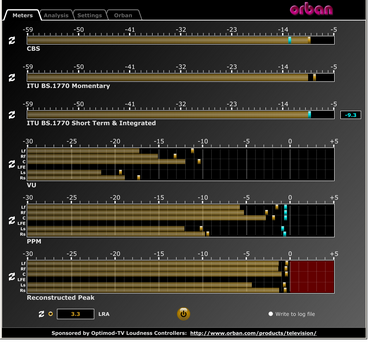
This software simultaneously displays instantaneous peaks, VU, PPM, CBS Technology Center loudness, and ITU BS.1770 loudness. All meters include peak-hold functionality that makes the peak indications of the meters easy to see.

The software accepts two-channel stereo inputs. The VU and PPM meters are split to indicate the left and right channels. The PPM meter also displays the instantaneous peak values of the L and R digital samples. ~ Hydrogen Audio

ORBAN Meter

www.orban.com/orban/meter

gnudb.org ~ CD Metadata Database


An opensource alternative CDDB / FreeDB service.

gnudb.org ~ a new home for the freedb database

How to use gnudb.org:

  • Configure your CDDB or freedb-aware software to point to gnudb.gnudb.org as your CDDB / freedb-server.

All official gnudb servers are running cddbp at port 8880 and http at port 80

The path for http-access is /~cddb/cddb.cgi

Access a xmcd file directly when you know the genre and discid at:

http://www.gnudb.org/gnudb/genre/discid

Example ~ http://www.gnudb.org/gnudb/rock/390f1215

Source: gnudb.org CD database

Search By Artist, Album or Artist And Album:

www.gnudb.org/search.php

foo_plorg ~ Playlist Organizer With Folders


The Foobar2000 Playlist Organizer component allows playlists to be organized into folders.

  1. Install the foo_plorg component
  2. Add a new panel or tab, then add Playlist Organizer

capture-foobar2000-dui-foo_plorg

Importing playlists using foo_plorg and foo_playlist_revive

  1. Install foo_playlist_revive
  2. Drag playlist files and drop on the Playlist Organizer panel
  3. Select Edit > Revive Dead Items

Note: The imported playlist will have the same name as the original playlist filename.

Resources:

Website
Documentation – Hydrogenaudio
foo_playlist_revive – Hydrogenaudio
Foobar2000 – How to install a component

CueMake ~ Create Cue Sheets From WAVs


Subscribe to continue reading

Subscribe to get access to the rest of this post and other subscriber-only content.

REW ~ Room EQ Wizard


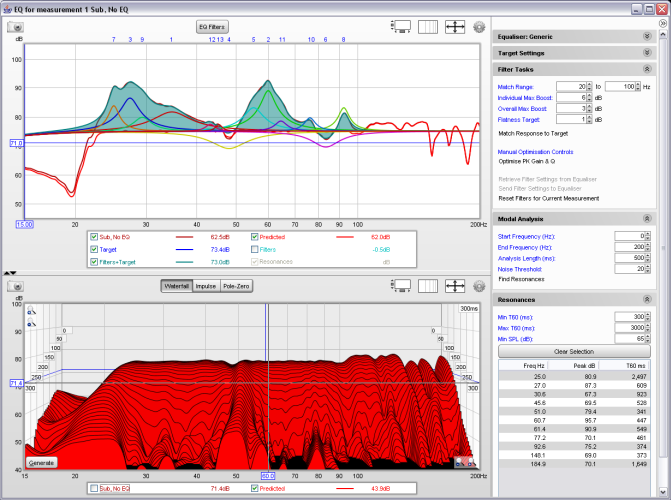
REW is free room acoustics analysis software for measuring and analyzing room and loudspeaker responses. The audio analysis features of REW help you optimize the acoustics of your listening room, studio or home theater and find the best locations for your speakers, subwoofers and listening position.

aftereq500h

www.roomeqwizard.com
www.hometheatershack.com/forums/rew-forum
sourceforge.net/projects/equalizerapo
Multi-Sub Optimizer
Convolver – A Convolution Plugin

foo_discogs ~ Foobar2000 & Discogs


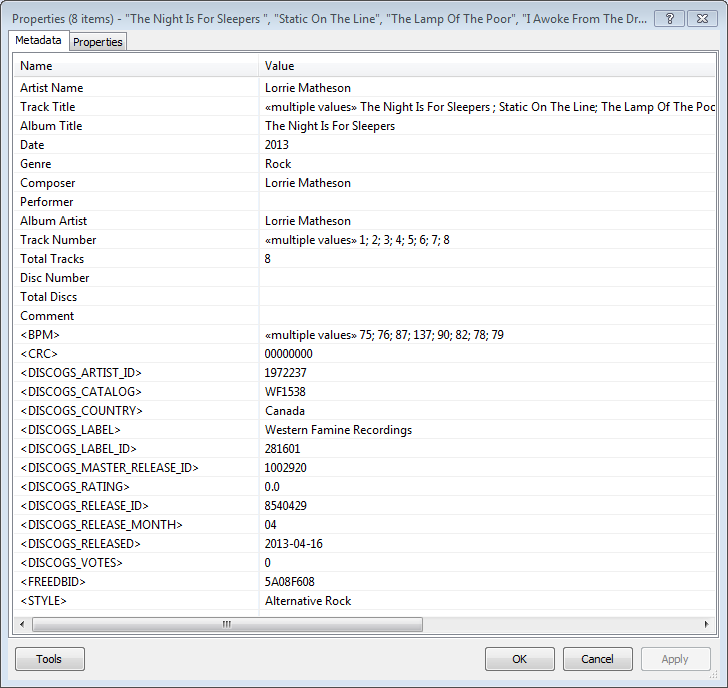
Greatly extend the information in your music files by using the foo_discogs component to tag albums with Discogs information. Once the additional Discogs release information is stored in the song tags, it’s possible to search for catalog numbers, secondary artists or studios, etc. You can now also create toolbar buttons which open the corresponding artist or release pages in Discogs, the artist’s own website or other links.

  • download Discogs album and artist artwork
  • retrieve more information than most taggers
  • goes that extra length to make sure retrieved data is correct and well formatted
  • flexible tag mapping allows you to write only what you want, where you want
  • use meta-data in tags to display Discogs artist / label / release web pages
    able to later update specified tags (useful in update ratings)
foobar - foo_discogs - resulting tags

Album’s properties when tagged with Discogs info

Installing & Configuration:

  1. Install the foo_discogs component
  2. Select any song on any playlist
  3. Right click the song and select Tagging
  4. From the sub-menu select Discogs
  5. Now select Configuration
  6. Change any settings needed.

Tagging Files:

  1. Select an entire album on a playlist
  2. Right click the album and select Tagging
  3. Select Discogs
  4. Select Write Tags…
  5. Click Search then select the correct match and click Next
  6. Confirm that the tracks match the files and click Write tags

Your audio files should now be tagged with additional Discogs metadata.

Open Release Page Button:

  1. Right click on Foobar’s Toolbar area and select “Customise Buttons…
  2. In “Available Commands” navigate to and select [context] > Tagging > Discogs > View Release Page
  3. Change Icon and then click “OK
  4. Select a song,  or album that has been tagged with Discogs metadata, and click the new custom button

References:

www.foobar2000.org/components/view/foo_discogs
hydrogenaud.io/index.php/topic,50523.0.html

Latest update:

github.com/ghDaYuYu/foo_discogs
bitbucket.org/fooDaYuyu/foo_discogs/downloads/

PeppyMeter ~ Linux Analog VU Meter


PeppyMeter is a software VU Meter written in Python. It was originally developed as the new ‘VU Meter’ screensaver for Peppy Player. With minor modifications it became a stand-alone application. PeppyMeter gets audio data from media players (e.g. mpd) via fifo and displays current volume levels in a Graphical User Interface in the form of a traditional VU Meter.

  • Written in Python.
  • Pygame library leveraged for UI purposes.
  • UI is available in three resolutions 800×480, 480×320 and 320×240 pixels.
  • The input for the program is the data from the named pipe. That signal should be provided by peppyalsa plugin.
  • Supplies 9 default meters out of the box.
  • Allows you to add your own meters.
  • Open-source. All source files are available on Github.
  • Several data sources are available for testing and tuning.
  • Provides four types of output: Display, Serial, I2C and PWM.

meters

github.com/project-owner/PeppyMeter.doc/wiki
github.com/project-owner/PeppyMeter
diyaudio.com/forums/pc-based/291010-peppymeter

Foobar2000 ~ Playlist Viewers


Foobar2000 Playlist Viewers display the current playlist of songs. Different playlist viewers offer various capabilities such as formatting, grouping and visual options. A playlist viewer is usually the central panel and main focus of a Foobar2000 interface. Foobar2000 plays the next song of the current playlist unless the play order has been changed from default, to repeat, random or shuffle. There is a playback queue but it is not visible or used in normal operation.

foobar2000-simplaylist-groups-v1
SimPlaylist

Adding a custom column to a playlist view: (using play count as an example)

  • When adding a column view in a playlist, you’ll need to define the column first.
  • Navigate to Preferences > Display > Default User Interface > Playlist View > Custom Columns
  • at the bottom of the custom columns windows, click “Add new
  • Name the Column “Played‘ and %play_count% as the ‘pattern’
  • click apply, ok
  • Now right click the title bar of the playlist and select “Columns” and make sure ‘Played‘ is selected (checkmarked) and that you can see the column in the playlist, it will be last but you can rearrange it.

Resources:

Configuring the default playlist viewer