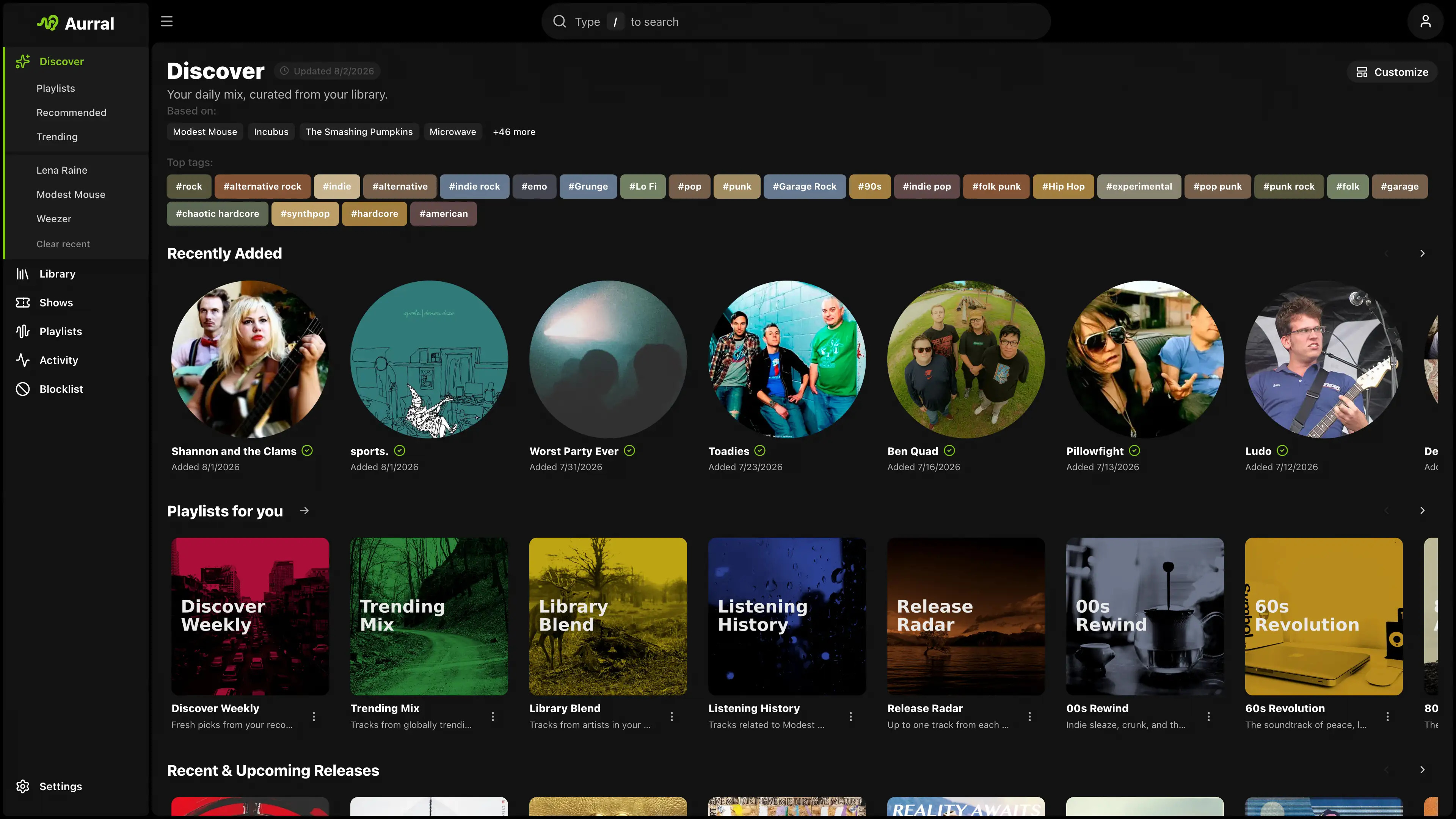
Aurral is self-hosted music discovery with its own music library. Best-in-class recommendations, rotating flows, playlist downloads, and a library that Aurral manages, with Lidarr as an optional add-on.
aurral.org
github.com/lklynet/aurral

Aurral is self-hosted music discovery with its own music library. Best-in-class recommendations, rotating flows, playlist downloads, and a library that Aurral manages, with Lidarr as an optional add-on.
aurral.org
github.com/lklynet/aurral

A small, self-contained tray utility for Windows that lets you cycle through your audio playback devices with a single hotkey, and shows an on-screen overlay telling you which one is now active.
It’s a single ~4 MB
.exewith no installation dependencies, no admin rights required, and nothing running except while you’re logged in.What it does:
- Cycles the default playback device. Press Win+A (the default hotkey, changeable), left-click the tray icon, or pick a device from the right-click menu, and Windows’ default audio output moves to the next active playback device in the list, wrapping back to the first one after the last. It takes effect for every application immediately — the same as changing it by hand in the Windows sound settings.
Win+Aactually works for this, even though Windows normally reserves it for Quick Settings (same goes for any other reserved combo you configure it to instead). See how.- Shows an on-screen overlay on every switch — styled after Windows’ own volume/brightness OSD, not a toast notification — naming the device that is now active, so you get instant confirmation of what you just switched to. A burst of rapid switches only ever shows the latest one.
- Lives in the system tray:
- Left-click the tray icon to switch to the next output device.
- Hovering it shows the app version and the currently active device.
- Right-click opens a menu listing every currently active output device — click one to switch to it directly (the active one is checked) — followed by Configure and Exit.
github.com/SpikePy/Windows-Audio-Output-Switcher
Security note: The Win+A hotkey requires a Windows low-level keyboard hook, which can receive system-wide keyboard events. The author says the program only checks for the configured hotkey and does not record or transmit keystrokes. Because this technique can also be used by keyloggers, security software may flag the executable heuristically.

spotatui plays Spotify natively and streams YouTube, your local files, Subsonic or Navidrome and 30,000+ internet radio stations from a single keyboard-driven player. Spotify is optional. So is the AI DJ.
Features:
- Multiple sources — Spotify optional. Play from Spotify, Local Files, a Subsonic/Navidrome server, Internet Radio, YouTube, or Qobuz. The free sources need no Spotify account; press
dto switch between them at any time.- Native streaming. Play Spotify audio directly, no official app or spotifyd required — spotatui appears as its own Spotify Connect device (Premium required).
- Synced lyrics. Line-by-line lyrics that follow playback.
- Real-time audio visualizer. A system-wide FFT visualizer (press
v) that reacts to whatever is playing.- Cross-source play queue. Press
zon any track to queue it — the queue plays across every source before your current context resumes.- Lua plugins. Extend spotatui with event hooks, commands, keybindings, popups, and theming.
- Listening history & recap. spotatui keeps a local play history and can generate a shareable HTML recap (
spotatui history recap).- Full CLI. Most of what the UI does is scriptable — playback, search, playlists, shell completions. Run
spotatui --help.- Lightweight. ~78 MB RAM while streaming, versus a full Electron client. See Performance.
spotatui.com
github.com/LargeModGames/spotatui

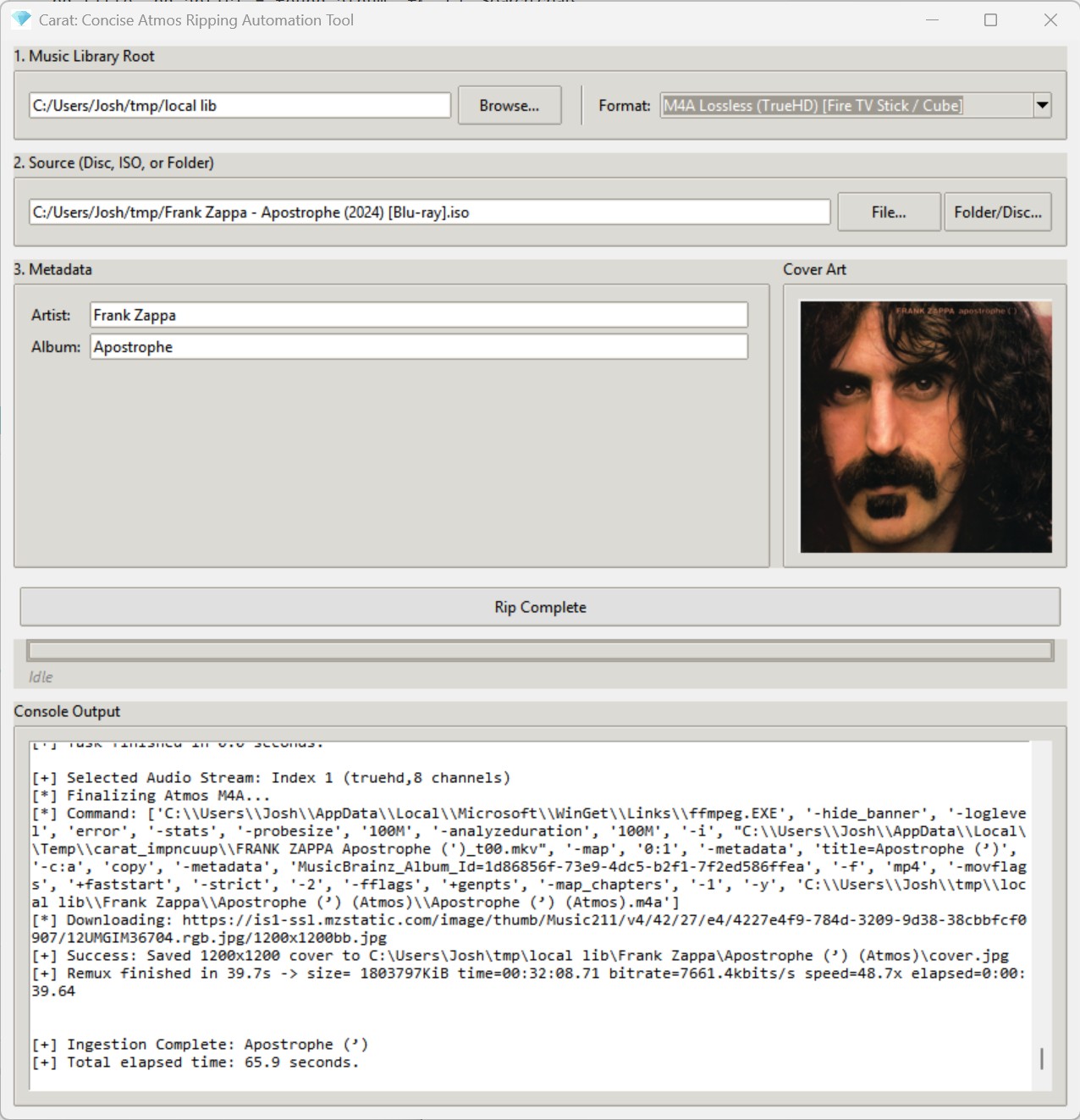
Carat is a lightweight, automated GUI utility designed to accept Dolby Atmos music releases in practically any format, locate the primary title in the release, retrieve metadata and cover art from the internet, and incorporate the release directly into your digital music library in a single click.
From the moment a new Blu-ray arrives in your mailbox, Carat handles the entire pipeline—extraction, processing, metadata acquisition, and cover art—with zero friction. If your source files are already on your SSD, Carat will process an entire release in a minute or two (depending on the speed of your computer). If you are starting from a physical disc, the time is limited by the read speed of your optical drive (expect five to ten minutes).
github.com/jbloch/carat
quadraphonicquad.com/threads/announcing-carat-beta-one-click-atmos-ripping-for-gapless-playback
en.wikipedia.org/wiki/Dolby_Atmos

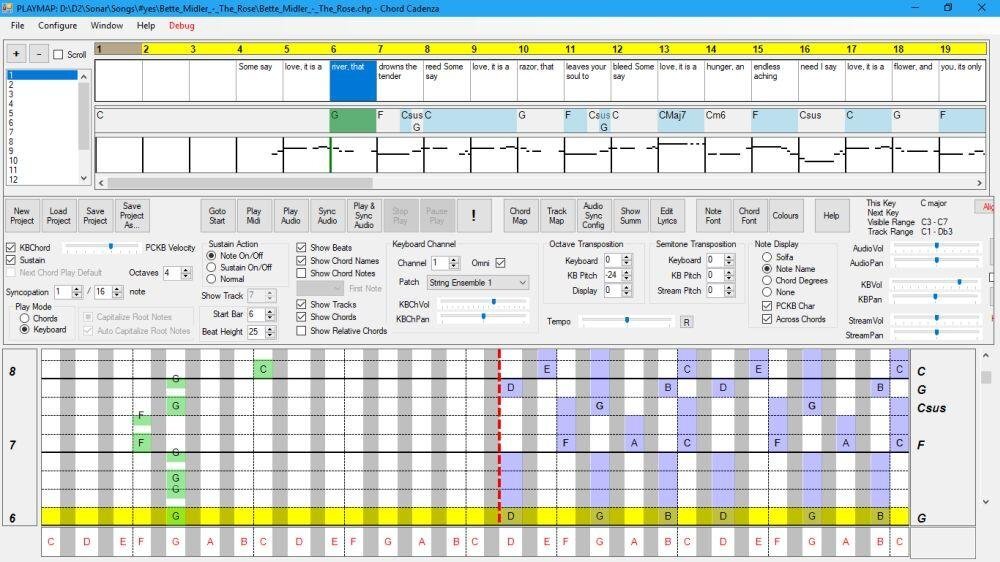
This app helps you to play and improvise chords whilst a MIDI file or audio source is being played. It does this by updating a rolling display to map the chord notes to a piano keyboard. It can also dynamically assign notes or chords to keys on a MIDI or PC keyboard.
Synchronisation is achieved automatically from a MIDI file. An audio file (e.g. MP3) can be synchronised and saved using the program.
Chords and major/minor keys can be extracted from the MIDI file using a configurable tool that analyses the MIDI file. Chords, keys, and time signatures can also be created or updated manually – this allows you to play along with an audio source without requiring a MIDI file.
The program contains a sequencer-style display that can be used to control the volume, panning, muting, solo’ing and patching of the tracks of the MIDI file.
Audio can be rendered with the program’s builtin synthesizer (using SoundFonts), or an external synthesizer.
chordcadenza.org
sourceforge.net/projects/chord-cadenza

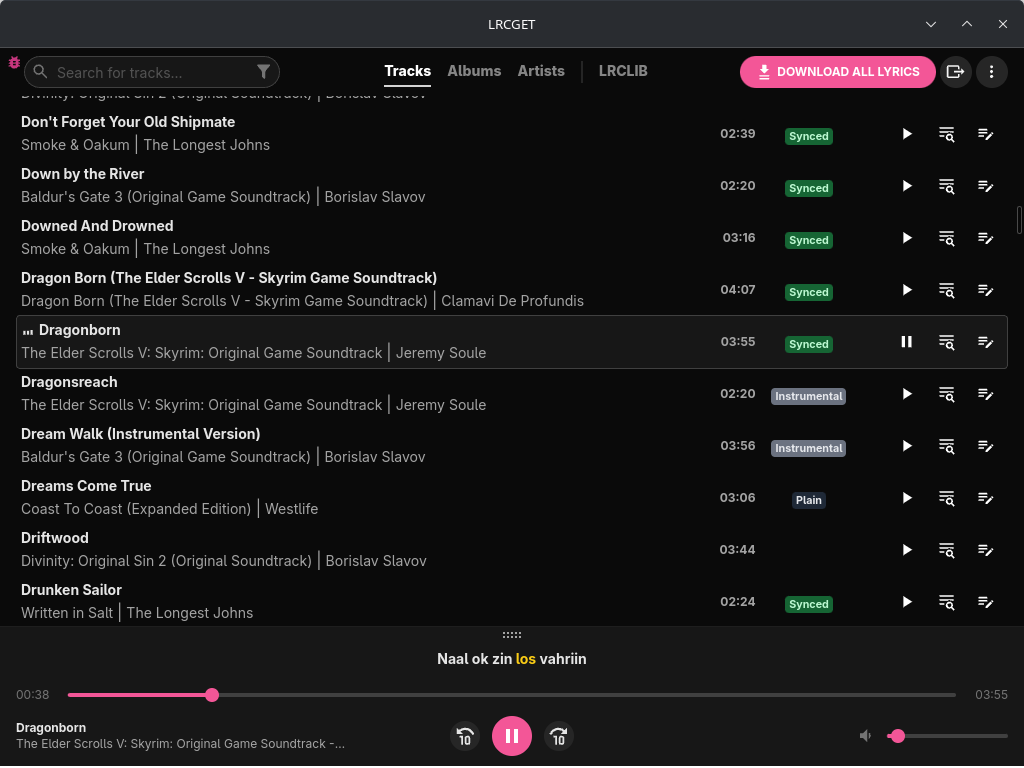
Utility for mass-downloading LRC synced lyrics for your offline music library.
LRCGET will scan every files in your chosen directory for music files, then and try to download lyrics to a LRC files having the same name and save them to the same directory as your music files.
LRCGET is the official client of LRCLIB service.
github.com/tranxuanthang/lrcget
flathub.org/en/apps/net.lrclib.lrcget
Resources:
lrclib.net
en.wikipedia.org/wiki/LRC_(file_format)

A foobar2000 component that lets you override the length of any track, hide individual subsongs from the Media Library, and read playback time at millisecond precision.
Language: English | 中文
Features:
Duration Manager — custom track length
- Set a custom length for any track via the context menu “Set custom duration”.
- Manage all overrides in Preferences → Tools → Duration & Subsong Manager → Duration Manager (search, edit, delete).
- Overrides are matched by file content hash + subsong index, so they survive file moves/renames.
- During playback the track is automatically truncated to the custom length (jumps to the next track when reached).
Subsong Manager — hide subsongs
- For multi-subsong files, choose exactly which subsongs are visible in the autoplaylists.
- Configure include/exclude ranges (e.g.
1-3,5,7) or checkbox in Preferences → Tools → Duration & Subsong Manager → Subsong Manager.- Note: this filters the Media Library query at runtime, so changes take effect after a restart.
High-Precision Timer (UI element)
- An auxiliary UI element for the Duration Manager that shows playback position and track length in millisecond precision:
[HH:]MM:SS.mmm.- Add it via the layout editor like any other UI element (“High-Precision Timer”).
Compatibility
- foobar2000 v2.0 or newer, Windows, 32-bit and 64-bit.
- Built against the foobar2000 SDK (2025-03-07).
github.com/M3MEMonster/Duration_and_Subsong_Manager

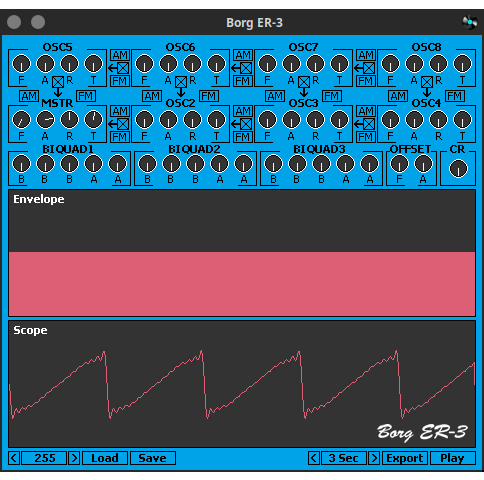
A portable (SDL) audio synthesizer / tone generator inspired by the Korg ER-1

Pear Desktop is an Electron-based desktop client for YouTube Music designed for Windows, Linux and macOS. The project keeps the standard YouTube Music interface while adding desktop integration, plugins, themes and additional playback features.
The application is open source and distributed under the MIT license.
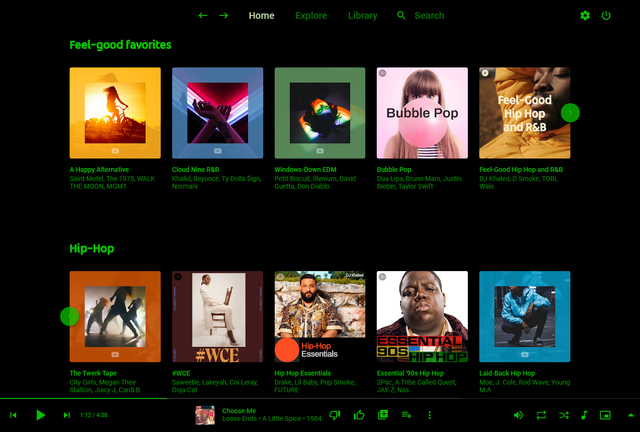
Pear Desktop loads the standard YouTube Music web interface inside a desktop application window and extends it through plugins and Electron desktop integration. It is not a standalone music service and still requires a YouTube Music or Google account for normal use.
Because Pear Desktop uses Electron, memory and CPU usage are generally higher than lightweight native audio players such as foobar2000 or AIMP. The project is intended primarily as a feature-enhanced desktop frontend for streaming music from YouTube Music rather than as a traditional local-library music player.
github.com/pear-devs/pear-desktop

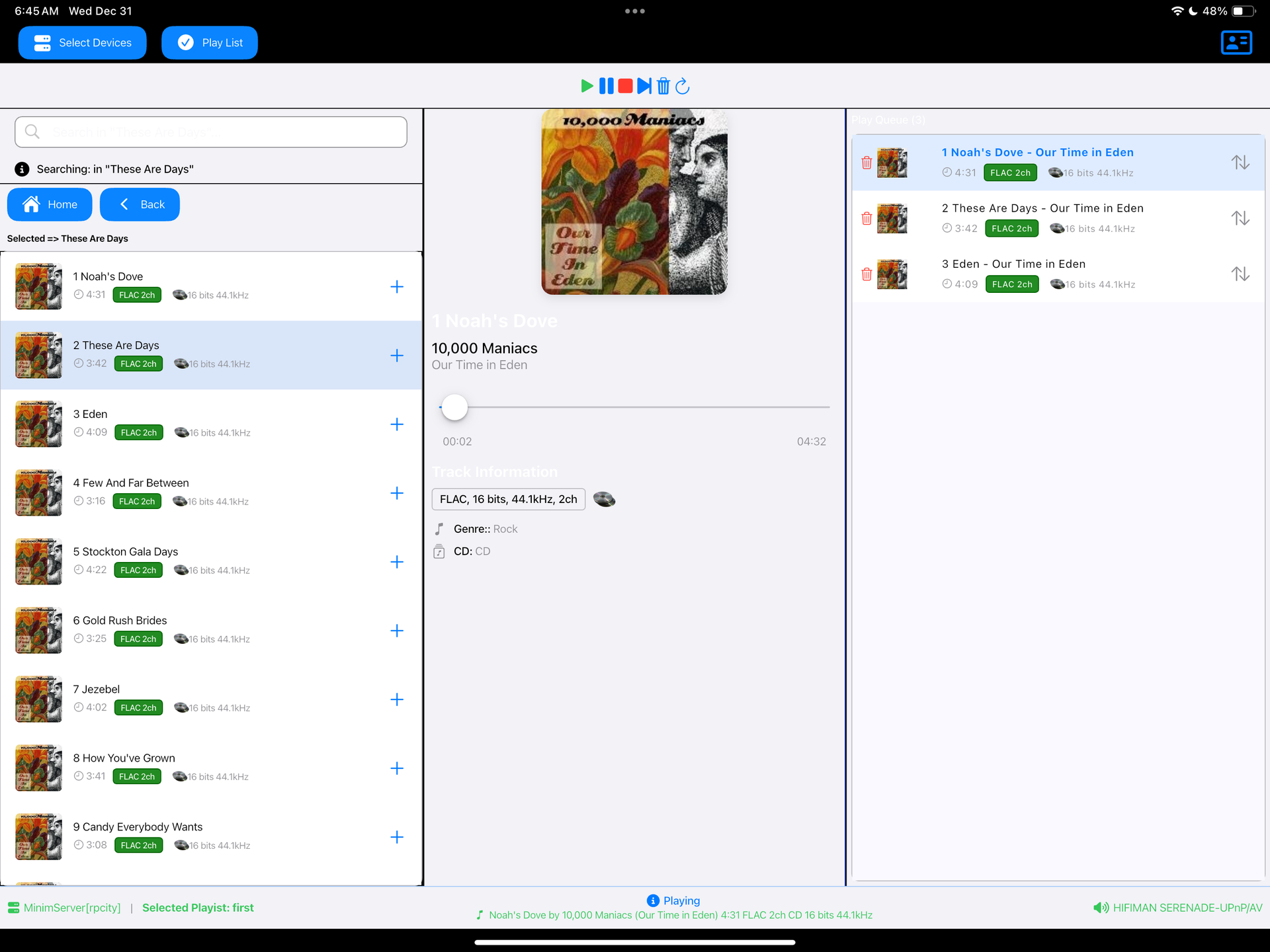
Read a DLNA Media Server to select music to play on your DLNA Renderer
Scan the network for your Media Server (“Server”) and Renderer (“Renderer”) devices, select one of each and then from the main screen select the music you want to play, drilling into Albums, Artists, Genres (all defined by your Media Server). Any music you want to hear is called a track and is loaded onto the play queue. Then select Play button to listen to the track listed at the top of the queue. You can also create playlists and store your favorite tracks for playback.
sourceforge.net/projects/dlna-music-controller
en.wikipedia.org/wiki/List_of_UPnP_AV_media_servers_and_clients

Integrate Foobar2000 with iobroker home automation.
www.npmjs.com/package/iobroker.foobar2000
www.iobroker.net


