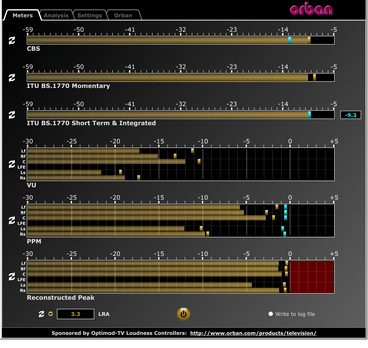
This software simultaneously displays instantaneous peaks, VU, PPM, CBS Technology Center loudness, and ITU BS.1770 loudness. All meters include peak-hold functionality that makes the peak indications of the meters easy to see.
The software accepts two-channel stereo inputs. The VU and PPM meters are split to indicate the left and right channels. The PPM meter also displays the instantaneous peak values of the L and R digital samples. ~ Hydrogen Audio
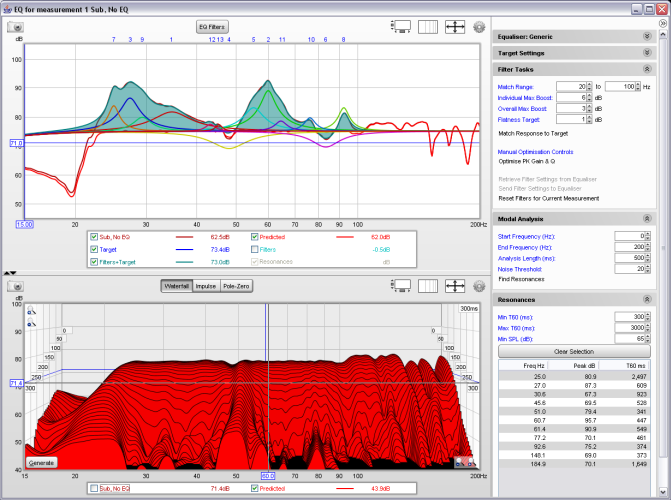
REW is free room acoustics analysis software for measuring and analyzing room and loudspeaker responses. The audio analysis features of REW help you optimize the acoustics of your listening room, studio or home theater and find the best locations for your speakers, subwoofers and listening position.
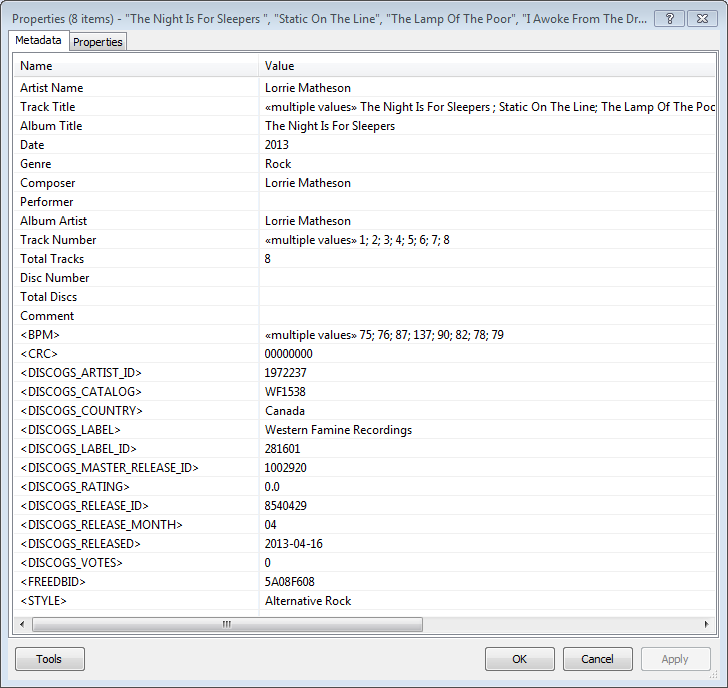
Greatly extend the information in your music files by using the foo_discogs component to tag albums with Discogs information. Once the additional Discogs release information is stored in the song tags, it’s possible to search for catalog numbers, secondary artists or studios, etc. You can now also create toolbar buttons which open the corresponding artist or release pages in Discogs, the artist’s own website or other links.
download Discogs album and artist artwork
retrieve more information than most taggers
goes that extra length to make sure retrieved data is correct and well formatted
flexible tag mapping allows you to write only what you want, where you want
use meta-data in tags to display Discogs artist / label / release web pages able to later update specified tags (useful in update ratings)
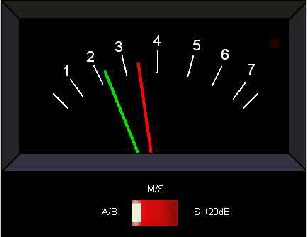
PeppyMeter is a software VU Meter written in Python. It was originally developed as the new ‘VU Meter’ screensaver for Peppy Player. With minor modifications it became a stand-alone application. PeppyMeter gets audio data from media players (e.g. mpd) via fifo and displays current volume levels in a Graphical User Interface in the form of a traditional VU Meter.
Written in Python.
Pygame library leveraged for UI purposes.
UI is available in three resolutions 800×480, 480×320 and 320×240 pixels.
The input for the program is the data from the named pipe. That signal should be provided by peppyalsa plugin.
Supplies 9 default meters out of the box.
Allows you to add your own meters.
Open-source. All source files are available on Github.
Several data sources are available for testing and tuning.
Provides four types of output: Display, Serial, I2C and PWM.
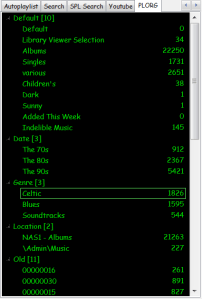
Foobar2000Playlist Viewers display the current playlist of songs. Different playlist viewers offer various capabilities such as formatting, grouping and visual options. A playlist viewer is usually the central panel and main focus of a Foobar2000 interface. Foobar2000 plays the next song of the current playlist unless the play order has been changed from default, to repeat, random or shuffle. There is a playback queue but it is not visible or used in normal operation.
mtpl Playlist (supports folders, playlist in playlist and sub-tracks)
SimPlaylist (multiple grouping levels, album art, etc.)
SimPlaylist
Adding a custom column to a playlist view: (using play count as an example)
When adding a column view in a playlist, you’ll need to define the column first.
Navigate to Preferences > Display > Default User Interface > Playlist View > Custom Columns
at the bottom of the custom columns windows, click “Add new‘
Name the Column “Played‘ and %play_count% as the ‘pattern’
click apply, ok
Now right click the title bar of the playlist and select “Columns” and make sure ‘Played‘ is selected (checkmarked) and that you can see the column in the playlist, it will be last but you can rearrange it.
These standalone audio level meter programs allow the optimum setting of input levels for various sound recording functions, particularly for video editing.
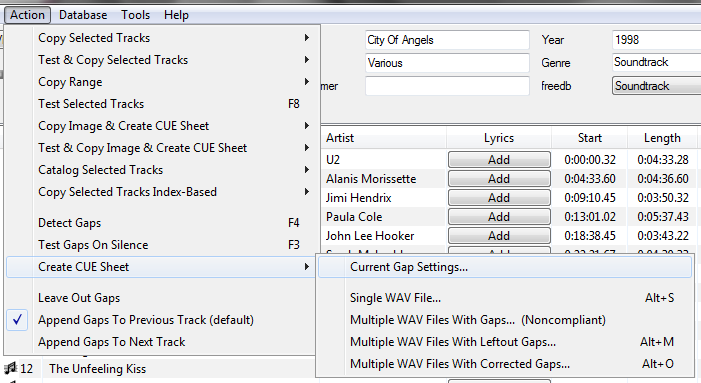
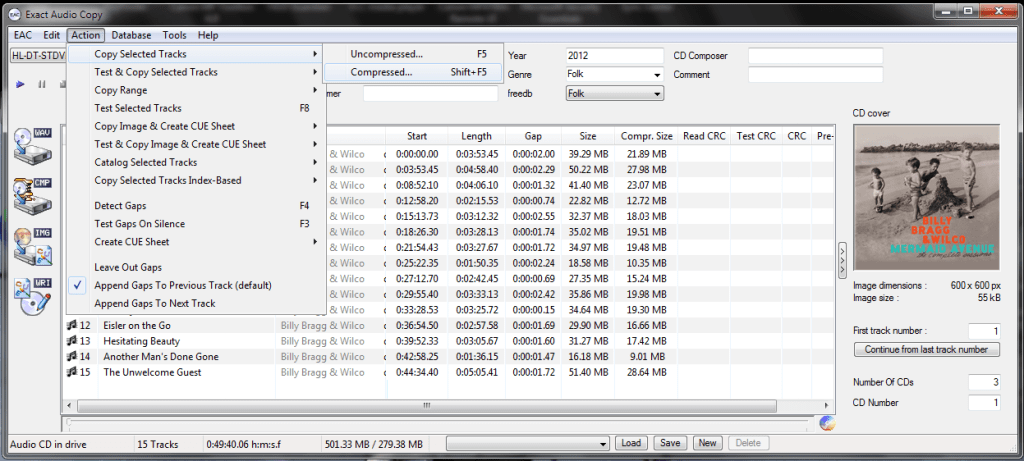
Exact Audio Copy, also known as EAC is often used to create an exact copy of a CD which can be stored in a digital media archive or audio library. The goal is to preserve all information from a CD, such that the CD can be recreated from an archive and / or is playable from an audio library. With EAC, the original audio files and a .cue file, an exact copy can be reburnt back onto a CDR; and with FLAC files, a compressed lossless music library may be built. Creating an individual folder which contains the album’s compressed audio files and a cue file is done via the following method:
Open EAC and select the FLAC encoder
Insert the CD you wish to archive
If using the freedb or CTDB plugins, select the correct cover art
You may also add lyrics to each track at this point
Verify that the downloaded information is complete and correct
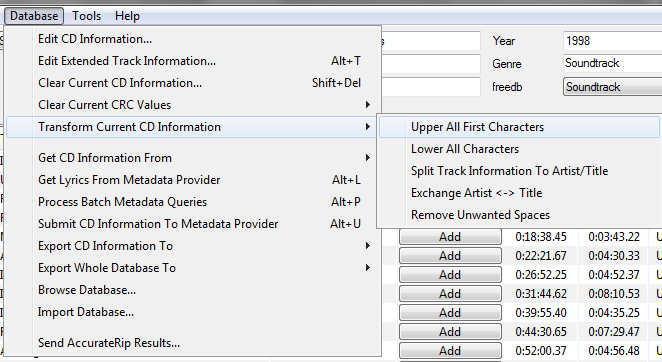
Convert all CD information to title case
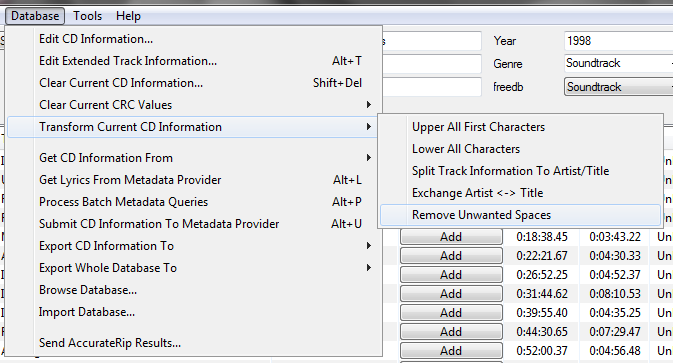
Remove any extra spaces
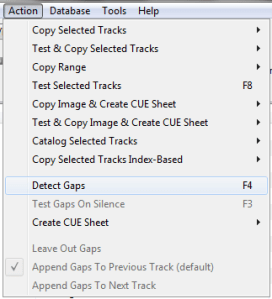
Detect the CD’s gaps
Create the cue sheet and album folders
Rip the CD in Burst Mode, which creates the individual audio files
Switch to Secure Mode and re-rip tracks any tracks that did not rip accurately
This process also creates an EAC log file in the same folder.
ReplayGain is … a technique invented to achieve the same perceived playback loudness of audio files. ~ Hydrogenaudio Knowledgebase
ReplayGain … allows players to normalize loudness for individual tracks or albums. This avoids the common problem of having to manually adjust volume levels between tracks when playing audio files from albums that have been mastered at different loudness levels. ~ en.wikipedia.org/wiki/ReplayGain
If you’re using track gain, every song is played at 89 dB; no song is any louder than any other. If you’re using album gain, tracks will be played at 89 dB plus or minus a few dB, depending on how much louder or quieter each track is relative to the other tracks on the album. By definition, album gain is not going to make all tracks as loud as possible; the quieter tracks are going to remain that much quieter than the louder tracks, and they’ll average out to 89. ~ Hydrogen Audio
Using ReplayGain in Foobar
(1) First set the ReplayGain target values:
Preferences / Playback / ReplayGain Source mode: by playback order Processing: apply gain and prevent clipping according to peak
Foobar2000 Preferences – Playback – ReplayGain
Recommended Values:
Set Preferences / Preamp / Without RG values: to around -8.0 db
If you are also playing tracks which aren’t RG-tagged, they’ll be playing quite loud in comparison to the RG-tagged ones. To mitigate that, you can set the “Without RG info” Preamp level to, say, -11.9. This will make the player pretend they have -11.9 dB album gain. Thus if you played a non-RG-tagged copy of that loudest track, it would be played at 89 dB instead of its natural 100.91 dB, and would thus match the level that all the RG-tagged tracks are played at. However, then the quieter non-RG-tagged tracks would still be that much quieter. So you may find -8 or so to be a better “without RG info” preamp level, on average.~ HA Forum
I usually set my non-RG preamp to somewhere in the range of -7.0 dB to -9.0 dB. ~ HA Forum
If you listen to modern music -7dB/-10dB value should be correct. If you listen to older music, keep the value a bit lower because the average level of recently released tracks are higher. ~ eolindel.free.fr/foobar0.9/Replaygain
(2) Next scan files:
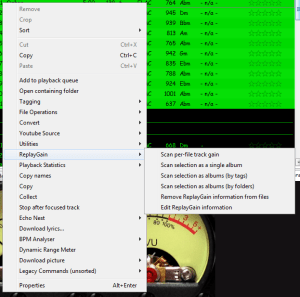
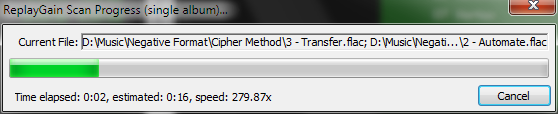
Select Files / Right mouse / ReplayGain / Scan selection as single album (adds album and track ReplayGain tags)
Once the files are scanned, they can be played.
True Peak Scanner
The foo_truepeak component scans ReplayGain, Dynamic Range, LUFS, PLR RMS values, etc.
Foobar ReplayGain Override Component
For older versions that lack the “by playback order” option, this component provides a way to specify which ReplayGain modes to use for each playback order. Track gain is probably desirable for random playback while with regular playback album gain is more suitable.
Track Volume (-18dB is equivalent to the ReplayGain target volume of 89dB) $if(%replaygain_track_gain%,$puts(X,$sub(-1800,$replace(%replaygain_track_gain%,.,)))$ifequal($get(X),0,0,$ifgreater($get(X),0,$replace(+$substr($num($get(X),4),1,2),+0,+),$replace($substr($num($get(X),5),1,3),-0,-))).$substr($num($get(X),5),4,5) dB)
Album Gain (relative to the ReplayGain target volume) [%replaygain_album_gain%]
ReplayGain’s Album Volume $if(%replaygain_album_gain%,$puts(X,$sub(8900,$replace(%replaygain_album_gain%,.,)))$ifgreater($get(X),9999,$substr($get(X),1,3).$substr($get(X),4,5),$substr($get(X),1,2).$substr($get(X),3,4)) dB))
Album Volume (-18dB is equivalent to the ReplayGain target volume of 89dB) $if(%replaygain_album_gain%,$puts(X,$sub(-1800,$replace(%replaygain_album_gain%,.,)))$ifequal($get(X),0,0,$ifgreater($get(X),0,$replace(+$substr($num($get(X),4),1,2),+0,+),$replace($substr($num($get(X),5),1,3),-0,-))).$substr($num($get(X),5),4,5) dB)
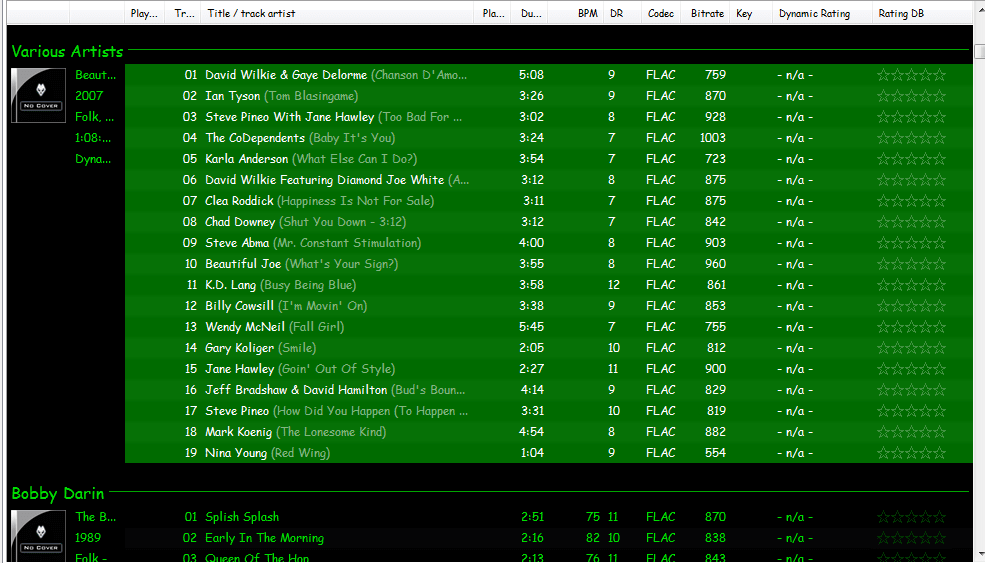
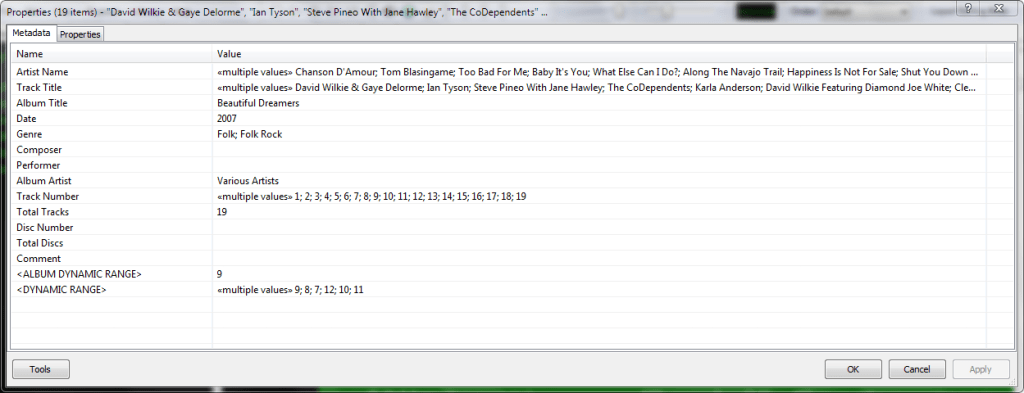
Do you have albums where the artist’s names are in the track title field, and the title of the track is in the artist name field? Here’s how to fix this.
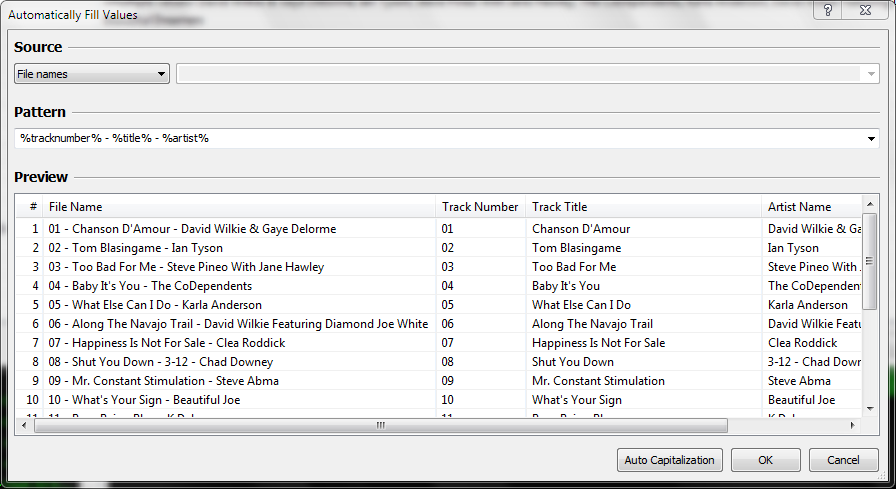
Start by checking the file names. If the file names have both artist name and track title information, then the fix is easy, just retag the files using the Automatically fill values function.
First, select the files, then open the Properties dialog window.
Right click and select Automatically Fill Values…
Then with the source set to File names, fill in or select a Pattern which puts the information in the correct fields.
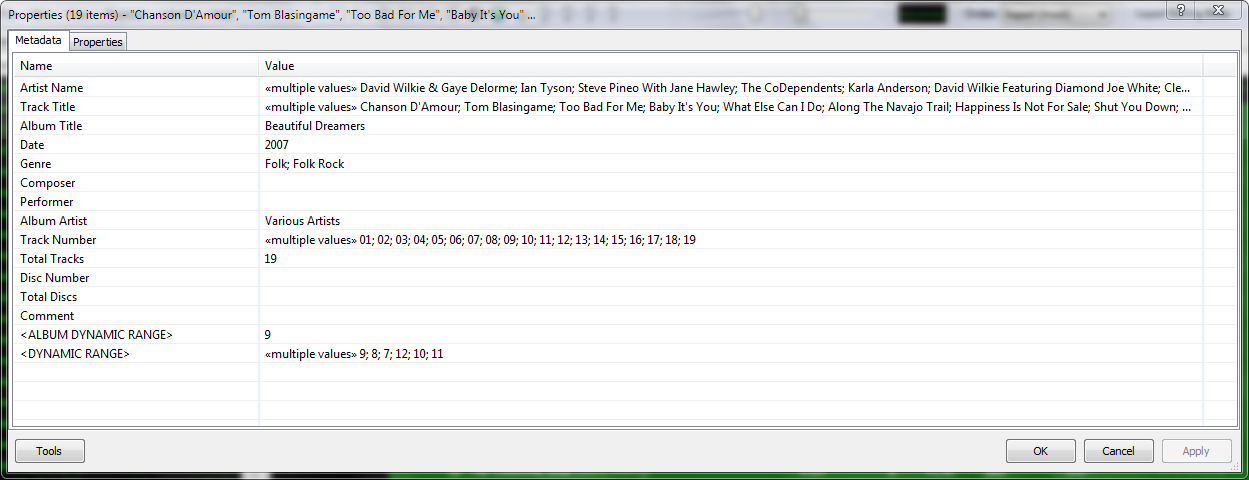
After you select Ok, Foobar will retag the files properly.
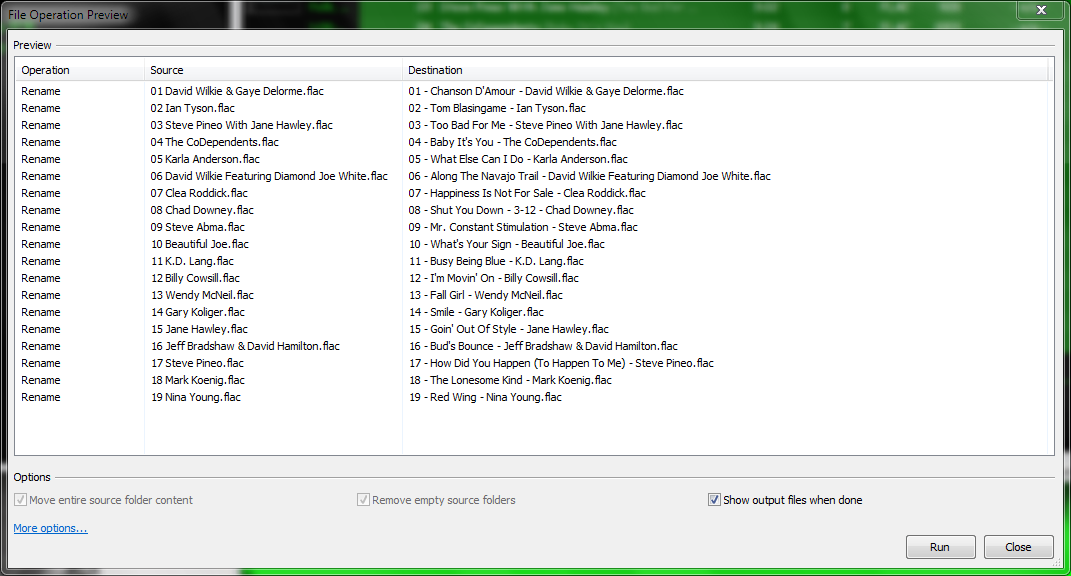
However, if the file names don’t contain both artist names and track title information, you’ll have to rename the files from the tags first. Select the files then right click and select File Operations>Rename
and after the files have been renamed, carry out the rest of the above procedure.















 The Audio File