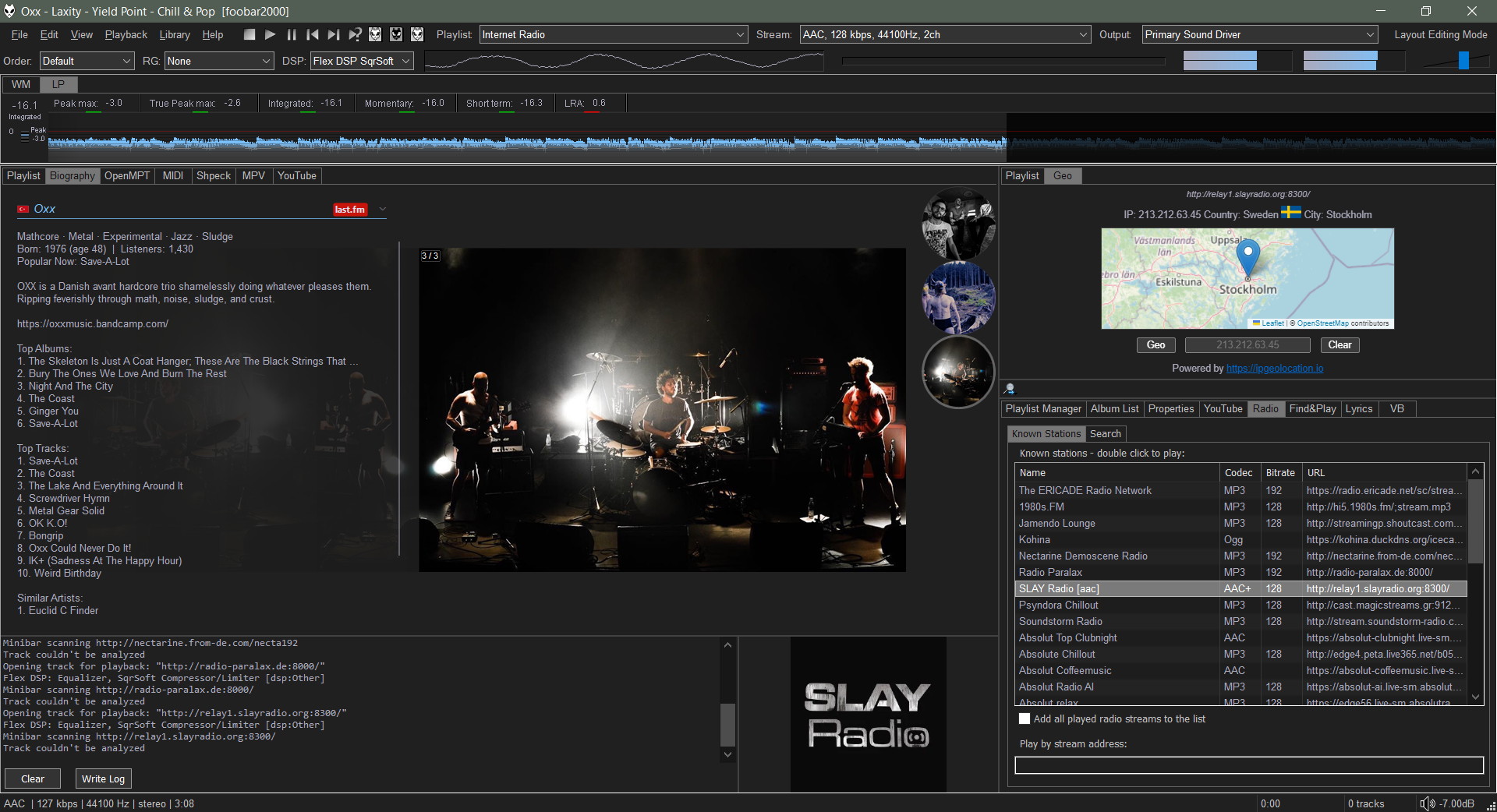
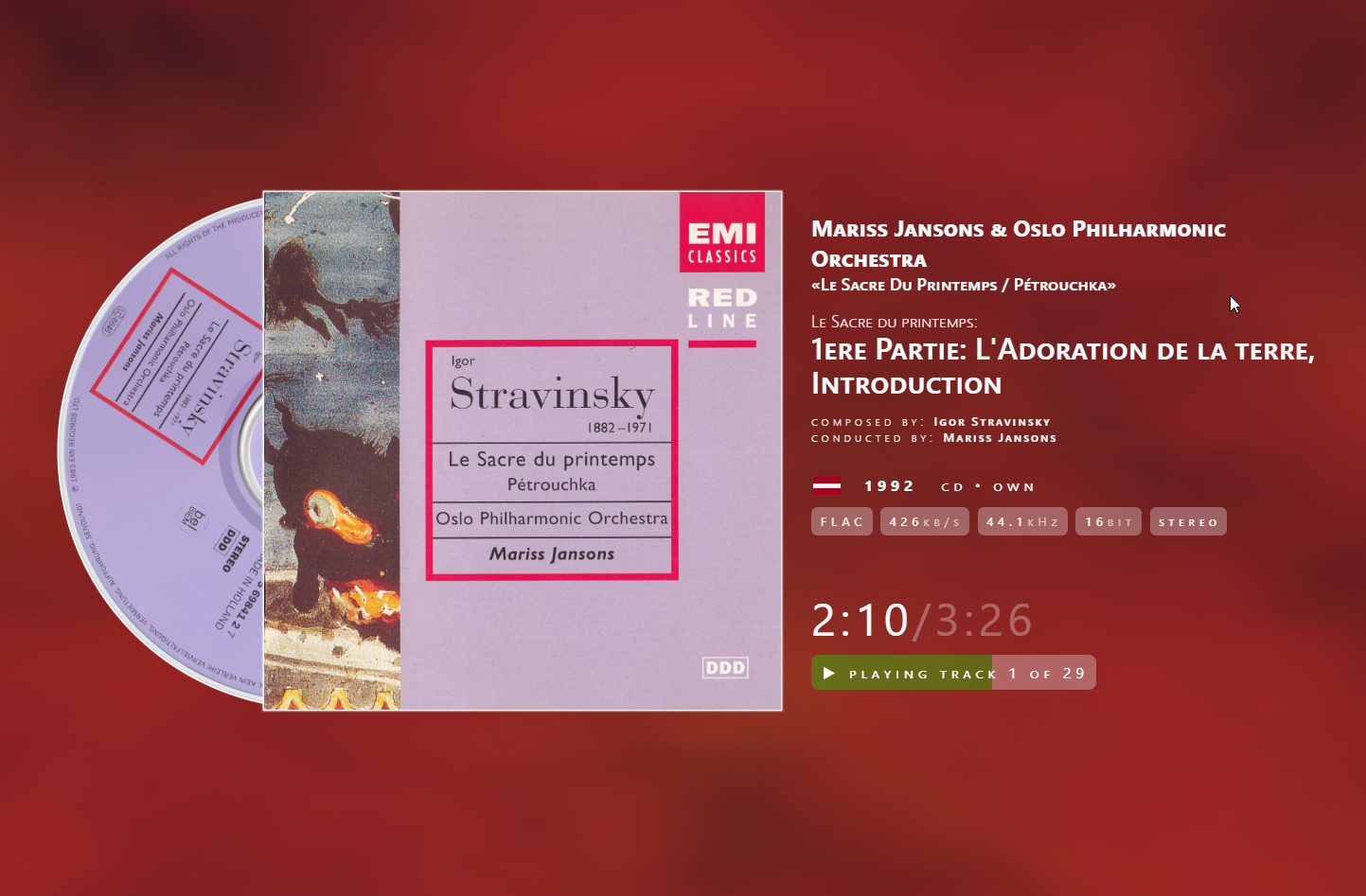
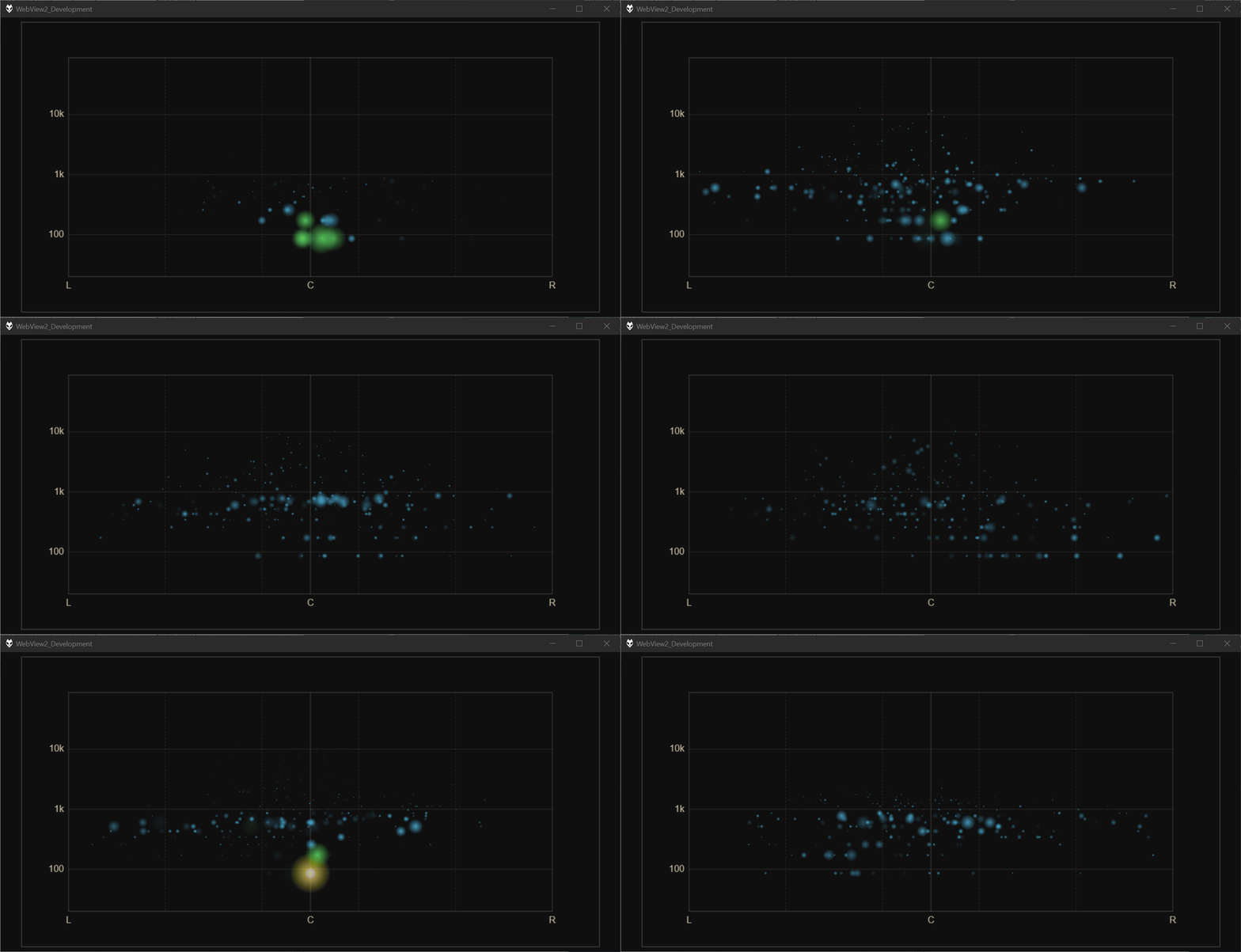
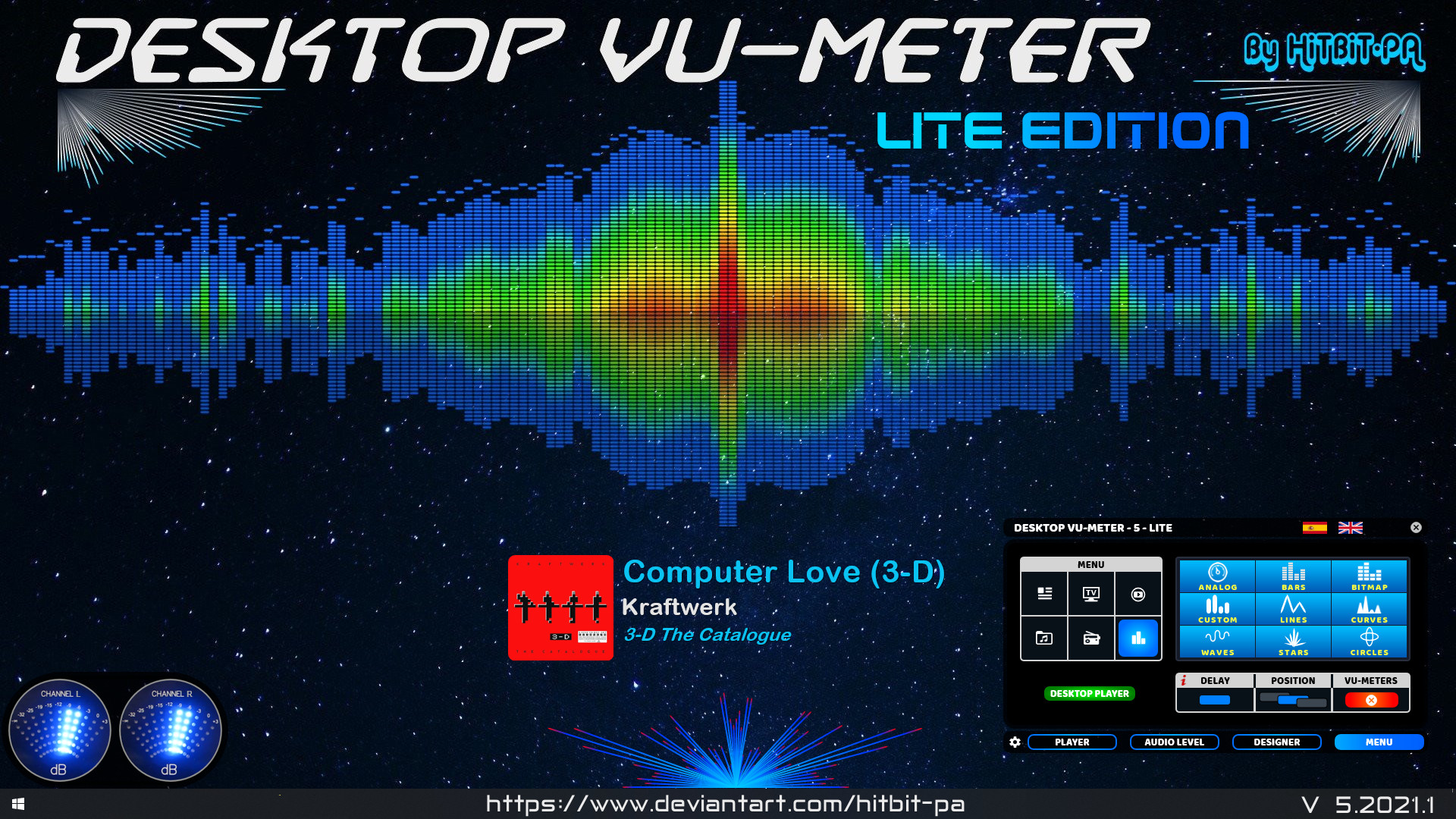
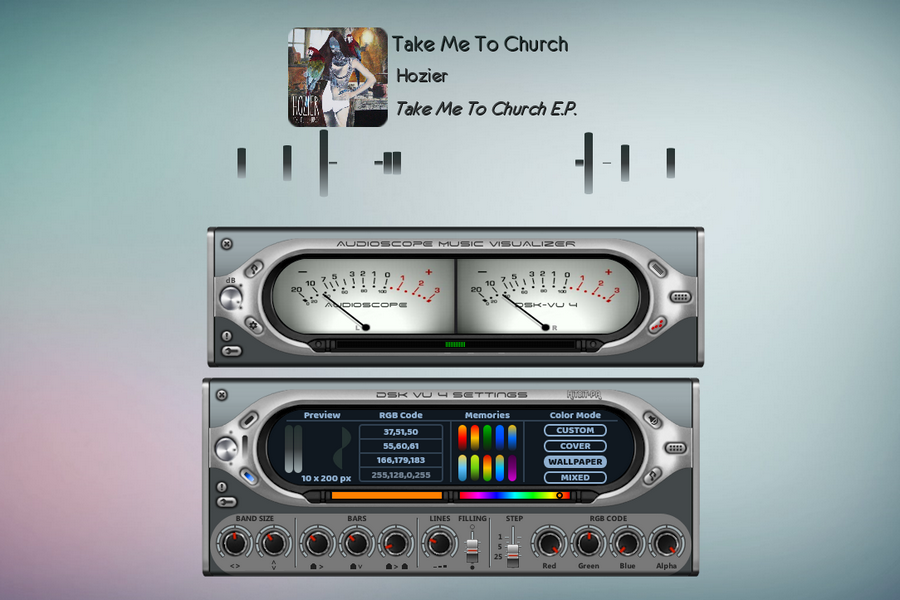
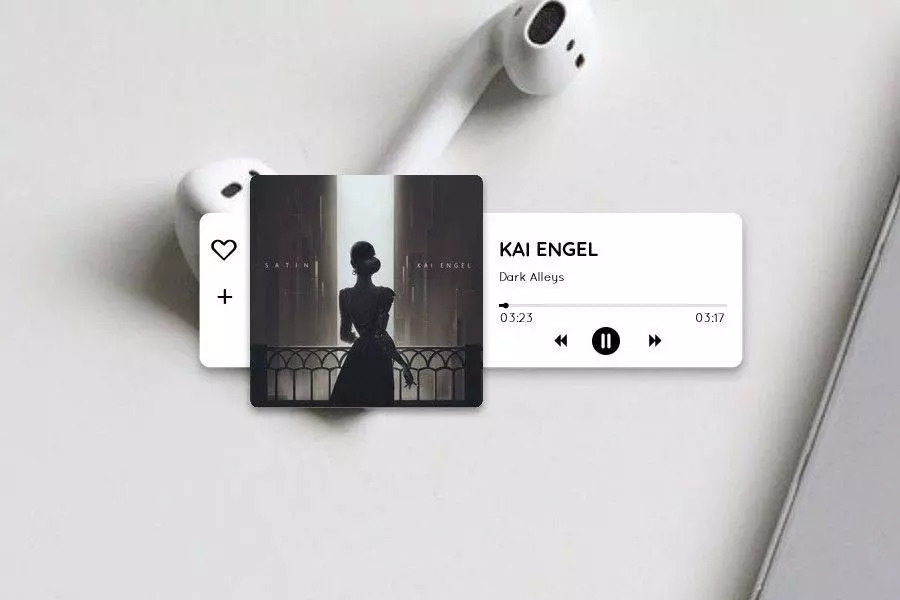
If listening to music is one of your favorite hobbies, then the Desktop VU-Meter 4 plugin could just be perfect addition to your desktop. The skin features more life-like VU meters that will give ultimate control of your audio music experience. The audioscope music visualizer features analogue and digital VU-meters, waves and lines that move in correspondence with the rhythm of the music. On the audio level settings, use the mouse wheel to modify the various values and the left button to configure load default values. You can design your own visualizer using the gradient, custom colors or extract colors from the cover or wallpaper, after which you’ll set up the player and audio device and then load the visualizers.
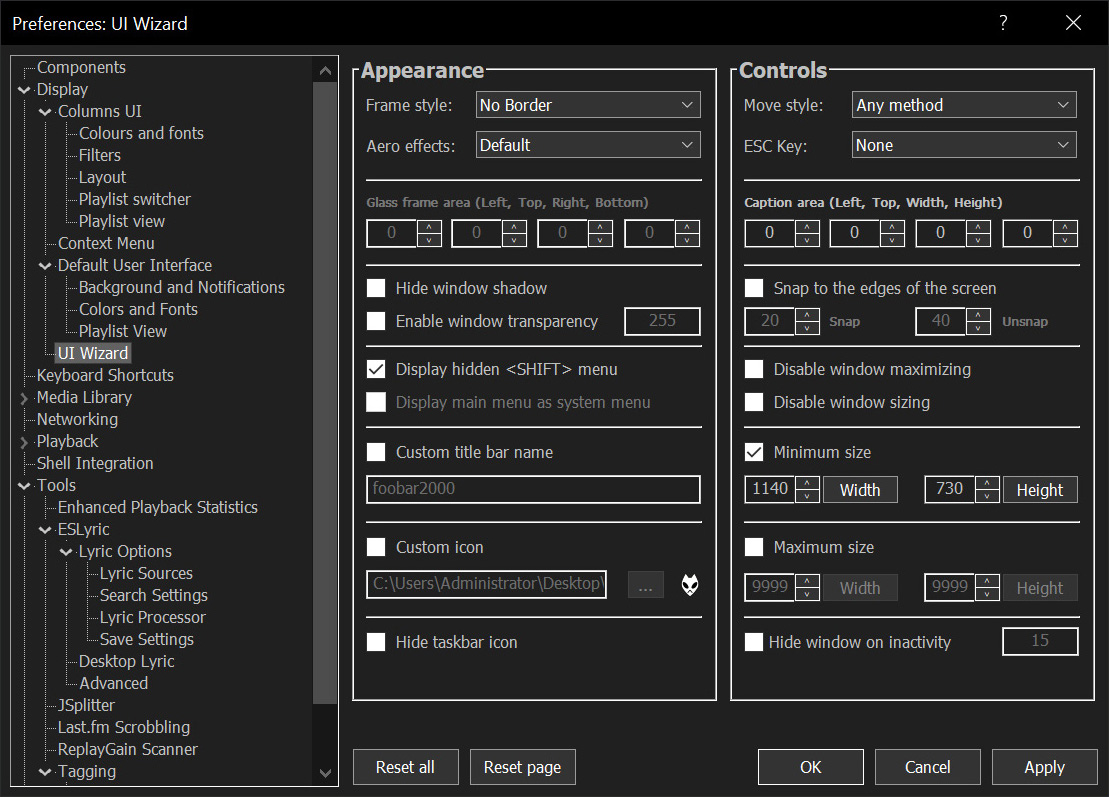
Sealed within the luminous Sapphiraz Sanctum, where ethereal interfaces shimmer in eternal twilight, the UI Wizard is a spellbinding chapter of The Wizardium’s grimoire. Its runic seal, the radiant ᛋ Sowilo, yields only to masters of window enchantment, reshaping foobar2000’s form with mischievous elegance — from glass-like Aero effects to borderless designs that defy mortal UI constraints.
Window Appearance Customization:
Supports multiple frame styles: Default, Small Caption, No Caption, No Border.
Configurable Aero effects: Default, Disabled, Glass Frame, Sheet of Glass.
Customizable window background color and transparency.
Optional custom window title and icon.
Configurable window shadow for borderless styles.
Window Behavior Control:
Adjustable window positioning and sizing with constraints (min/max width and height).
Customizable caption area for dragging with various move styles (e.g., mouse buttons, key combinations).
Snap-to-edge functionality with configurable snap and unsnap distances.
ESC key actions: None, Hide, or Exit.
Inactivity-based window hiding with customizable timeout.
Window State Management:
Toggle between Normal, Maximized, and Fullscreen states.
Option to disable window maximizing or resizing.
Automatic saving and loading of window position and size.
API: COM/ActiveX interface for scripting in foobar2000 via Spider Monkey Panel or JSplitter.
Multi-format audio player with MIDI, minigames, playlists & many visualizations
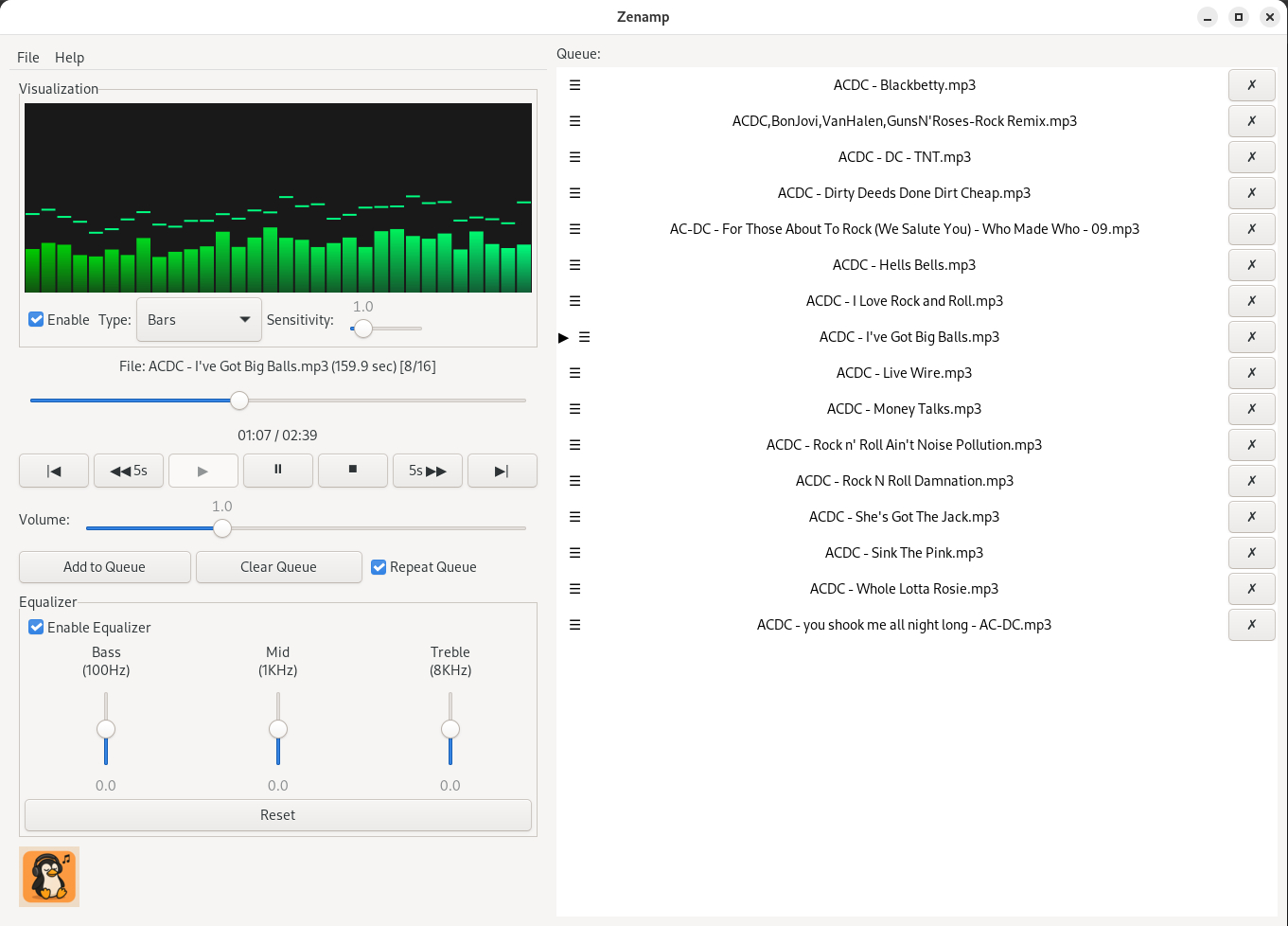
Lightweight GTK3 audio player supporting MIDI, WAV, MP3, OGG, FLAC, AIFF, and Opus formats. Features OPL3 FM synthesis for authentic MIDI playback, drag-and-drop playlist queue, real-time spectrum visualization, 10-band equalizer, and M3U playlist support. Built with SDL2 audio backend for cross-platform compatibility across Linux and Windows. Includes intuitive controls with keyboard shortcuts, 5-second seek buttons, and efficient format conversion. Perfect for musicians and audio enthusiasts needing reliable playback of both modern and legacy audio formats. Multi-threaded architecture ensures smooth performance. MIT License.
foo_vis_wispan is a Foobar2000 spectrum analyzer visualization implemented with GDI. It is a port of the Classic Spectrum Analyzer (vis_classic) Winamp visualization plug-in by Mike Lynch.
The foo_outinfo component exposes information about the current audio output and signal, such as the active output device, sample rate, bit depth, and channel count. These fields are especially useful in the status bar, where you want quick technical confirmation without cluttering playlists.
A simple and practical example is:
Now Playing: %artist% - %title% | %output_samplerate% Hz / %output_bitdepth% bit
What This Displays
When a track is playing, the status bar would show something like:
Now Playing: Miles Davis - So What | 44100 Hz / 16 bit
This tells you at a glance:
What is playing
The actual output sample rate
The output bit depth being sent to your audio device
Step By Step Explanation:
Music Metadata (Standard Fields)
%artist% - %title%
%artist% → Track artist tag
%title% → Track title tag
These are standard foobar2000 title formatting fields and work everywhere.
Separator
|
This is just plain text. It visually separates the music info from the technical output info. You can replace it with a dash, bullet, or brackets if you prefer.
foo_outinfo Output Fields
%output_samplerate%
Displays the actual output sample rate in Hertz
Reflects resampling, DSP changes, or output driver behavior
This is more reliable than %samplerate% when DSPs are active
%output_bitdepth%
Displays the bit depth used by the output
Shows what is being sent to the DAC, not just what is in the file
More Informative Versions
If you want to include channels and output device name:
Now Playing: %artist% - %title% | %output_samplerate% Hz / %output_bitdepth% bit / %output_channels% channels
Displays:
Now Playing: Aphex Twin - Xtal | 48000 Hz / 24 bit / 2 channels
If you want to add the current Replaygain mode:
Now Playing: %artist% - %title% | %output_samplerate% Hz / %output_bitdepth% bit / %output_channels% channels | RG %output_rg_source%
Displays:
Now Playing: Aphex Twin - Xtal | 48000 Hz / 24 bit / 2 channels | RG Album
If you want to display the active DSP
$if(%output_dsp%, | DSP: %output_dsp%)
Displays the separator and active DSP, otherwise displays nothing:
| DSP: Resampler (SoX)
Minimal Technical Version (Very Clean)
For users who want only output confirmation:
Output: %output_samplerate% Hz / %output_bitdepth% bit
Displays:
Output: 96000 Hz / 24 bit
Why Use foo_outinfo in the Status Bar?
Confirms what your DAC is actually receiving
Helps verify exclusive mode, resampling, and DSP behavior
Avoids cluttering playlists with technical data
Ideal for users who care about signal integrity but want a clean UI
Beginner Notes and Caveats
All output_* fields require foo_outinfo to be installed
These fields only show values while audio is playing
If nothing is playing, the fields will appear empty
OpenMusic (OM) is a visual programming language based on Common Lisp. Visual programs are created by assembling and connecting icons representing functions and data structures. Most programming and operations are performed by dragging an icon from a particular place and dropping it to an other place. Built-in visual control structures (e.g. loops) are provided, that interface with Lisp ones. Existing CommonLisp/CLOS code can easily be used in OM, and new code can be developed in a visual way.
OM may be used as a general purpose functional/object/visual programming language. At a more specialized level, a set of provided classes and libraries make it a very convenient environment for music composition. Above the OpenMusic kernel, live the OpenMusic Projects. A project is a specialized set of classes and methods written in Lisp, accessible and visualisable in the OM environment. Various classes implementing musical data / behaviour are provided. They are associated with graphical editors and may be extended by the user to meet specific needs. Different representations of a musical process are handled, among which common notation, midi piano-roll, sound signal. High level in-time organisation of the music material is proposed through the concept of “maquette”.
OM-SoX is a library for multichannel audio manipulation and functional batch processing for OpenMusic, a visual programming environment based on CommonLisp / CLOS.
Partiels is an audio analysis application that allows you to explore the content and characteristics of sounds.
Features:
Partiels allows analysis of one or several audio files using Vamp plug-insloading data files, visualizing, editing, organizing, and exporting the results as images or text files that can be used in other applications such as Max, Pure Data, Open Music, etc.
Windows, Mac & Linux support
Multiformat support
Multichannel support
Multiaudiofile support
Analyzing audio with Vamp plug-ins
Visualizing results as spectrogram, lines, and markers
Loading results from CSV, LAB, JSON, CUE & SDIF formats
Batch processing
Command line interface to analyze, export, and convert results
Consolidating documents for sharing
Alongside Partiels, a wide range of analyses based on audio engines developed at IRCAM and outside are ported to Vamp plug-ins. These plug-ins allow you to perform FFT, LPC, transient, fundamental, formant, tempo, TTS and many other analyses. You can also find a large number of analysis plug-ins on the Vamp plug-ins website.
Installing and Configuring OpenLyrics (foo_openlyrics) in foobar2000
OpenLyrics (foo_openlyrics) is the most actively maintained lyrics display component for foobar2000. It provides an integrated lyrics panel, automatic lyrics downloading, local storage, and optional editing support. This guide walks through installation, panel setup, and recommended configuration options.
Verify OpenLyrics is enabled under Preferences → Components.
Confirm the panel is visible and active.
Check that playback is active (lyrics are not fetched for stopped tracks).
Try manual search from the panel context menu.
Review source availability in the OpenLyrics preferences.
Summary
OpenLyrics is currently the most complete and actively maintained lyrics solution for foobar2000. Once installed and configured, it provides automatic lyrics retrieval, reliable local storage, and flexible display options suitable for both minimal and advanced layouts.
For new foobar2000 installations or users modernizing older setups, OpenLyrics is the recommended lyrics display component.
foo_vis_spectrum_analyzer is a foobar2000 component that implements a spectrum analyzer panel. It is an attempt to recreate the foo_musical_spectrum component by fismineur for foobar2000 64-bit.