
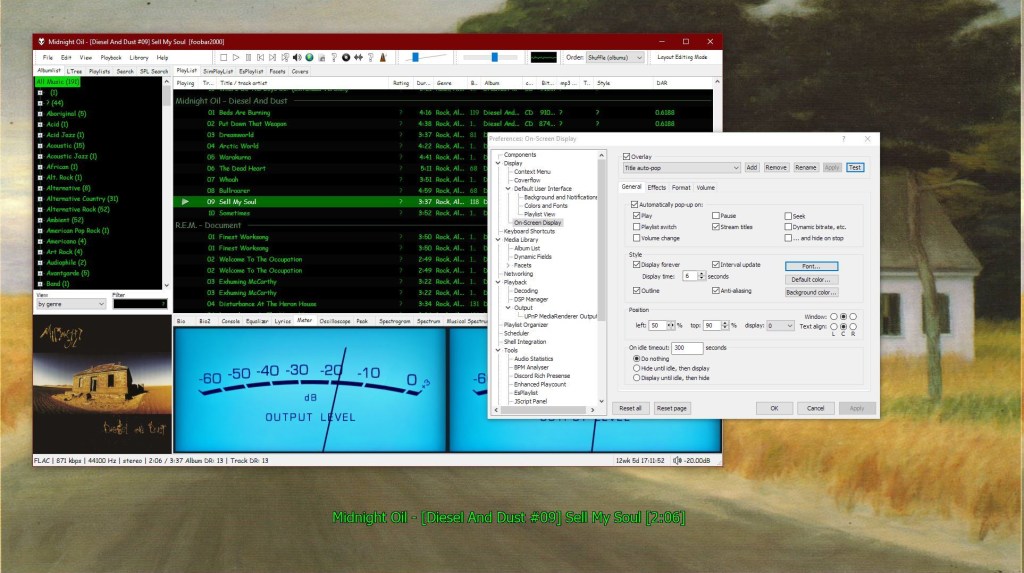
This component provides configurable screen overlays which may be opened with hotkeys, or appear on specific events. Each overlay is configured separately, and has its own set of events.
www.foobar2000.org/components/view/foo_osd
hydrogenaud.io/index.php/topic,43044.0
foobar_osd (On-Screen Display) is a foobar2000 component that shows track information as a floating overlay on your desktop during playback events.
Instead of opening the player window to see what’s playing, foobar_osd displays relevant information directly on your screen.
Typical uses include:
- Seeing track information when the player is minimized
- Monitoring playback on multi-monitor setups
- Getting quick visual feedback without interrupting workflow
- Displaying detailed metadata beyond basic notifications
Unlike standard operating system notifications, foobar_osd is fully customizable using foobar2000’s powerful title formatting system.
Core Features
When triggered, foobar_osd can display:
- Artist and title
- Album name
- Track position and duration
- Album artwork
- Custom metadata fields
- Technical playback information
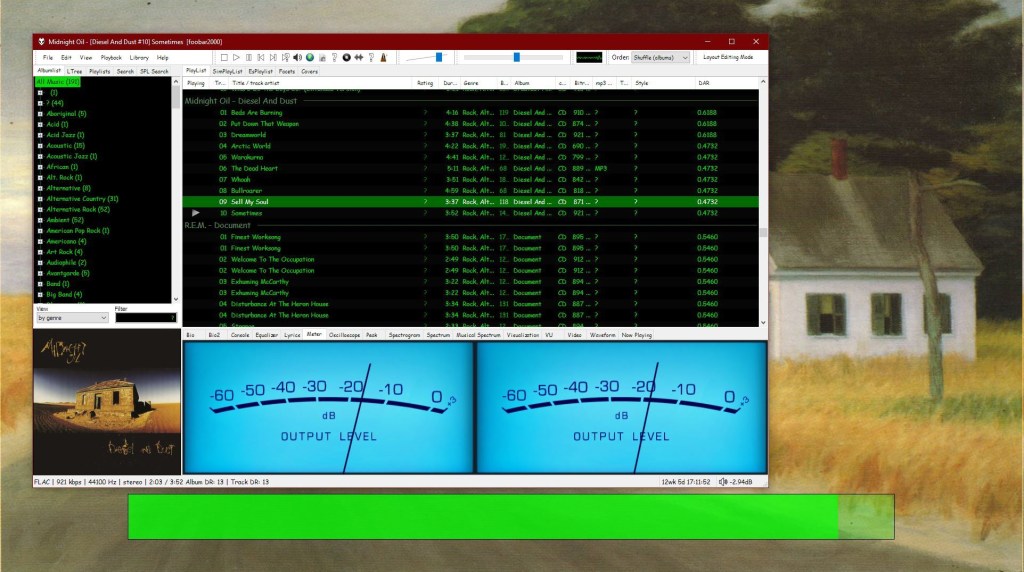
The display appears briefly and then fades away automatically.
Event-Based Display
You control when the OSD appears. Common trigger events include:
- Track change
- Play or pause
- Stop playback
- Manual trigger via hotkey
Careful selection of events is important to avoid excessive on-screen interruptions.
Fully Customizable Text Formatting
One of the strongest features of foobar_osd is that it supports full foobar2000 title formatting.
This means you can display virtually any tag or metadata field stored in your files.
Example format:
[%artist% - ]%title%%album%$if(%album_avg_bpm%,Album BPM: %album_avg_bpm%)
Conditional formatting allows the display to remain clean by only showing information when available.
Installation and Access
After installing the component:
- Restart foobar2000.
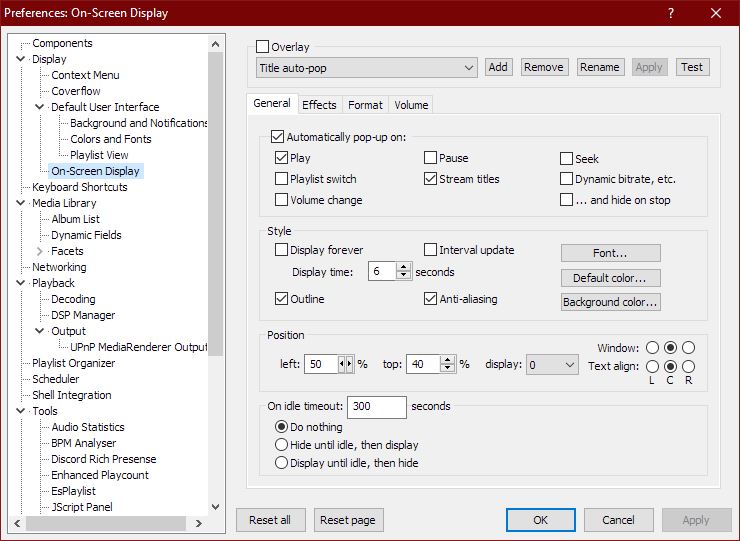
- Open:
Preferences → Tools → On-Screen Display
All configuration options are available in this section.
Appearance and Layout Options
foobar_osd allows extensive visual customization:
- Background transparency
- Font selection
- Fade animations and display duration
- Monitor Selection
- Shadow effects
- Screen position
- Text size and color
Using foobar_osd Effectively
Many users install foobar_osd but never use its full potential. The following strategies significantly improve usability.
Display Meaningful Metadata
If your library uses structured tagging, include useful fields.
Example:
[%artist% - ]%title%%album%$if(%album_avg_bpm%,Album Tempo: %album_avg_bpm% BPM)$if(%genre%,Genre: %genre%)
This transforms the overlay into a quick contextual information panel.
Create Minimal or Informational Layouts
Depending on your workflow, consider:
- Minimal layout — artist and title only
- Informational layout — album, metadata, technical details
- Radio/stream layout — include station information or bitrate
Use a Manual Hotkey
Setting a hotkey to manually trigger the OSD is extremely useful.
Advantages include:
- Quick track info lookup without switching windows
- Clean desktop experience without persistent UI elements
Use Conditional Formatting
Conditional statements prevent empty lines or clutter:
$if(%album_avg_bpm%,Album BPM: %album_avg_bpm%)
Only displays when the tag exists.
Time Functions:
Elapsed / Percent / Duration / Remaining
$puts(Elapsed,$if(%isplaying%,$pad_right(%_time_elapsed%,5,0),00:00))
$puts(Duration,$pad_right(%length%,5,0))
$puts(P,$muldiv(%_time_elapsed_seconds%,100,%_time_total_seconds%))
$puts(Percent,$if(%isplaying%,$if($greater($get(P),99),99,$pad_right($get(P),2,0)),00)'%')
$puts(Remaining,$if(%isplaying%,$pad_right(%playback_time_remaining%,5,0),$get(Duration)))
$get(Elapsed)  |  $get(Percent)  |  $get(Duration)  |  $get(Remaining)

 The Audio File