foo_plorg ~ Playlist Organizer With Folders


The Foobar2000 Playlist Organizer component allows playlists to be organized into folders.

  1. Install the foo_plorg component
  2. Add a new panel or tab, then add Playlist Organizer
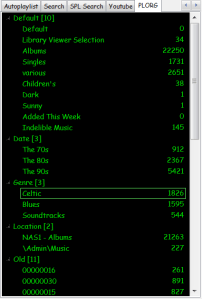
capture-foobar2000-dui-foo_plorg

Importing playlists using foo_plorg and foo_playlist_revive

  1. Install foo_playlist_revive
  2. Drag playlist files and drop on the Playlist Organizer panel
  3. Select Edit > Revive Dead Items

Note: The imported playlist will have the same name as the original playlist filename.

Resources:

Website
Documentation – Hydrogenaudio
foo_playlist_revive – Hydrogenaudio
Foobar2000 – How to install a component

Foobar2000 ~ Playlist Viewers


Foobar2000 Playlist Viewers display the current playlist of songs. Different playlist viewers offer various capabilities such as formatting, grouping and visual options. A playlist viewer is usually the central panel and main focus of a Foobar2000 interface. Foobar2000 plays the next song of the current playlist unless the play order has been changed from default, to repeat, random or shuffle. There is a playback queue but it is not visible or used in normal operation.

foobar2000-simplaylist-groups-v1
SimPlaylist

Adding a custom column to a playlist view: (using play count as an example)

  • When adding a column view in a playlist, you’ll need to define the column first.
  • Navigate to Preferences > Display > Default User Interface > Playlist View > Custom Columns
  • at the bottom of the custom columns windows, click “Add new
  • Name the Column “Played‘ and %play_count% as the ‘pattern’
  • click apply, ok
  • Now right click the title bar of the playlist and select “Columns” and make sure ‘Played‘ is selected (checkmarked) and that you can see the column in the playlist, it will be last but you can rearrange it.

Resources:

Configuring the default playlist viewer