
foo_truepeak is a ITU-R BS.1770-5 compliant True Peak scanner. It can also scan ReplayGain, Loudness Range (LRA), Dynamic Range (DR), show the amount of clipping samples and report the position of highest peak.
www.foobar2000.org/components/view/foo_truepeak
For users primarily concerned with playback quality and simplicity, foo_truepeak can replace foobar2000’s ReplayGain and DR scanners. It uses modern loudness standards, detects true peaks and can write all relevant tags in a single pass. While its ReplayGain and DR values may not exactly match legacy scanners, they are more appropriate for real-world playback on modern systems.
1. Download and install foo_truepeak
- Download foo_truepeak.fb2k-component from the official component page.
- In foobar2000, open File → Preferences → Components.
- Click Install…, select the
foo_truepeak.fb2k-componentfile. - Restart foobar2000 when prompted.
2. Disabling legacy scanners (optional but recommended)
To avoid confusion or duplicate workflows:
- Don’t try removing the ReplayGain scanner as it’s built in.
- You can uninstall foo_dr_meter and or foo_dynamic_meter.
This keeps foo_truepeak as your single analysis tool.
3. Open foo_truepeak preferences
Go to File → Preferences → Advanced → Tools → True Peak Scanner
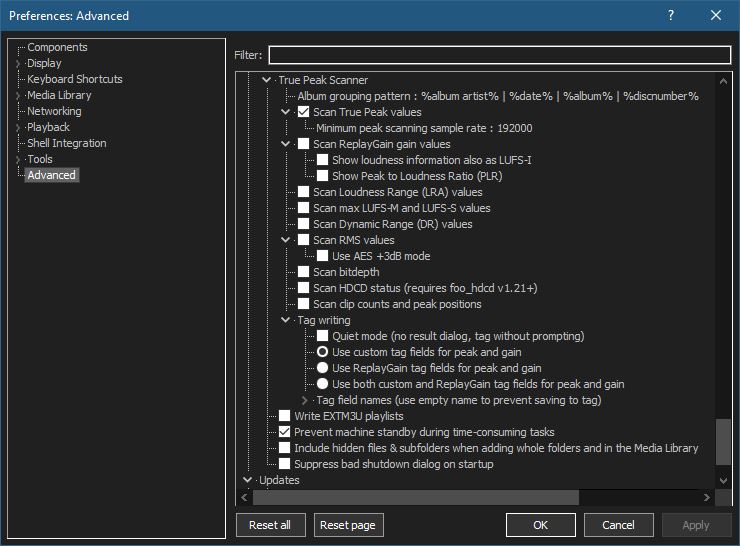
4. Ensure the following is enabled
✔ Scan True Peak Values
True peak scanning accounts for inter-sample peaks created during digital-to-analog conversion, ensuring that peak levels reflect what a real DAC actually outputs, not just what is stored in the file.
5. Enable ReplayGain scanning
✔ Scan ReplayGain values
Notes:
- Gains are derived from EBU R128 loudness, but written as ReplayGain tags.
- Peaks are true peaks, not simple sample peaks.
- Playback normalization works normally in foobar2000.
6. Enable Dynamic Range scanning
✔ Scan Dynamic Range (DR) values
Notes:
- These values are analytical, not official TT DR Meter values.
- They are suitable for comparison within your library, not for DR Database submissions.
7. Choose tag writing behavior
✔ Use ReplayGain tag fields for peak and gain
8. Run a True Peak scan
- Select a track, tracks or albums in a playlist.
- Right-click → True Peak Scan.
You can also create custom buttons on the toolbar for Album or Track scans.
Download True Peak Toolbar Button Icons
9. Verify tags at first
After scanning, check the file(s) to ensure tagging happened correctly:
- Open Properties > ReplayGain
- Confirm presence of values for:
- Track Gain
- Album Gain
- Total Peak
- Lowest gain (loudest track)
- Highest gain (quietist track)
10. Use ReplayGain during playback
- Enable ReplayGain in Preferences → Playback → ReplayGain.
- Choose your preferred mode, Track or Album.
foobar2000 will now use modern loudness analysis and playback without intersample clipping.
Summary:
- One scan
- One pass
- Peak safe playback
- Modern loudness normalization
This setup is ideal for users who prioritize listening quality and ease of use over legacy metric compatibility.
References:
www.foobar2000.org/components/view/foo_truepeak
foobar.hyv.fi/?view=foo_truepeak
wiki.hydrogenaudio.org/Foobar2000:Components/True_Peak_Scanner
hydrogenaudio.org/index.php/topic,125719.0
en.wikipedia.org/wiki/Amplitude
en.wikipedia.org/wiki/Audio_normalization
en.wikipedia.org/wiki/Dynamic_range
en.wikipedia.org/wiki/ReplayGain
Alternative DSP
www.foobar2000.org/components/view/foo_dsp_replaygain

 The Audio File