It takes an HTML file that receives playback notifications from foobar2000. The panel can react to those notifications and adjust its output using JavaScript code.
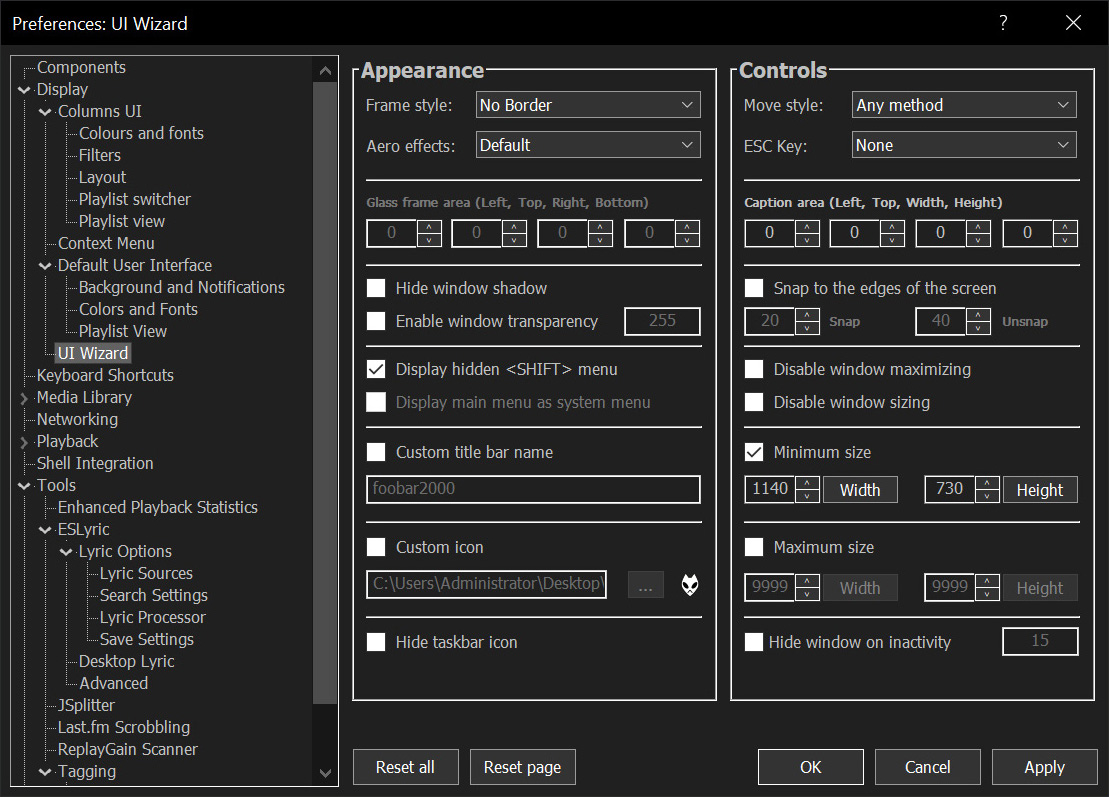
Sealed within the luminous Sapphiraz Sanctum, where ethereal interfaces shimmer in eternal twilight, the UI Wizard is a spellbinding chapter of The Wizardium’s grimoire. Its runic seal, the radiant ᛋ Sowilo, yields only to masters of window enchantment, reshaping foobar2000’s form with mischievous elegance — from glass-like Aero effects to borderless designs that defy mortal UI constraints.
Window Appearance Customization:
Supports multiple frame styles: Default, Small Caption, No Caption, No Border.
Configurable Aero effects: Default, Disabled, Glass Frame, Sheet of Glass.
Customizable window background color and transparency.
Optional custom window title and icon.
Configurable window shadow for borderless styles.
Window Behavior Control:
Adjustable window positioning and sizing with constraints (min/max width and height).
Customizable caption area for dragging with various move styles (e.g., mouse buttons, key combinations).
Snap-to-edge functionality with configurable snap and unsnap distances.
ESC key actions: None, Hide, or Exit.
Inactivity-based window hiding with customizable timeout.
Window State Management:
Toggle between Normal, Maximized, and Fullscreen states.
Option to disable window maximizing or resizing.
Automatic saving and loading of window position and size.
API: COM/ActiveX interface for scripting in foobar2000 via Spider Monkey Panel or JSplitter.
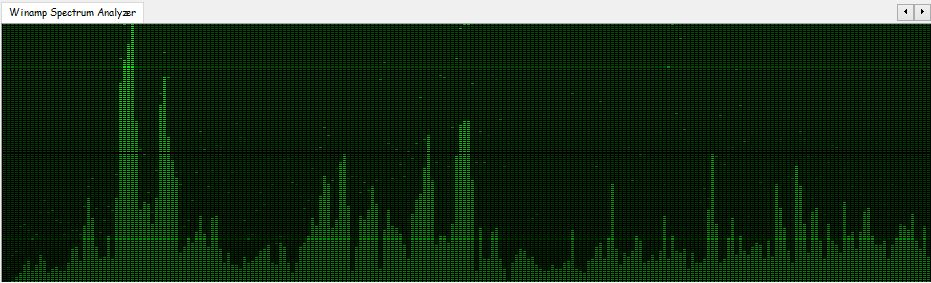
foo_vis_wispan is a Foobar2000 spectrum analyzer visualization implemented with GDI. It is a port of the Classic Spectrum Analyzer (vis_classic) Winamp visualization plug-in by Mike Lynch.
Installing and Configuring OpenLyrics (foo_openlyrics) in foobar2000
OpenLyrics (foo_openlyrics) is the most actively maintained lyrics display component for foobar2000. It provides an integrated lyrics panel, automatic lyrics downloading, local storage, and optional editing support. This guide walks through installation, panel setup, and recommended configuration options.
Verify OpenLyrics is enabled under Preferences → Components.
Confirm the panel is visible and active.
Check that playback is active (lyrics are not fetched for stopped tracks).
Try manual search from the panel context menu.
Review source availability in the OpenLyrics preferences.
Summary
OpenLyrics is currently the most complete and actively maintained lyrics solution for foobar2000. Once installed and configured, it provides automatic lyrics retrieval, reliable local storage, and flexible display options suitable for both minimal and advanced layouts.
For new foobar2000 installations or users modernizing older setups, OpenLyrics is the recommended lyrics display component.
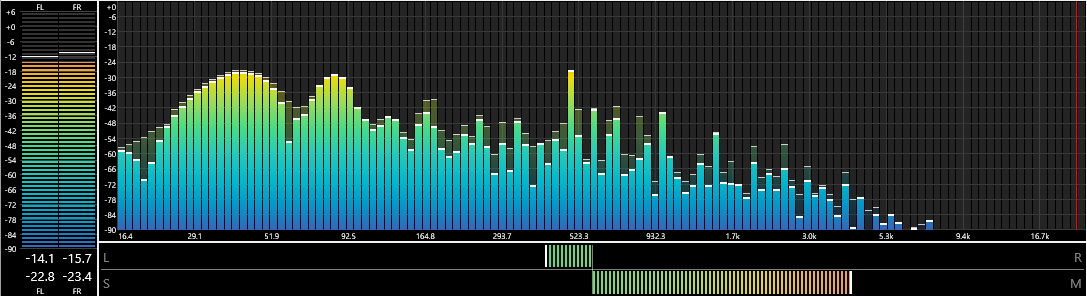
foo_vis_spectrum_analyzer is a foobar2000 component that implements a spectrum analyzer panel. It is an attempt to recreate the foo_musical_spectrum component by fismineur for foobar2000 64-bit.
Before some foobar2000 components can be utilized, the component’s visual interface must also be added to the Default User Interface in order to be seen or interacted with. It just takes a few steps to add new panels and interfaces to foobar2000.
Step 1: Open the Layout Editor
Click on View in the foobar2000 menu bar
Select Layout → Enable Layout Editing Mode
A checkmark indicates that layout editing mode is enabled.
Step 2: Choose the location for the new panel
First Right-click on the area where you want to add a new panel.
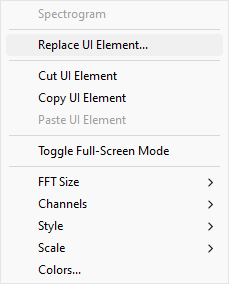
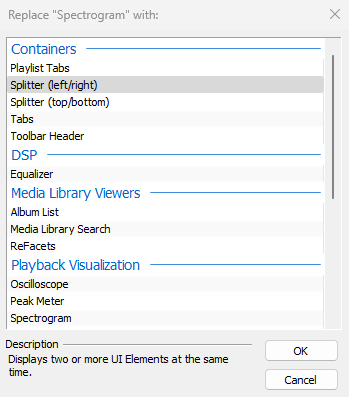
Then select Replace UI Element from the context menu.
A submenu will allow you to choose the splitter orientation:
Splitter (left/right): Divides the area into two vertical sections, side by side.
Splitter (top/bottom): Divides the area into two horizontal sections, stacked one above the other.
Select the desired orientation and click OK.
The new splitter will now divide the selected area into two sections. Splitters can be moved by by dragging.
Step 3: Add a new panel
After adding the splitter, right-click on the new empty white section.
The selected panel will now appear in the designated section.
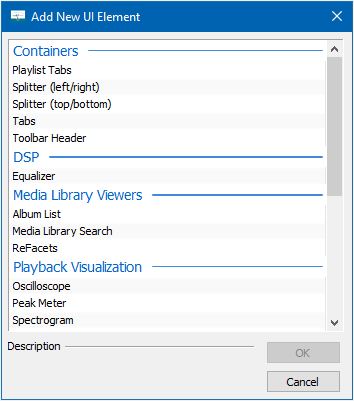
Select Add New UI Element from the context menu.
A dialog will appear with a list of available UI elements. Examples include:
Playlist View: Displays your playlists.
Album List: Provides a tree view of your library.
Vu Meter: Adds a VU meter.
Choose the panel you want to add and click OK.
Step 4: Customize the new panel
Right-click on the newly added panel to access its specific settings (e.g., appearance, behavior).
If additional configuration is required, check the panel’s settings in the Preferences menu:
Go to File → Preferences.
Navigate to the corresponding section under Display or Components.
Step 5: Save the layout
When you’re satisfied with the changes, click on the yellow bar at the top and choose Apply Layout.
To save the layout permanently:
Go to View → Layout → Save Layout.
Provide a name for the layout for easy restoration later.
Step 6: Install additional panels (Optional)
If the desired panel isn’t available, you may need to install third-party components:
Download components from the official foobar2000 components repository: foobar2000 Components.
Install the component:
Go to File → Preferences → Components.
Click Install and select the downloaded .fb2k-component file.
Restart foobar2000.
After installation, repeat Step 3 to add the new panel.
Working with panels or splitters:
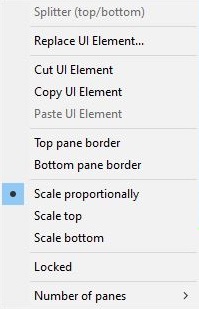
Right mouse clicking on any UI Element brings up the context submenu.
Scatchbox Mode:
View > Layout > Create Scratchbox
Opens a window which acts like the user interface allowing for splitter, tabs and UI elements to be prearranged. Themes can also be loaded, edited and saved.
Key Concepts: Splitters divide areas to create new spaces called containers Containers are then populate by either a tabbed container or with UI Elements Tabbed containers are also then populated by UI Elements
foo_vis_milk2 is a port for foobar2000 of Winamp’s MilkDrop 2 music visualizer. It additionally migrates rendering from its original DirectX 9 to DirectX 11.
MilkDrop 2 takes you flying through visualizations of the soundwaves you’re hearing. It uses beat detection to trigger myriad psychedelic effects, creating a rich visual journey through sound.
Features:
Uses DirectX 11 for rendering.
Uses updated libraries.
vis_milk2 has been upgraded to use more modern C++ alongside DirectX 11. Deprecated or insecure functions have been rewritten and most unused functionality removed.
Configurable through foobar2000 preferences instead of INI files.
Supports the Default User Interface (Default UI) only.
Tested on foobar2000 v2.1.2 (x86 32-bit and x86 64-bit) and Microsoft Windows 11 (Build 22621).
A foobar user interface element providing a seekbar that displays the waveform of the playing song, compatible with both the Default and the Columns interface components.
Play a track and allow the waveform to generate; it may take a few seconds on first playback
Options:
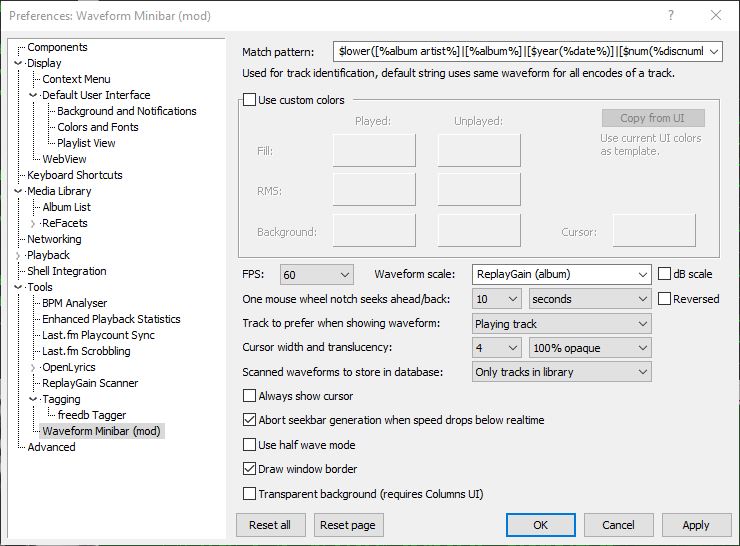
Match pattern Title-formatting pattern used to identify tracks when storing and reusing generated waveforms.
Use custom colors Enables manual color selection for the waveform instead of using the active UI theme colors.
FPS Sets the frame rate for waveform rendering. Higher values produce smoother movement but increase CPU usage.
Waveform scale Controls vertical scaling of the waveform. Original preserves natural peak levels, while Normalize scales all tracks to fill the available height.
dB scale Switches between linear amplitude scaling and logarithmic decibel scaling.
One mouse wheel notch seeks ahead/back Defines how far playback jumps when using the mouse wheel over the waveform. A value of 0 disables wheel seeking.
Reversed Reverses the mouse wheel seek direction.
Track to prefer when showing waveform Determines which track’s waveform is displayed: the playing track, the selected track, or the playing track with fallback to selected when stopped.
Cursor width Adjusts the thickness of the playback position indicator.
Do not revert to rendering the active track on player start Prevents the waveform from automatically rendering on startup until playback begins.
Always show cursor Keeps the playback position marker visible even when playback is stopped.
Abort seekbar generation when speed drops below real time Stops waveform generation if decoding becomes too slow, preventing playback or UI performance issues.
Half wave mode Displays only one polarity of the waveform (typically the positive half) instead of mirroring the signal above and below the center line. This creates a flatter, denser display that works well in very short or narrow panels and improves readability when vertical space is limited.
Draw window border Enables or disables a border around the waveform panel.
Transparent background Removes the panel’s background fill so the waveform blends with the surrounding UI or theme. This is useful when embedding the minibar into tab stacks, splitters, or custom layouts where a solid background would look out of place.
This component is highly configurable, making it suitable both as a simple compact seekbar replacement and as a detailed visual waveform display in more complex foobar2000 layouts.
Title formatting in foobar2000 is a system that allows you to control how information about your music is displayed in the interface. It doesn’t modify the audio files themselves or change tags — it only affects how metadata and other information is shown in playlists, status bar, or window title.
Think of it like a template language: you define a pattern for text, and foobar2000 fills in the fields with actual track information. For example, you can make the playlist display tracks as:
Artist - Track Title (Album)
Why Title Formatting Exists
Music files contain metadata such as:
Artist
Album
Track title
Track number
Year
Duration
Different users want to display this information differently. Title formatting lets you:
Decide which information to display
Choose the order of information
Add separators, labels, or punctuation
Optionally display certain information only when it exists
For example, you might want to show the album only if it exists. Title formatting makes that possible.
Where To Use Title Formatting
You typically use title formatting in three main places:
Playlist columns — to customize how each column displays track info.
Status bar — to show the “Now Playing” track in a readable format.
Window title — to display the currently playing track in the foobar2000 window or taskbar.
Core Concepts You Need to Know
There are three core concepts that beginners must understand:
Plain Text: Text you type exactly as it should appear.
Fields: Metadata values from the audio files (e.g., %artist%, %title%).
Conditional Logic: Optional logic to handle missing fields or customize output dynamically.
Plain Text in Title Formatting
Any normal text you type is displayed exactly as written. This is useful for labels, punctuation, or separators:
Now Playing:
You can combine plain text with fields to make output more readable:
Now Playing: %artist% - %title%
This will display something like:
Now Playing: Radiohead - Paranoid Android
Fields (Metadata Tags)
Fields are placeholders that pull metadata from your music files. They are written inside percent signs:
%artist%
Some common fields include:
Field
Meaning
%artist%
Track artist
%album%
Album name
%title%
Track title
%tracknumber%
Track number
%date%
Year or release date
%length%
Track duration
Example combining fields:
%artist% - %title%
Output:
Radiohead - Paranoid Android
Combining Plain Text and Fields
You can mix plain text with fields to create more structured output. For example:
%artist% – %title% (%album%)
Output:
Radiohead – Paranoid Android (OK Computer)
Handling Missing Information
If a field does not exist in the file, foobar2000 simply displays nothing. For example, if %composer% is missing:
%composer%
The output will be blank. To prevent blank parentheses or awkward spacing, you can use conditional logic.
Using Conditional Logic with $if()
The $if() function allows you to display text only when a field has a value:
$if(condition,then,else)
Example:
%artist% - %title%$if(%album%, (%album%),)
This will display the album in parentheses only if %album% exists. Otherwise, it leaves that part empty.
Practical Examples
Playlist Column
%artist% - %title%
Status Bar
Now Playing: %artist% – %title%
Window Title
%artist% – %title% | foobar2000
Useful Built-In Fields
These fields are always available and do not require files to be tagged:
Field
Meaning
%filename%
File name
%path%
Full file path
%codec%
Audio codec
%bitrate%
Bitrate
%samplerate%
Sample rate
Things Beginners Can Ignore
Nested functions
Math expressions
String replacement logic
Legacy syntax
Advanced grouping
Starter Setup for New Users
For someone just installing foobar2000, start with these basic formats:
%artist% - %title%
Now Playing: %artist% – %title%$if(%album%, (%album%),)
%artist% – %title%
Final Notes
%field% is the most important concept
$if() handles missing or optional data elegantly
Some data and fields depend upon components being installed
foo_tfsandbox
A good place to start is by installing foo_tfsandbox, this component allows you to experiment with title formatting expressions and fields before you implement them.
Title Formatting Fields:
$info(referenced_offset) ~ shows time in format mm:ss:ff where ff are CD frames. For the first track it will show nothing instead of 00:00:00 hydrogenaud.io/index.php?topic=118733.msg979344
Title Formatting Examples: Name | Pattern | Alignment
Display Dynamic Range: Album DR: $if2(%album dynamic range%,–) | Track DR: $if2(%dynamic range%,–) Bits (bit depth) | $ifequal([%__bitspersample%],0,16,%__bitspersample%) | Left
Watch music videos and video playlists using Foobar2000
This component adds the possibility of playing Youtube, Vimeo and Dailymotion clips directly via their URL.
In addition to single clip URLs it supports clip feeds (i.e. playlists, channels etc.) from Youtube and Dailymotion.
Single clips and feeds can be added using File menu commands Add location and Add multiple URL(s).
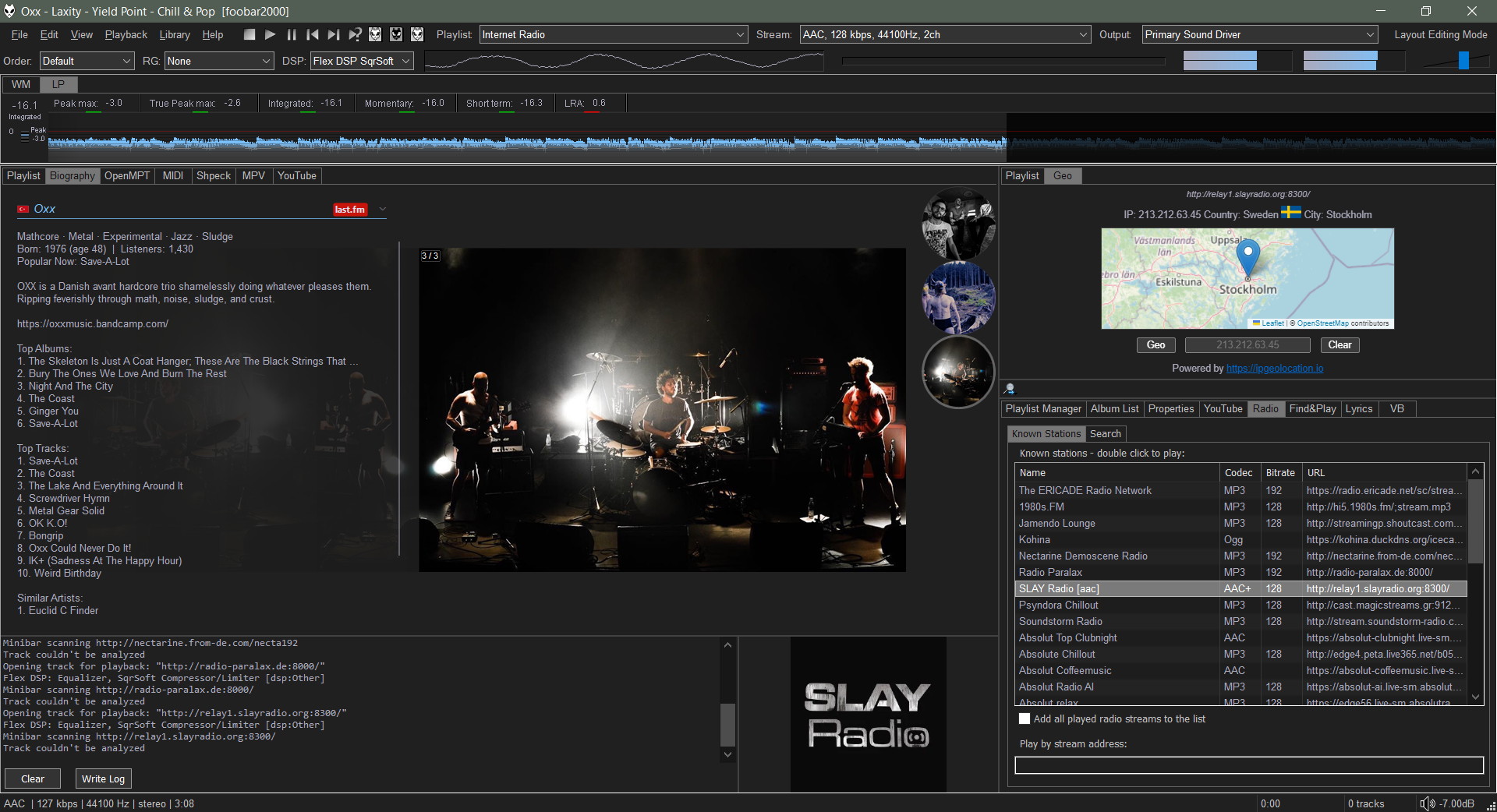
Component has several UI elements, both DUI and CUI are supported. There are element for searching on Youtube within the program, for video playback and elements for various technical info about clips and component workflow. All elements are listed under Youtube Source group in UI configuration windows.
In addition to UI elements it has several popup windows with similar functionality.
Enhance the appearance and functionality of Foobar2000 by adding a visual waveform representation of the currently playing audio track, which can be used to navigate to any point in the image of the track by clicking there.
Waveform Seekbar is a UI element for both the Default UI and Columns UI that provides seekbar functionality (seeking, position indicator) on top of a pretty image of the waveform of the currently playing song, drawn using either Direct3D 9.0c or Direct2D 1.0.














 The Audio File