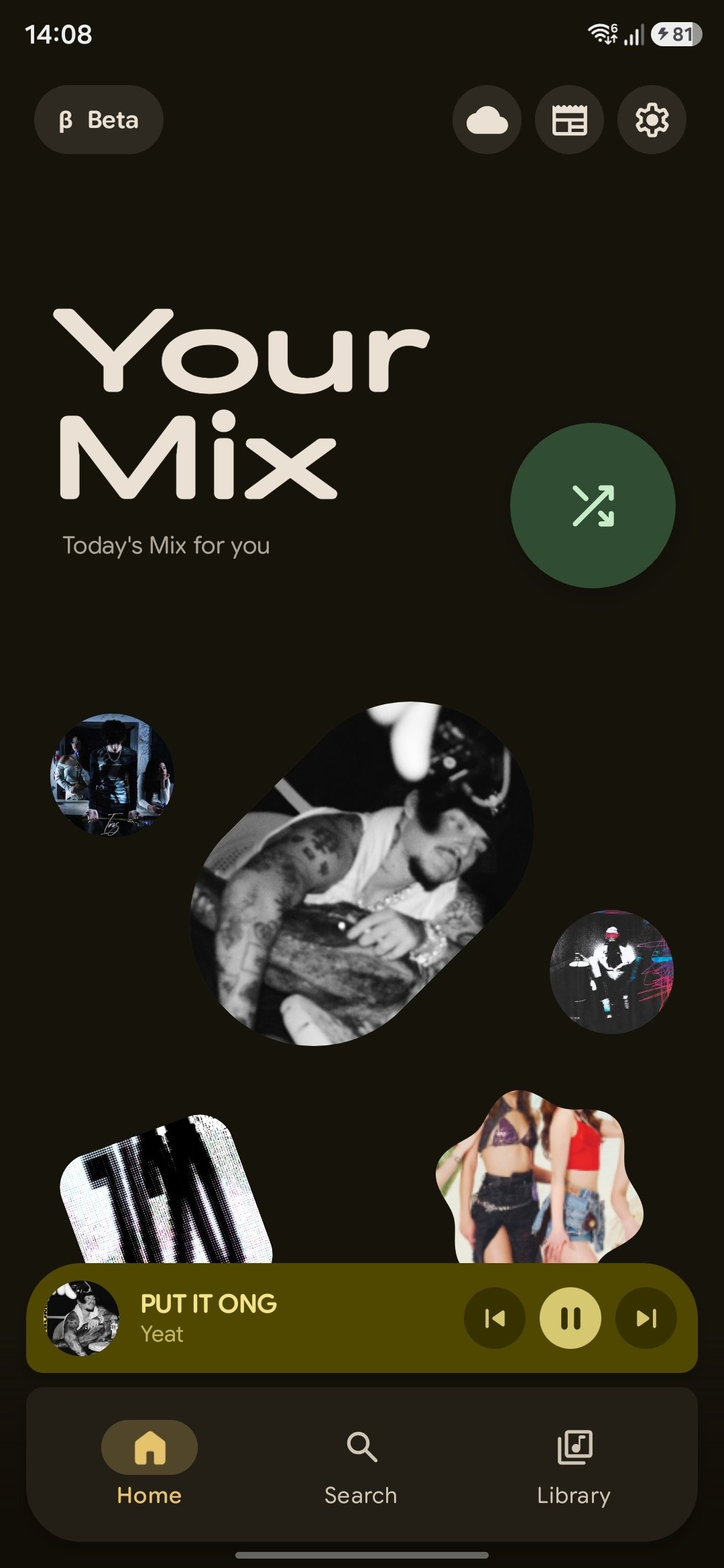
Free and open-source edition of PixelPlayer – a modern offline music player for Android built with Jetpack Compose, Media3 & Material 3. Available on F-Droid.
github.com/PixelPlayerHQ/PixelPlayerOSS

Free and open-source edition of PixelPlayer – a modern offline music player for Android built with Jetpack Compose, Media3 & Material 3. Available on F-Droid.
github.com/PixelPlayerHQ/PixelPlayerOSS

Helora is a fork of PixelPlayerOSS by @lostf1sh (a genuinely nice offline music player) with one big thing bolted on: YouTube Music.
So you get both halves. Your own MP3s and FLACs, scanned from the device like any local player. And a search box that reaches into YouTube Music, plays anything, builds radio stations, and saves tracks to your phone for offline listening.
No login. No API key. Nothing to sign up for.
Everything upstream does (Navidrome, Jellyfin, lyrics, tag editing, widgets, backup) still works exactly as before. This fork adds, it doesn’t remove.
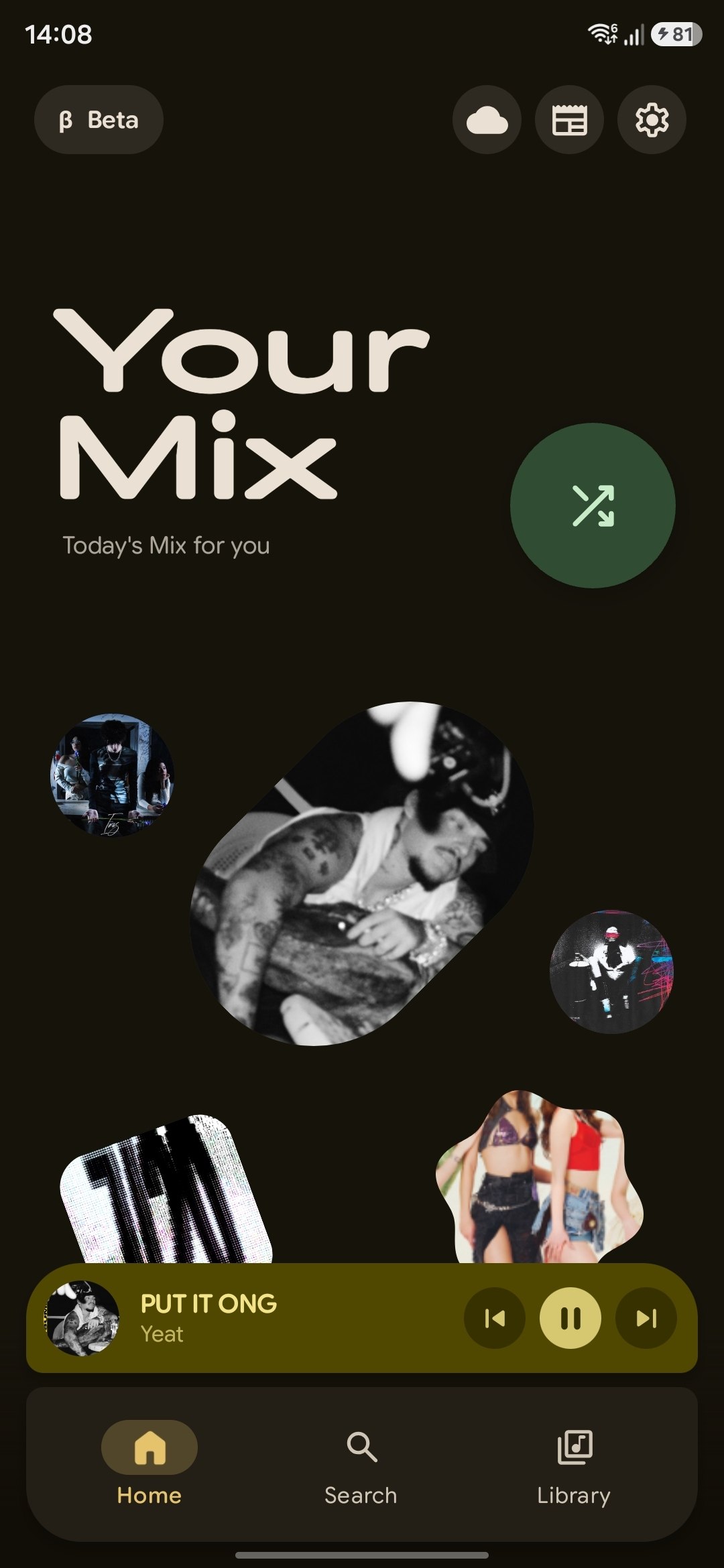

Subsonic player is a responsive, modern web-based client designed for Subsonic music servers.
Built with Nuxt 4, a modern Vue 3 framework, this open-source application provides a seamless and enjoyable music listening experience across all devices.
Compatible Servers:
- Gonic (This application is primarily optimized for use with Gonic).
- Airsonic Advanced.
- Navidrome.
- Subsonic servers.
Features:
- Fully Responsive UI (Further design improvements are ongoing.)
- Optimized for desktop and mobile devices.
- Adaptive design.
- Comprehensive Library Browsing
- Browse by album, artist, genre, and folder/files.
- Explore podcasts and favourites.
- Access internet radio stations.
- Advanced Functionality
- Bookmarking podcast episode to keep track of the listening position across multiple sessions.
- MediaSession Integration.
- Advanced Search capabilities.
- Dark/Light Mode support.
- Keyboard shortcut (Press
hto see menu).- Context menu access via right-click (desktop) or long press (mobile) for quick actions on tracks, albums, playlists, and more.
- Easily drag and drop your favorite tracks, albums, and podcast episodes right into the queue or your playlist in the sidebar (available only on desktop).
- Progressive Web App (PWA) Feature
- Seamlessly download the app icon to the home screen, providing the convenience of launching the app just like a traditional native application.
- Benefit from a web-based app that reduces storage space on devices compared to traditional downloadable applications, while still providing robust functionality.
- Settings
- The app includes settings for theme, layout, crossfade, replaygain, scrobbling, and more. See the environment variables section for which can be pre-configured across all devices.
github.com/VD39/subsonic-player

This is a community driven effort (like Wikipedia) with the aim of collecting as many Internet radio and TV stations as possible. Any help is appreciated!
- Free for ALL!
- Data license: public domain, software license: GPL, server software: open source
- Open API for usage in own apps
- Everyone is free to use the collected data (station names, tags, links to stream, links to homepages, language, country, state) in their works. I give all the rights I have at the accumulated data to the public domain.

getID3() is a PHP script that extracts useful information from MP3s & other multimedia file formats.
www.getid3.org
github.com/JamesHeinrich/getID3
sourceforge.net/projects/getid3
www.drupal.org/project/getid3
github.com/Owen-oj/laravel-getid3
github.com/plutuss/getid3
packages.debian.org/sid/php-getid3

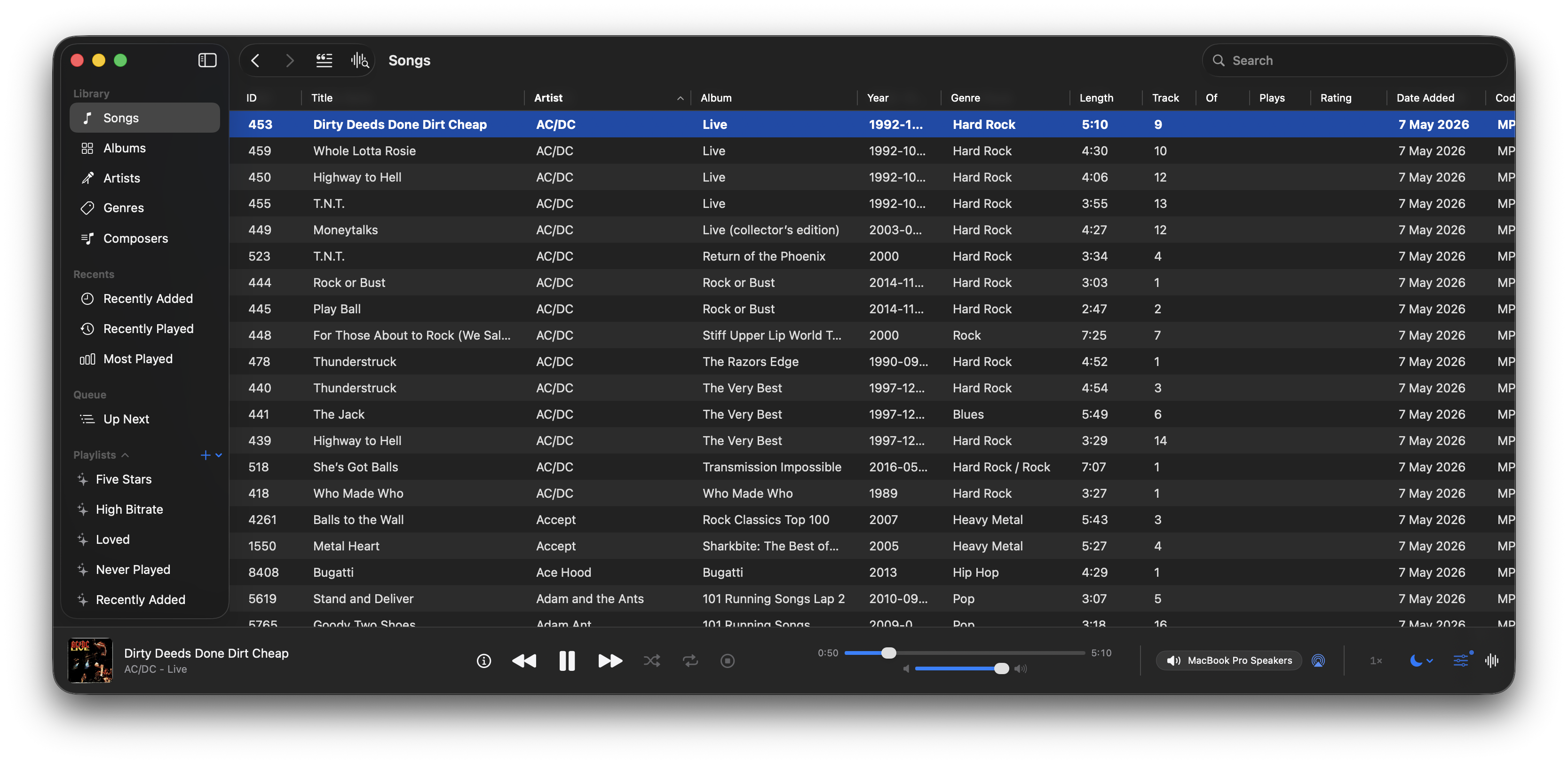
A native macOS music and podcast player and library built with Swift 6 and SwiftUI. Features gapless playback, AcoustID fingerprinting, smart playlists, lyrics, visualizers, scrobbling, and a DSP/EQ engine powered by FFmpeg.
github.com/bocan/bocan-music
bocan.app

foobar2000 visual lyrics components: inset panel, transparent desktop lyrics, Windows taskbar lyrics. The lyrics are sourced from local
.lrc/.ttmland the preference “in use”. The factory first uses the NetEase Cloud / Kugou/QQ verbatim community script, and then LRCLIB, Kugou, QQ, and NetEase Cloud verbatim sources; embedded lyrics, amlldb TTML, and YouTube subtitles are available sources by default. Sources that are not added will not be searched. Supports standard LRC, Enhanced LRC (word<>-for-line time), and Apple / AMLL lyrics TTML (right-click to select Zhuyin, translation, and romanization); karaoke with word stamps can be cut to the current word according to the character shape.
github.com/hehelp/klyrics
hydrogenaudio.org/index.php/topic,129863.0

A pure-Python inspector, editor, and forensic tool for audio files and synth/DAW presets: read the metadata, decode the format structure byte by byte, flag anomalies, repair broken containers, and identify how a file was made.
Reads BPM, key, duration, tags, and format info from WAV, AIFF, MP3, FLAC, OGG, Opus, M4A, MIDI, and Serum presets. Also structurally decodes Bitwig (.bwpreset/.bwclip), Native Instruments (Massive/Absynth/Kontakt/NKS/KORE), Vital, NCW, SoundFont (SF2/SF3), tracker modules (MOD/XM/IT), MP4, VST FXP, ReCycle RX2, and RMID containers via
inspect. Beyond reading:repairandvalidatefix and check container structure (stale sizes, offset tables, counts, pad bytes) without touching a byte of audio, andauditgives a forensic verdict (structure, integrity, hidden data, and the writing tool). One pure-Python dependency (mutagen); the nativeinspectwalkers need nothing. Optional librosa analysis for BPM/key detection and ML feature extraction.Also ships per-library SQLite indexes (
acidcat index) tracked in a small global registry, plus an MCP server (acidcat-mcp) so an LLM can query your whole collection across libraries by bpm, key, tags, or full-text.
github.com/hed0rah/acidcat
github.com/hed0rah/acidcat-playground
www.databurn.org

foo_localize adds multilingual support to foobar2000 using external JSON language packs. It allows the foobar2000 interface to be translated without modifying the player itself.
github.com/hehelp/foo_localize
foobar2000 has traditionally been an English-language application. foo_localize removes that limitation by translating much of the user interface, including:
It also provides support for JScript and Spider Monkey Panel scripts and an API for component developers. The component currently includes language packs for:
An English template is included for creating additional languages.
Download the appropriate version from the project’s Releases page and install it as a normal foobar2000 component.
Additional options are available under:
File → Preferences → Display → Dynamic Multilingual Engine
Menus, dialogs and playlist/library localization can be enabled separately. Windows users can also enable Static Resource Translation. Language changes take effect without restarting foobar2000.
foo_localize only translates the interface. Track titles, artist names, album names, filenames, paths and other user data are not changed.
Localization has been a long-standing gap in foobar2000. foo_localize provides a practical solution without requiring separate localized versions of the player.
For users who prefer to work in another language, it makes foobar2000 considerably more accessible, and for the foobar2000 ecosystem, it provides a common foundation for multilingual components and scripts.

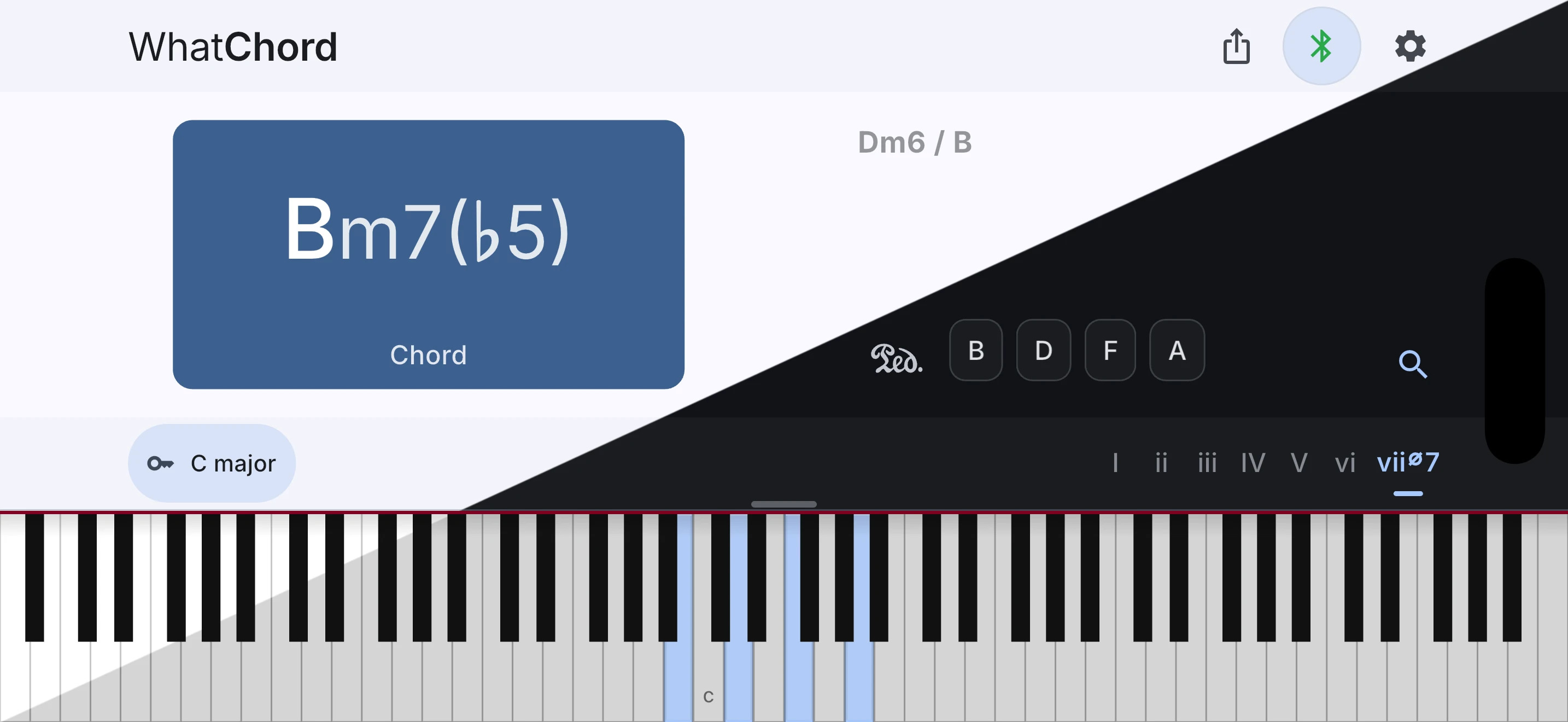
WhatChord is an interactive chord identification, key detection, and harmony exploration app. Identify voicings from live Bluetooth or USB MIDI input or manual note entry, follow the key as you play, then explore chords, scales, keyboard patterns, and harmonic context. It is optimized for speed, accuracy, and musician-expected naming, favoring stable, conventional interpretations over simple note-matching.
whatchord.earthmanmuons.com
github.com/EarthmanMuons/whatchord

A native foobar2000 input plugin providing a podcast subscription library.
Features:
- A dockable “Podcasts” panel (View > Podcasts) listing every subscribed channel as a tree, with episodes nested underneath each channel.
- Add a single podcast by its RSS/Atom feed URL.
- Import subscriptions from an OPML file, and export the current subscription list to OPML.
- Play any episode directly (double-click, or right-click > Play) — episodes stream straight from their original URL through foobar2000’s built-in HTTP input, no extra tools required.
- Mark episodes as listened / unlistened; unlistened counts show next to each channel.
- Sort episodes within each channel by newest first, oldest first, or by name.
- Refresh a single podcast or all subscriptions at once.
github.com/zetmar-collab/foo_podcast

A 32-step sequencer with dual synths, drums, sampler, and TTS voice synthesis powered by Web Audio + Pyodide.
Features:
- Dual synthesizers (Lead & Bass) with ADSR, filters, and waveform selection
- Drum machine (Kick, Snare, Hi-Hats)
- Sampler with Supertonic TTS integration – Generate speech from text
- Voice Designer – Real-time voice parameter editing with GPU-accelerated DSP
- 32-step pattern sequencer with 8 pattern slots per track
- Song mode for arranging patterns
- Hardware-style interface with knobs and LED feedback
- XM module export
go.1ink.us/hyphon
github.com/ford442/web_sequencer


