Playlists, or named lists of songs, are an essential aspect of Foobar2000. Whenever you add a song to Foobar, you are adding it to one of Foobar’s playlists. Foobar allows you to create and maintain different playlists, which are just entitled lists of your audio tracks (files). The playlists link to audio files in a ‘many to one’ relationship; that is, there can be many tracks on different playlists that reference the same audio track. Foobar can import and exports playlists in a variety of formats; and stores its own playlists as .fpl files. (This is different from adding a song to your Foobar2000 Library).
Playlists can be created manually by adding individual songs, or automatically by specifying a set of conditions in a query with the result displayed as an “Autoplaylist”. Manually created playlists are static, they don’t change unless you change them; Autoplaylists are dynamic, that is the results may change whenever the Autoplaylist is queried.
Playlists created manually can be edited directly, while Autoplaylists are edited by modifying the query. However, you can save the results of an Autoplaylist as a new static, and therefore editable, playlist.
Creating an Autoplaylist of an Albumlist item like genre:
- Select
by genre from the Albumlist view selector
- Select a genre from the list of genres
- Right click that selected genre and select
Create Autoplaylist
You will now have a new Autoplaylist listed on the playlist manager tab with the name of the genre you selected. Playlists created this way are called an Album List branch.
Creating an Autoplaylist of a folder’s contents:
- Select the
Search tab
- enter
%path% HAS replace this with the actual path in the search field
- Select
...
- Select
Create Autoplaylist
- Rename the new playlist (hint, with the path)
AutoPlaylist query examples:
- Lossless ~ “$info(encoding)” IS lossless
- Lossy ~ “$info(encoding)” IS lossy
- Missing title ~ title MISSING (no percent signs)
- Missing genre ~ genre MISSING
- Never played ~ %play_count% MISSING
- No Dynamic Range info ~ %dynamic_range_album% MISSING
- No ReplayGain info ~ %replaygain_track_gain% MISSING
- No Artist info ~ %path% HAS album AND album artist MISSING
- Played often ~ %play_count% GREATER 9
- Randomly sorted ~ ALL SORT BY “$rand()”
- Recently added ~ %added% DURING LAST 1 WEEKS
- Recently played ~ %last_played% DURING LAST 1 WEEK
- Recently modified ~ %last_modified% DURING LAST 2 WEEKS
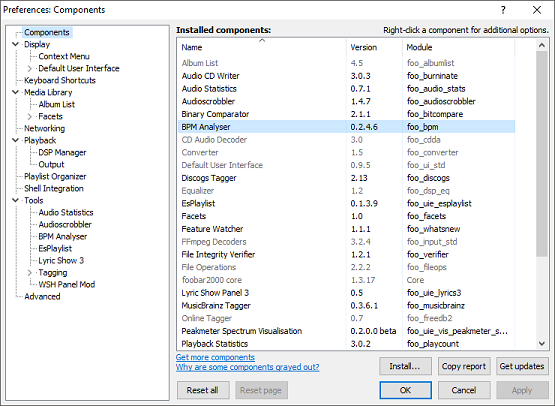
Foobar Playlist Management Components:
Additional resources:
Building Autoplaylist queries ~ Foobar2000: Query Syntax
Formatting playlist contents ~ Title Formatting Introduction
Adding Playlist Headers ~ Playlist Grouping Schemes



 Script Panel:




 The Audio File